
Windows says the app I'm installing isn't a Microsoft-verified app. What do I do?
Artikel ini belum tersedia dalam bahasa Melayu, jadi ia dipaparkan dalam bahasa Inggeris.
Why am I seeing this message?
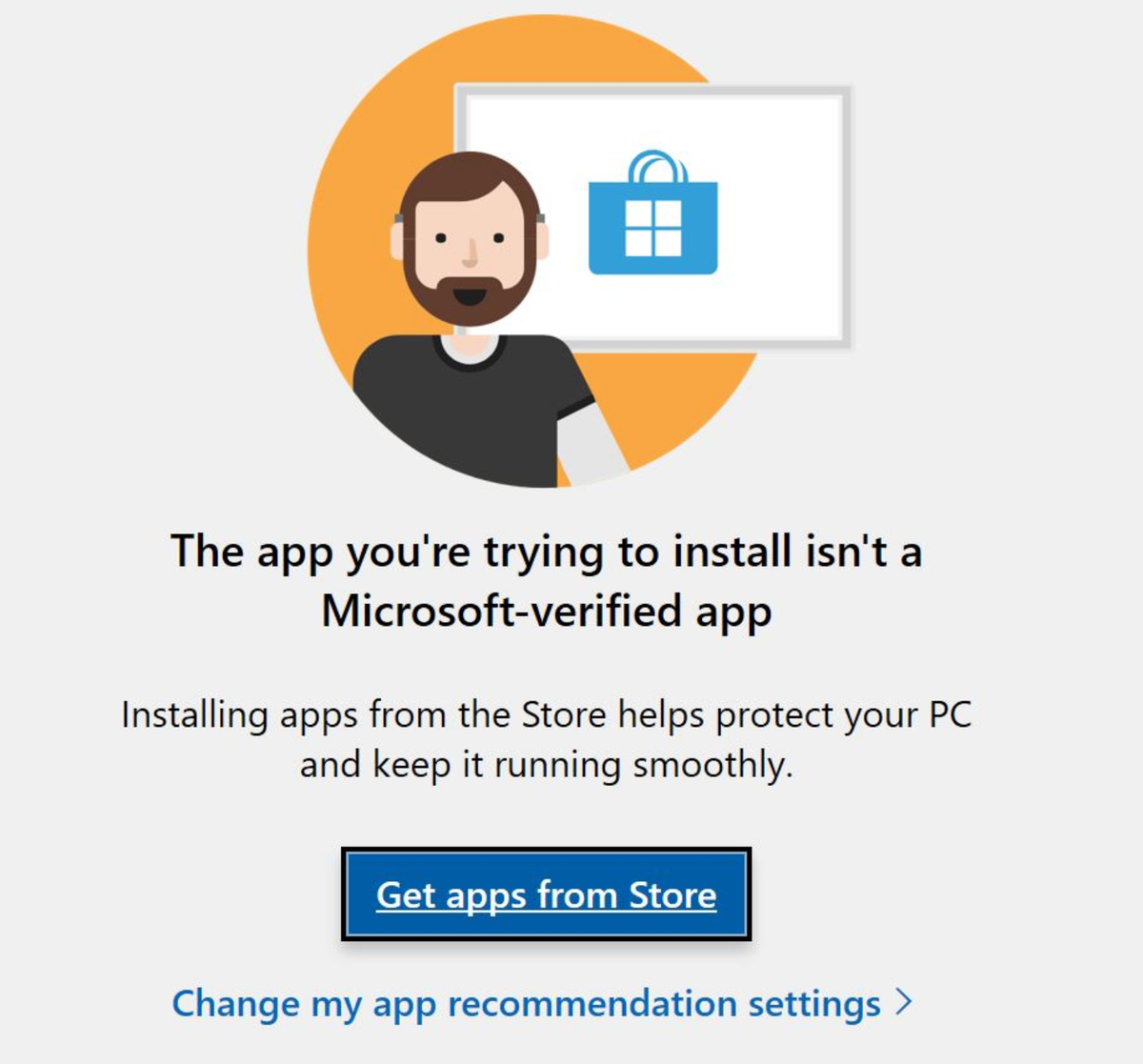
This message means your PC is set to install apps only from the Microsoft Store, or it's in S mode. Our apps install from our website, so you need to allow apps from other places first.
Before you start
- Check that your PC can run Radiant Photo: Windows 10 version 22H2 or Windows 11, on a 64-bit PC with an Intel or AMD processor. Windows on ARM isn't supported.
- You need an administrator account on the PC. On a work or school PC, ask your IT team: they may manage this setting.
Steps for Windows 11
- Open Start › Settings › Apps › Advanced app settings.
- Under Choose where to get apps, pick an option that starts with Anywhere.
- Open Radiant’s installer again and follow the its steps.
Steps for Windows 10
- Open Start › Settings › Apps › Apps & features.
- Under Choose where to get apps, pick Anywhere.
- Open Radiant’s installer again and follow its steps.
If that didn't work
- There's no "Choose where to get apps" setting, or it can't be changed.
Your PC may be in S mode, which allows only apps from the Microsoft Store.
To check, open Settings › System › About and look for "S mode" next to the Windows edition. Leaving S mode is free, but it can't be undone. Microsoft explains how in its S mode FAQ.
Still stuck? Contact us.
Adakah ini membantu?