
Opening Images and Videos for Editing in Radiant Photo mobile version
Ez a cikk még nem érhető el magyarul, ezért angolul jelenik meg.
There are several ways to open images in Radiant Photo mobile app. This article will address how to open a photo or video to enhance it.
We've built so many different workflows as we wanted you to have the flexibility to work from anywhere. While traveling with a computer gives you the most power, it's incredible what you can do with a camera or smartphone and Radiant Photo.
Contents:
- Send a File from Your Camera Roll
- For iOS and iPadOS
- For Android
- Opening a Single Image or Video in the App
- Opening Images from an Album
- Opening images from Cloud & Local Storage
- For iOS and iPadOS
- For Android
Send a File from Your Camera Roll
You can quickly send a file from your native camera roll to Radiant Photo.
For iOS and iPadOS
- To send a single photo or video: just open the photo or video.
To send multiple images, view a screen with multiple thumbnails, tap Select, then tap the thumbnail of the pictures and videos you want to send to Radiant: AI Photo & Video Editor. - Tap the Share button.
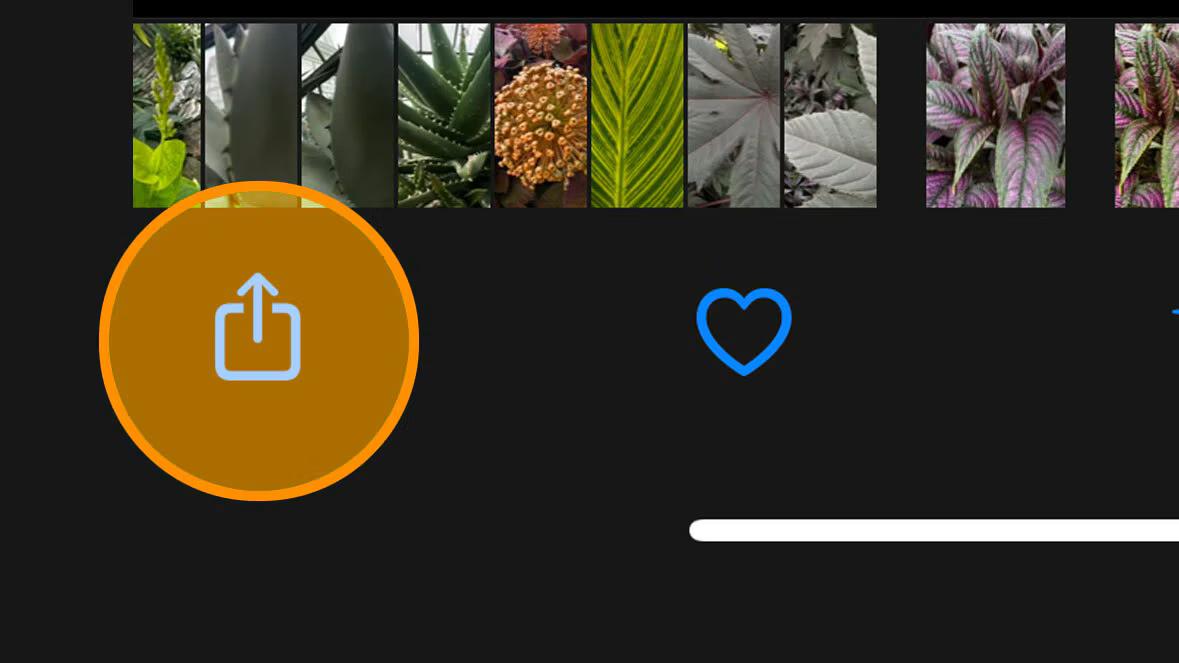
3. Choose Radiant Photo from the shortcut list. If you don’t see it, tap More.
4. The selected photo(s) are opened in the Radiant Photo editing interface.
5. When finished editing, click the Save or Share button.
- The Save button writes the file to your operating system's camera roll. The image is saved as a new file but retains the original timestamp and essential info. The name of the file is appended with _Radiant_Photo.
- Tapping the Share button lets you send the image to another app. You also target a storage location.
- Tap the X button in the upper-left corner to close the edit window.
For Android
- To send a single photo or video: just open the photo or video.
To send multiple images, view a screen with multiple thumbnails and press and hold to select one photo. Now tap to select the additional photos you want to send to Radiant Photo. - Select, then tap the thumbnail of the pictures and videos you want to share.
- Tap the Share button.
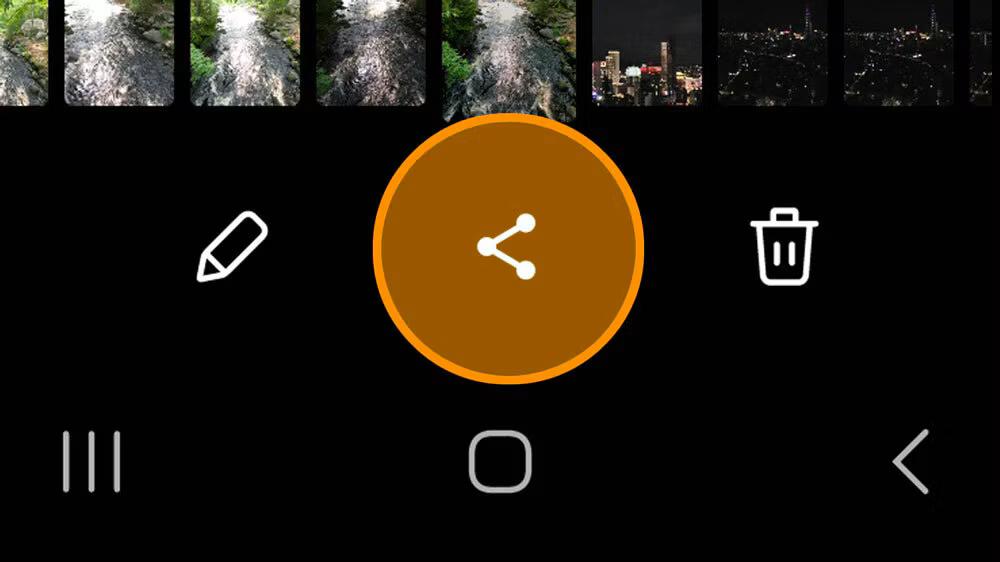
4. Choose Radiant Photo from the shortcut list. If you don’t see it, tap More.
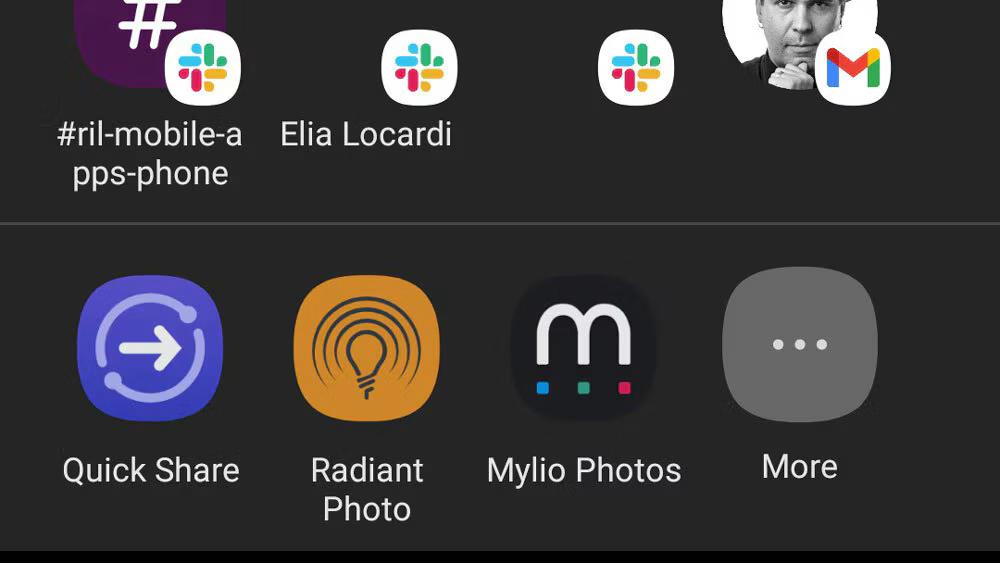
5. The selected photo(s) are opened in the Radiant Photo editing interface.
6. When finished editing, click the Save or Share button.
- The Save button writes the file to your operating system's camera roll. The image is saved as a new file but retains the original timestamp and essential info. The name of the file is appended with _Radiant_Photo.
- Tapping the Share button lets you send the image to another app. You also target a storage location.
- Tap the X button in the upper-left corner to close the edit window.
You can check a video tutorial in our Community.
Opening a Single Image or Video in the App
When you launch Radiant Photo mobile version you can easily browse photos.
- Launch the Radiant Photo mobile app.
Remember that you can use the app on phones or tablets. - Scroll through the grid of images.
- Using the view filters near the top, you can switch between different types of media.
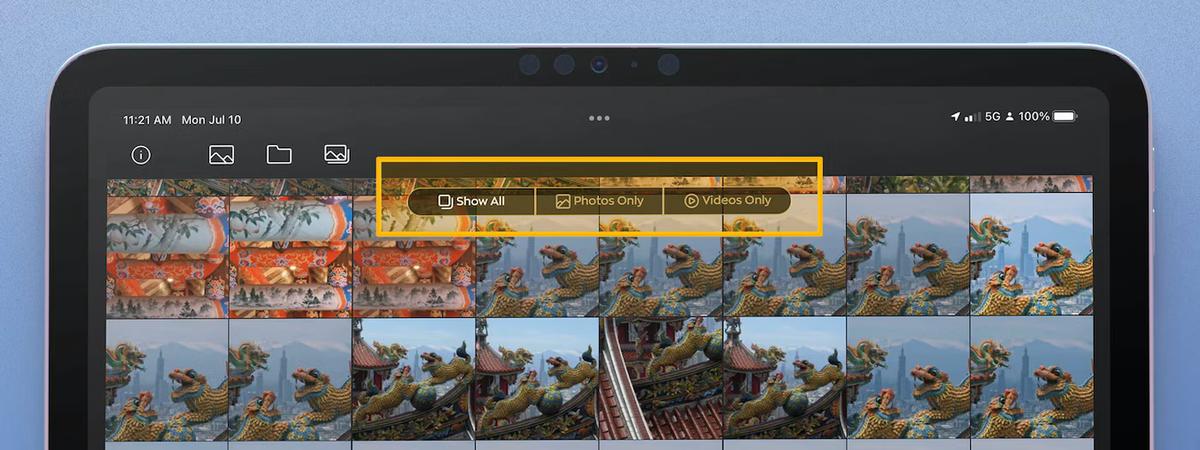
- Show All
- Photos Only
- Video Only
4. Tap on the image you want to edit.
5. Adjust the edit sliders to taste.
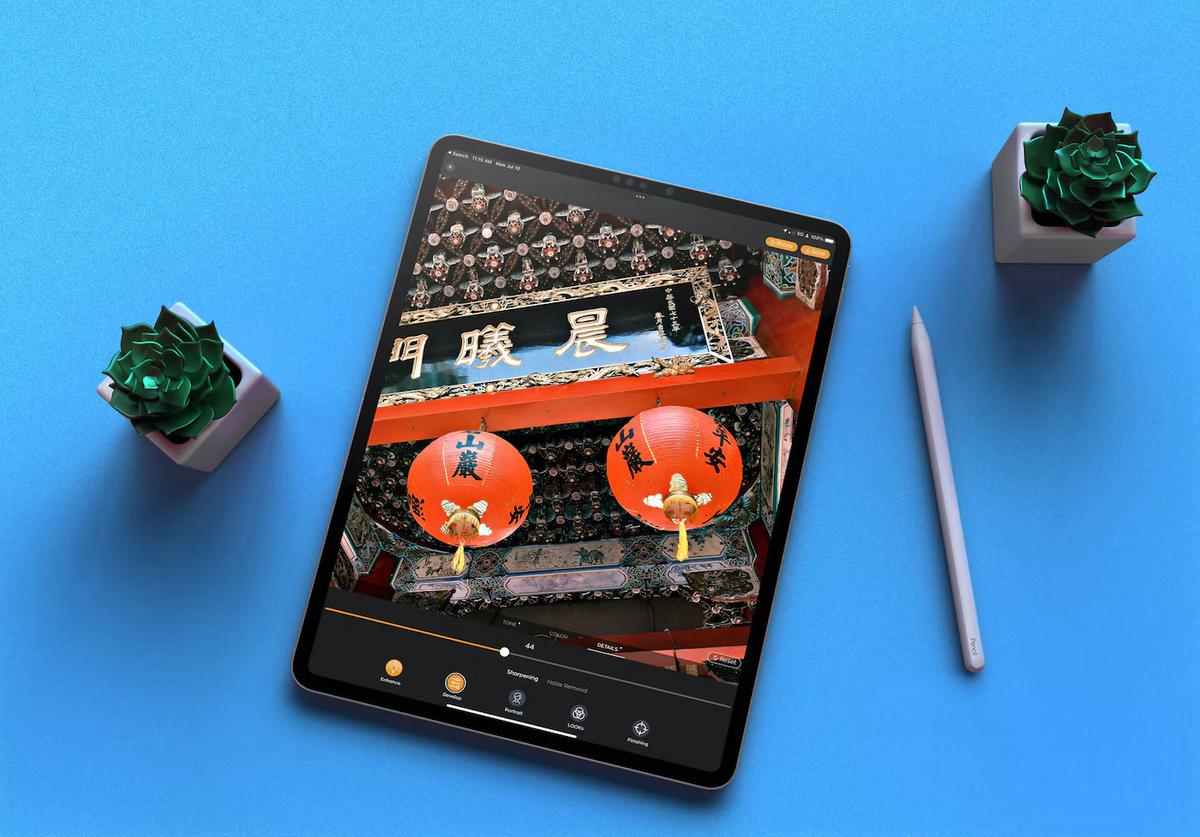
6. When completed, click the Save or Share button.
- The Save button writes the file to your operating system's camera roll. The image is saved as a new file but retains the original timestamp and essential info. The name of the file is appended with _Radiant_Photo.
- Tapping the Share button lets you send the image to another app. You also target a storage location.
- Tap the X button in the upper-left corner to close the edit window.
Opening Images from an Album
Your operating system may have several albums in your camera rolls already created. Albums let you organize images without changing their storage location. They can also have items added or deleted without affecting the original source files.
You'll likely find:
- Albums you created to share photos
- Albums you made to organize images on your portable device or computer.
- Albums made when pairing a mirrorless or DSLR camera with a manufacturer’s app
- Some communication and social networking apps also create albums.
To browse your devices albums:
- Launch the Radiant Photo mobile app.
- In the top bar, tap the photo icon to browse albums.
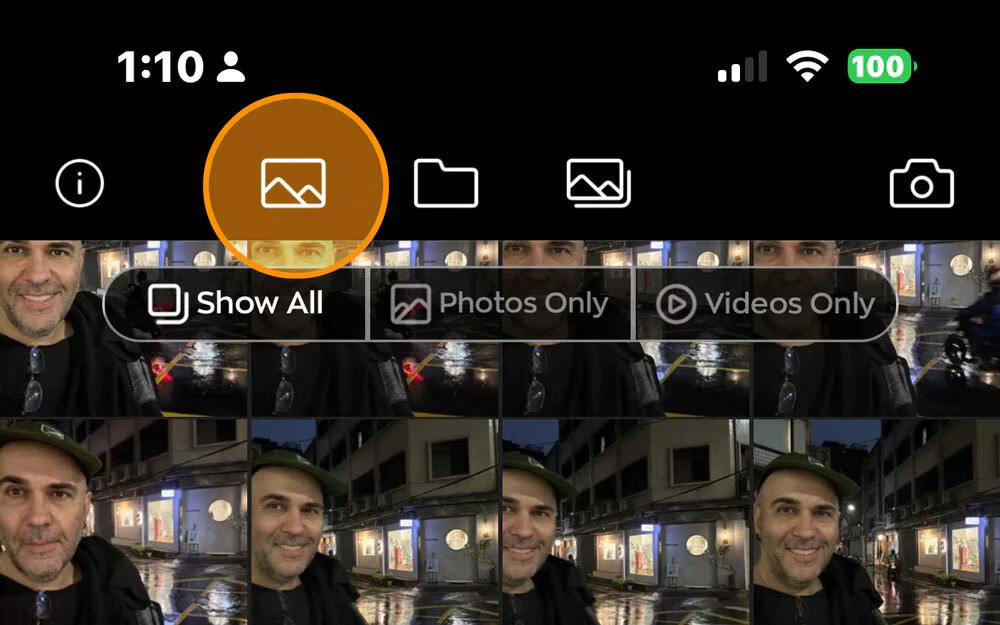
- Recent should be your entire camera roll
- Swipe to the right to view other albums
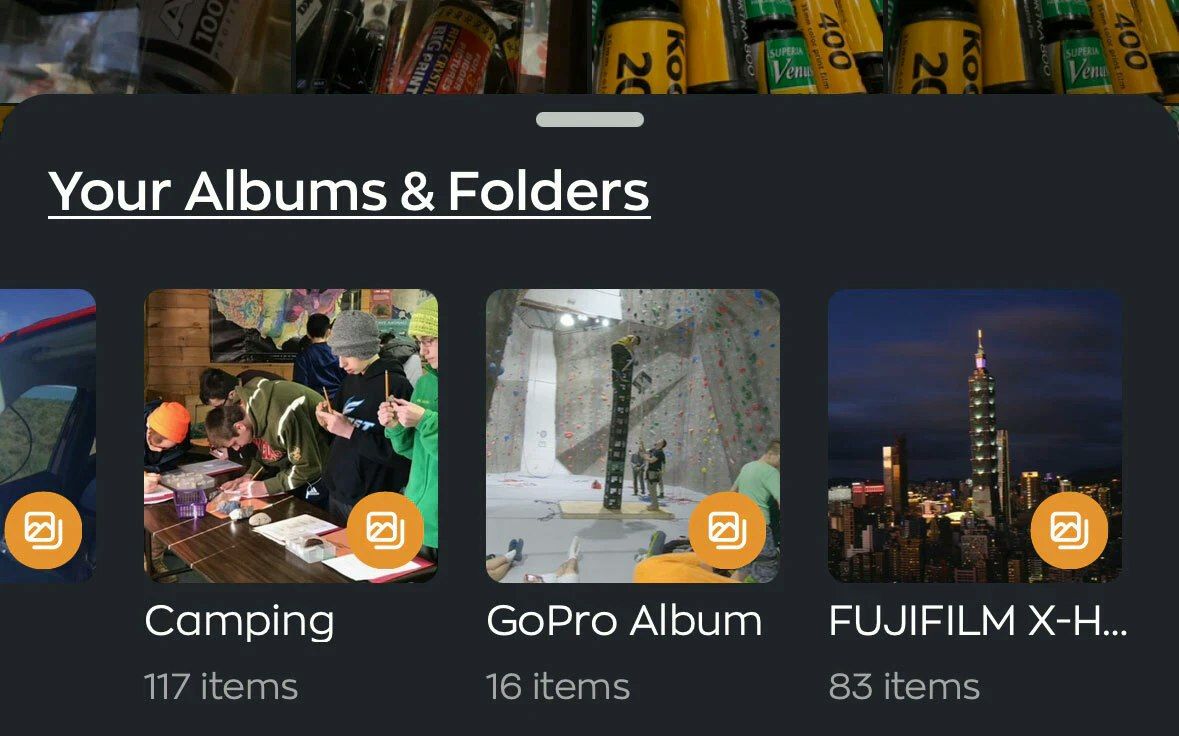
- Tap an album to open it.
- Scroll through the grid of images.
- Using the view filters near the top, you can switch between.
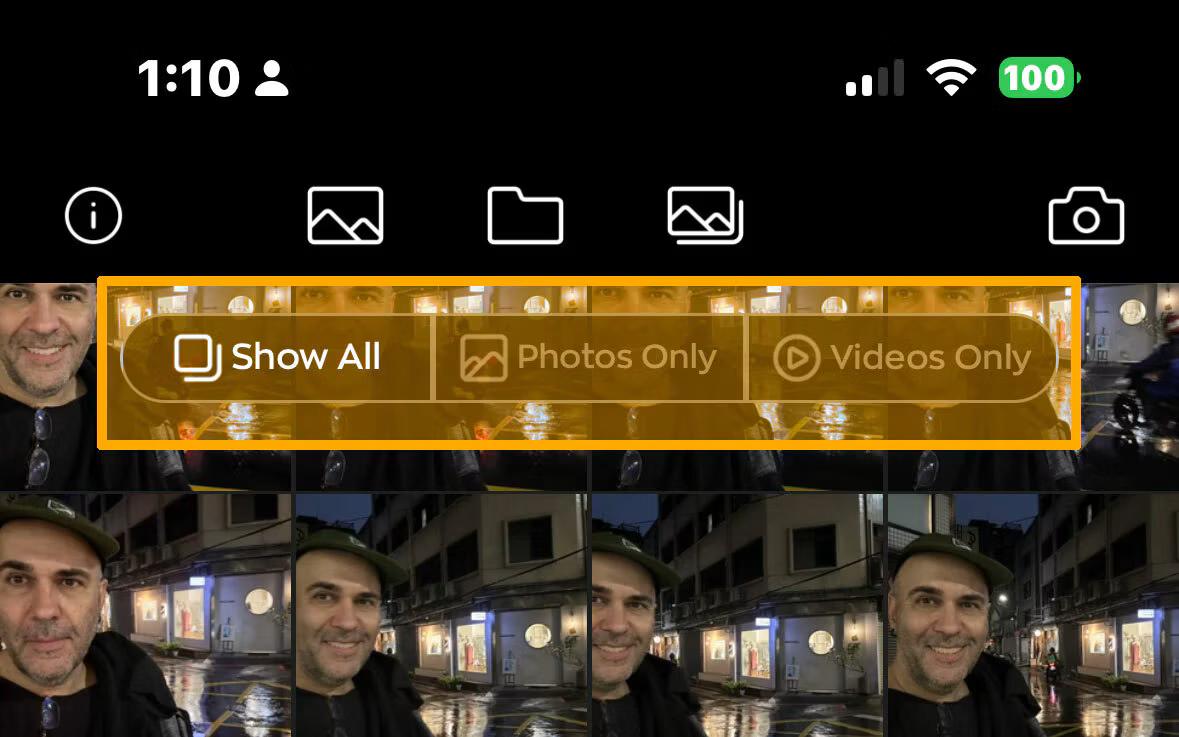
- Show All
- Photos Only
- Video Only
4. Tap on the image you want to edit.
You can also use the Batch button to select multiple images.
5. Adjust the sliders to taste.
6. When completed, click the Save or Share button.
- The Save button writes the file to your operating system's camera roll. The image is saved as a new file but retains the original timestamp and essential info. The name of the file is appended with _Radiant_Photo.
- Tapping the Share button lets you send the image to another app. You also target a storage location.
- Tap the X button in the upper-left corner to close the edit window.
Note: Be sure to tap the Album button and switch back to Recent if you need to see your entire camera roll.
Opening images from Cloud & Local Storage
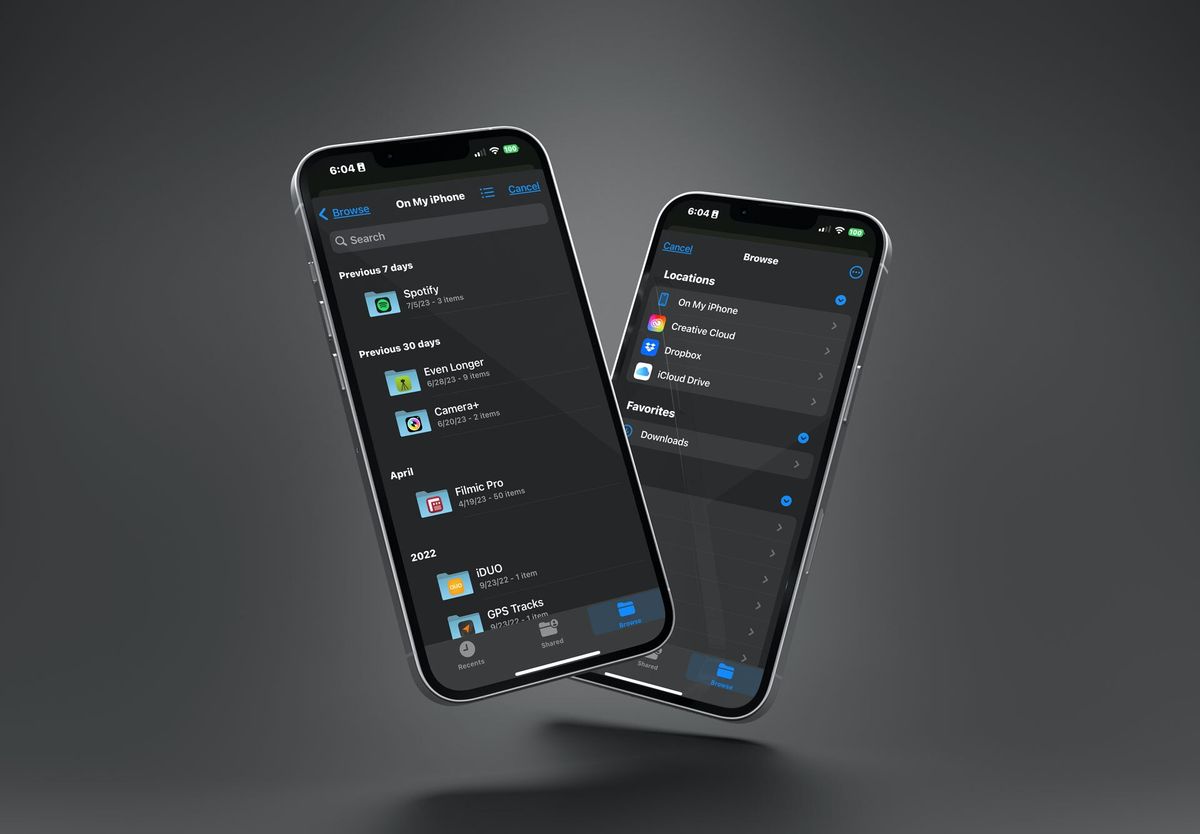
Radiant Photo mobile app can access the file browser on your tablet or phone to see storage options. This can include both cloud and local storage.
For iOS and iPadOS
- Launch the Radiant Photo mobile app.
- In the top bar, tap the Folder icon to browse folders.
The Files interface opens. - Tap the Browse button.
- Select the desired location for files.
- Tap on any images that you want to import.
- When ready, tap Open to send them to Radiant Photo.
For Android
- Launch the Radiant Photo mobile app.
- In the top bar, tap the Folder icon to browse folders.
The Files interface opens. - Tap the menu button in the upper left corner.
- Select the desired location for files.
- Tap on any images that you want to import.
- When ready, tap Select to send them to Radiant Photo.