
Portrait Tools in Radiant Photo mobile app
這篇文章還沒有中文版,因此以英文顯示。
You’ll find that the Portrait tools are specifically designed to help with images of people. When you run Radiant Photo mobile version, your image is analyzed to determine each face’s gender, skin tone, age, and other characteristics. This analysis can help to automatically tailor the adjustments to the subject’s skin type and face.
Contents:
- Presets
- Eyes
- Face
- Skin
Presets
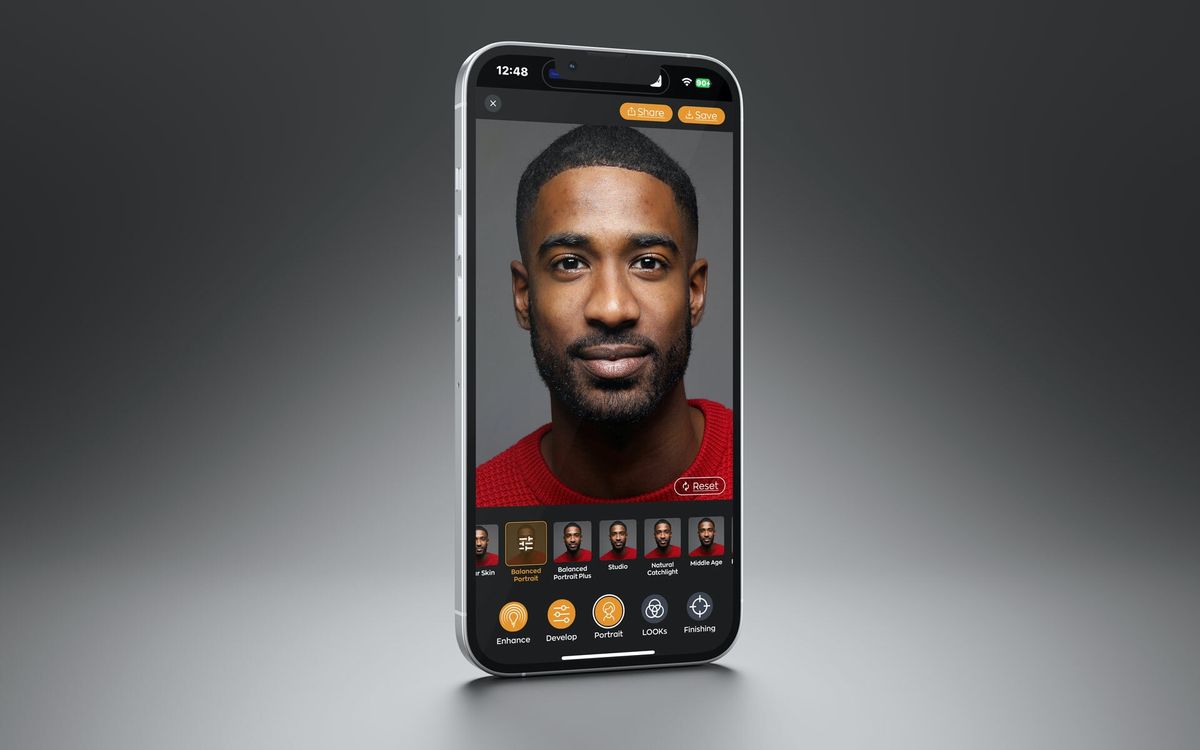
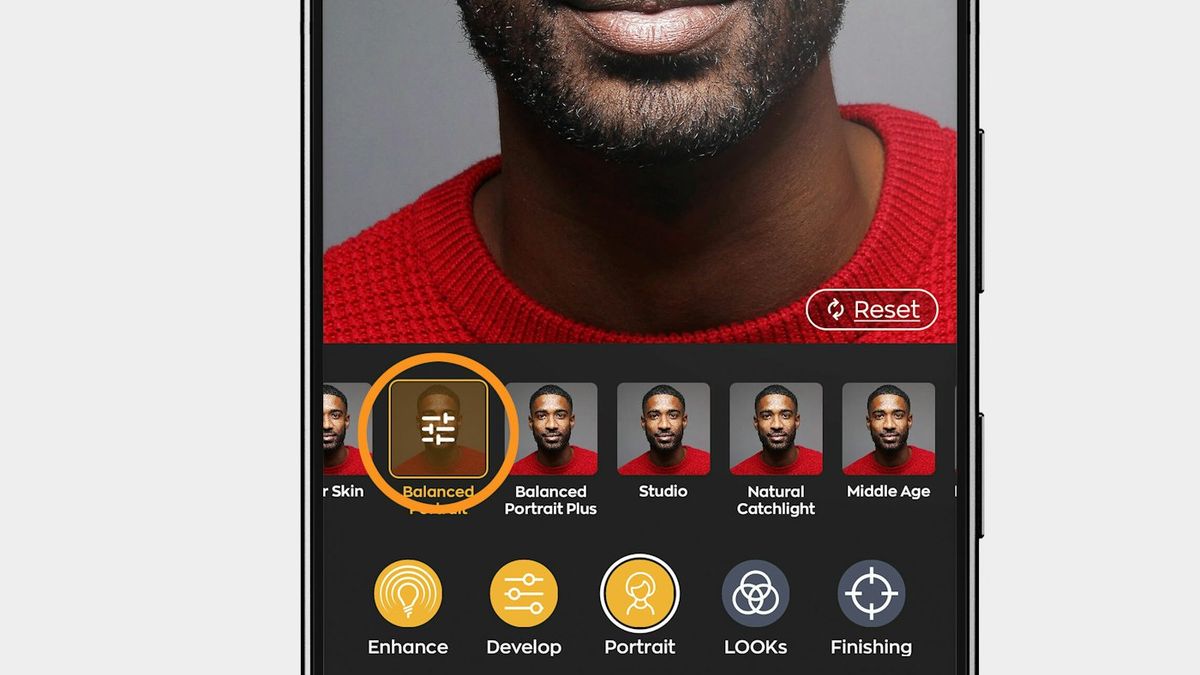
To make fixing portraits easy, you’ll find a set of presets when you first open the Portrait group. These are designed to solve the most common problems quickly. Just tap once to apply each. If you’d like to access advanced controls, tap again to open up the precision sliders.
Eyes
Refining the eyes is some of the most effective and pleasing tools inside Radiant Photo. These adjustments can make a difference in photos of people.
Eye Enhance
Use the Eye Enhance adjustment to brighten and sharpen eyes in your photographs without distorting any other aspects of the photo. This adjustment will automatically adapt to the subjects in your photo. For example, in a portrait of a man and a woman, the ‘30’ value on the Eye Enhance could apply a stronger correction to the woman than to the man.
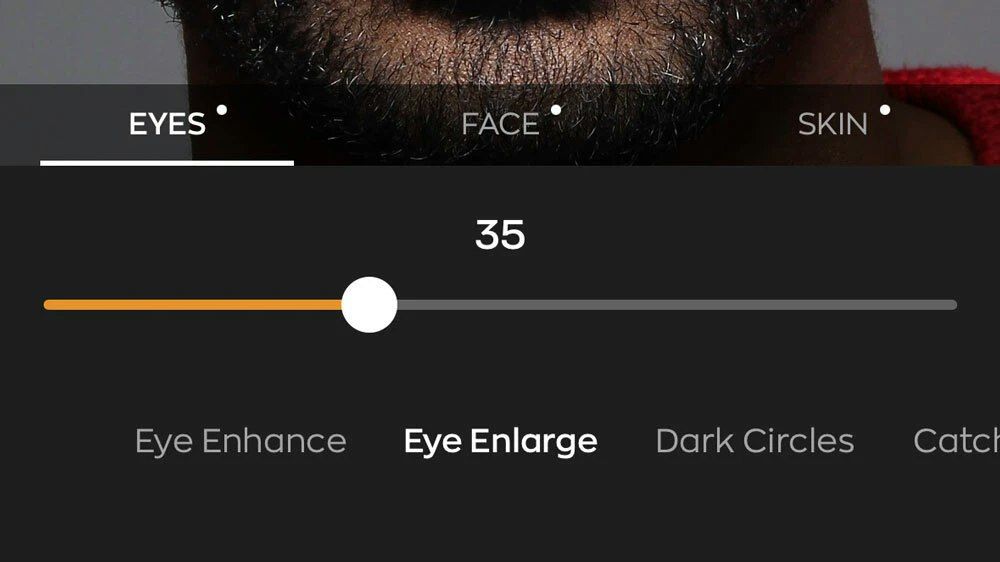
Eye Enlarge
Use this correction to enlarge one’s eyes realistically. This unique technique is excellent at automatically finding and adjusting eyes without distorting any other aspects of the photo.
Dark Circles
Try the Dark Circles adjustment to freshen tired eyes or minimize dark circles caused by aging. Retouching the dark circles underneath the eyes requires high precision for distinguishing the actual circles from other natural details around the eyes. Our solution handles this task flawlessly, reducing the dark circles while preserving the fine details of the eyes.
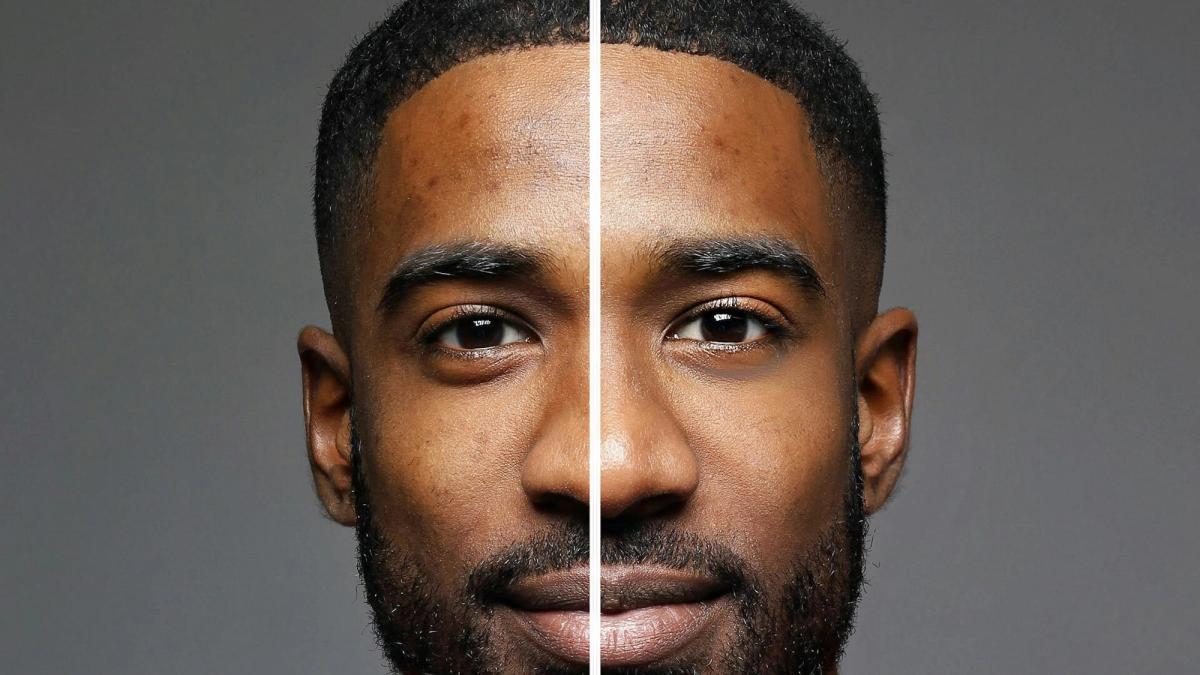
See the tutorial in our Community.
Catchlights
Want to add sparkle to the eyes automatically? This creates a reflected pattern in the subject’s pupil.
Face
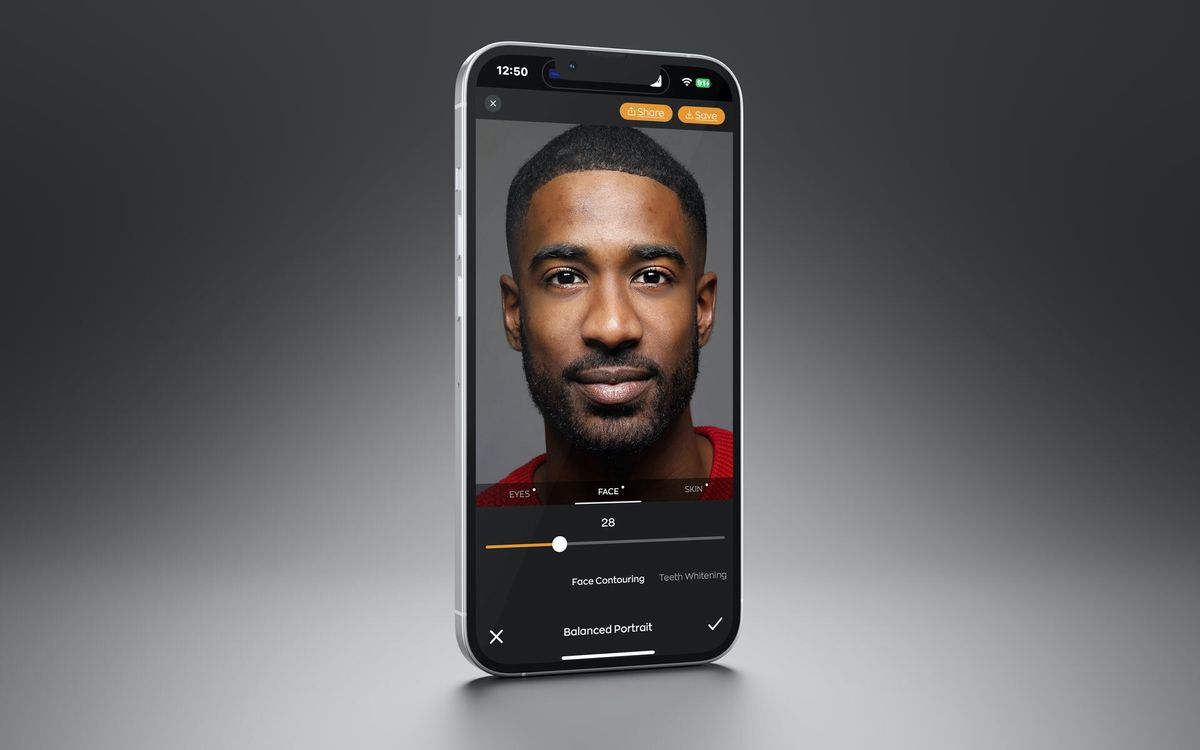
The Face controls affect each recognized or added face in an image. The adjustments automatically adjust to accommodate age differences.
Face Contouring
If your camera lens adds distortion to the face, a common problem with wide-angle lenses, the Face Contouring slider can help fix this. Additionally, you can use this when a slimmer, natural-looking face is desired. The correction is made naturally so the final image does not look overly manipulated, and the content and detail around the face are preserved.
Teeth Whitening
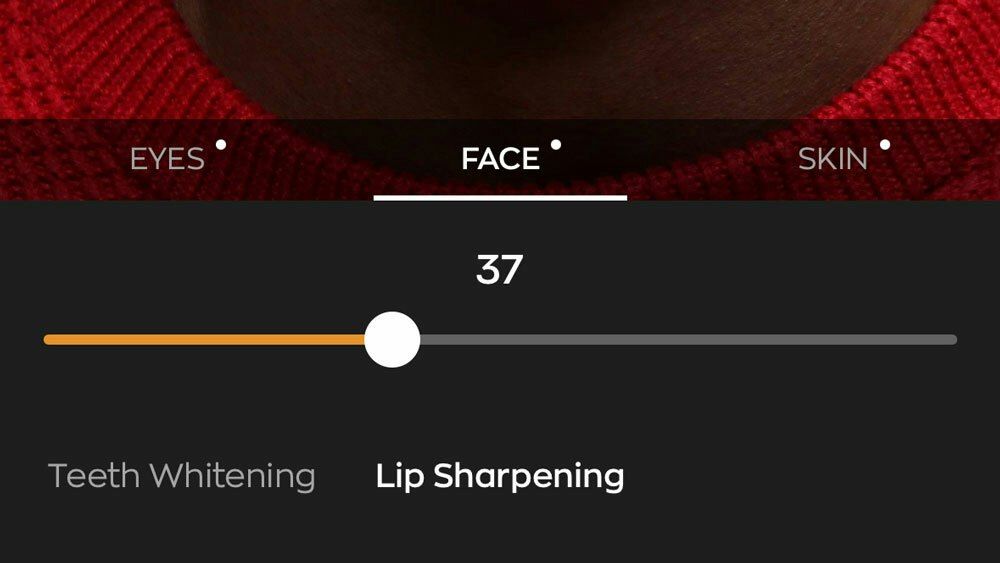
If you’d like brighter teeth, try the Teeth Whitening adjustment. It automatically finds teeth in the photograph and applies just the right amount of whitening to make teeth brighter without looking artificial.
Lip Sharpening
This correction focuses on the lips – providing a crisp, sharp look. This can add extra details to a portrait. Try Lip Sharpening for a subtle yet helpful effect.
See the video tutorial in our Community.
Skin
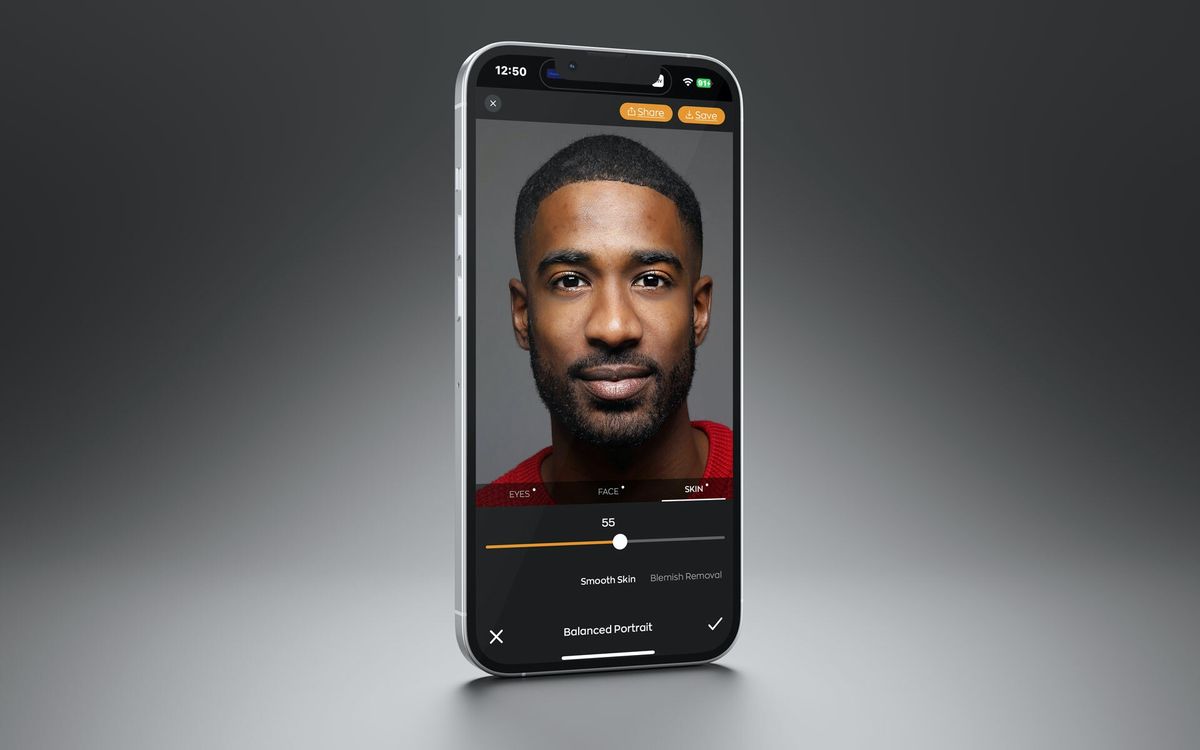
Our tools smoothen skin and diminish blemishes without losing details in the hair or the eyes.
Smooth Skin
Try the Smooth Skin adjustment if you’d like to smooth or diminish wrinkles automatically. This will help smooth skin without losing details in the hair or eyes.
Blemish Removal
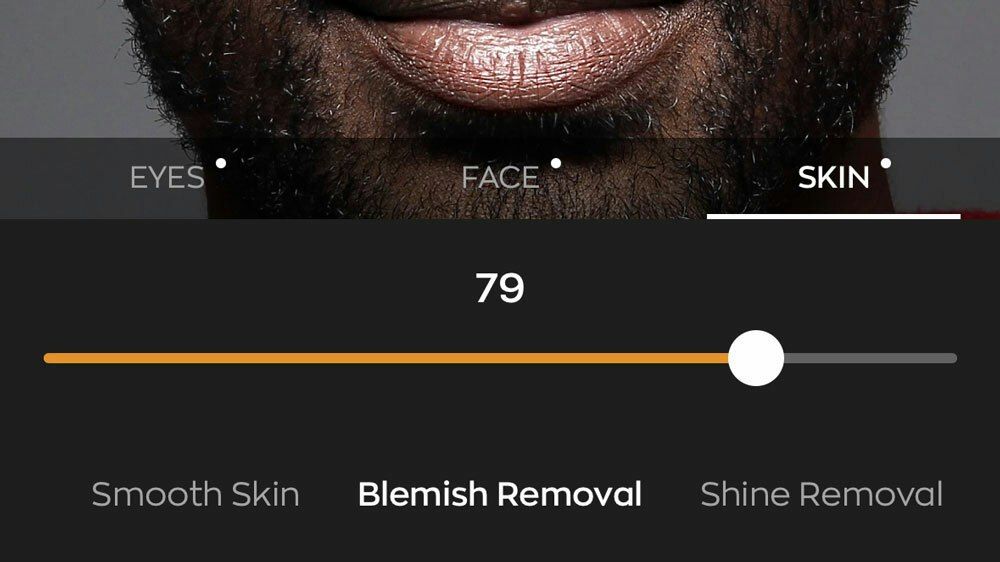
If your subject has blemishes or acne, the Blemish Removal slider can make automatic targeted adjustments. Our solution scans the skin area for these imperfections and employs a localized correction that doesn’t affect the surrounding skin areas.
Shine Removal
Try the Shine Removal adjustment if your subject has a bright sheen from a flash or light source. This can also be useful to tone down areas of oily skin. It also helps areas affected by bright light or a flash.
Skin Toning
With Skin Toning, you can gently enhance the skin tones of a subject. The slider works well at lower values to add warmth to a subject.
Blush
You can also use the Blush control to warm the cheeks.
See the video tutorial in our Community.