
Radiant updates
Meet Radiant Flow: see every photo, keep the best ones
Radiant Flow 1.0 is the new browse-and-cull app in the Radiant family. It opens your folders, memory cards and catalogs where they are, gives every photo a PRISM Photo Score, and hands your keepers to Radiant Photo 2.5 or Radiant Raw 1.0.
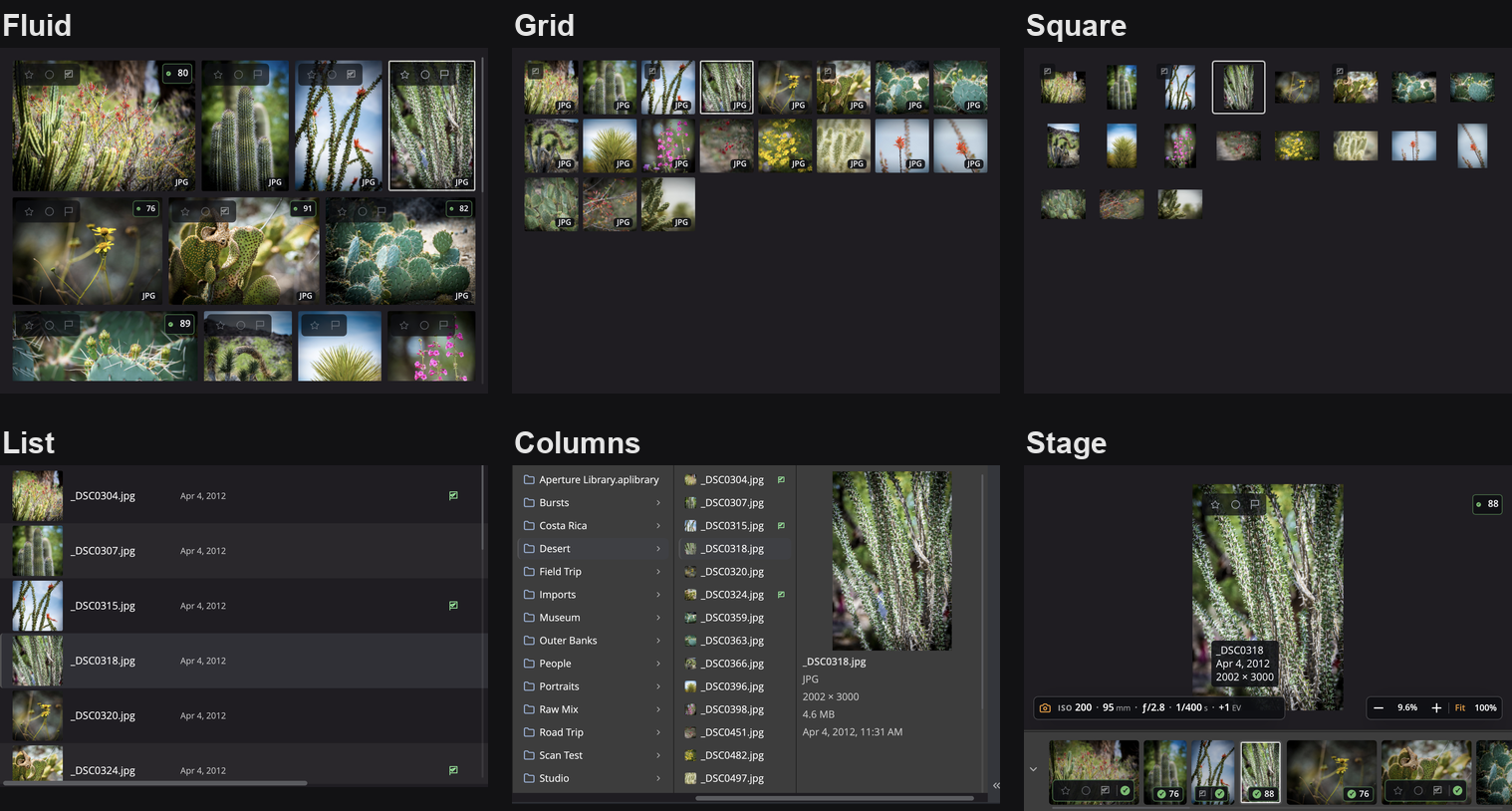
Every shoot ends at the desk: offloading the card, looking through hundreds of frames, finding the handful worth editing. Radiant Photo 2 was one editor, with no browser, no star ratings and no card import, so that work happened somewhere else. Now it happens in Radiant Flow, which comes with Radiant Photo and with Radiant Raw, and as its own download, for Mac and Windows.
Your folders are the library
Point Radiant Flow at a folder, a drive or a memory card and start looking. Photos already on disk need no import, and the folder you're looking at keeps itself up to date.
Then cull at the speed of your hands. Stars, picks, rejects and color labels are one key each, and holding Shift writes the mark and moves to the next photo. Choose from six grid styles. For close calls, Survey lays frames on one table with a 100% Magnifier linked across every frame, Compare A ↔ B pins a favorite against each challenger, and Focus Peaking lights up what is actually sharp. The Focus page in the right rail gathers the Magnifier, Focus Points and Focus Peaking, as in Radiant Photo and Radiant Raw. View › Scopes shows the scopes on the photo or in a window of their own.
Your marks live in your files: Radiant Flow, Radiant Raw and Radiant Photo write ratings, flags and color labels into the photo or an .xmp sidecar beside it, where other apps that read XMP find them. Raw files such as CR3, NEF and ARW are never modified.
PRISM knows what you shot
PRISM is the scene reader inside Radiant Flow. It knows dozens of scenes, from Mountains, Beach and Waterfall to Night sky, Newborn and Dogs. When one scene stands out, PRISM names it and uses it to choose how PRISM Photo Score should judge the photo.
Every photo gets a PRISM Photo Score from 0 to 100, a Keep, Review or Reject verdict and a suggested star rating. With people in the frame, it looks for open eyes, sharp faces and good exposure on the face; without faces, it weighs sharpness, exposure and noise. Frames shot back to back are grouped, the strongest is marked ★ BEST, and Flow can stack each burst with that frame on top.
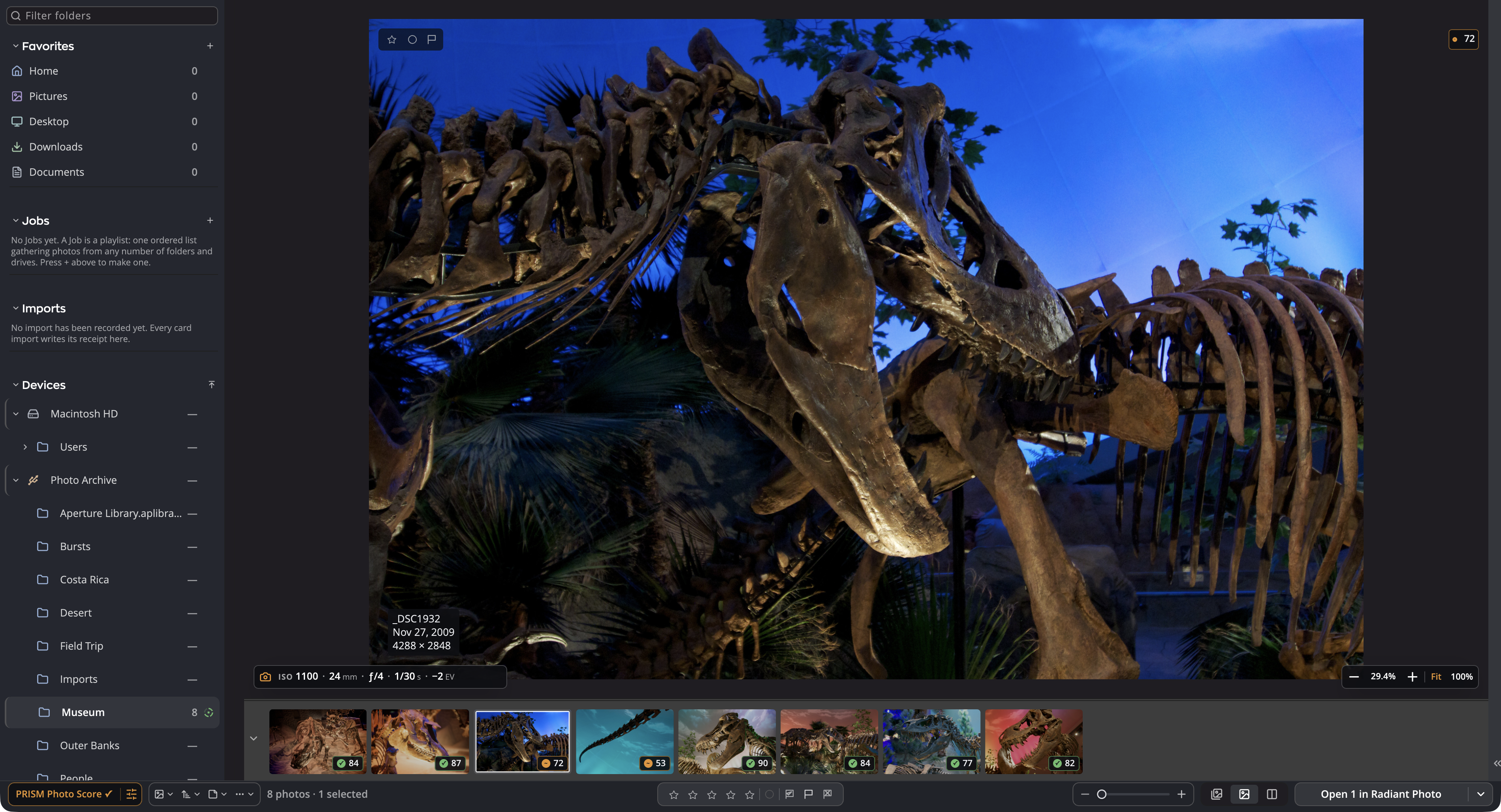
You stay in charge. Move the score lines that set Keep, Review and each star rating, adjust how much each measure counts, or set those weights from at least 50 photos you rated yourself. PRISM Photo Score never sets the Reject flag, never deletes a photo and never changes a rating you set. It's a technical score, not a judgment of taste, and scoring runs on your computer. Its scene model downloads once, and again only when an app update brings a new version.
Narrow thousands to the few
Keywording is the job most of us put off, so Flow starts it for you: in the Metadata panel, PRISM suggests up to eight keywords and a short caption for the photo in front of you. Add one with a click, or all of them with Add all, and nothing changes until you press Save. Tagging a whole shoot adds to each photo's own keywords and never removes what is already there.
Then the filter row takes over. More than twenty filters, from rating and flag to camera, lens and ISO, narrow a folder, and each value shows how many photos it will leave before you click. Drag a range such as f/4 to f/8, Option-click (Alt-click on Windows) to see everything except a value, or add the Keywords filter to match ANY or ALL of the keywords you pick.
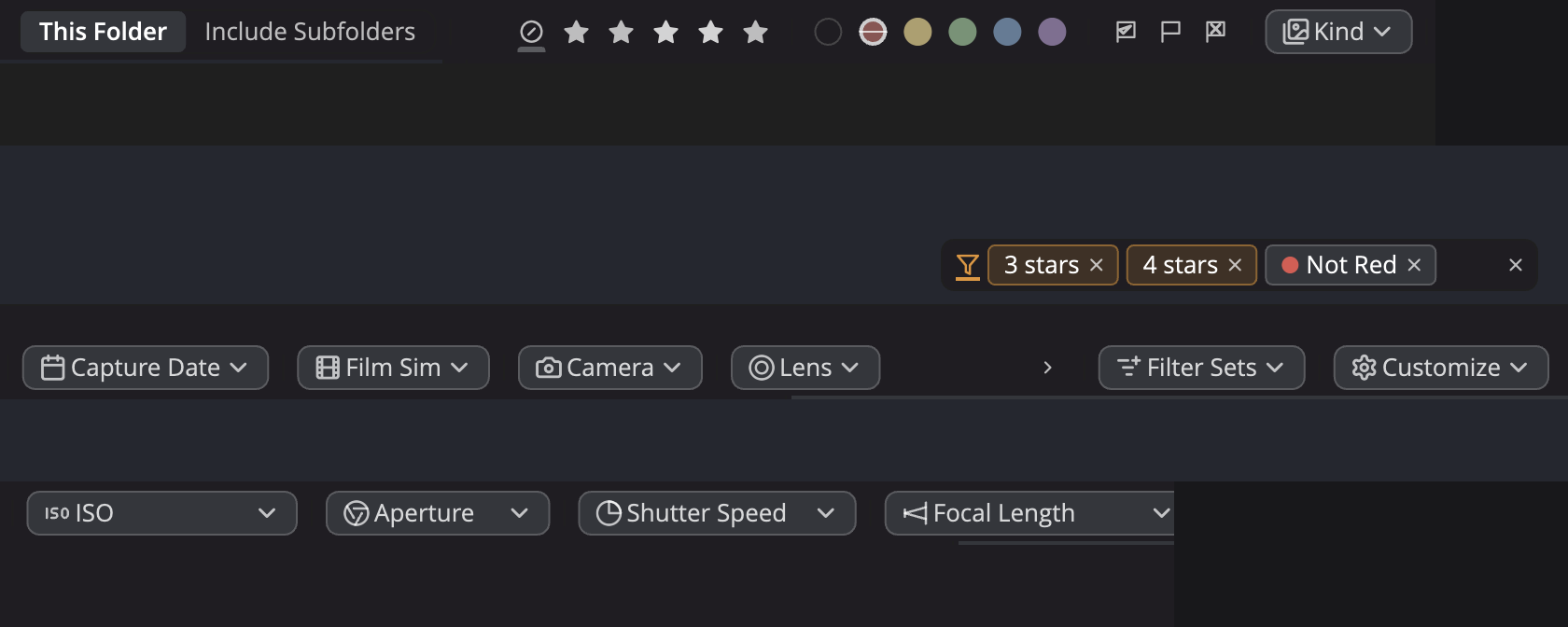
Save the combinations you use every day as Filter Sets: name them, file them in collections, add a description, and bring them back with one click from the filter row or the View menu. Picked, Rejected and Unrated come ready as Filter Sets.
From card to keepers
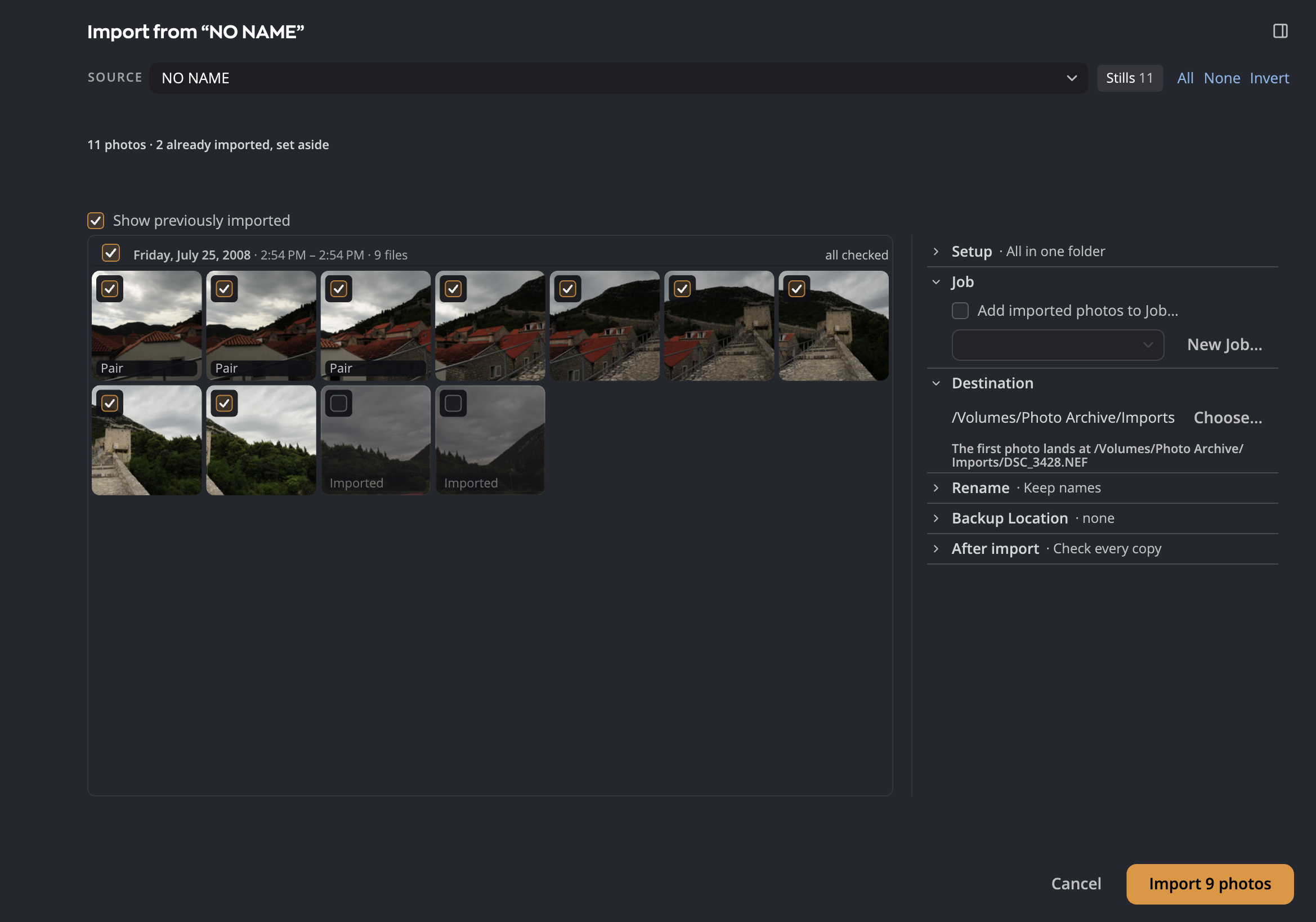
Radiant Flow imports from memory cards and folders. It reads every copy back and checks it, and the import writes nothing to your card. Turn on “Also copy to a second disk” and Flow makes a second copy in the same pass. Photos you imported before are marked Imported and set aside. A filter bar can leave photos out by format, rating, flag or color label, and the import report names the filter and counts what it kept out. You can even cull on the card, then import only the photos you select, and your marks follow the photos onto the copies. Rename on import with templates, and save your setup for the next card.
Your terms for AI training
Radiant Flow, Radiant Raw and Radiant Photo carry the industry-standard IPTC PLUS Data Mining field, shown as AI training. Choose Allowed, or prohibit generative AI training, all AI/ML training or all data mining, among other standard values. In Flow, opt out a whole shoot with Edit ▸ Rights ▸ AI Training, or as photos come off the card, and Flow asks before it takes an opt-out away.
It's a declaration of your terms for others to read, not a lock: it does not block training, and many websites strip metadata on upload.
Open the libraries you already have
Radiant Flow opens other apps' catalogs and libraries right in its sidebar, beside your folders. Nothing needs to be converted first.
- Lightroom Classic (Mac and Windows). Open a catalog with its folders, collections, ratings, flags, labels and keywords. Two-way metadata sync, through the Radiant plug-in for Lightroom Classic, keeps ratings, flags, labels and keywords the same in Radiant Flow and your catalog. Only metadata syncs, never edits, and a switch in Settings turns off writing that metadata into your photo files.
- Aperture and iPhoto. Browse an Aperture or iPhoto library read-only, or import it into ordinary folders with its ratings and keywords in XMP sidecars.
- Apple Photos (Mac). Your Photos library, with its albums, in the same window as your folders.
- Capture One (Mac and Windows). Open a Capture One catalog or Session and browse its folders and albums. On a Mac, two-way metadata sync keeps ratings, color tags, keywords and captions the same in Radiant Flow and your Capture One catalog: your changes in Flow reach the catalog whenever Capture One has it open. On Windows, Flow only reads it.
- Mylio Photos. Today, Radiant Flow works alongside it through standard XMP metadata: ratings, flags, labels and keywords go into each photo or an .xmp sidecar beside it.
Made to work with Radiant Photo and Radiant Raw
Radiant Flow is for looking and choosing, so it has no edit sliders. When you have your keepers, the Open button names its target, for example Open 12 in Radiant Photo. Choose Radiant Raw for the Open button and Raw files go to Radiant Raw while everything else goes to Radiant Photo, or pick any other editor, with rules by file type. In Radiant Photo, File ▸ Browse Photos… opens Flow, or brings it to the front.
Radiant Flow, Radiant Raw and Radiant Photo show the same PRISM Photo Score and share one set of settings. Radiant Flow computes it for all three. With Flow on the same computer and PRISM Photo Score turned on, Radiant Photo and Radiant Raw also suggest up to nine Looks for the photo in front of you. Our companion article, Meet Radiant Photo 2.5 and Radiant Raw, covers that side of the release.
The three apps also share one Watermarks window. Design a mark once, with fields such as the year, your name or your copyright notice filled in for each photo, and use it on Flow's contact sheets and on what Radiant Raw and Radiant Photo export.
What's coming
- Mylio Photos catalog browsing. Radiant Flow will open your Mylio Photos catalog too.
What you'll need
Radiant Flow 1.0, Radiant Raw 1.0 and Radiant Photo 2.5 need a Mac with Apple silicon or an Intel processor running macOS 14 Sonoma or later, or a PC with an Intel or AMD processor running 64-bit Windows 10 (version 22H2) or Windows 11. ARM-based Windows PCs cannot install them. PRISM's scene model, about 370 MB, downloads in the background, and again only when an app update brings a new version. Apple Photos is Mac only.
See everything that's new
The What's New page tours the new organizing features, and the Support Guide gives the exact menus and keys.
What's new in Radiant Flow · Read the Support Guide
Companion article: Meet Radiant Photo 2.5 and Radiant Raw
More from the blog
Radiant updates
Meet Radiant Photo 2.5 and Radiant Raw
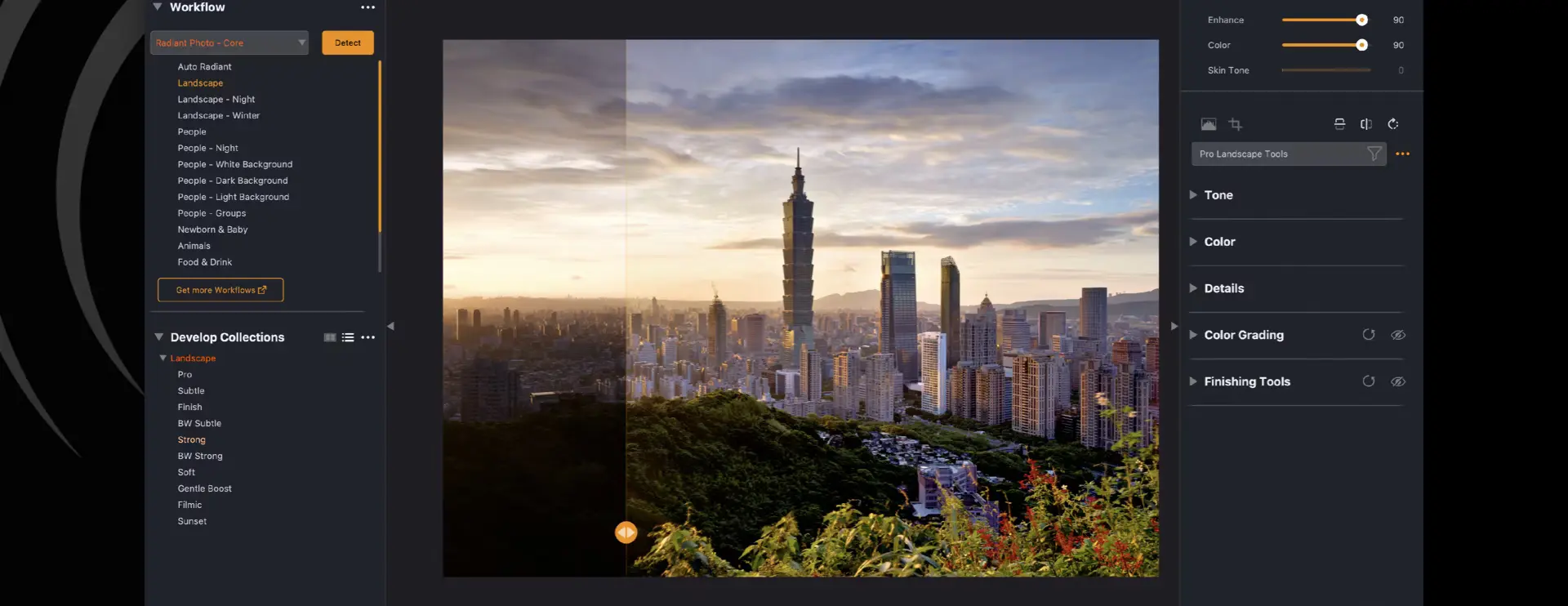
A dedicated Raw developer, new tools for detail and color, and a Look library you can search, favorite and preview with a hover. Here is what's new, and why we think you'll love working this way.
Press release · Radiant updates
The next evolution in photo editing: Radiant Photo 2 is on its way!
INDIALANTIC, FL – November 25, 2024 — Radiant Imaging Labs is pleased to announce the release of Radiant Photo 2, the latest evolution in photo editing software.

Photo tips · Radiant updates
Elevate Your Photography with Radiant Photo 2 and Assistive AI
In the ever-evolving world of photography, technology, and artistry are converging like never before.
The Radiant newsletter
A weekly email from Radiant Imaging Labs: new articles, photo tips and release news.