




Cull
Radiant Flow
Best for culling: see a shoot the moment it lands and pick your keepers.
Free $69.00 one time
Three apps, one workflow
Radiant Flow finds your keepers. Radiant Raw develops the negative. Radiant Photo finishes the picture. Each one stands on its own; together they pass your work back and forth through your own files, on your own computer.
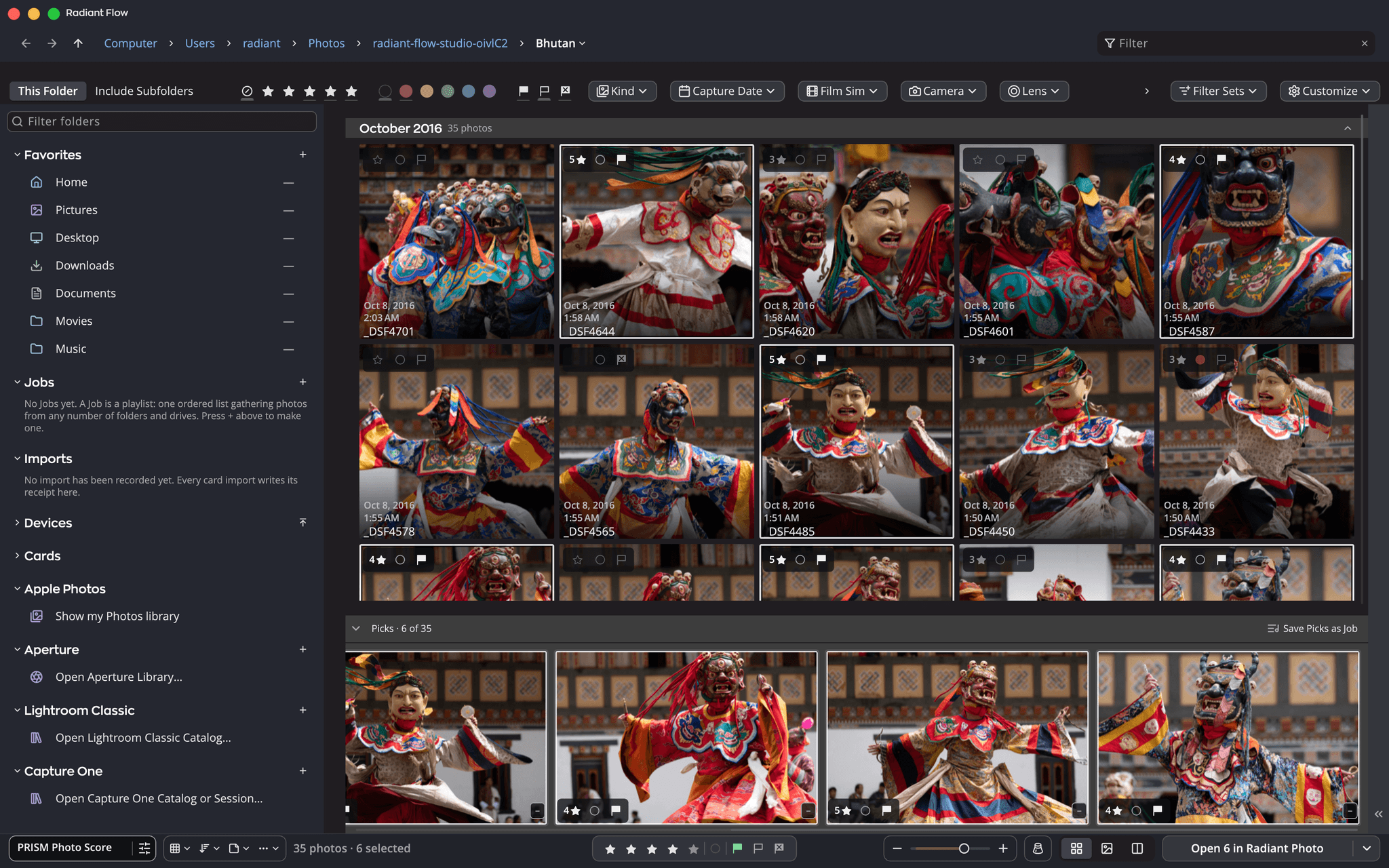
Go through a card or a folder, rate and flag, and pick your keepers before you import.
Learn more about Radiant Flow →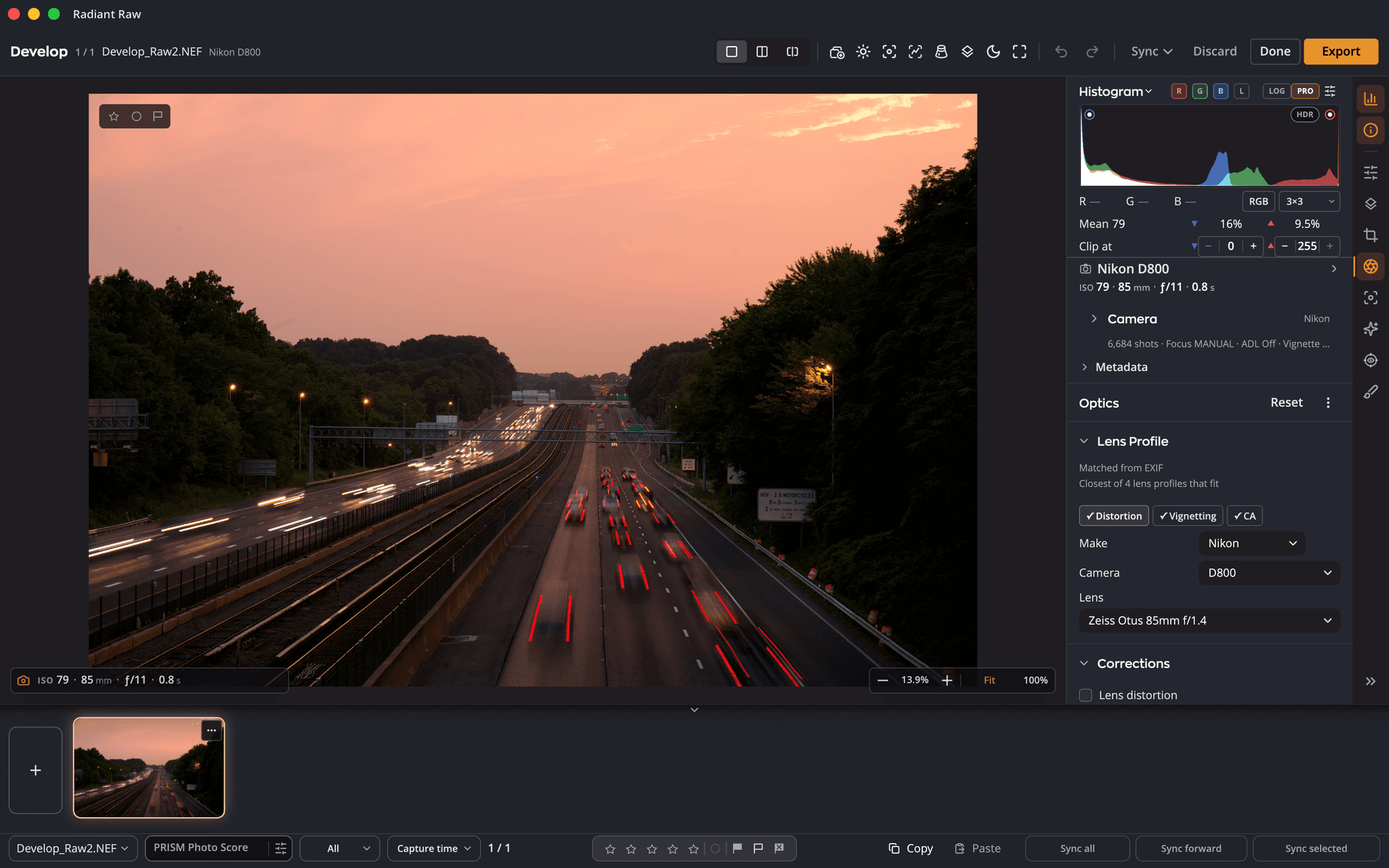
Turn raw files into clean, detailed starting points, with lens corrections and noise reduction built in.
Learn more about Radiant Raw →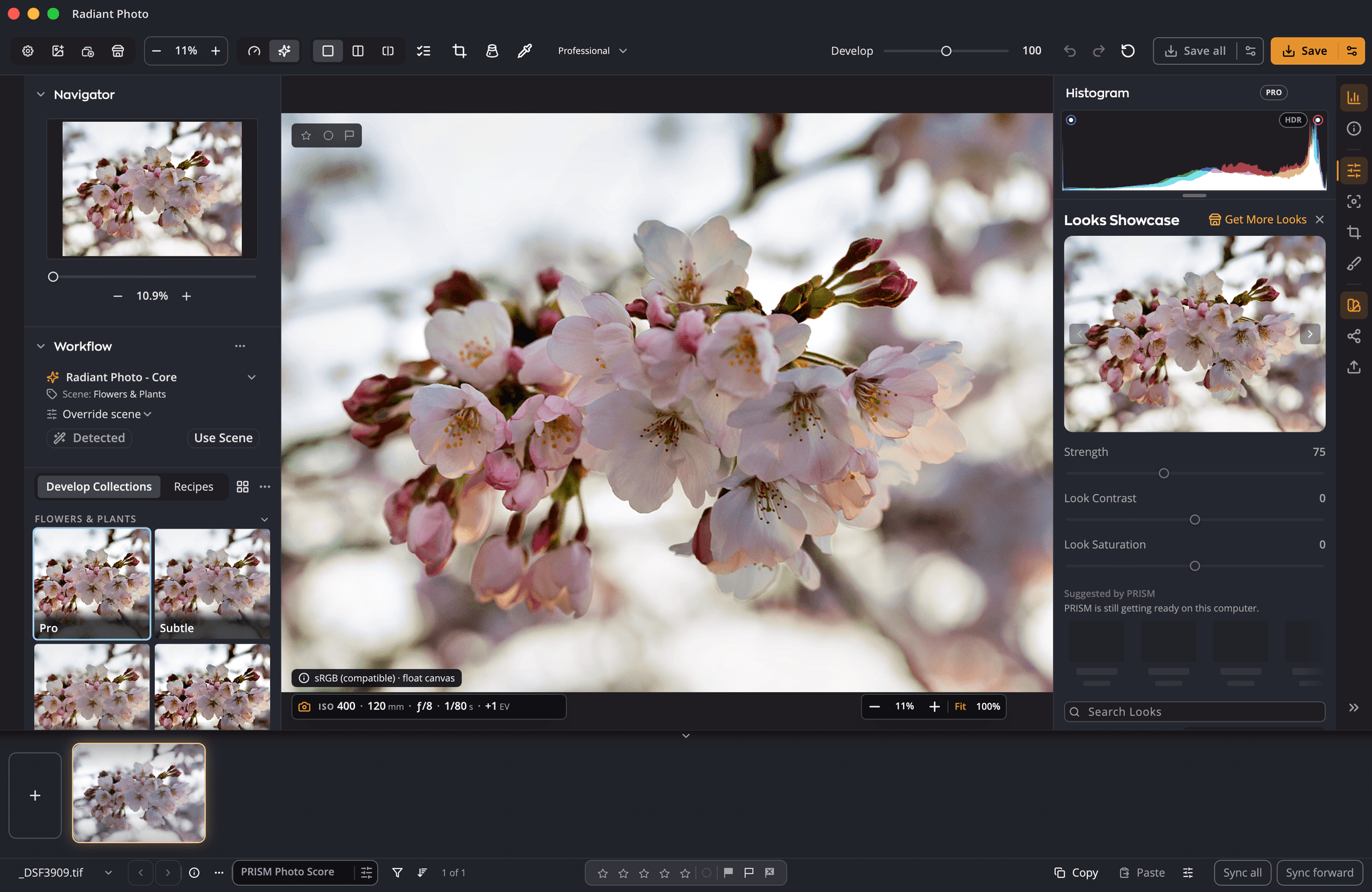
Scene-aware corrections and Looks in one click, or every slider when you want them.
Learn more about Radiant Photo →Cull
Best for culling: see a shoot the moment it lands and pick your keepers.
Free $69.00 one time

Develop
Best for developing raw files with full control.
$99.00 one time
Learn more about Radiant Raw →
Finish
Best for finishing: scene-aware corrections, portraits and Looks.
$159.00 one time
Learn more about Radiant Photo →Before and after
Each of these photos was finished in Radiant Photo. Pick one, then drag the divider across it.
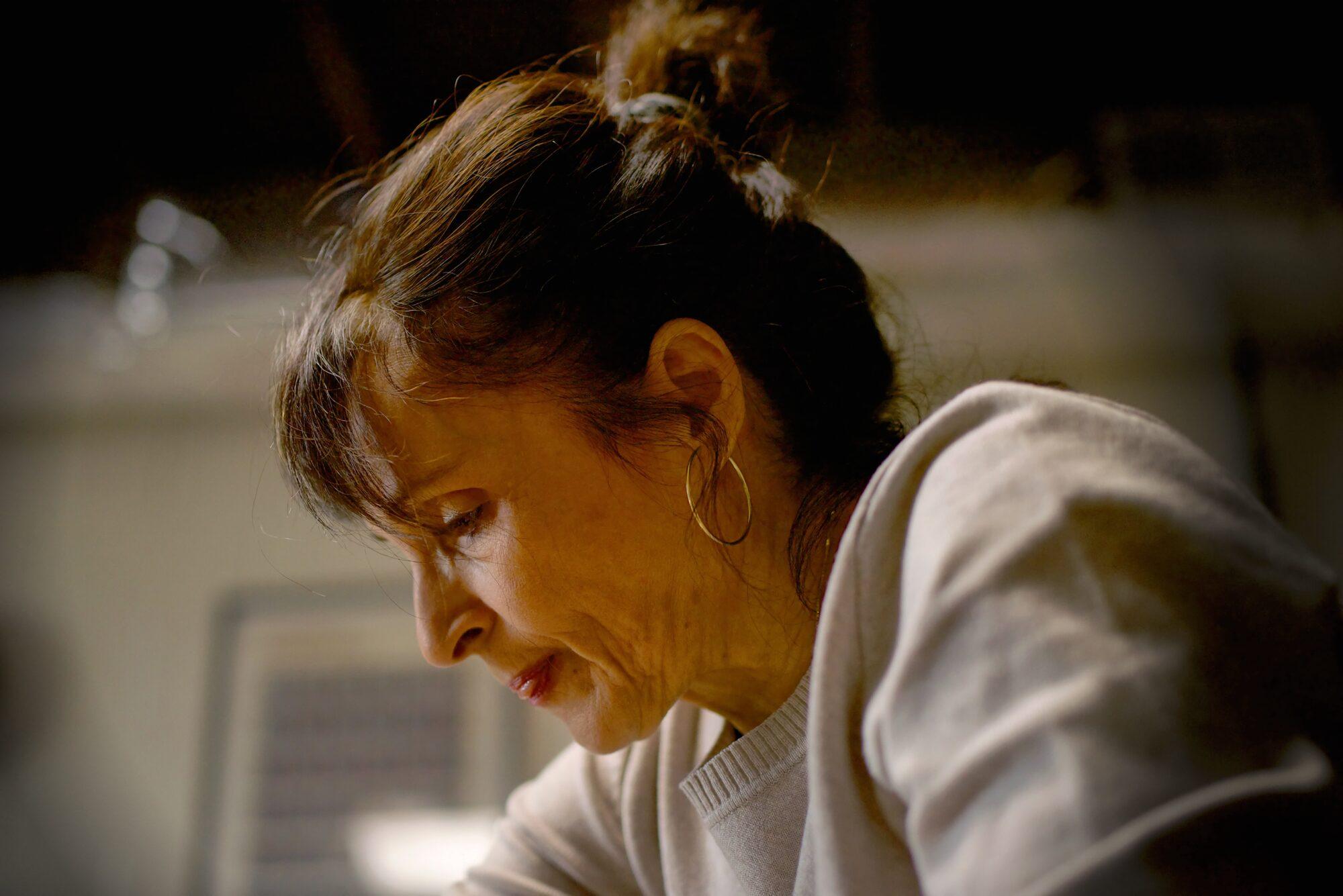
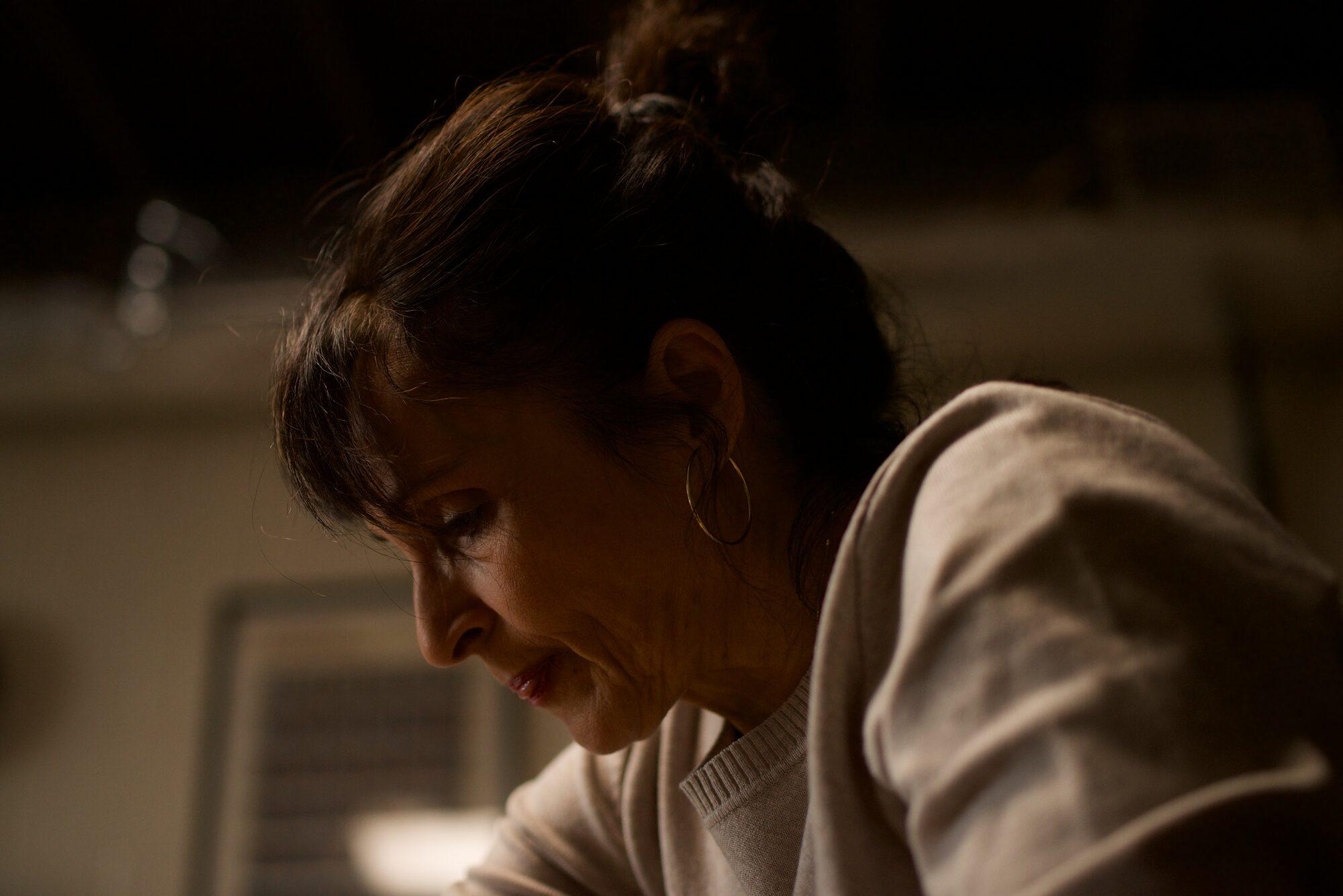
A potter studies the piece on her wheel. Photo: Richard Harrington
Assistive AI isn’t about replacing your creativity but enhancing it. We didn’t set out to create tools that do the work for you. We built Radiant Photo 2 to help you do your best work faster and with less frustration. This isn’t about shortcuts. It’s about respecting the art of photography while giving you the tools to make your vision a reality.
In the press
I liked the head-start Radiant Photo gave me.
… turning regular photos with all their flaws into bright, vibrant, crisp images …
… it was astonishing in our test what the software can extract …
Which apps do you need?
Pick a setup to see which doors open. Radiant Flow comes in the Radiant Raw and Radiant Photo installers, or on its own.
The complete Radiant workflow, with every door open in both directions.
Raw files: the best of both, in either direction.
The hand-offs
A hand-off is one command, named for exactly what it does. The receiving app opens on your selection, ready to work, and knows where to send it next.

 Open to edit
Select your keepers and press Return. They open in Radiant Photo, with progress and Cancel on big selections. Flow stays open, so it can live on your second display while you edit.
Open 36 in Radiant PhotoLive syncStar or flag a photo in Radiant Photo and Flow’s grid changes at the same moment, and the other way around. If a locked card refuses a write, Flow keeps the change until you retry.
★★★★ set in Radiant Photo Develop a batch
Send a selection to Radiant Raw and it opens as one filmstrip with your marks showing. Develop one, Sync the rest. Press Done to return to Flow, where the thumbnails now show the developed look.
Open 120 in Radiant RawInbound groupOpen a group of raw files in Radiant Photo and choose to develop them first. Radiant Raw opens with the whole group, you develop and Sync, and they arrive in the editor developed.
Develop in Radiant RawRound tripHalfway through a retouch and wish you had more highlight detail? Send that one photo back, rework the develop from the original raw, and press Done. Your edits stay on top unless you reframe.
Re-develop Raw… › DoneSend onWorking in Radiant Raw on its own? When the develop is right, send it on. The photo opens in Radiant Photo in 16 bits, and the recipe stays beside the raw so Radiant Raw can reopen it.
Edit in Radiant PhotoAny editorOpen withFlow hands photos to any editor you choose, not just ours. Your marks go into standard XMP that most photo apps read, so nothing you set in Flow is trapped there.
Open InAny editorFiles outRadiant Raw writes a 16-bit TIFF in the color space you choose and, from an HDR develop, a gain-map HDR JPEG. The built-in Log recipe gives colorists a flat, wide base to grade from.
ExportPractical workflows
Six real jobs, step by step. The lanes show which app you are in at each step; every lane change is a single hand-off command.
Two cameras, two cards, one long day. A finished gallery without a lost evening.
For event, wedding and sports photographers who shoot thousands of frames and deliver hundreds.
Insert the card and Flow shows a banner, not a nag. Choose what to copy, a destination and a backup drive, a folder per shoot day and a rename pattern. Every copy is verified before Flow offers to eject.
The second body was four minutes slow? Select its frames and edit the capture time. Both cameras now interleave in capture order, and every other app reads the corrected time.
PRISM Photo Score scores the folder as you open it. Closed eyes, missed focus and motion blur sink to Reject; filter to Review and spend your attention where a human decision matters.
Open the Stage with Auto Advance and rate, flag and label from the keyboard. Stacks fold bursts and Raw+JPEG pairs into one tile; Compare puts a champion beside each candidate with linked zoom.
Delete Rejected Photos tells you in plain words exactly what it will move to the Trash before it does anything.
Select the picks and choose Open 412 in Radiant Raw. Develop one frame from the ceremony, the reception and the dusk portraits, with lens corrections matched automatically, and Sync each to the frames that follow.
Choose Open 412 in Radiant Photo. Each frame gets the Workflow for its scene; portraits get the face, skin and eye tools. One Look across the set makes the gallery read as one story.
The Share panel runs batch jobs in the background: full resolution for the album, web size with your watermark, and SafeShare copies that strip GPS and face names for social media.
Back in Flow, the thumbnails already show the finished look. Gather the album selects into a Job, a saved list that leaves the files where they are, and print a contact sheet.
Why it is faster: the score and your culling decisions travel in the files, so Radiant Raw and Radiant Photo open on exactly the frames you chose, already marked. Nothing is imported twice.
Key benefits
Every photo, understood. Right on your computer.
Learn more about PRISM →It suggests. You decide.
Learn more about Assistive AI →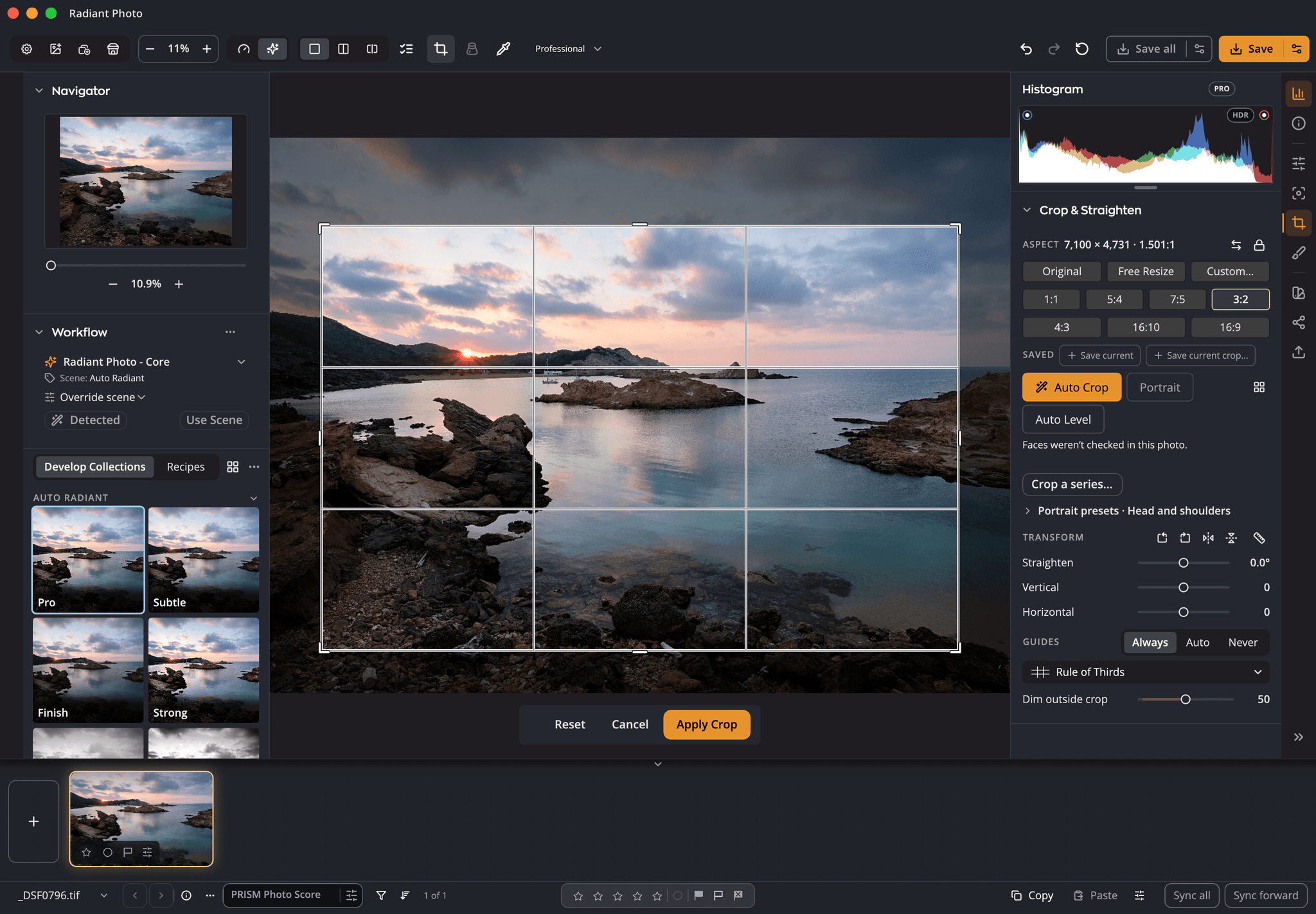
Frame it your way, with good framings to choose from.
Learn more about Crop & Straighten →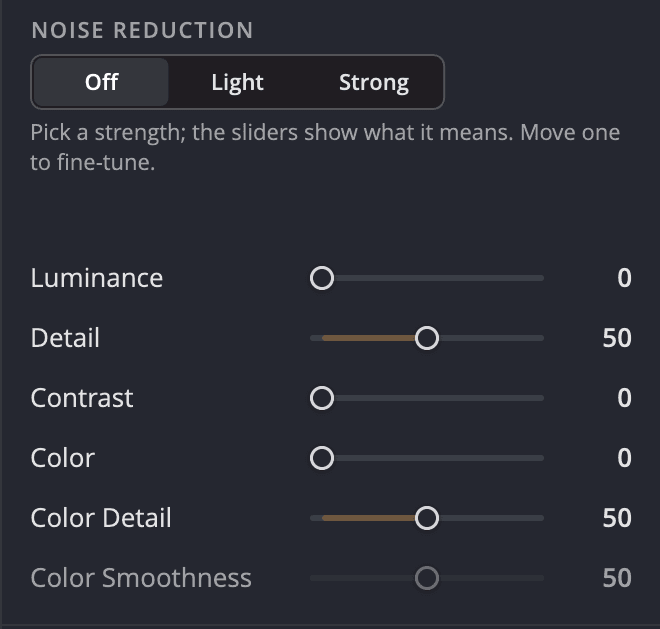
Smooth the grain. Keep the edges.
Learn more about Noise Reduction →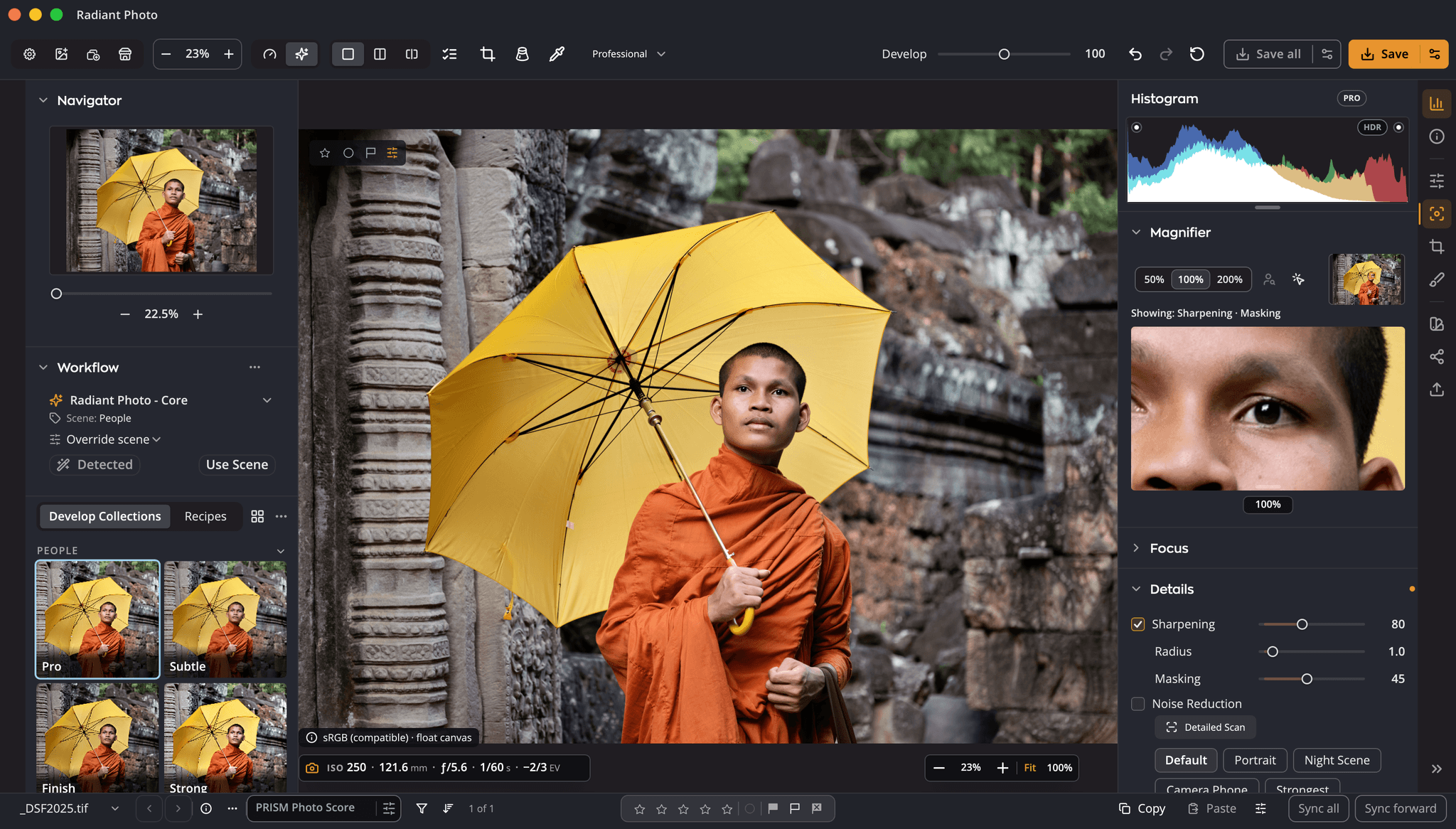
Crisp detail, smooth backgrounds.
Learn more about Sharpening →Straight lines, even corners, clean edges.
Learn more about Lens Corrections →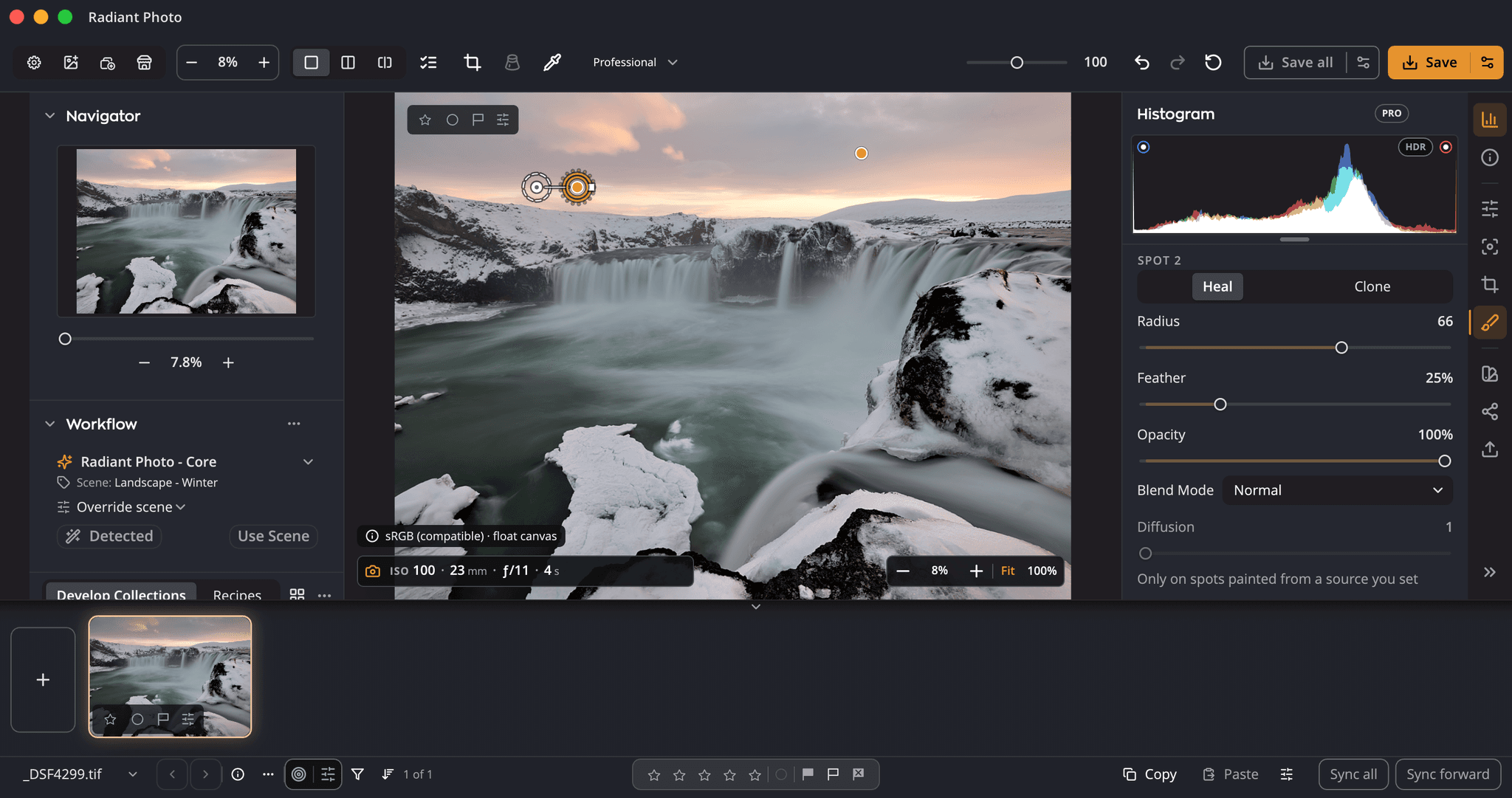
Brush over a spot. Radiant Photo picks the clean source.
Learn more about Spot Removal →Point at a Look. See it on your photo.
Learn more about Looks →Also from Radiant
Radiant on your phone. Pages to come.
Workflows for Radiant Photo
Portraiture, Landscapes, Birds and Pets: Workflows that teach Radiant Photo the scenes of your kind of photography, so every photo opens closer to finished.
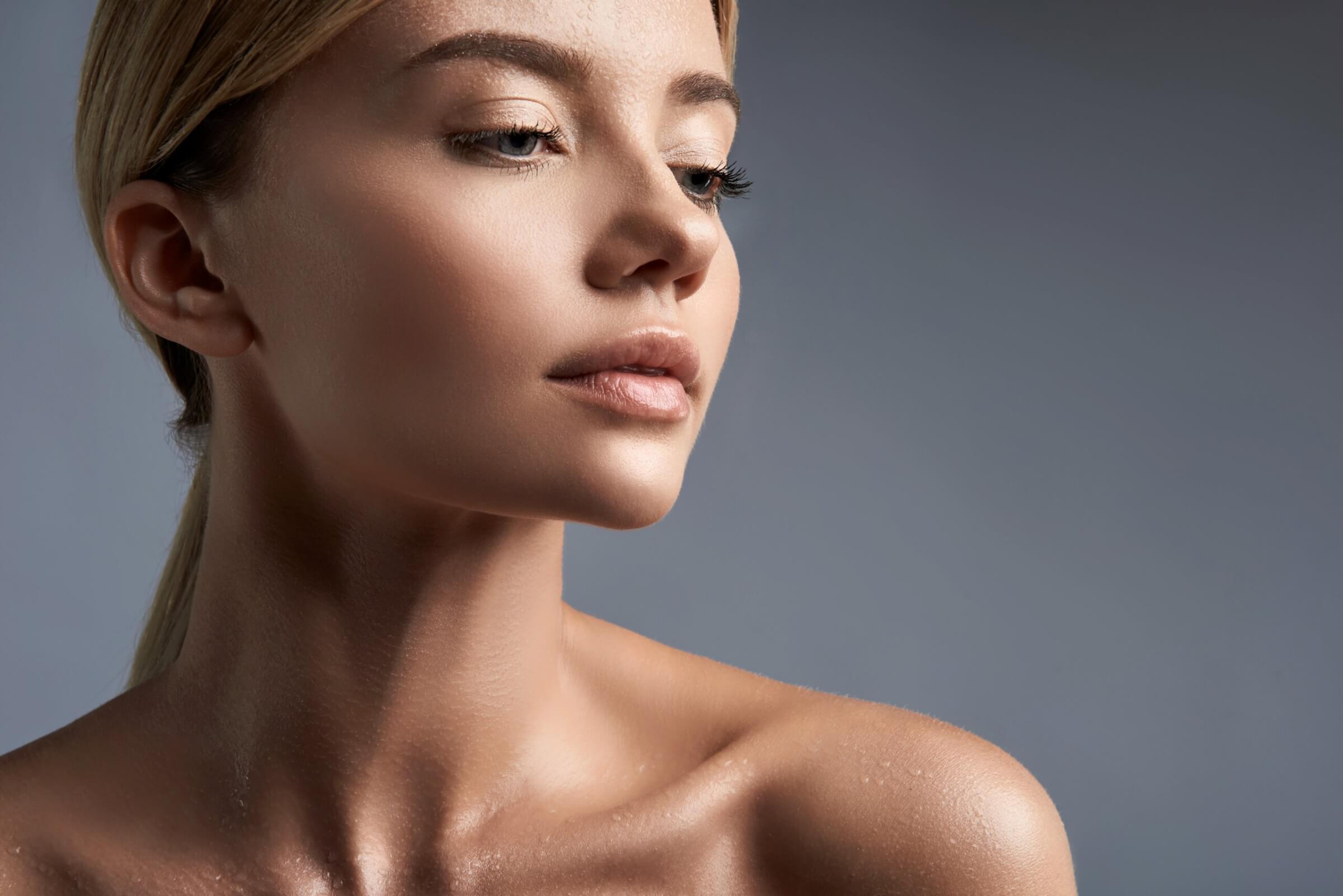

For people: in the studio, outdoors and in groups.
About the Portraiture Workflow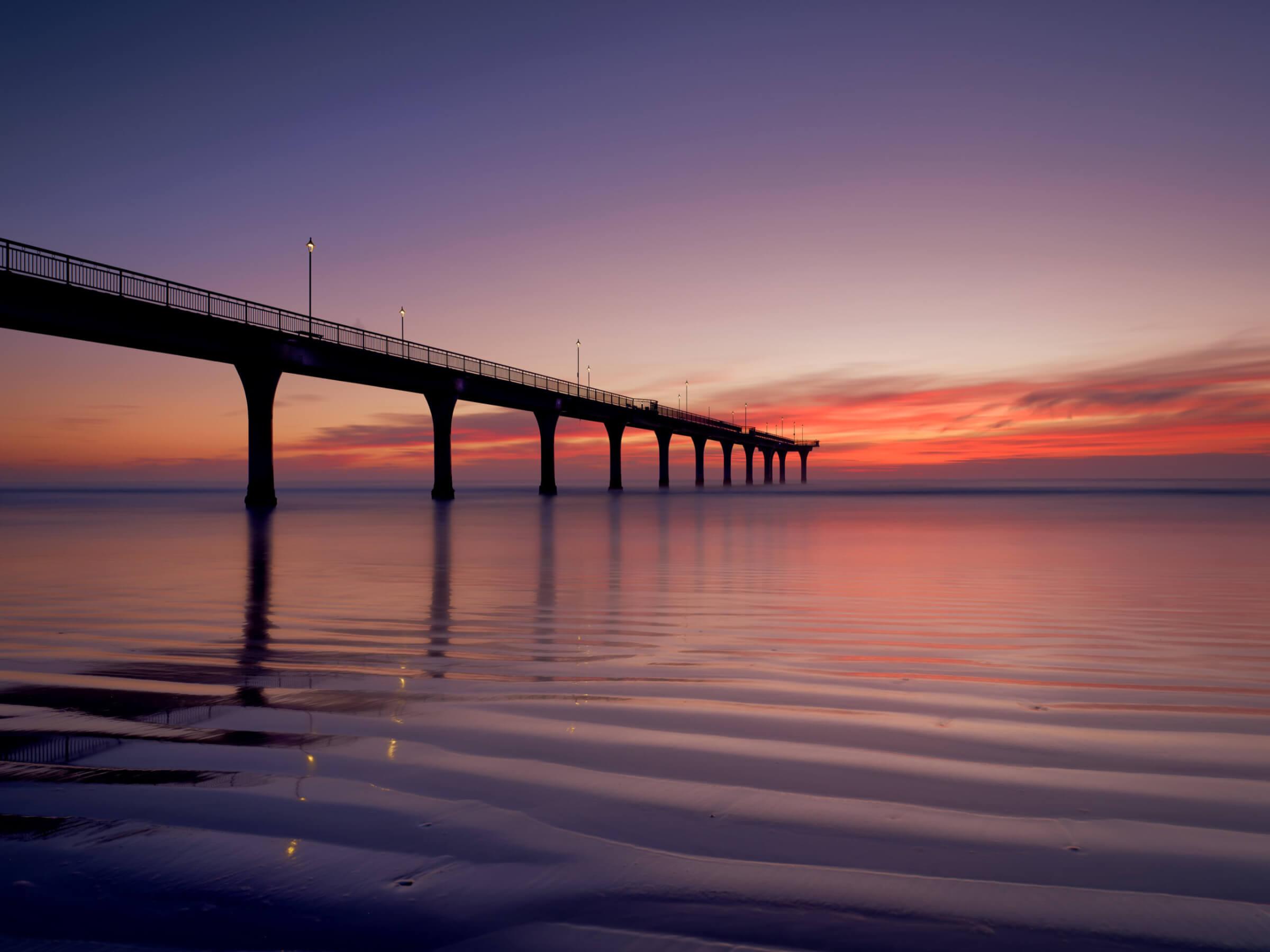

For landscapes and cities, from golden hour to night.
About the Landscapes Workflow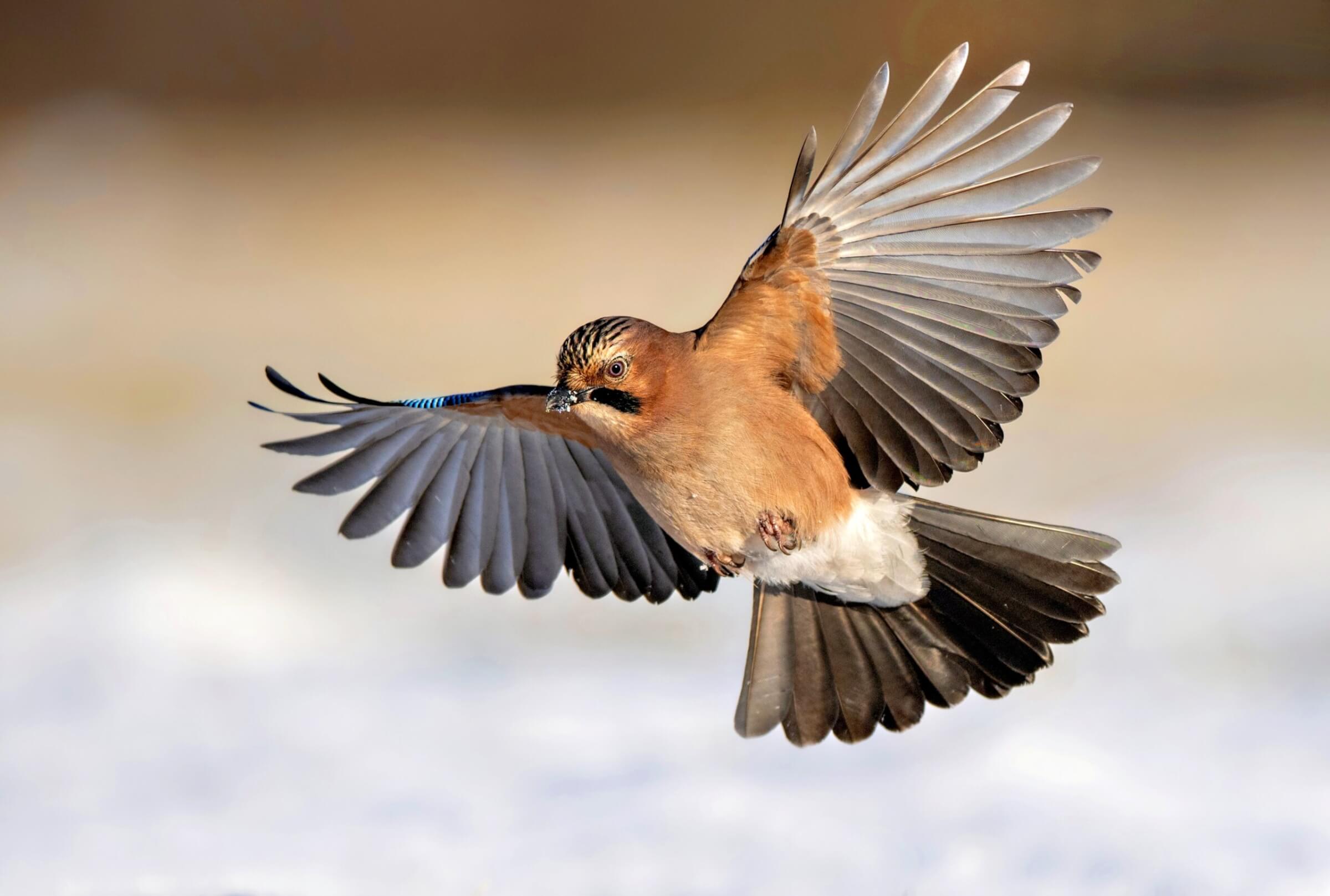

For birds, from hummingbirds to birds of prey.
About the Birds Workflow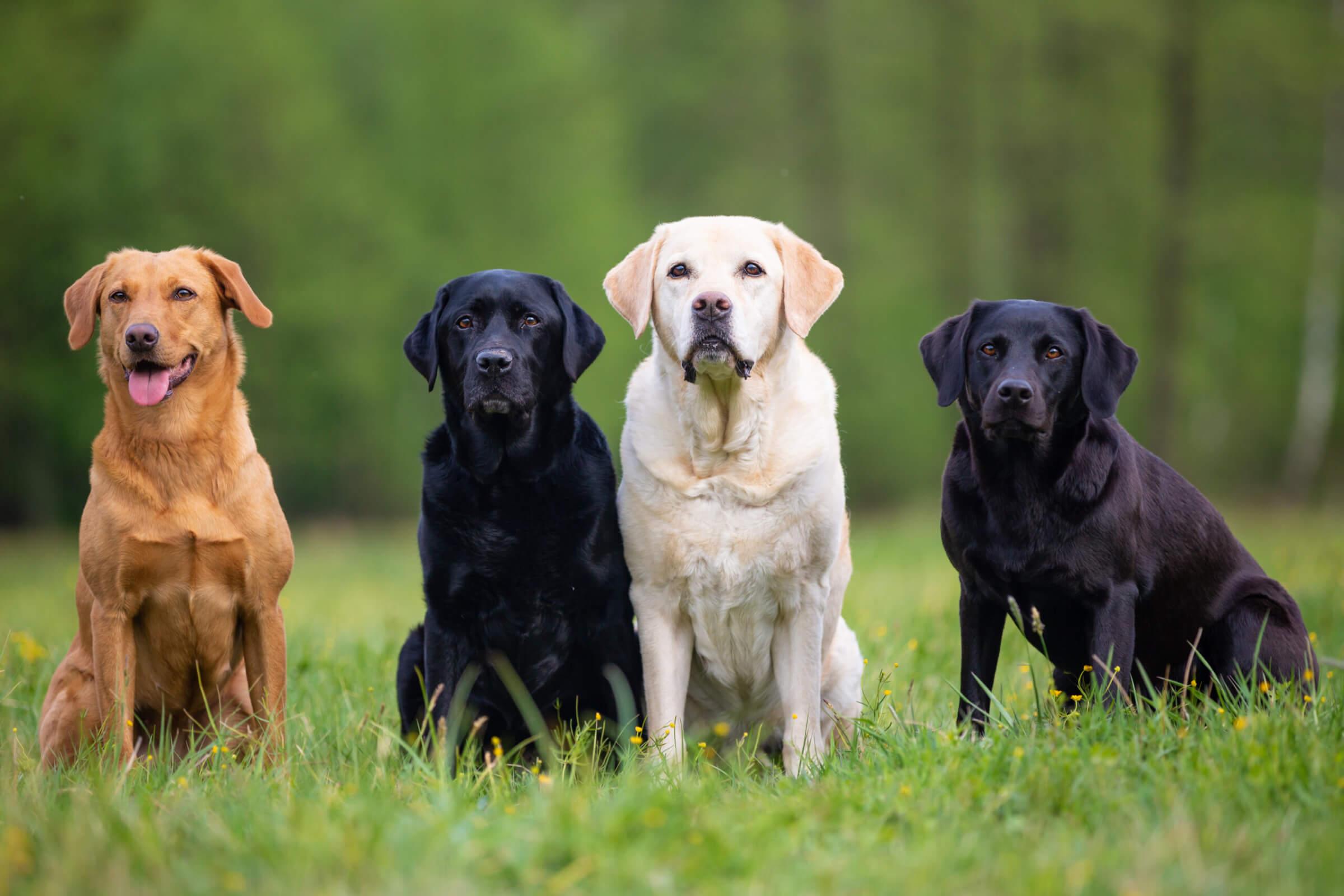

For dogs, cats, horses and every companion.
About the Pets Workflow