No database to feed
Every mark is written next to the photo it describes. Move a folder to another drive and everything travels with it.

Radiant Flow · Free · Mac and Windows
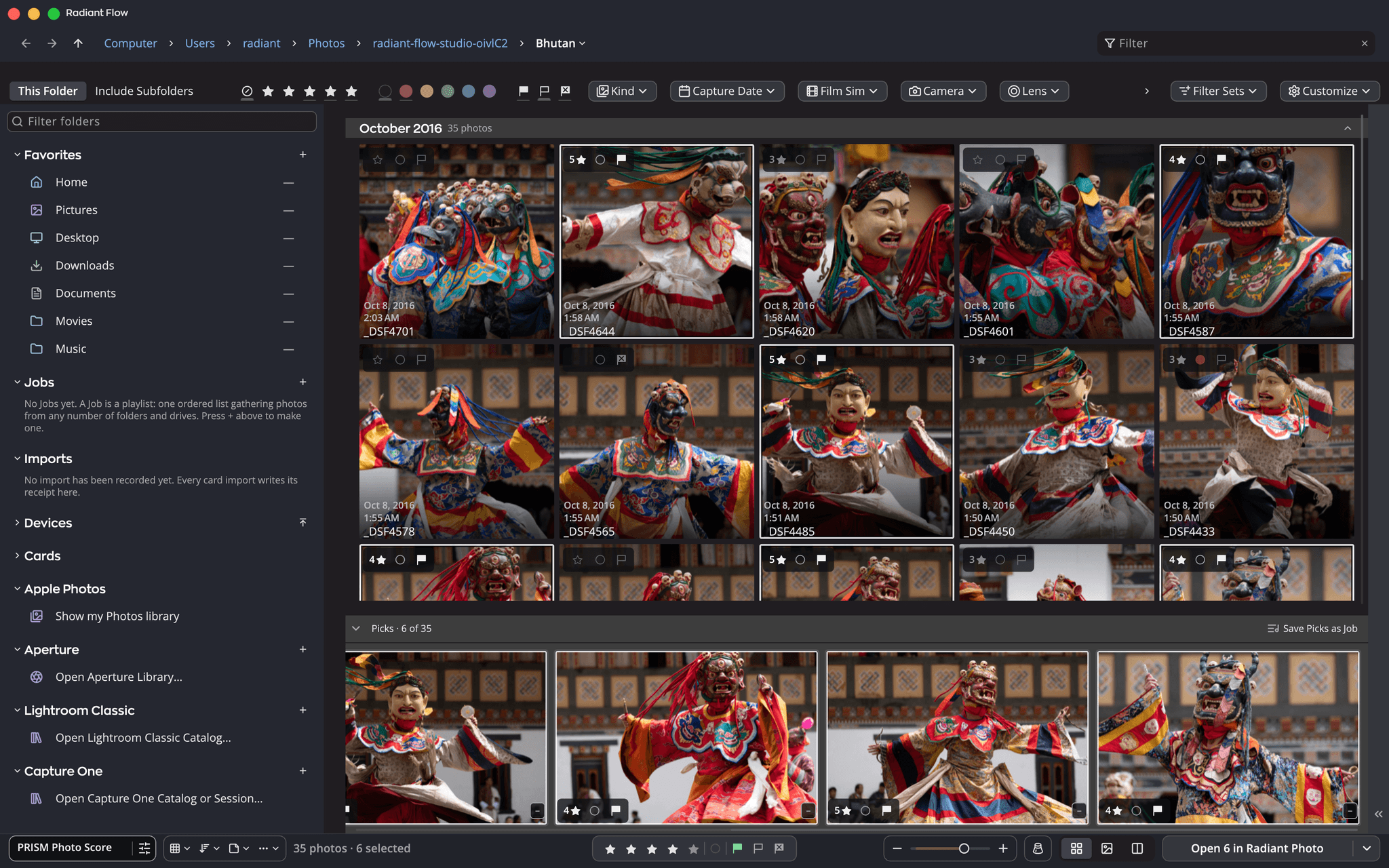
Radiant Flow is a photo browser, not a photo catalog. It works on your cards, drives and folders exactly where they are, so you can see a shoot the moment it lands, keep the best frames, label them, copy them safely, and send them on to whatever you edit with next.
Free $69.00 one time
Works with
 Radiant Raw
 Radiant Photo
Why we made it
You come home with a card holding hundreds or thousands of frames. Most of them will not make the cut. Before you can edit anything, you have to see them all, pick the keepers, put your name and copyright on them, and get them onto a drive you trust, ideally two.
Photo catalogs are built for the years that follow: organizing, searching and revisiting a whole collection. Flow is built for the beginning: it opens a folder instantly, never asks you to import before you can look, writes your choices into the files themselves, and proves your copies are good before you erase a card.
Every mark is written next to the photo it describes. Move a folder to another drive and everything travels with it.
Ratings, flags, labels, keywords and copyright go into the photo or its XMP sidecar, where other photo software can read them.
Verified copies, to two drives if you like, before any other app touches the files or you erase the card.
Try it here
Choose a photo, then flag it as a pick, reject it or give it stars. Your picks collect in the strip below, the way they do in Radiant Flow.
Picks · 0 of 6
Flag a photo as a pick and it lands here.
A demo on this page with six photos. Radiant Flow does the same on a whole card.
Browser vs. catalog
A catalog is a library: it brings photos in and remembers everything about them. A browser is a window: it shows you what is on a disk right now, as fast as the disk can deliver it.
What Flow does
Use any step on its own. Together they take a card from your camera to your editor with nothing lost along the way.
Click a folder and its photos appear first, before Flow has looked through the subfolders. No import, any drive, any card.
Put a card in a reader and Flow offers to import it with a small banner, never a pop-up. Nothing copies until you press Import.
Every attached disk in one list, with photo counts.
One key per photo: stars, pick, reject and color labels. Survey lays near-identical frames side by side.
Your name, contact and copyright on a whole shoot before anyone else sees it. Save them once as a card.
One folder per shoot date, renamed with tokens if you like, and a second copy to another drive in the same pass.
Every file is read back from the disk it landed on and checked against the original. A failed copy is reported and the card is never touched.
The Open button says where the keepers are going: "Open 12 in Radiant Photo", Radiant Raw for raw files, or any app you choose.
From card to edit
Verify copies
“Check every copy” is on by default. A file that doesn’t match is removed from the destination and reported, the original on the card is never touched, and “Delete originals…” unlocks only for originals verified in every place you chose.
Rights
Flow writes your choice into the photo’s standard data-mining field, the one other photo apps and websites can read. It declares your terms; it is not a lock. It can’t stop anyone from training on a photo, and many websites strip metadata when a photo is uploaded.
Select photos and choose Edit › Rights › AI Training: opt out of generative AI training, of all AI and machine-learning training or of all data mining, or mark them allowed.
Tick Opt out of AI training when you import a card, and the whole shoot is opted out of generative AI training as it lands.
Inside JPEG, TIFF, PSD and DNG files by default, and in an .xmp sidecar beside camera raw and HEIC files. Radiant Photo carries it into its JPEG, PNG, TIFF and JPEG XL exports, unless you leave creator and copyright out of the export.
Add Rights to the filter row to see which photos are opted out, which are allowed and which you haven’t decided yet.
The tools you already use
Flow is designed to work beside your library, not instead of it. Cull first, then hand your picks to the tool that does the next job.
Radiant apps
Choose Radiant Raw under Open in Editor and camera raw files go there, everything else to Radiant Photo. Edited photos are marked in the grid on their own. Or put photos in a Job and send it to Radiant Photo with a Look, Recipe or Workflow; Radiant Photo starts it as soon as it arrives.
Desktop catalog
Open your catalog right in Flow, beside your folders. Metadata syncs both ways between Flow and the catalog, and the GPS altitude and direction you set in Flow go to the catalog too.
Cloud library
Cull and caption in Flow first, then add only your picks. Your library and your cloud storage carry only the photos you meant to keep.
Sessions and catalogs
Open your catalog right in Flow, beside your folders. On a Mac, ratings, color labels and keywords sync both ways while Capture One has the catalog open; on Windows, Flow reads it without changing it. Or send a Job to a new Capture One Session.
Library across devices
Offload and verify cards into the folders your library already watches, sorted by shot date.
Built-in library
Your Apple Photos library appears in Flow’s sidebar, in the same grid as your folders. Mac only, because that library exists only there.
Older libraries
Open an Aperture library in Flow and browse it as it is: Flow never writes to it. When you’re ready to move on, Rescue Aperture Library… copies the originals of an Aperture or iPhoto library into folders with their metadata, and can rebuild the album tree. Smart Albums stay behind.
Where Flow fits
Flow takes the first hour after a shoot, then hands your picks to Radiant Raw, Radiant Photo, Lightroom, Lightroom Classic, Capture One, Mylio Photos or any other app.
Browse and filter vs. search
Search works best when you know what you’re looking for and your library already knows it too. Browse and filter works best when the photos are new and nobody has tagged them yet, which describes every shoot you’ve just come home from.
PRISM Photo Score
PRISM recognizes what kind of photo it is looking at and scores each frame from 0 to 100 on what matters for that scene: Keep, Review or Reject. It runs on your computer, and it suggests; it never rejects anything for you.
 93Keep
 88Keep
 86Keep
 77Review
 66Review
 58Review
 44Review
 38Reject
 14Reject
 9Reject
Keep 3Review 4Reject 3
Try it: the labels move, the scores do not. That is exactly how the setting behaves across the three apps.
Stacks
A stack keeps a run of frames, a burst or a set of near-twins, under one cover photo. It is one tile in Radiant Flow’s grid that opens in place when you want the frames, and Radiant Raw and Radiant Photo draw the same stack in their filmstrips.
Try it here
Select two or more photos to make a stack
A demo on this page with eight photos. A stack you make in Radiant Flow shows the same way in Radiant Raw and Radiant Photo.
For users of all levels
Flow uses the plain words photographers already know: rate, flag, label, sidecar, preview. Almost everything you can do with the mouse you can also do from the keyboard.
Getting started
Enthusiast
Professional
At a glance
Downloads live in Support. System requirements · Support · Pricing
Questions
Yes. It activates with your email address, and if Radiant Raw or Radiant Photo is already activated on the computer, Flow activates itself without asking. Nothing in it is walled off.
No, and that is on purpose. Flow is for seeing, sorting and organizing: rating, flagging, labels, metadata, rotation, file management and focus checks. Editing happens in Radiant Raw, Radiant Photo or any other editor you hand the photos to.
Yes. Stars, flags, labels and IPTC metadata go into standard XMP, which most photo applications read.
No. Scoring and scene recognition run on your computer. Radiant Flow goes online to check your license and to fetch its own updates and help pages, the recognition model PRISM uses, and a font or signature hand for a watermark the first time you use it. On a Mac, the map for setting a location comes from Apple, and a place you search for on it is sent to Apple to find it. No photo is sent for any of these.
Both. Apple Photos browsing is Mac only, because that library exists only there.
One workflow
Add Radiant Raw for the develop and Radiant Photo for the finish, or both.