Radiant Imaging Labs
未レビューの翻訳 機械翻訳をもとにした下書きで、この言語の担当レビュアーの確認はまだ済んでいません。
Radiant Flow · 無料 · MacとWindows

カードから編集まで、 待たされることなく。

Radiant Flowは写真カタログではなく、写真ブラウザーです。カードもドライブもフォルダも置かれた場所のまま扱うので、撮影した写真をすぐに見られ、よいコマを残し、ラベルを付け、安全にコピーして、次に使うアプリへ渡せます。
3つのアプリをまとめて見る

無料 $69.00 1回払い

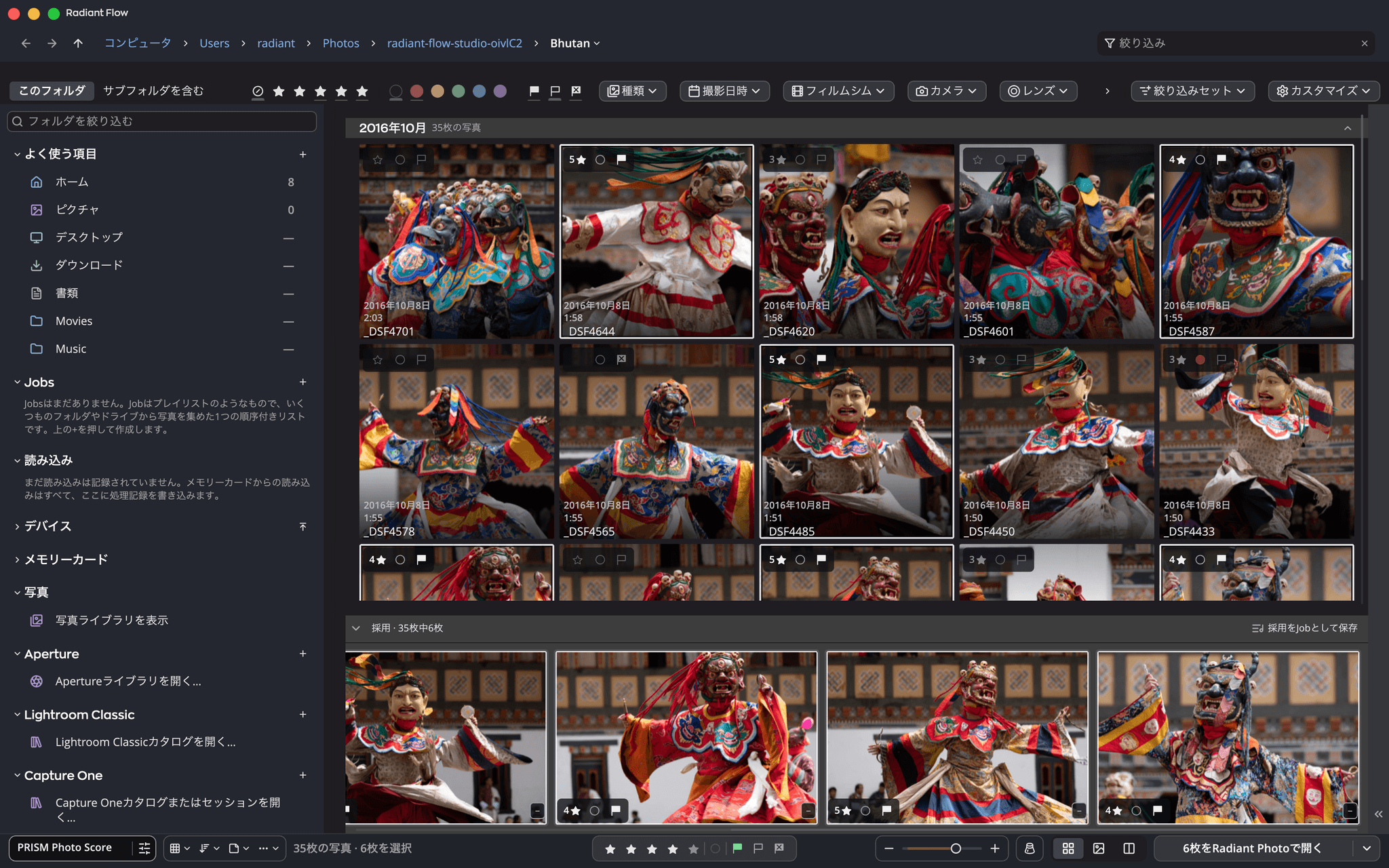
35枚の仮面をつけたダンサーの写真が入ったフォルダを開いたRadiant Flowのウィンドウ。左にサイドバー、各写真の星とフラグが付いたグリッド、その下に6枚を選んだ採用のストリップと、Radiant Photoで開くボタンが表示されています。

対応アプリ

  • 無料
  • 写真がコンピュータの外に出ることはありません
  • 標準のXMPサイドカーファイル
  • カタログの管理は不要

開発の理由

撮影のたびに、写真が多すぎる。

カードには数百枚、ときには数千枚のコマが入っています。そのほとんどは採用されません。編集を始める前に、すべてを見て、採用する写真を選び、名前と著作権を入れ、信頼できるドライブ、できれば2台にコピーする必要があります。

写真カタログは、その後の何年もの整理、検索、見返しのために作られています。Flowは最初の作業のためにあります。フォルダを一瞬で開き、見る前に読み込みを求めることはなく、選んだ内容をファイル自体に書き込み、カードを消去する前にコピーが正しいことを確認します。

データベースへの入力は不要

すべてのマークは、その写真のすぐ隣に書き込まれます。フォルダを別のドライブへ移しても、すべていっしょについていきます。

選んだ内容はファイルといっしょに移動

レーティング、フラグ、ラベル、キーワード、著作権は、写真本体またはXMPサイドカーファイルに書き込まれ、ほかの写真ソフトからも読めます。

何よりも先に、安全なコピー

ほかのアプリがファイルに触れる前、カードを消去する前に、検証済みのコピーを作成します。ご希望なら2台のドライブへ。

ここで試す

6枚の中から、ベストを選ぶ。

写真を選んで、採用にする、除外する、星をつける、のいずれかを試せます。採用した写真は、Radiant Flowと同じように下のストリップに集まります。

採用 · 6枚中0枚

写真を採用にすると、ここに集まります。

このページには6枚の写真で試せるデモがあります。Radiant Flowでは、カード1枚分をまとめて同じように行えます。

ブラウザーとカタログ

2つの異なる役割、どちらも丁寧に果たす。

カタログはライブラリです。写真を取り込み、その情報をすべて記憶します。ブラウザーはウインドウです。いまディスクにあるものを、ディスクが渡せる限りの速さで見せてくれます。

Two ways to work with photos, side by side. A photo catalog: photos are added or imported into a library that holds previews, edit history and choices, with search across the whole collection; many catalogs can also write choices to files. Radiant Flow: a window onto your cards, drives and folders, exactly as they are; each photo carries rating, flag, label, keywords and copyright in the file or its XMP sidecar (on a card or a read-only disk, Flow holds them; from a card, its rating, flag and label go onto your copies once the import verifies them), and Flow keeps a preview cache it can rebuild, plus a few small lists of its own.A photo catalogA library or database of the photos you’ve addedAdd or importLibraryPreviewsEdit historyChoices(many catalogs canalso write them to files)SearchSpans your whole collectionRadiant FlowYour folders, cards and drives, exactly as they areCardsDrivesFoldersDSCF4211.RAFDSCF4211.xmpXMP sidecarRatingFlagLabelKeywordsCopyrightPreview cacheRebuildable
Two ways to work with photos, side by side. A photo catalog: photos are added or imported into a library that holds previews, edit history and choices, with search across the whole collection; many catalogs can also write choices to files. Radiant Flow: a window onto your cards, drives and folders, exactly as they are; each photo carries rating, flag, label, keywords and copyright in the file or its XMP sidecar (on a card or a read-only disk, Flow holds them; from a card, its rating, flag and label go onto your copies once the import verifies them), and Flow keeps a preview cache it can rebuild, plus a few small lists of its own.A photo catalogA library or database ofthe photos you’ve addedAdd or importLibraryPreviewsEdit historyChoices(many catalogs canalso write them to files)SearchSpans your whole collectionRadiant FlowYour folders, cards anddrives, exactly as they areCardsDrivesFoldersDSCF4211.RAFDSCF4211.xmpXMP sidecarRatingFlagLabelKeywordsCopyrightPreview cacheRebuildable

この図は英語です。

Flowでできること

8つのステップ、1つのウインドウ。

どのステップも単独で使えます。組み合わせれば、カメラからエディタまで、何も失わずにカードの中身を運べます。

  1. 01

    高速な閲覧

    フォルダをクリックすると、サブフォルダの検索を待たずに、まず写真が表示されます。読み込みは不要で、どのドライブ、どのカードでも使えます。

  2. 02

    カード

    カードリーダーにカードを入れると、Flowは小さなバナーで読み込みを提案します。ポップアップは出しません。「読み込み」を押すまで、何もコピーされません。

  3. 03

    ドライブ

    接続されているすべてのディスクを、写真の枚数付きで1つのリストに表示します。

  4. 04

    取り込みと選別

    1枚につきキー1つで、星、採用、除外、カラーラベルを付けられます。一覧比較では、よく似たコマを並べて見られます。

  5. 05

    基本メタデータ

    撮影分すべてに、ほかの誰かが見る前に、名前、連絡先、著作権を入れます。一度カードとして保存しておけます。

  6. 06

    ディスクへファイルを移動

    撮影日ごとのフォルダに振り分け、ご希望ならトークンで名前を変更し、同じ処理で別のドライブへ2つ目のコピーも作成します。

  7. 07

    コピーを検証

    すべてのファイルを、書き込み先のディスクから読み戻して元のファイルと照合します。失敗したコピーは報告され、カードには一切触れません。

  8. 08

    引き渡し

    「開く」ボタンには、採用した写真の行き先が表示されます。「Radiant Photoで12枚を開く」、RawファイルならRadiant Raw、または好きなアプリです。

カードから編集まで

8つのステップを順に。

From card to edit, the eight steps of Radiant Flow in order: Fast browsing, Cards, Drives, Ingest & cull, Attach essential metadata, Move files to disk, Verify copies, Hand off to other tools.01Fast browsing02Cards03Drives04Ingest & cull05Attach essentialmetadata06Move filesto disk07Verify copies08Hand off toother tools
From card to edit, the eight steps of Radiant Flow in order: Fast browsing, Cards, Drives, Ingest & cull, Attach essential metadata, Move files to disk, Verify copies, Hand off to other tools.01Fast browsing02Cards03Drives04Ingest & cull05Attach essential metadata06Move files to disk07Verify copies08Hand off to other tools

この図は英語です。

コピーを検証

すべてのコピーを読み戻して検証してから、完了と見なします。

「すべてのコピーを検証」は初期状態でオンです。一致しないファイルはコピー先から削除されて報告され、カード上の元のファイルには一切触れません。「オリジナルを削除…」は、選んだすべての場所で検証済みの元ファイルに対してのみ使えます。

Verify copies. With “Check every copy” on, as it is by default, every file copied from the memory card to the main drive and the backup drive is read back from disk and compared with the original before it counts as verified. A file that doesn’t match is removed from the destination and reported, and the original on the card is never touched. “Delete originals…” unlocks only for originals verified in both places.Check every copyOn by defaultFor every file, on each driveMain driveCopyRead backfrom diskCompare withthe originalVerifiedBackup driveCopyRead backfrom diskCompare withthe originalVerifiedMemory cardDoesn’t matchRemoved from the destination and reportedThe original on the card is never touchedDelete originals…Unlocks only for originals verified in both places
Verify copies. With “Check every copy” on, as it is by default, every file copied from the memory card to the main drive and the backup drive is read back from disk and compared with the original before it counts as verified. A file that doesn’t match is removed from the destination and reported, and the original on the card is never touched. “Delete originals…” unlocks only for originals verified in both places.Check every copyOn by defaultMemory cardFor every file, on each driveMain driveCopyRead backfrom diskCompare withthe originalBackup driveCopyRead backfrom diskCompare withthe originalVerifiedDoesn’t matchRemoved from thedestination and reportedThe original on thecard is never touchedDelete originals…Unlocks only for originals verified in both places

この図は英語です。

権利

写真のAI学習への利用条件を指定できます。

Flowは選択内容を、写真の標準的なデータマイニング用フィールドに書き込みます。ほかの写真アプリやWebサイトが読み取れるフィールドです。これは利用条件を示すものであり、鍵ではありません。写真がAI学習に使われるのを止めることはできず、写真のアップロード時にメタデータを取り除くWebサイトも多くあります。

1つのメニュー

写真を選択して「編集 › 権利 › AIトレーニング」を選びます。「オプトアウト — 生成AIのトレーニング」「オプトアウト — すべてのAI/MLトレーニング」「オプトアウト — すべてのデータマイニング」のいずれかを設定するか、「許可」にできます。

最初のコピーから

カードを読み込むときに「AI学習の対象外にする」にチェックを入れると、撮影分すべてが、読み込まれた時点で生成AIの学習の対象外になります。

写真と一緒に書き込み

既定では、JPEG、TIFF、PSD、DNGファイルの内部に書き込まれ、カメラのRawファイルやHEICファイルでは隣の.xmpサイドカーファイルに書き込まれます。Radiant Photoは、書き出しから作成者と著作権を除外しない限り、JPEG、PNG、TIFF、JPEG XLの書き出しにもこれを引き継ぎます。

マークした写真を探す

絞り込みの行に「権利」を追加すると、オプトアウトした写真、許可した写真、まだ決めていない写真がわかります。

いつも使っているツール

Flowは、そのどれの前段にも収まります。

Flowはライブラリの代わりではなく、その隣で使うように設計されています。まず選別し、次の作業を担当するツールへ採用した写真を渡します。

Radiantアプリ

Radiant RawとRadiant Photo

「エディタで開く」でRadiant Rawを選ぶと、カメラのRawファイルはそちらで開き、それ以外はRadiant Photoで開きます。編集済みの写真はグリッドで自動的にマークされます。またはJobに写真を入れ、Look、レシピ、ワークフローを指定してRadiant Photoに送ることもできます。Radiant Photoは届いた時点で処理を始めます。

デスクトップ用カタログ

Lightroom Classic

カタログをFlow内でフォルダーの隣に開けます。メタデータはFlowとカタログの間で双方向に同期され、Flowで設定したGPSの高度と方向もカタログに反映されます。

クラウドライブラリ

Lightroom

まずFlowで選別とキャプション付けを済ませ、採用した写真だけを追加します。ライブラリとクラウドストレージには、残すつもりの写真だけが入ります。

セッションとカタログ

Capture One

カタログをFlow内でフォルダーの隣に開けます。Macでは、Capture Oneでカタログを開いている間、レーティング、カラーラベル、キーワードが双方向に同期されます。Windowsでは、Flowはカタログを変更せずに読み取ります。または、新しいCapture OneセッションにJobを送ることもできます。

デバイスをまたぐライブラリ

Mylio Photos

ライブラリがすでに監視しているフォルダへ、カードの内容を撮影日ごとに仕分けて、検証しながらコピーします。

内蔵ライブラリ

Apple「写真」

Apple「写真」のライブラリが、Flowのサイドバーに、フォルダと同じグリッドで表示されます。このライブラリはMacにしか存在しないため、Macのみ対応です。

古いライブラリ

ApertureとiPhoto

FlowでApertureライブラリを開くと、そのままの状態で閲覧できます。Flowがライブラリに書き込むことはありません。移行する準備ができたら「Apertureライブラリを救出…」で、ApertureまたはiPhotoライブラリの元ファイルがメタデータ付きでフォルダにコピーされ、アルバムツリーも再構築できます。スマートアルバムは引き継がれません。

Flowの位置づけ

いつも使うツールの、その前に。

Flowは撮影直後の最初の1時間を引き受け、採用した写真をRadiant Raw、Radiant Photo、Lightroom、Lightroom Classic、Capture One、Mylio Photosなど、ほかのアプリへ渡します。

Where Radiant Flow fits: photos come into Radiant Flow from your camera’s memory card and from your drives and folders. In Flow you ingest and cull, add ratings and labels, put on your copyright and make verified copies; your choices go into the file or its XMP sidecar, and on a card or a read-only disk Flow holds them, carrying a card’s ratings, flags and labels to your copies once the import verifies them. Flow can also open your Apple Photos library and your Lightroom Classic catalogs. Your photos then go on to Radiant Photo, or to Radiant Raw for camera Raw files when you choose it, and to the tools you already use: only your picks to Lightroom; your picks to Lightroom Classic in a “Radiant Flow” collection, with ratings and metadata kept in sync both ways and a switch that turns off writing to the files; your picks straight into Capture One, with ratings, labels and keywords in the file or its XMP sidecar; into the folders Mylio Photos watches, with metadata in the file or its XMP sidecar; or to any other app.Radiant FlowThe first hour after a shootIngest & cullRatings & labelsCopyrightVerified copiesIn the file or its XMP sidecarOn a card or a read-onlydisk, Flow holds themLibraries Flow can also openApple Photos · Lightroom ClassicCameraMemory card2,000 framesDrives & foldersRadiant appsRadiant PhotoRadiant RawCamera Raw files,when you choose itThe tools you already useLightroomOnly your picksLightroom ClassicIn a “Radiant Flow” collectionRatings and metadatain sync both waysA switch turns offwriting to the filesCapture OneYour picks, straight inRatings, labels and keywordsin the file or its XMP sidecarMylio PhotosInto the folders it watchesMetadata in the fileor its XMP sidecarAny other appYour photos
Where Radiant Flow fits: photos come into Radiant Flow from your camera’s memory card and from your drives and folders. In Flow you ingest and cull, add ratings and labels, put on your copyright and make verified copies; your choices go into the file or its XMP sidecar, and on a card or a read-only disk Flow holds them, carrying a card’s ratings, flags and labels to your copies once the import verifies them. Flow can also open your Apple Photos library and your Lightroom Classic catalogs. Your photos then go on to Radiant Photo, or to Radiant Raw for camera Raw files when you choose it, and to the tools you already use: only your picks to Lightroom; your picks to Lightroom Classic in a “Radiant Flow” collection, with ratings and metadata kept in sync both ways and a switch that turns off writing to the files; your picks straight into Capture One, with ratings, labels and keywords in the file or its XMP sidecar; into the folders Mylio Photos watches, with metadata in the file or its XMP sidecar; or to any other app.CameraMemory card2,000 framesDrives & foldersRadiant FlowThe first hour after a shootIngest & cullRatings & labelsCopyrightVerified copiesIn the file or its XMP sidecarOn a card or a read-onlydisk, Flow holds themLibraries Flow can also openApple Photos · Lightroom ClassicYour photosRadiant appsRadiant PhotoRadiant RawCamera Raw files, when you choose itThe tools you already useLightroomOnly your picksLightroom ClassicIn a “Radiant Flow” collectionRatings and metadata in sync both waysA switch turns off writing to the filesCapture OneYour picks, straight inRatings, labels and keywordsin the file or its XMP sidecarMylio PhotosInto the folders it watchesMetadata in the file or its XMP sidecarAny other app

この図は英語です。

閲覧と絞り込み、そして検索

写真にたどり着く2つの方法。

検索が力を発揮するのは、探しているものがはっきりしていて、ライブラリもそれを把握している場合です。閲覧と絞り込みが力を発揮するのは、写真が新しく、まだ誰もタグを付けていない場合です。撮影から戻ったばかりの写真は、いつもそうです。

Two ways to get to a photo. Search, in your library, as in apps like Lightroom, Lightroom Classic, Apple Photos, Mylio Photos and Capture One: a query finds three photos across your whole collection. Browse & filter, as in Radiant Flow: one shoot folder of 2,000 photos, narrowed by 4 stars and up and Picked to 412, then by a 35mm F1.4 lens and ISO 400 to 37.SearchAsk your library a questionApps like Lightroom, Lightroom Classic,Apple Photos, Mylio Photos and Capture OneGrandma, beach, 2019Spans your whole collectionBrowse & filterGo to a place, then narrow it downRadiant Flow2026-10-182,000 photos4 stars and upPicked412 of 2,000 photos35mm F1.4ISO 40037 of 2,000 photosor
Two ways to get to a photo. Search, in your library, as in apps like Lightroom, Lightroom Classic, Apple Photos, Mylio Photos and Capture One: a query finds three photos across your whole collection. Browse & filter, as in Radiant Flow: one shoot folder of 2,000 photos, narrowed by 4 stars and up and Picked to 412, then by a 35mm F1.4 lens and ISO 400 to 37.SearchAsk your library a questionApps like Lightroom,Lightroom Classic, Apple Photos,Mylio Photos and Capture OneGrandma, beach, 2019Spans your whole collectionBrowse & filterGo to a place, then narrow it downRadiant Flow2026-10-182,000 photos4 stars and upPicked412 of 2,000 photos35mm F1.4ISO 40037 of 2,000 photosor

この図は英語です。

PRISM Photo Score

最も強いコマを示すのはスコア。判断するのはあなたです。

PRISMは、写っている写真の種類を認識し、そのシーンで大切なことを基準に、各コマを0〜100でスコア付けします。結果はキープ、要確認、不採用のいずれかです。処理はお使いのコンピュータ上で行われ、提案するだけで、代わりに除外することはありません。

  • Radiant RawとRadiant Photoも、同じスコアを読み取ります。
  • 帯の境界線は1つの設定で3つのアプリすべてに反映されます。境界線を動かすと、再スコアなしですべてのアプリの表示が同時に切り替わります。
  • 93キープ
  • 88キープ
  • 86キープ
  • 77要確認
  • 66要確認
  • 58要確認
  • 44要確認
  • 38不採用
  • 14不採用
  • 9不採用

キープ 3要確認 4不採用 3

試してみてください。ラベルは動いても、スコアは変わりません。3つのアプリにまたがる設定は、まさにこのように動作します。

スタック

たくさんのコマを、 1枚のカバーに。

スタックは、連続したコマ(連写や、ほぼ同じ写真のセット)を1枚のカバー写真にまとめます。Radiant Flowのグリッドでは1つのタイルで、コマを見たいときにその場で開きます。Radiant RawとRadiant Photoでは、フィルムストリップに同じスタックが表示されます。

  • どの並べ替えでも、その場で開く
  • カバーは自分で選べる
  • 連写をワンステップでスタック
  • 3つのアプリで同じスタック

ここで試す

スタックを作るには写真を2枚以上選択してください

このページのデモで、8枚の写真を使っています。Radiant Flowで作ったスタックは、Radiant RawやRadiant Photoでも同じように表示されます。

あらゆるレベルのユーザーへ

初日から簡単。必要になれば奥深い。

Flowが使うのは、レーティング、フラグ、ラベル、サイドカーファイル、プレビューなど、写真家がすでに知っている言葉です。マウスでできるほとんどの操作は、キーボードからもできます。

はじめに

まず見るだけ

  • フォルダを開けば、写真がそこにあります。
  • 数字キーを押すと、写真に星を付けられます。
  • Flowは、同じ名前の別のファイルで置き換えることはなく、「ゴミ箱に入れる」は事前に確認します。
  • お気に入りの写真を、ボタン1つでエディタに開けます。

愛好家

習慣にする

  • カードの内容を撮影日ごとのフォルダに読み込み、検証までします。
  • カメラ、レンズ、ISOで絞り込んで、機材を比べられます。
  • 著作権を一度カードとして保存すれば、撮影ごとに自動で付けられます。
  • RawとJPEGのペアをスタックにまとめ、一覧比較でコマを比べられます。

プロフェッショナル

ワークフローを回す

  • 2か所へ同時に取り込み、すべてのファイルを両方で検証します。
  • リネームトークンを使いつつ、元のファイル名も残せます。
  • 標準のIPTCフィールドを、数百枚にまとめて入力できます。
  • PRISM Photo Score、連動するルーペ、フォーカスピーキングで、選別をより速く。
  • 自分好みのキーボードショートカットが、MacでもWindowsでも使えます。
  • 絞り込みの組み合わせを「絞り込みセット」として保存でき、範囲指定や、1つの値を除くすべての指定にも対応します。

ひと目でわかる

詳細。

価格
無料
対応プラットフォーム
MacとWindows
表示
フルイド、グリッド、正方形、リスト、カラム、ステージクイックルック一覧比較
マーク
星1〜5採用と除外カラーラベルキーワードIPTC
マークの保存場所
ファイル内、または.xmpサイドカーファイル
絞り込み
星、フラグ、ラベル、種類、日付、カメラ、レンズ、ISO、絞り、シャッター、焦点距離、キーワード、権利など。フォルダ向けに23種類、それぞれ件数をリアルタイム表示範囲否定「絞り込みセット」として保存
読み込み
撮影日フォルダリネームトークン2つ目のコピー全ファイルを検証
引き渡し先
Radiant RawRadiant PhotoLightroom Classic任意のアプリ
インターフェースの言語
37

ダウンロードはサポートにあります。 システム要件 · サポート · 料金

よくある質問

率直にお答えします。

Radiant Flowは本当に無料ですか?

はい。メールアドレスで認証でき、Radiant RawまたはRadiant Photoがすでにそのコンピュータで認証されていれば、Flowは確認なしで自動的に認証されます。使えない機能が隠されていることもありません。

Radiant Flowは写真を編集しますか?

いいえ。意図的にそうしています。Flowは、見る、仕分ける、整理するためのアプリで、レーティング、フラグ、ラベル、メタデータ、回転、ファイル管理、ピント確認ができます。編集は、Radiant Raw、Radiant Photo、または写真を渡すほかのエディタで行います。

レーティングは、ほかのソフトにも反映されますか?

はい。星、フラグ、ラベル、IPTCメタデータは標準のXMPに書き込まれ、ほとんどの写真アプリが読み取れます。

写真はどこかにアップロードされますか?

いいえ。スコア付けとシーン認識は、お使いのコンピュータ上で実行されます。Radiant Flowがオンラインに接続するのは、ライセンスの確認、アップデートとヘルプページの取得、PRISMが使う認識モデルの取得、そして透かし用のフォントや署名の手書き書体を初めて使うときの取得のためです。Macでは、位置情報を設定するための地図をAppleから取得し、地図で検索した場所は検索のためにAppleへ送信されます。いずれの場合も、写真が送信されることはありません。

MacとWindows、どちらですか?

両方に対応します。ただし、Apple「写真」の閲覧はMacのみです。このライブラリはMacにしか存在しないためです。

まずは無料のRadiant Flowから。

現像にはRadiant Raw、仕上げにはRadiant Photoを、あるいは両方を追加できます。