คำแปลที่ยังไม่ได้ตรวจ ฉบับร่างที่เครื่องช่วยแปล ยังไม่ผ่านผู้ตรวจของภาษานี้
Radiant Flow · ฟรี · Mac และ Windows
จากการ์ดสู่การแก้ไข โดยไม่ต้องรอ
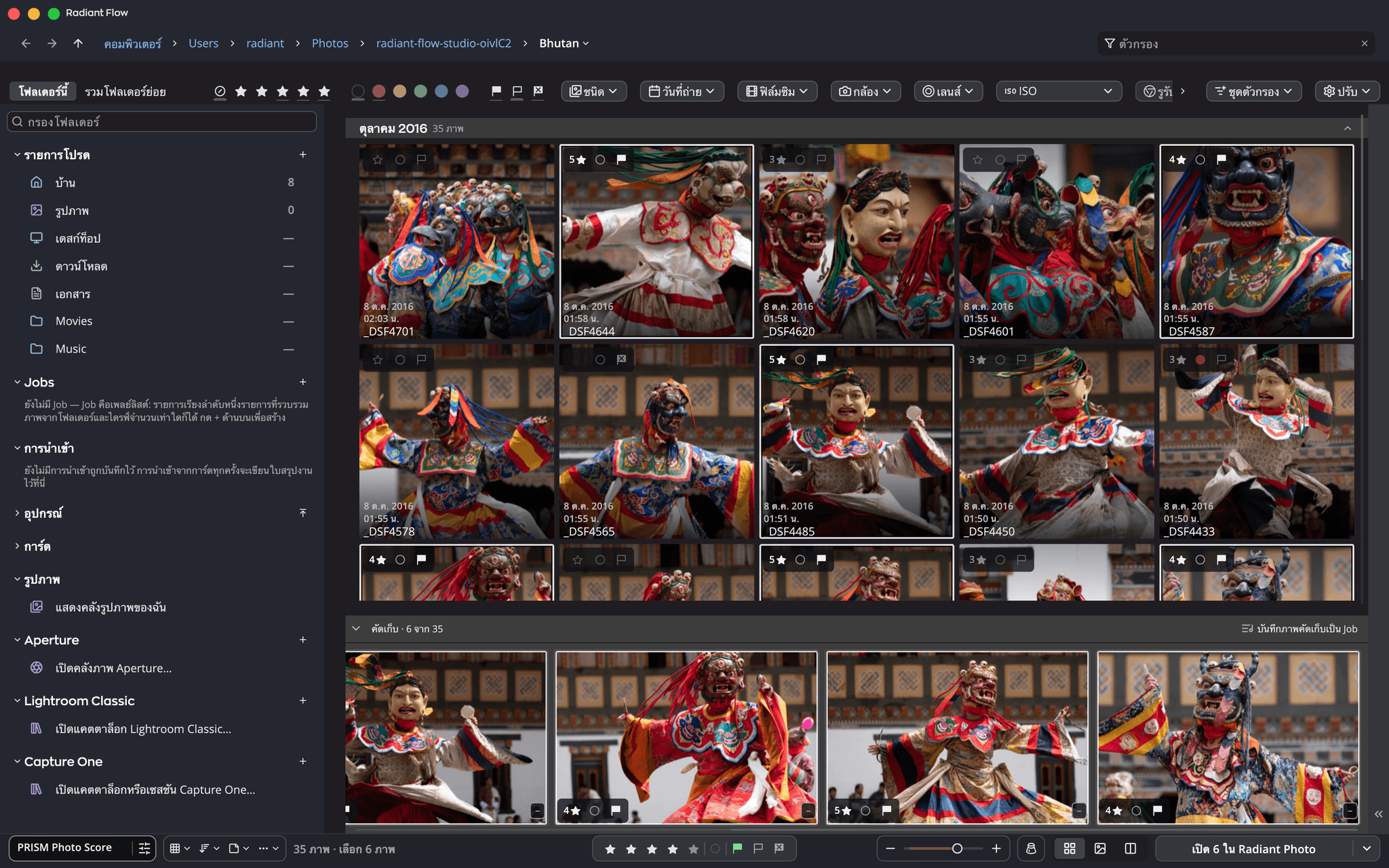
Radiant Flow เป็นตัวเรียกดูภาพถ่าย ไม่ใช่แคตตาล็อกภาพถ่าย ทำงานกับการ์ด ไดรฟ์ และโฟลเดอร์ของคุณตรงที่มันอยู่ ดูภาพถ่ายชุดใหม่ได้ทันทีที่เข้ามา คัดเก็บเฟรมที่ดีที่สุด ติดป้ายสี คัดลอกอย่างปลอดภัย แล้วส่งต่อไปยังโปรแกรมที่คุณใช้แก้ไขภาพต่อ
- ฟรี
- ภาพถ่ายของคุณไม่เคยออกจากคอมพิวเตอร์
- ไฟล์คู่ XMP มาตรฐาน
- ไม่มีแคตตาล็อกให้ดูแล
ทำไมเราจึงสร้างขึ้น
ทุกงานถ่ายเริ่มต้นด้วยภาพถ่ายมากเกินไป
คุณกลับบ้านพร้อมการ์ดที่มีเฟรมหลายร้อยหรือหลายพันภาพ ส่วนใหญ่จะไม่ผ่านการคัด ก่อนจะแก้ไขอะไรได้ คุณต้องดูทั้งหมด คัดภาพที่ควรเก็บ ใส่ชื่อและลิขสิทธิ์ของคุณ และนำไปไว้ในไดรฟ์ที่ไว้ใจได้ จะให้ดีคือสองไดรฟ์
แคตตาล็อกภาพถ่ายสร้างมาเพื่อปีต่อ ๆ ไป ทั้งการจัดระเบียบ การค้นหา และการย้อนกลับไปดูทั้งคอลเลกชัน ส่วน Flow สร้างมาเพื่อจุดเริ่มต้น เปิดโฟลเดอร์ได้ทันที ไม่บังคับให้นำเข้าก่อนจึงจะดูได้ เขียนสิ่งที่คุณเลือกลงในไฟล์โดยตรง และพิสูจน์ว่าสำเนาใช้ได้ก่อนที่คุณจะลบการ์ด
ไม่มีฐานข้อมูลให้ป้อน
ทุกเครื่องหมายถูกเขียนไว้ข้างภาพถ่ายที่มันอธิบาย ย้ายโฟลเดอร์ไปไดรฟ์อื่นแล้วทุกอย่างก็ไปด้วยกัน
สิ่งที่คุณเลือกไปกับไฟล์ของคุณ
ระดับดาว ธง ป้ายสี คำสำคัญ และลิขสิทธิ์ถูกเขียนลงในภาพถ่ายหรือไฟล์คู่ XMP ซึ่งซอฟต์แวร์ภาพถ่ายอื่นอ่านได้
สำเนาที่ปลอดภัยมาก่อนสิ่งอื่น
สำเนาที่ตรวจสอบแล้ว ลงสองไดรฟ์ได้หากต้องการ ก่อนที่แอปอื่นจะแตะไฟล์หรือคุณจะลบการ์ด
ลองที่นี่
หกภาพ เก็บภาพที่ดีที่สุด
เลือกภาพ แล้วคัดเก็บ คัดออก หรือให้ดาว ภาพที่คัดเก็บจะรวมอยู่ในแถบด้านล่าง เหมือนใน Radiant Flow
คัดเก็บ · 0 จาก 6
คัดเก็บภาพ แล้วภาพจะมาอยู่ที่นี่
เดโมในหน้านี้ใช้ภาพ 6 ภาพ Radiant Flow ทำแบบเดียวกันกับการ์ดหน่วยความจำทั้งใบ
ตัวเรียกดูเทียบกับแคตตาล็อก
สองงานที่ต่างกัน และควรทำให้ดีทั้งคู่
แคตตาล็อกคือคลัง ที่นำภาพถ่ายเข้ามาและจดจำทุกอย่างเกี่ยวกับภาพ ตัวเรียกดูคือหน้าต่าง ที่แสดงสิ่งที่อยู่บนดิสก์ในตอนนี้ เร็วเท่าที่ดิสก์ส่งข้อมูลได้
แผนภาพนี้เป็นภาษาอังกฤษ
Flow ทำอะไรบ้าง
แปดขั้นตอน ในหน้าต่างเดียว
ใช้ขั้นตอนใดเดี่ยว ๆ ก็ได้ เมื่อใช้ร่วมกันจะพาการ์ดจากกล้องไปถึงตัวแก้ไขโดยไม่มีอะไรสูญหายระหว่างทาง
- 01
เรียกดูอย่างรวดเร็ว
คลิกโฟลเดอร์แล้วภาพถ่ายจะปรากฏก่อน ก่อนที่ Flow จะค้นโฟลเดอร์ย่อย ไม่ต้องนำเข้า ใช้ได้กับทุกไดรฟ์และทุกการ์ด
- 02
การ์ด
ใส่การ์ดในเครื่องอ่าน แล้ว Flow จะเสนอให้นำเข้าด้วยแบนเนอร์เล็ก ๆ ไม่มีหน้าต่างเด้ง จะไม่คัดลอกอะไรจนกว่าคุณจะกดนำเข้า
- 03
ไดรฟ์
ดิสก์ที่เชื่อมต่อทุกตัวในรายการเดียว พร้อมจำนวนภาพถ่าย
- 04
ถ่ายโอนและคัดภาพ
หนึ่งปุ่มต่อหนึ่งภาพ ได้แก่ ดาว คัดเก็บ คัดออก และป้ายสี สำรวจภาพวางเฟรมที่เกือบเหมือนกันไว้เคียงกัน
- 05
ข้อมูลเมตาที่จำเป็น
ใส่ชื่อ ข้อมูลติดต่อ และลิขสิทธิ์ของคุณทั้งงานถ่ายก่อนที่ใครจะเห็น บันทึกไว้ครั้งเดียวเป็นการ์ด
- 06
ย้ายไฟล์ลงดิสก์
หนึ่งโฟลเดอร์ต่อวันที่ถ่าย เปลี่ยนชื่อด้วยโทเค็นได้หากต้องการ และทำสำเนาที่สองลงไดรฟ์อื่นในรอบเดียวกัน
- 07
ตรวจสอบสำเนา
ทุกไฟล์ถูกอ่านกลับจากดิสก์ที่ไฟล์ไปอยู่ แล้วตรวจเทียบกับต้นฉบับ สำเนาที่ล้มเหลวจะถูกรายงาน และจะไม่แตะต้องการ์ดเลย
- 08
ส่งต่อ
ปุ่มเปิดบอกว่าภาพที่คัดไว้กำลังไปที่ไหน: “เปิด 12 ใน Radiant Photo” ไฟล์ Raw ไปที่ Radiant Raw หรือแอปใดก็ได้ที่คุณเลือก
จากการ์ดสู่การแก้ไข
แปดขั้นตอนตามลำดับ
แผนภาพนี้เป็นภาษาอังกฤษ
ตรวจสอบสำเนา
ทุกสำเนาถูกอ่านกลับและตรวจสอบก่อนจะนับว่าสำเร็จ
“ตรวจสอบสำเนาทุกไฟล์” เปิดไว้เป็นค่าเริ่มต้น ไฟล์ที่ไม่ตรงกันจะถูกลบออกจากปลายทางและรายงาน ต้นฉบับบนการ์ดจะไม่ถูกแตะต้อง และ “ลบต้นฉบับ…” จะปลดล็อกเฉพาะต้นฉบับที่ตรวจสอบแล้วในทุกที่ที่คุณเลือก
แผนภาพนี้เป็นภาษาอังกฤษ
สิทธิ์
กำหนดว่าภาพถ่ายใช้ในการฝึก AI ได้อย่างไร
Flow เขียนตัวเลือกลงในช่องข้อมูลมาตรฐานสำหรับการทำเหมืองข้อมูลของภาพ ซึ่งแอปและเว็บไซต์ภาพถ่ายอื่นอ่านได้ เป็นการประกาศเงื่อนไข ไม่ใช่การล็อก และไม่สามารถห้ามใครไม่ให้ฝึกด้วยภาพได้ อีกทั้งเว็บไซต์จำนวนมากลบข้อมูลเมตาเมื่ออัปโหลดภาพ
เมนูเดียว
เลือกภาพแล้วเลือก แก้ไข › สิทธิ์ › การฝึก AI: ไม่เข้าร่วมการฝึก AI เชิงสร้าง ไม่เข้าร่วมการฝึก AI/ML ทั้งหมด หรือไม่เข้าร่วมการทำเหมืองข้อมูลทั้งหมด หรือทำเครื่องหมายว่า “อนุญาต”
ตั้งแต่สำเนาแรก
ติ๊ก “ไม่ยินยอมให้ใช้ฝึก AI” ตอนนำเข้าจากการ์ดหน่วยความจำ แล้วงานถ่ายทั้งชุดจะไม่เข้าร่วมการฝึก AI เชิงสร้างตั้งแต่ภาพเข้ามา
บันทึกไปพร้อมกับภาพ
ค่าเริ่มต้นจะอยู่ในไฟล์ JPEG, TIFF, PSD และ DNG และอยู่ในไฟล์คู่ .xmp ข้างไฟล์ Raw จากกล้องและไฟล์ HEIC Radiant Photo จะนำไปใส่ในไฟล์ส่งออก JPEG, PNG, TIFF และ JPEG XL เว้นแต่จะไม่รวมผู้สร้างและลิขสิทธิ์ไว้ในการส่งออก
ค้นหาภาพที่ทำเครื่องหมายไว้
เพิ่มสิทธิ์ในแถวตัวกรองเพื่อดูว่าภาพใดไม่เข้าร่วม ภาพใดอนุญาต และภาพใดที่ยังไม่ได้ตัดสินใจ
เครื่องมือที่คุณใช้อยู่แล้ว
Flow ทำงานก่อนทุกตัว
Flow ออกแบบมาให้ทำงานข้างคลังของคุณ ไม่ใช่แทนที่ คัดภาพก่อน แล้วส่งภาพที่คัดไว้ให้เครื่องมือที่ทำงานขั้นต่อไป
แอป Radiant
Radiant Raw และ Radiant Photo
เลือก Radiant Raw ที่ เปิดในตัวแก้ไข แล้วไฟล์ Raw จากกล้องจะไปที่นั่น ส่วนที่เหลือไปที่ Radiant Photo ภาพที่แก้ไขแล้วจะมีเครื่องหมายในตารางให้เอง หรือจะใส่ภาพไว้ใน Job แล้วส่งไปที่ Radiant Photo พร้อม Look สูตรปรับแต่ง หรือเวิร์กโฟลว์ก็ได้ Radiant Photo จะเริ่มทำงานทันทีที่ภาพไปถึง
แคตตาล็อกบนเดสก์ท็อป
Lightroom Classic
เปิดแคตตาล็อกใน Flow ได้เลย อยู่ข้างโฟลเดอร์ของคุณ ข้อมูลเมตาจะซิงค์สองทางระหว่าง Flow กับแคตตาล็อก และความสูงกับทิศทาง GPS ที่ตั้งใน Flow ก็จะไปที่แคตตาล็อกด้วย
คลังภาพบนคลาวด์
Lightroom
คัดภาพและใส่คำบรรยายใน Flow ก่อน แล้วค่อยเพิ่มเฉพาะภาพที่คัดไว้ คลังและพื้นที่เก็บข้อมูลบนคลาวด์ของคุณจะมีเฉพาะภาพถ่ายที่คุณตั้งใจเก็บ
เซสชันและแคตตาล็อก
Capture One
เปิดแคตตาล็อกใน Flow ได้เลย อยู่ข้างโฟลเดอร์ของคุณ บน Mac ระดับดาว ป้ายสี และคำสำคัญจะซิงค์สองทางขณะที่ Capture One เปิดแคตตาล็อกอยู่ ส่วนบน Windows Flow จะอ่านแคตตาล็อกโดยไม่แก้ไข หรือจะส่ง Job ไปยัง Session ใหม่ของ Capture One ก็ได้
คลังภาพข้ามอุปกรณ์
Mylio Photos
ถ่ายโอนและตรวจสอบการ์ดลงโฟลเดอร์ที่คลังของคุณเฝ้าดูอยู่แล้ว เรียงตามวันที่ถ่าย
คลังภาพในตัว
รูปภาพ
คลังรูปภาพของ Apple ปรากฏในแถบด้านข้างของ Flow ในตารางเดียวกับโฟลเดอร์ของคุณ ใช้ได้เฉพาะ Mac เพราะคลังนี้มีอยู่ที่นั่นเท่านั้น
คลังภาพรุ่นเก่า
Aperture และ iPhoto
เปิดคลังภาพ Aperture ใน Flow แล้วเรียกดูตามที่เป็นอยู่ เพราะ Flow ไม่เขียนลงในคลังภาพนั้นเลย เมื่อพร้อมย้ายไปต่อ “กู้ข้อมูลคลังภาพ Aperture…” จะคัดลอกไฟล์ต้นฉบับของคลังภาพ Aperture หรือ iPhoto ไปไว้ในโฟลเดอร์พร้อมข้อมูลเมตา และสร้างโครงสร้างอัลบั้มขึ้นใหม่ได้ ส่วนอัลบั้มสมาร์ทจะไม่ถูกนำไปด้วย
Flow อยู่ตรงไหน
ก่อนเครื่องมือที่คุณใช้อยู่แล้ว
Flow ดูแลชั่วโมงแรกหลังงานถ่าย แล้วส่งภาพที่คัดไว้ต่อให้ Radiant Raw, Radiant Photo, Lightroom, Lightroom Classic, Capture One, Mylio Photos หรือแอปอื่นใดก็ได้
แผนภาพนี้เป็นภาษาอังกฤษ
เรียกดูและกรองเทียบกับค้นหา
สองทางไปถึงภาพถ่าย
การค้นหาเหมาะที่สุดเมื่อคุณรู้ว่าต้องการอะไร และคลังของคุณก็รู้เช่นกัน การเรียกดูและกรองเหมาะที่สุดเมื่อภาพถ่ายเป็นของใหม่และยังไม่มีใครติดแท็ก ซึ่งตรงกับทุกงานถ่ายที่คุณเพิ่งกลับบ้านมา
แผนภาพนี้เป็นภาษาอังกฤษ
PRISM Photo Score
ชี้เฟรมที่ดีที่สุดให้ แต่คุณเป็นผู้ตัดสิน
PRISM รู้ว่ากำลังดูภาพถ่ายประเภทไหน และให้คะแนนแต่ละเฟรมตั้งแต่ 0 ถึง 100 ตามสิ่งที่สำคัญสำหรับฉากนั้น ได้แก่ ควรเก็บ ควรทบทวน หรือควรตัดออก ทำงานบนคอมพิวเตอร์ของคุณ และเพียงแนะนำ ไม่เคยคัดออกอะไรแทนคุณ
- Radiant Raw และ Radiant Photo อ่านคะแนนเดียวกัน
- การตั้งค่าเดียวสำหรับเส้นแบ่งแถบใช้ได้กับทั้งสามแอป ย้ายเส้นหนึ่งแล้วทุกแอปจะเปลี่ยนป้ายพร้อมกัน โดยไม่ต้องให้คะแนนใหม่
กองภาพ
หลายเฟรม ภาพปกเดียว
กองภาพเก็บเฟรมหลายภาพ ทั้งชุดภาพต่อเนื่องหรือชุดภาพที่เกือบเหมือนกัน ไว้ภายใต้ภาพปกเดียว เป็นช่องเดียวในตารางของ Radiant Flow ที่เปิดในที่เดิมเมื่อคุณต้องการดูเฟรม และ Radiant Raw กับ Radiant Photo แสดงกองภาพเดียวกันในแถบฟิล์ม
- เปิดในที่เดิม ในการเรียงแบบใดก็ได้
- คุณเลือกภาพปก
- รวมชุดภาพต่อเนื่องในขั้นตอนเดียว
- กองภาพเดียวกันในทั้งสามแอป
Radiant Flow
richรูปภาพภาพสตูดิโอPaper Cranes
ตัวกรอง
โฟลเดอร์นี้รวมโฟลเดอร์ย่อย
ขึ้นไป
คัดเก็บ
ชนิดวันที่กล้อง
ลองที่นี่
เลือกภาพสองภาพขึ้นไปเพื่อสร้างกองภาพ
การสาธิตบนหน้านี้ ใช้ภาพแปดภาพ กองภาพที่สร้างใน Radiant Flow จะแสดงแบบเดียวกันใน Radiant Raw และ Radiant Photo
สำหรับผู้ใช้ทุกระดับ
ง่ายในวันแรก ลึกเมื่อคุณต้องการ
Flow ใช้คำง่าย ๆ ที่ช่างภาพรู้จักอยู่แล้ว ได้แก่ ให้ระดับดาว ธง ป้ายสี ไฟล์คู่ ภาพตัวอย่าง เกือบทุกอย่างที่ทำด้วยเมาส์ได้ ก็ทำจากแป้นพิมพ์ได้เช่นกัน
เริ่มต้นใช้งาน
แค่ดู
- เปิดโฟลเดอร์แล้วภาพถ่ายก็อยู่ตรงนั้น
- กดตัวเลขเพื่อให้ดาวภาพถ่าย
- Flow ไม่เคยแทนที่ไฟล์ด้วยไฟล์อื่นชื่อเดียวกัน และ ย้ายไปที่ถังขยะ จะถามก่อนเสมอ
- เปิดภาพโปรดในตัวแก้ไขของคุณด้วยปุ่มเดียว
ผู้ที่ชื่นชอบ
สร้างนิสัย
- นำเข้าการ์ดลงโฟลเดอร์ตามวันที่ถ่าย พร้อมตรวจสอบ
- กรองตามกล้อง เลนส์ หรือ ISO เพื่อเปรียบเทียบอุปกรณ์ของคุณ
- บันทึกลิขสิทธิ์ของคุณครั้งเดียวเป็นการ์ด แล้วประทับทุกงานถ่าย
- รวม Raw และ JPEG ที่เป็นคู่เป็นกองภาพ และเปรียบเทียบเฟรมใน สำรวจภาพ
มืออาชีพ
ทำงานตามขั้นตอน
- ถ่ายโอนสองปลายทางพร้อมตรวจสอบทุกไฟล์ในทั้งสองที่
- โทเค็นเปลี่ยนชื่อ โดยเก็บชื่อไฟล์เดิมไว้
- ฟิลด์ IPTC มาตรฐานกับภาพถ่ายหลายร้อยภาพในครั้งเดียว
- PRISM Photo Score, ลูปที่เชื่อมโยง และเน้นขอบโฟกัส เพื่อคัดภาพได้เร็วขึ้น
- แป้นลัดของคุณเอง ทั้งบน Mac และ Windows
- ชุดค่าตัวกรองที่บันทึกเป็นชุดตัวกรอง พร้อมช่วงค่าและทุกค่ายกเว้นหนึ่งค่า
- ราคา
- ฟรี
- แพลตฟอร์ม
- Mac และ Windows
- มุมมอง
- ลื่นไหล, ตาราง, สี่เหลี่ยมจัตุรัส, รายการ, คอลัมน์, เวทีดูอย่างเร็วสำรวจภาพ
- เครื่องหมาย
- ดาว 1 ถึง 5คัดเก็บและคัดออกป้ายสีคำสำคัญIPTC
- ที่เก็บเครื่องหมาย
- ในไฟล์ หรือในไฟล์คู่ .xmp
- ตัวกรอง
- ดาว ธง ป้ายสี ชนิด วันที่ กล้อง เลนส์ ISO รูรับแสง ความเร็วชัตเตอร์ ทางยาวโฟกัส คำสำคัญ สิทธิ์ และอื่น ๆ: 23 รายการสำหรับโฟลเดอร์ แต่ละรายการมีจำนวนสดช่วงค่า“ไม่”บันทึกเป็นชุดตัวกรอง
- นำเข้า
- โฟลเดอร์ตามวันที่ถ่ายโทเค็นเปลี่ยนชื่อสำเนาที่สองตรวจสอบทุกไฟล์
- ส่งต่อไปยัง
- Radiant RawRadiant PhotoLightroom Classicแอปใดก็ได้
- ภาษาของอินเทอร์เฟซ
- 37
ดาวน์โหลดอยู่ในหน้าช่วยเหลือ ความต้องการของระบบ · ฝ่ายสนับสนุน · ราคา
Radiant Flow ฟรีจริงหรือไม่
จริง เปิดใช้งานด้วยที่อยู่อีเมลของคุณ และหากเปิดใช้งาน Radiant Raw หรือ Radiant Photo บนคอมพิวเตอร์เครื่องนั้นไว้แล้ว Flow จะเปิดใช้งานเองโดยไม่ถาม ไม่มีส่วนใดถูกกั้นไว้
Radiant Flow แก้ไขภาพถ่ายหรือไม่
ไม่ และตั้งใจให้เป็นอย่างนั้น Flow ใช้สำหรับดู คัด และจัดระเบียบ ได้แก่ การให้ระดับดาว ติดธง ป้ายสี ข้อมูลเมตา การหมุน การจัดการไฟล์ และการตรวจโฟกัส การแก้ไขทำใน Radiant Raw, Radiant Photo หรือตัวแก้ไขอื่นที่คุณส่งภาพถ่ายไปให้
ระดับดาวของฉันจะแสดงในซอฟต์แวร์อื่นหรือไม่
แสดง ดาว ธง ป้ายสี และข้อมูลเมตา IPTC ถูกเขียนเป็น XMP มาตรฐาน ซึ่งแอปภาพถ่ายส่วนใหญ่อ่านได้
ภาพถ่ายของฉันถูกอัปโหลดไปที่ไหนหรือไม่
ไม่ การให้คะแนนและการจดจำฉากทำงานบนคอมพิวเตอร์ของคุณ Radiant Flow ออนไลน์เพื่อตรวจสอบใบอนุญาต ดึงอัปเดตและหน้าช่วยเหลือของตัวเอง ดึงโมเดลจดจำที่ PRISM ใช้ และดึงฟอนต์หรือลายมือลายเซ็นสำหรับลายน้ำในครั้งแรกที่คุณใช้ บน Mac แผนที่สำหรับตั้งตำแหน่งมาจาก Apple และสถานที่ที่คุณค้นหาบนแผนที่จะถูกส่งไปให้ Apple เพื่อค้นหา ไม่มีภาพถ่ายถูกส่งออกไปด้วยเหตุผลใดเลย
Mac หรือ Windows
ทั้งสองระบบ การเรียกดูรูปภาพของ Apple ใช้ได้เฉพาะ Mac เพราะคลังนี้มีอยู่ที่นั่นเท่านั้น
เวิร์กโฟลว์เดียว
สามแอป: คัดภาพ ล้างภาพ ตกแต่งภาพ
เริ่มต้นด้วย Radiant Flow ฟรี
เพิ่ม Radiant Raw สำหรับการล้างภาพ และ Radiant Photo สำหรับการตกแต่งภาพ หรือทั้งสองแอป

 Radiant Raw
 Radiant Photo
 93ควรเก็บ
 88ควรเก็บ
 86ควรเก็บ
 77ควรทบทวน
 66ควรทบทวน
 58ควรทบทวน
 44ควรทบทวน
 38ควรตัดออก
 14ควรตัดออก
 9ควรตัดออก