
 Radiant Photo
The Perfect Look in one click
Radiant Photo: Apply Perfect Look detects each photo’s scene and applies that scene’s recipe, without opening a window.
Plug-in · Lightroom Classic
The plug-in puts the Perfect Look, your recipes and your Looks in Lightroom Classic’s Plug-in Extras menu. Send one photo or a whole shoot, keep working in Lightroom Classic, and find every result back in your catalog, stacked above its original.
How it works
Select photos and pick a command. Lightroom Classic renders each one with your edits as a 16-bit ProPhoto RGB TIFF.
Each photo gets the Perfect Look of its own scene, a recipe you pick, a Look over its Perfect Look, or your own edit in Radiant Photo’s editor.
Each result arrives as name-Radiant.tif beside its original, stacked on top, in a collection for the run, with the original’s keywords, title, caption and location.
What it does
Radiant Photo: Apply Perfect Look detects each photo’s scene and applies that scene’s recipe, without opening a window.
Batch… asks once: the Perfect Look for each photo, one recipe for every photo, a Look laid over each photo’s Perfect Look, or a suggested Look for each photo that you check in Radiant Photo first. Apply Perfect Look (last settings) runs it again with no dialog.
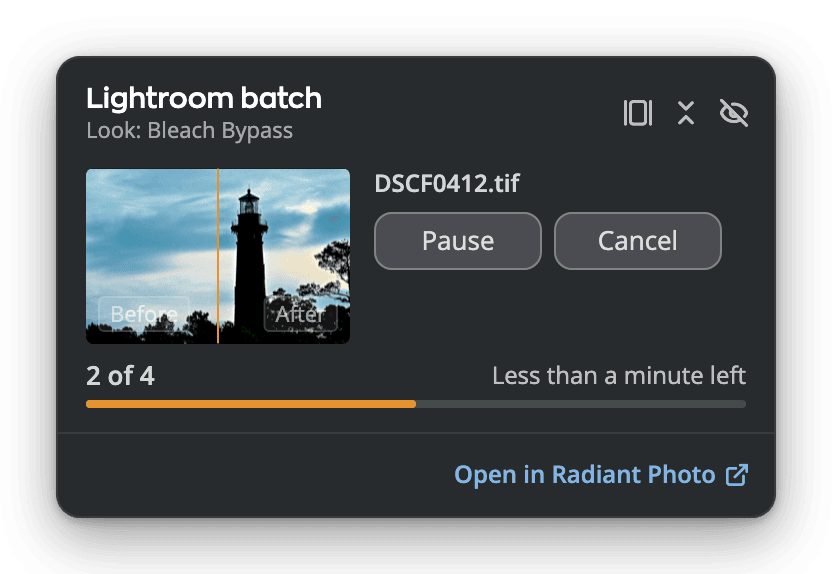
A small panel floats over Lightroom Classic with the last finished photo as a before and after, the count and the time left, with Pause and Cancel. Or choose the full editor, or the Dock or taskbar only.
Every run gets its own collection in a Radiant Photo collection set, and one closing message names any photo that didn’t come back, with the reason.
Edit in Radiant Photo… opens your photos in the editor. Click Done and every open photo goes back with your edit, crop included.
Edit in Radiant Raw… opens each photo’s original raw file in Radiant Raw. Each photo you develop there comes back stacked above its original, as a 16-bit TIFF or a DNG. It needs Radiant Raw, installed and activated.
Radiant Photo: Quick Look… opens the photos in a small Quick Look window instead of the full editor: pick one Look and its strength.
Convert RAW to Linear DNG runs Adobe’s free DNG Converter and stacks each new DNG above its original with its crop, straightening and Perspective. It doesn’t need Radiant Photo.
Questions
Yes. The plug-in sends your photos to Radiant Photo on the same computer, and Radiant Photo’s installer adds the plug-in. Convert RAW to Linear DNG works without it, and Edit in Radiant Raw… needs Radiant Raw instead.
No. Every result is a new file beside the original, and the original keeps its own settings, rating and flag.
Yes. Both plug-ins load side by side in the Plug-in Manager.
Radiant Photo’s own windows, including the batch panel, follow Radiant Photo’s language. The plug-in’s menus and messages inside Lightroom Classic follow Lightroom Classic’s language when it is one of the plug-in’s 14: German, Spanish, French, Italian, Japanese, Korean, Norwegian, Dutch, Polish, Portuguese, Swedish, Thai and Chinese (Simplified and Traditional); in any other language they are in English. A message about one photo, such as why it was not processed, comes from Radiant Photo in its language.
One workflow
The plug-in is then waiting in Lightroom Classic’s Plug-in Extras menu, on Mac and Windows.


