
Auto Crop
Press Option-C and Auto Crop frames the photo. Every other framing stays in a list with a plain reason, such as "Room in front of the subject". Point at one to preview it; click to switch. When it has nothing to suggest, it tells you why.
Crop & Straighten · Radiant Raw and Radiant Photo
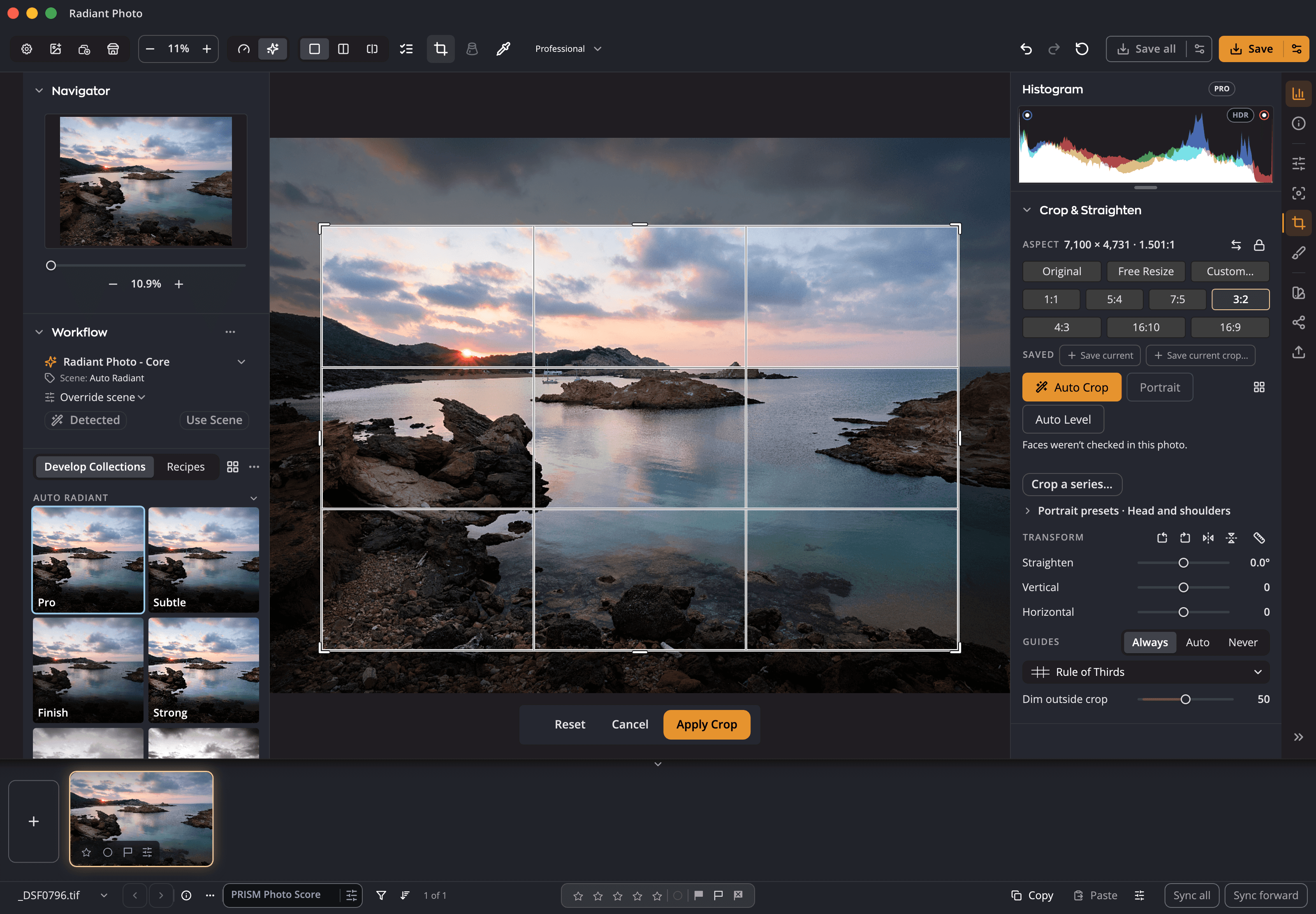
Radiant Raw and Radiant Photo share one crop panel. Pick a print or screen ratio and see the size you will get. Straighten with a slider or by drawing a line. Auto Crop applies its best framing and keeps every other framing in a list, each with a plain reason, so you can switch with one click.
Try it here
Choose a ratio and the crop takes that shape. Change the guide, then drag Straighten: the crop stays inside the photo as it turns, and the size follows.

Aspect
Guides
2,000 × 1,500 px
A demo on this page, with the crop panel’s own names. The size is counted from the photo shown here.
What it does
Press Option-C and Auto Crop frames the photo. Every other framing stays in a list with a plain reason, such as "Room in front of the subject". Point at one to preview it; click to switch. When it has nothing to suggest, it tells you why.
Shift-C shows the options in a grid or one at a time, next to "Your current crop" and "No crop", with the rules each framing follows and its pixel size.
Auto Level levels to the strongest line and says why when it can’t. Or straighten from −45° to 45°, or draw a line along something that should be level.
Vertical and Horizontal Perspective sliders, −100 to 100, right in the crop panel. In Radiant Raw they share their values with the Optics page.
Three rows of ratio chips with print sizes and pixel sizes on hover, an output-size readout, a padlock that keeps a ratio across photos, and named ratios that work in both apps.
Headshot or Head and shoulders presets, Fit set to Respect or Force, or "Set from this photo". Groups are framed together.
Sync as an exact rectangle, the same ratio centered, Auto Crop for each photo, or a portrait framing for each. Auto Crop never overwrites a crop you made yourself.
Rule of Thirds, Grid, Diagonal, Golden Triangle, Golden Ratio and Golden Spiral; show them Always, Auto or Never, and dim outside the crop.
Private by design
Nothing is uploaded. Face-aware framings and portrait presets use the faces Radiant Flow finds on your computer. Radiant Photo asks Radiant Flow for faces only while PRISM Photo Score is on.
Auto Crop, Compare Crops and portrait presets; Perspective in the crop panel of both apps; straighten by drawing a line and Auto Level; sizes on hover, the padlock and the output-size readout; batch cropping with four framings.
Key benefits


Straighten the lines. See every way first.
Smooth the grain. Keep the edges.
Crisp detail, smooth backgrounds.
Straight lines, even corners, clean edges.
Read the light. Without looking away.
Brush over a spot. Radiant Photo picks the clean source.
Point at a Look. See it on your photo.

Design it once. Sign every output.
Done keeps your work. Export writes the files.
Every photo, understood. Right on your computer.
Every photo, scored. Every line, yours.
Many frames. One cover.
It suggests. You decide.
Every recipe. One panel.
One press for a good framing. Every other one in view.
One workflow
Keep the framing you like, or pick another from the list. Applying is one undo step.


