
Click, or paint
Click once and Radiant Photo places a dab and picks a clean source for it. Drag to paint a long, curved stroke. Hold Shift to paint a straight line along a wire, and Shift-click to continue it, bend by bend.
Spot Removal · New in Radiant Photo 2.5
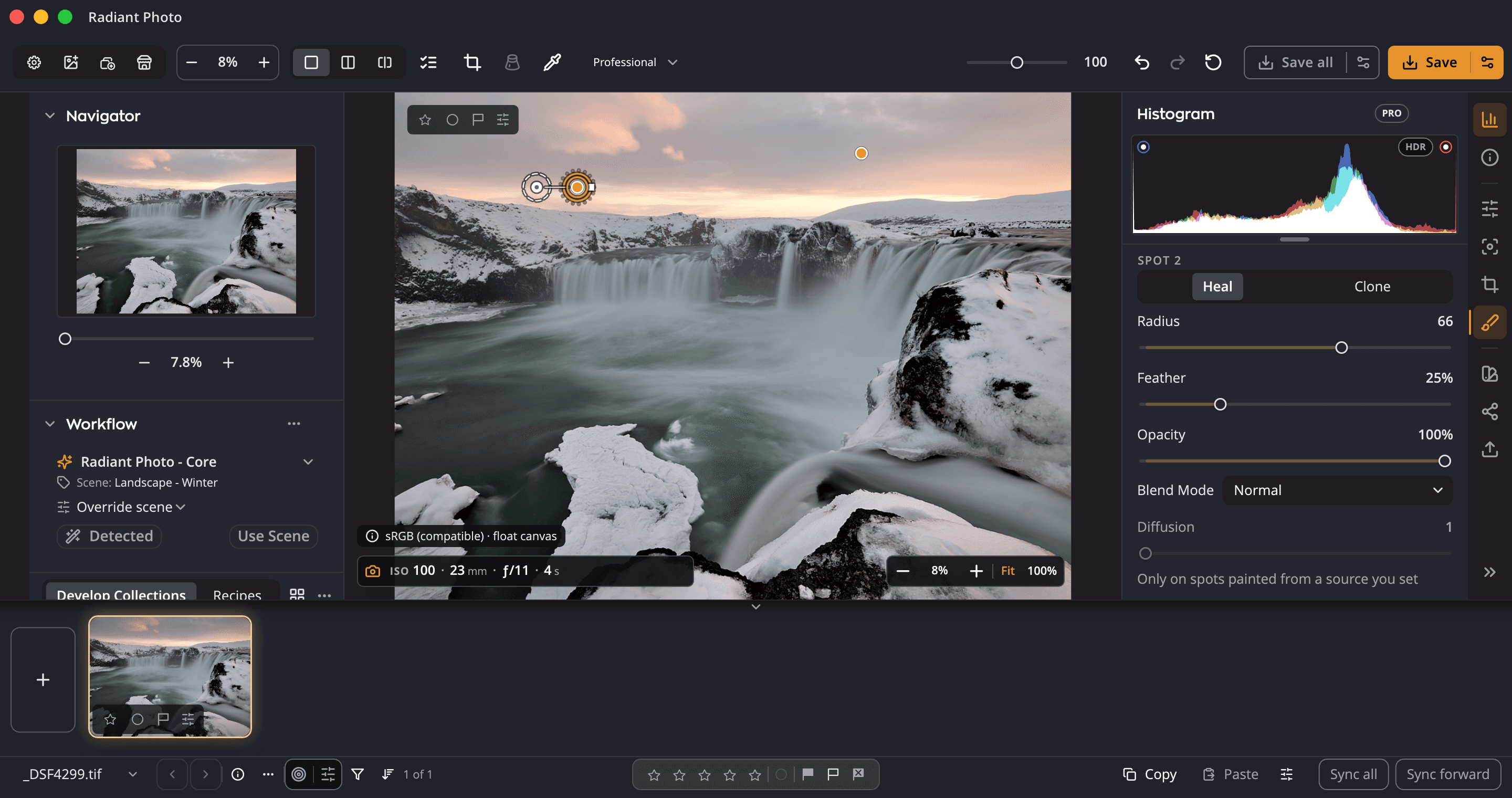
Press Q, then click to place a dab or drag to paint a stroke. Heal blends the source texture into the spot. Clone copies the source pixels straight over it. Every fix stays editable, and the whole tool works from the keyboard.
How it works
Click once and Radiant Photo places a dab and picks a clean source for it. Drag to paint a long, curved stroke. Hold Shift to paint a straight line along a wire, and Shift-click to continue it, bend by bend.
Pick a mode for the brush, then switch any single fix in the panel whenever you like. Clone copies only from a source you set.
Option-click sets your own source; a crosshair travels with the brush so every stroke copies from the same distance. In Heal, Auto Source picks a clean one again.
Pins on the photo select a fix and show its source. Drag to move either, resize a dab from its ring edge, fine-tune Radius, Feather and Opacity, and press Delete to remove a fix.
Size with the bracket keys, or Shift and the scroll wheel, Softness with Option (Alt on Windows) and a bracket, with a readout on the canvas. Radiant Photo remembers both. Hold Space to pan while you paint, and a tint shows what the stroke covers before you let go.
Arrows move a reticle, Return paints a dab there, Command-Return sets a source. Screen readers name each fix.
Straight lines
Shift-drag paints a straight stroke. Shift-click adds a straight segment to the last fix, so a line can follow a wire around every bend.
Every fix stays editable
Its ring and pin, its source as a dashed circle, the line that joins them, and the edge you drag to resize a dab. Select it and press Delete to remove it.
Safe with the rest of your edit
One Undo removes a whole long stroke. Each straight segment is its own step.
Copy fixes to other photos with Add or Replace. Each photo picks its own clean source; sources you set by hand are kept.
Reset to Defaults leaves fixes in place. Copy Settings can carry them to other photos, off by default.
Export at 16 bits and the healed areas stay at 16 bits.
Spot Removal heals first, so a healed area is sharpened like its surroundings.
Also in 2.5
A display-only contrast view that makes dust easier to see, with a Strength slider.
Find Dust in This Photo, or Find Dust in All Open Photos for a speck that sits in the same place across a shoot. Each possible spot is listed for you to Fix or Turn Down; only the ones you fix are healed.
Key benefits


Point at a Look. See it on your photo.

Design it once. Sign every output.
Done keeps your work. Export writes the files.
Every photo, understood. Right on your computer.
Every photo, scored. Every line, yours.
Many frames. One cover.
It suggests. You decide.
Every recipe. One panel.
One press for a good framing. Every other one in view.
Frame it your way, with good framings to choose from.
Straighten the lines. See every way first.
Smooth the grain. Keep the edges.
Crisp detail, smooth backgrounds.
Straight lines, even corners, clean edges.
Read the light. Without looking away.
One workflow
New in Radiant Photo 2.5, and Radiant Raw 1.0 has its own Spot Removal page. Radiant Photo 2 had no tool to paint out a spot, a speck of dust or a wire.


