
Color Grading and Looks
Color Grading gives your photo a complete color style in one step. Choose a Look from the Looks browser, or load a lookup table of your own, then set how strongly it applies.
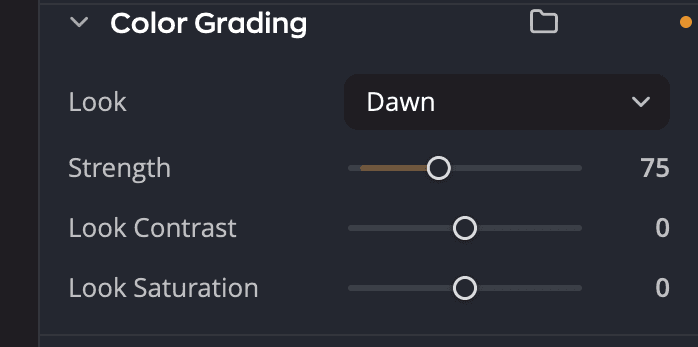
| # | Control | Range | What it does |
|---|---|---|---|
| 1 | Look | Opens the Looks browser. Shows the Look applied, or None. | |
| 2 | Strength | 0 to 200 | How strongly the Look applies |
| 3 | Look Contrast | −100 to +100 (default 0) | Adds or removes contrast in the Look |
| 4 | Look Saturation | −100 to +100 (default 0) | Makes the Look's colors stronger or more muted |
| 5 | Load Lookup Table… | Loads a lookup table file and applies it |
The panel starts folded. Click its header to open it.
Apply a Look
- Click the Look row. The Looks browser opens.
- Hover over a tile to preview that Look on your photo.
- Click a tile to apply it. Double-click to apply it and close the browser.
- Set Strength. A Look starts at 75, or 100 for a black and white Look. Go above 100 to push it further.
To remove the Look, open the browser and choose None at the top of All. Applying a Look is one undo step.
The Looks browser
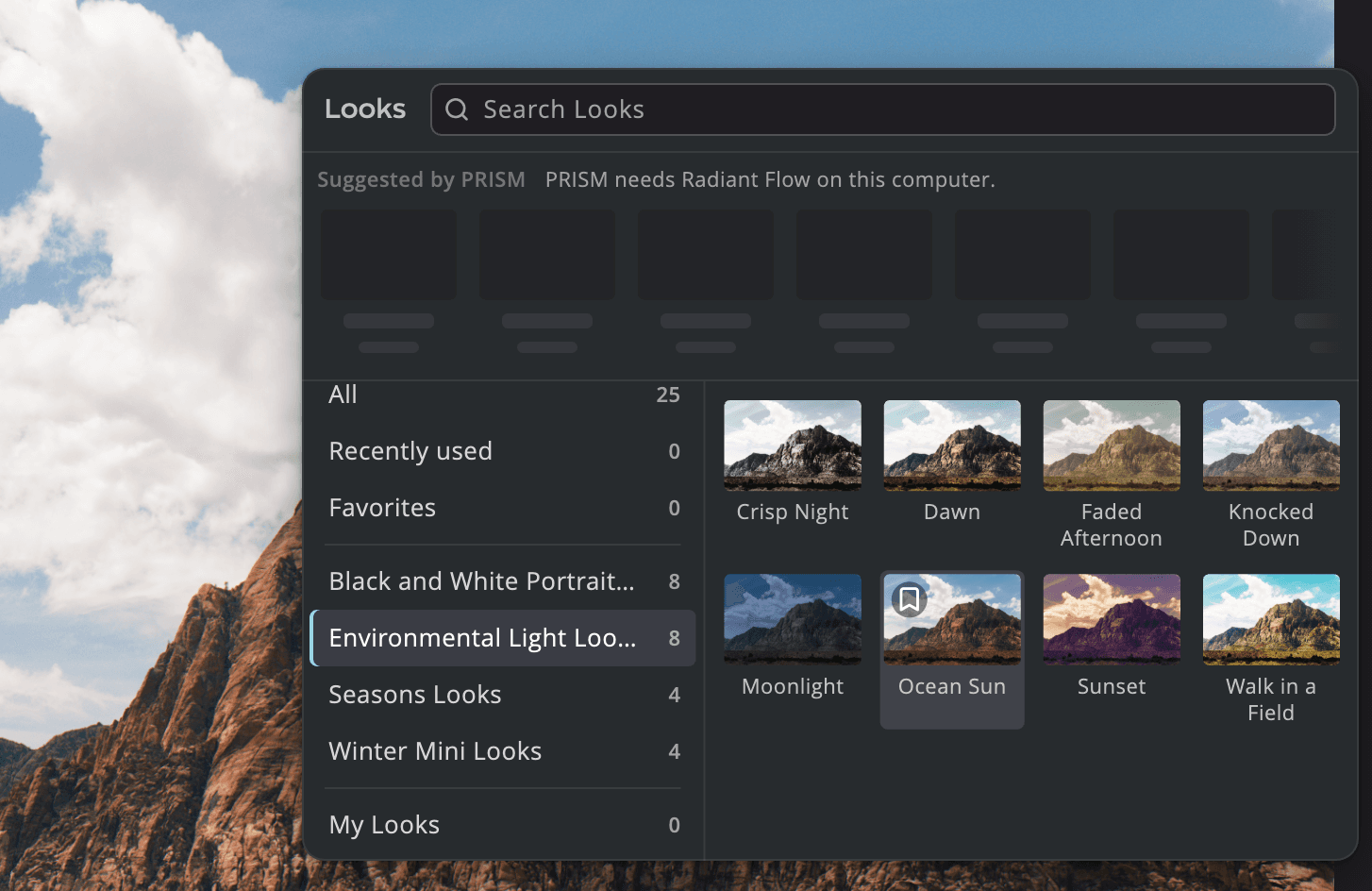
Type in Search Looks to find a Look by name. Under Collections:
| Collection | What's in it |
|---|---|
| All | Every Look, with None first |
| Recently used | The Looks you applied since you opened Radiant Raw |
| Radiant's collections | The Looks that come with Radiant Raw, grouped by style |
| Store collections | Looks you bought or got in the Store, in Radiant Raw or Radiant Photo |
| My Looks | Lookup tables you loaded, and collections you made for them |
| Favorites | The Looks you marked Favorite |
Favorites are shared with Radiant Photo, so a Look you mark in one app is a favorite in the other.
Get More Looks, at the top of the browser, opens the Store at its Looks. Looks you buy or get there, or buy in Radiant Photo, appear in the browser in collections of their own. PRISM doesn't suggest them. See Installing Radiant Raw.
Suggested by PRISM
The Suggested by PRISM row at the top offers up to nine Looks chosen for this photo. PRISM needs Radiant Flow on this computer, and PRISM Photo Score turned on in Settings > General. It's on unless you turned it off. If either is missing, the row says so.
Load your own lookup table
Click Load Lookup Table… in the panel's header, or the same row at the bottom of the browser, and choose a
file. Radiant Raw reads .cube, .3dl, .lut, .m3d, .mga, .itx, .davlut and .dat files.
The table is applied at once, as one undo step, and joins My Looks for next time. If a file can't be reproduced exactly, Radiant Raw says so when it loads. A file that isn't a readable lookup table, or is too large, is refused and nothing changes.
Tip
With the browser open, drag .cube files onto the window to add them to My Looks without applying them.
Organize My Looks
Right-click a Look in My Looks, or open its menu:
- Rename…, Add to Favorites or Remove from Favorites
- Move to collection, or Remove from “…” to take it out of a collection
- Reveal in Finder (Show in Explorer on Windows), to see the file
- Move to Trash (Move to Recycle Bin on Windows). You can undo it from the notice that appears.
Choose New collection… on My Looks to group your Looks. Deleting a collection keeps its Looks in My Looks. Radiant's own Looks can't be added to My Looks.
In B&W and Invert
Color Grading pauses while the Color panel is in B&W or Invert mode. The panel dims and keeps its settings. To tint a black and white photo, use Color Wheels.