
Done, Export and Edit in Radiant Photo
When your photos are developed, you choose what happens next: keep the settings, make finished files, or carry on in Radiant Photo.
| Click | What happens |
|---|---|
| Done | Keeps your edits beside each photo and goes back to the Home screen. Nothing is exported. |
| Export | Makes finished files, using your Output settings |
| Edit in Radiant Photo | Sends your last export's 16-bit TIFFs to Radiant Photo for finishing |
If you came from Radiant Flow, Done returns you to Flow.
Export finished files
Click Export in the title bar, or press ⌘E (Ctrl+E on Windows). If you're viewing a Selects filter, Radiant Raw asks whether to export just those photos. To stop a long export, click Stop after current.
To export in a format other than your usual one, choose Develop > Export As and pick JPEG, PNG, 16-bit TIFF or 16-bit PNG.
To export only the photo on screen, choose Develop > Export This Photo. Output Settings… in the same menu opens the settings below.
Output settings
Choose Settings > Output to set what Export makes.
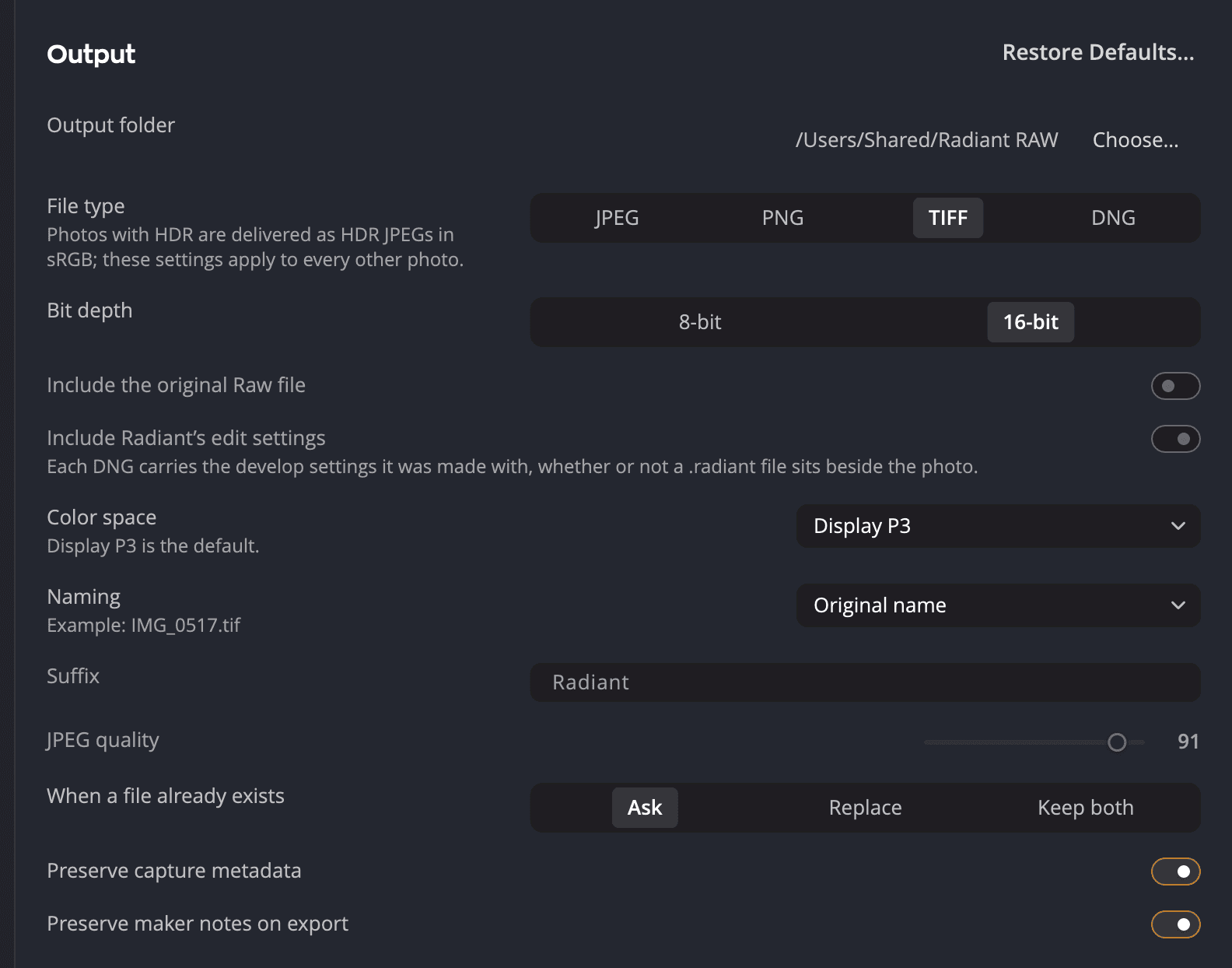
| # | Setting | What it sets |
|---|---|---|
| 1 | Output folder | Where exported files go. Click Choose… to pick another folder. |
| 2 | File type | The kind of file Export makes |
| 3 | Bit depth | 8-bit or 16-bit |
| 4 | Color space | The color space of the exported files. The default is Adobe RGB (1998), and sRGB for a JPEG. |
| 5 | Naming | How exported files are named |
| Setting | Choices | Default |
|---|---|---|
| File type | JPEG, PNG, TIFF | TIFF |
| Bit depth | 8 or 16 bits. JPEG is always 8. | 16 |
| Color space | Display P3, sRGB, Adobe RGB (1998), ProPhoto RGB, or any ICC profile | Adobe RGB (1998). sRGB for a JPEG. |
| Naming | The original name, the date and name, or the name plus a suffix (-Radiant unless you change it) | The original name |
| JPEG quality | 1 to 100 | 91 |
| When a file already exists | Ask, Replace, or Keep both | Ask |
| Output folder | Any folder | Pictures > Radiant Raw |
| Preserve capture metadata | On or off | On |
| Preserve maker notes on export | On or off | On |
Until you choose a color space, each file gets its default: Adobe RGB (1998), or sRGB for a JPEG. Once you choose one, every file uses it. There is one exception: an 8-bit file is never written in ProPhoto RGB. With ProPhoto RGB chosen, a JPEG is written in sRGB, and an 8-bit TIFF or PNG in Adobe RGB (1998). A 16-bit file stays in ProPhoto RGB. The line under Color space tells you this too.
The Watermark row chooses the mark Export stamps on each file. Pick a watermark or None, or click Edit… to open the Watermarks window, which File > Watermarks… opens too. The watermarks are shared with Radiant Photo and Radiant Flow. See Watermarks.
Note
If you edited a photo for HDR, Radiant Raw asks Include HDR with this export? Choose Include HDR for an HDR JPEG that also looks right on standard screens, or SDR Only for a standard file. An HDR JPEG is always in Display P3, whatever you chose under Color space.
Edit in Radiant Photo
Edit in Radiant Photo appears when your last export made 16-bit TIFF files. The default Output settings make them, and so does an HDR export. Radiant Photo must be installed and activated, and a trial counts too. You'll find the command in the Develop menu, in the export message and on the Home screen.
It sends that export's 16-bit TIFFs to Radiant Photo. It never sends a JPEG, a PNG or an 8-bit TIFF, so Radiant Photo gets the most detail to work with. The TIFFs are in Adobe RGB (1998), unless you chose another color space.