
Color Wheels
Color Wheels tint the shadows, midtones and highlights of your photo separately. Use them for a classic split tone, a warm or cool grade, or to tint a black and white photo.
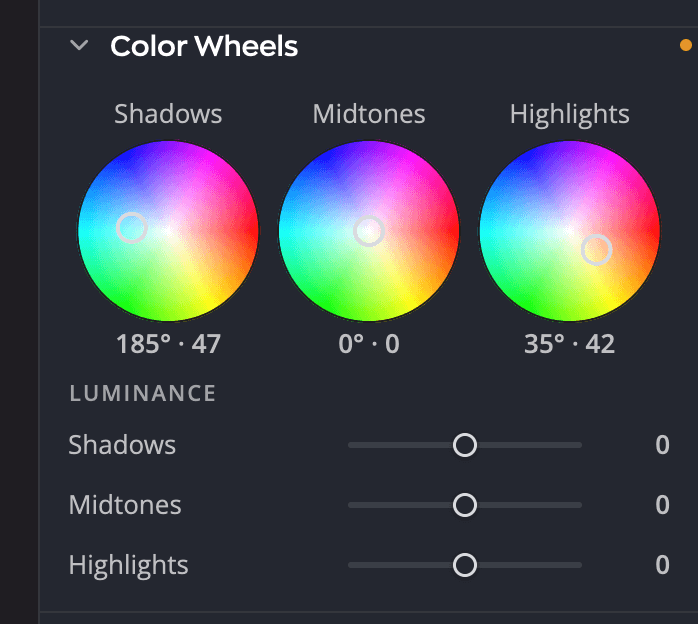
| # | Control | What it does |
|---|---|---|
| 1 | Shadows, Midtones and Highlights wheels | The color of each tonal range, and how strong it is |
| 2 | Readouts | Each wheel's hue and strength, for example 212° · 34 |
| 3 | Luminance sliders | Lighten or darken each tonal range |
The panel starts folded. Click its header to open it.
Tint a tonal range
Drag the puck in the middle of a wheel toward a color, or click a point on the wheel to move the puck there. The direction sets the hue, and the distance from the center sets how strong the tint is. At the center there's no tint.
| Value | Range | Default |
|---|---|---|
| Hue | 0° to 359° | 0° |
| Saturation (distance from the center) | 0 to 100 | 0 (no tint) |
| Luminance (one slider per range) | −100 to +100 | 0 |
The readout under each wheel shows the hue in degrees, then the saturation: 212° · 34 is a medium blue tint. A wheel at rest reads 0° · 0.
Fine control
- Hold ⌘ (Ctrl on Windows) while you drag to move the puck at one tenth of the speed.
- Press Tab until a wheel is selected, then use the arrow keys: ← and → change the hue, ↑ and ↓ change the saturation. Hold ⇧ for steps 10 times larger.
- Double-click a wheel, or press Delete with it selected, to send the puck back to the center.
Scrolling over a wheel scrolls the panel. It doesn't change the wheel.
Lighten or darken a range
Under Luminance, the Shadows, Midtones and Highlights sliders brighten or darken each range, from −100 to +100. Use them with the wheels, for example to lift tinted shadows a little so they don't look muddy.
A classic split tone
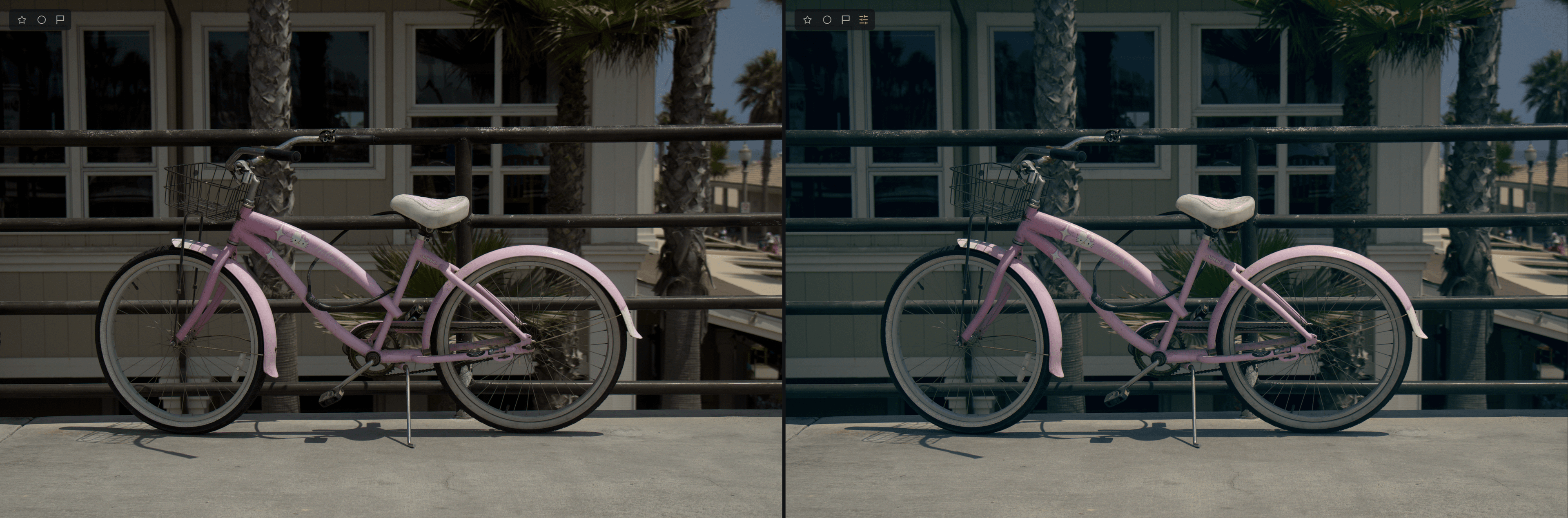
- Drag the Shadows puck toward teal or blue, not far from the center.
- Drag the Highlights puck toward orange or yellow.
- Leave Midtones at the center, or nudge it to warm or cool the whole photo.
- Check skin and neutral areas. If they look too colored, move the pucks back toward the center.
Tip
Small amounts go a long way. Most grades look natural with saturation under 30.
Color Wheels in black and white
Color Wheels keep working when the Color panel is in B&W or Invert mode. On a black and white photo, they tint the gray tones, so you can make a sepia, a selenium look or a split-toned print. Selective Color and Color Grading pause in those modes, but Color Wheels don't. See Color and black and white.
Color Wheels or Color Grading?
Color Wheels give you hand control over three tonal ranges. Color Grading and Looks applies a complete, ready-made Look. You can use both: apply a Look first, then fine-tune it with the wheels.