
Crop & Straighten
Crop & Straighten trims your photo, fixes a tilted horizon, and rotates or flips it. Radiant Raw can also suggest framings for you.
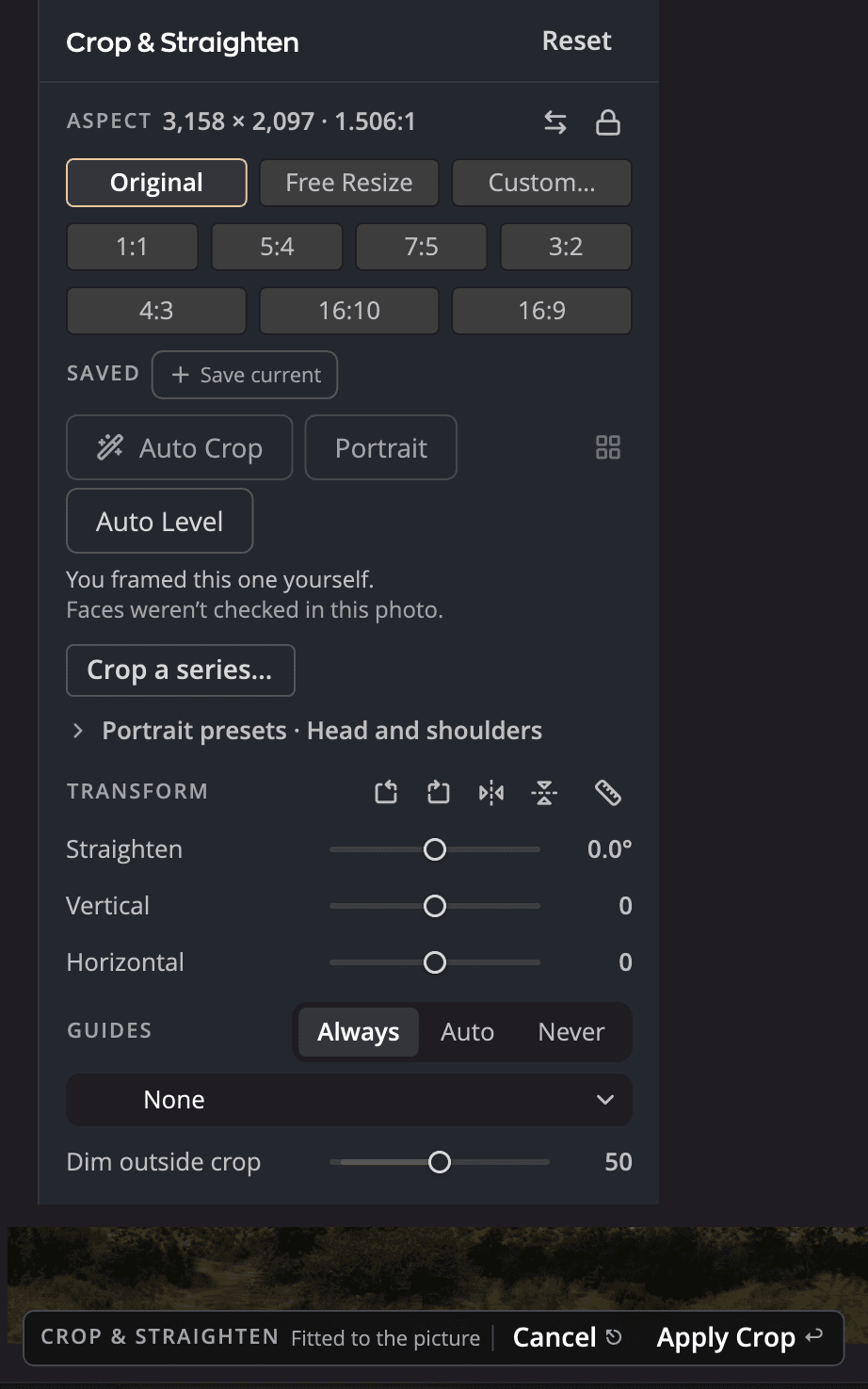
| # | Control | What it does |
|---|---|---|
| 1 | Aspect | Sets the shape of the crop: Original, Free Resize, a fixed ratio or Custom… |
| 2 | Guides | Shows a composition guide over the photo. Choose one from the menu. |
| 3 | Straighten | Levels a tilted horizon. The number shows the angle in degrees. |
| 4 | Transform | The section that holds Straighten. Its heading has four buttons that rotate the photo in 90° steps or flip it, and the ruler. Vertical and Horizontal below Straighten correct perspective. |
| 5 | Auto Crop | Finds the subject and frames the photo around it (⌥C). Auto Level beside it levels the photo to its strongest line. |
| 6 | Apply Crop | Applies the crop. You can also press Return. |
Crop a photo
- Press C, or click Crop & Straighten in the right rail.
- Choose an Aspect: Original, Free Resize, a saved ratio, or Custom…
- Drag the corners or edges of the crop frame. Drag inside the frame to move the photo.
- Press Return to apply the crop, or Esc to cancel.
Press ⌥X to swap the frame between landscape and portrait. The Output size line shows the size of the cropped photo.
To keep a crop for later, choose Save current crop… under the saved ratios. It joins Crop presets, the list Radiant Photo uses too, where you can apply, rename or delete it.
Straighten
Click the ruler in the Transform heading, Straighten by drawing a line. Then draw a line along something that should be level, like the horizon. Radiant Raw rotates the photo to match. You can also drag the Straighten slider.
To rotate in 90° steps or flip the photo, use the four buttons in the Transform heading: Rotate left, Rotate right, Flip horizontal and Flip vertical.
To level the photo without drawing, click Auto Level. It turns the photo to its strongest line. It can't when the Optics page reshapes the photo, with a Perspective mode or a manual transform.
Guides
Choose a composition guide under Guides, from Rule of Thirds to Golden Spiral. Press O to step through them, and ⇧O to flip the current guide. The Dim outside crop slider (default 50) darkens what falls outside the frame. Raise it to see the result more clearly.
Let Radiant Raw suggest a crop
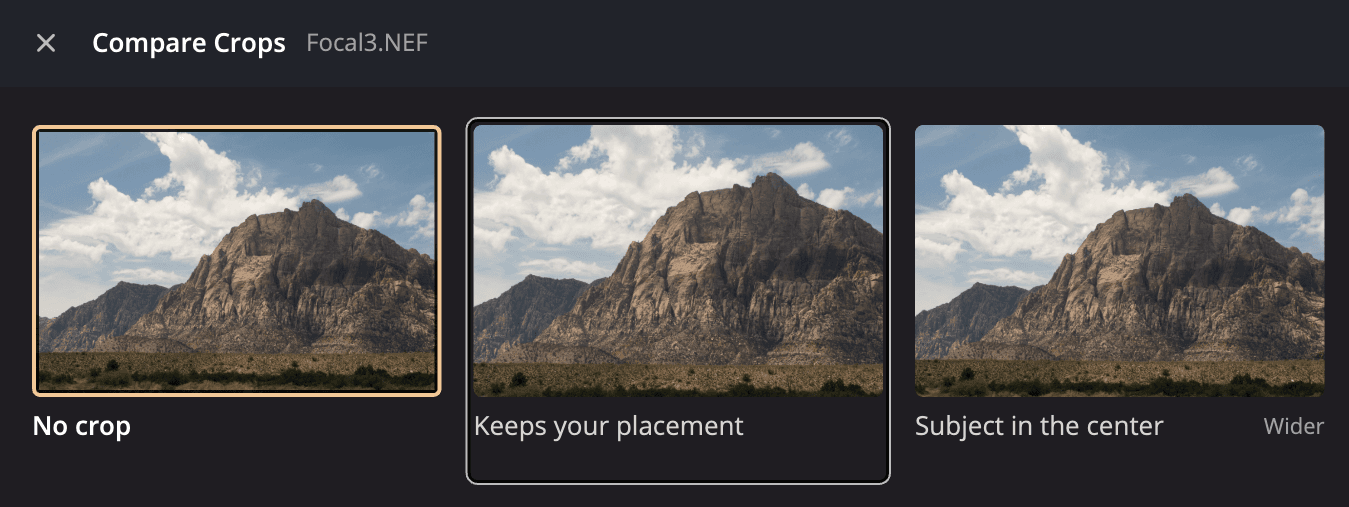
Press ⌥C, or click Auto Crop. Radiant Raw finds the subject and applies the best framing. To have it show the list first or open Compare Crops instead, change When you press Auto Crop in Crop settings. To see several framings side by side, press ⇧C for Compare Crops, then click the one you like.
Note
Portrait framings need Radiant Flow on the same computer, because Flow finds the faces.
To crop many photos the same way, use Crop a series…
Crop settings
In Settings > Crop, choose what Auto Crop does when you press it. You also choose what happens when a photo already has a crop saved beside it: Ask each time, Always keep or Always ignore.