
HDR
HDR edits the highlights above normal white, for photos you'll show on HDR screens. A raw file holds more highlight detail than a standard photo can show, and HDR lets you keep it.
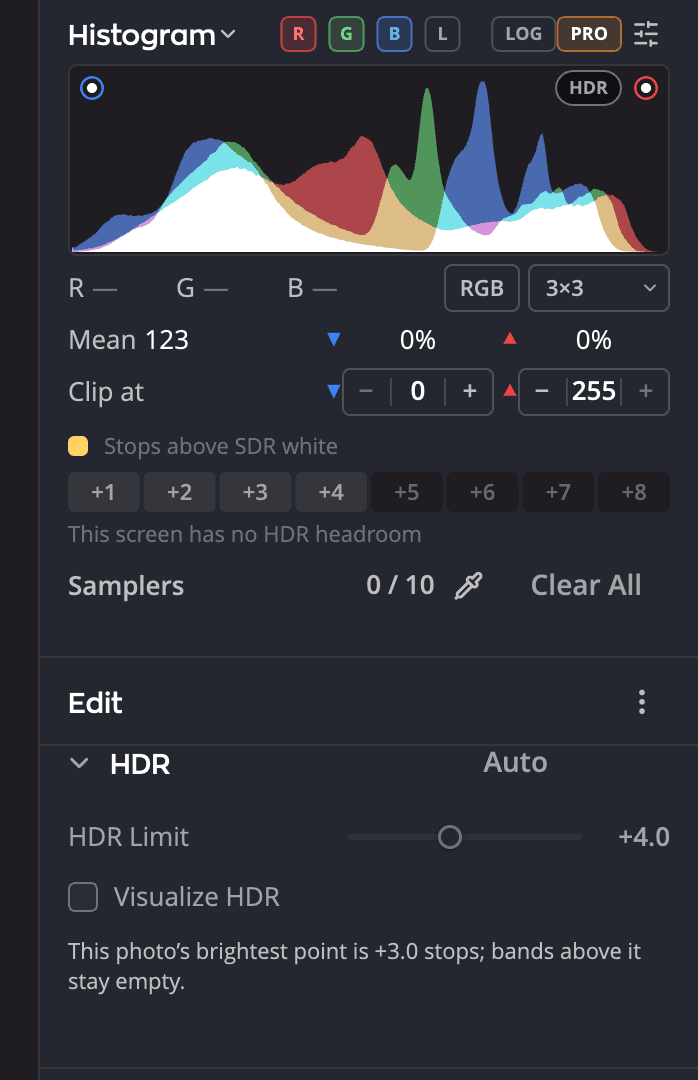
| # | Control | What it does |
|---|---|---|
| 1 | Auto | Turns HDR on, sets HDR Limit to this photo's brightest point and shows the ranges |
| 2 | HDR Limit | How far above normal white the highlights may go |
| 3 | Visualize HDR | Tints each range of brightness above normal white on the photo |
| 4 | HDR pill | Turns HDR on or off, on the histogram |
What you need
To see HDR, you need a screen that can show it:
- Mac: a display with extended dynamic range, such as a Liquid Retina XDR display.
- Windows: an HDR display with Use HDR turned on in Windows display settings.
On any other screen, the preview stays standard. You can still set HDR Limit: it is saved with the photo and takes effect where HDR can be shown. The line under the histogram tells you what your screen can do, for example This screen: +2.6 stops now · up to +4.0.
Turn HDR on
Click the HDR preview button in the title bar, or the HDR pill on the histogram. Both turn the same setting on for this photo. Or click Auto in the HDR panel's header to turn HDR on and set the limit for you.
The HDR panel sits directly under Tone on the Edit page.
The controls
| Control | Range | What it does |
|---|---|---|
| HDR Limit | +1.0 to +8.0 stops, in 0.5 steps (default +4.0) | The brightest the highlights may go, in stops above normal white |
| Visualize HDR | On or off | Tints each stop of brightness above normal white, so you can see where the HDR is |
Note
Today Radiant Raw recovers highlights up to about 3 stops above normal white. If a photo's brightest point is lower than HDR Limit, the panel says so, and the ranges above it stay empty.
See where the HDR is
Turn on Visualize HDR to tint each range above normal white on the photo. On the histogram, hover over a stop band to see it on the photo, and click it to keep it shown.
Visualize HDR needs HDR preview on.
Export an HDR photo
The first time you export a photo with HDR on, Radiant Raw asks Include HDR with this export?
- Include HDR makes an HDR JPEG with a gain map. HDR screens show the extra brightness, and every other screen shows the standard version.
- SDR Only makes a standard file, using your Output settings.
With Include HDR, a photo with HDR is exported as an HDR JPEG. Its standard version is always in Display P3, whatever Settings > Output says. Every other photo follows your Output settings.
To change what happens, choose Settings > Develop > HDR:
| Setting | Choices |
|---|---|
| Ask before HDR export | Ask, Include HDR or SDR Only. Your answer to the question is kept here. |
| Gain-map JPEG delivery | On (default): HDR photos export as HDR JPEGs. Off: every photo exports as your Output file. |
Edit in Radiant Photo always sends a 16-bit TIFF, without the gain map. The TIFF is in Adobe RGB (1998), unless you chose another color space.