
Selective Color
Selective Color changes one range of colors without touching the rest. Make a sky bluer, calm a green cast in foliage, or warm skin, one color band at a time.
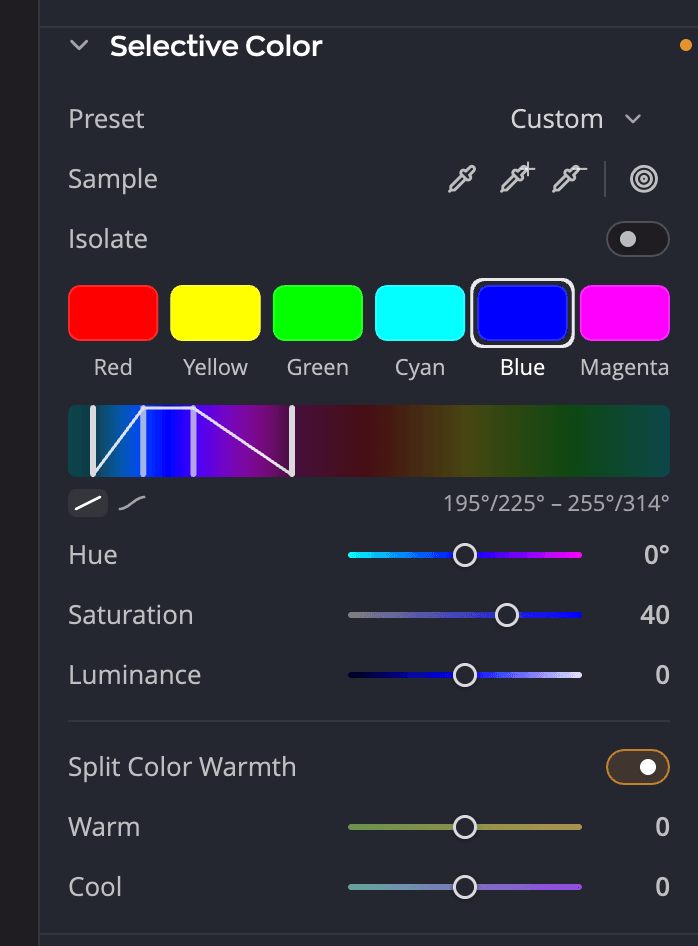
| # | Control | What it does |
|---|---|---|
| 1 | Preset | A ready-made set of changes for a kind of scene |
| 2 | Sample | Eyedroppers that aim a band at a color on the photo, and the targeted adjustment tool |
| 3 | Band swatches | Red, Yellow, Green, Cyan, Blue and Magenta. Click one to edit it. |
| 4 | Hue range | Which colors the band affects |
| 5 | Hue, Saturation, Luminance | What the band does to those colors |
| 6 | Isolate | Shows only where the band acts |
| 7 | Split Color Warmth | Warms or cools the photo's warm and cool colors separately |
Change one color
-
Click a band swatch, for example Blue.
-
Move the sliders:
Slider Range What it does Hue −60° to +60° (default 0°) Shifts the band's colors toward a neighboring color Saturation −100 to +100 (default 0) Makes the band's colors stronger or more muted Luminance −100 to +100 (default 0) Makes the band's colors lighter or darker -
Pick another band and repeat. Each band keeps its own settings.
Tip
Turn on Isolate while you work. The photo turns gray except where the band acts, so you can see exactly which areas you're changing. Isolate only changes the view, not the photo.
Aim a band at a color in the photo
Under Sample, choose a tool, then click the photo:
| Tool | What it does |
|---|---|
| Retarget eyedropper | Moves the band's hue center to the color you click |
| Extend range eyedropper | Widens the hue range to take in the color you click |
| Narrow range eyedropper | Narrows the hue range at the color you click |
| Targeted adjustment | Drag up or down on the photo to change that color's saturation |
Each eyedropper turns off after one click. To stop Targeted adjustment, click it again or press Esc. To set the band's hue center by number, double-click its swatch to open Band hue center.
Adjust the hue range
The Hue range ramp shows the colors the band affects. Drag its four pins to widen or narrow the range. To move a pin 1° at a time, select it and press ← or →. Choose Falloff: linear or Falloff: curved to set how gently the effect fades at the edges of the range. The two inner pins mark where the band acts at full strength, and the two outer pins mark where its effect fades out.
Split Color Warmth
Split Color Warmth treats warm and cool colors as two groups:
| Slider | Range | What it does |
|---|---|---|
| Warm | −100 to +100 (default 0) | Changes the photo's warm colors: reds, oranges and yellows |
| Cool | −100 to +100 (default 0) | Changes the photo's cool colors: greens, cyans and blues |
Moving either slider turns Split Color Warmth on. Turn it off to compare; your values are kept.
Presets
Open Preset and choose Beach, Bright Sky, Desert, Forest, Night Sky, Ocean, Sunset or Urban. Each sets several bands for that kind of scene, and you can fine-tune from there. The Preset row reads Custom once you change a preset, and shows — when nothing is set.
In B&W and Invert
Selective Color pauses while the Color panel is in B&W or Invert mode. The panel dims and keeps its settings for when you switch back to Color. See Color and black and white.