
Optics
Optics corrects what your lens does to a photo: curved lines, dark corners, colored fringes and leaning buildings. Press ⌃⌘3 (Ctrl+Shift+3 on Windows) to open it.
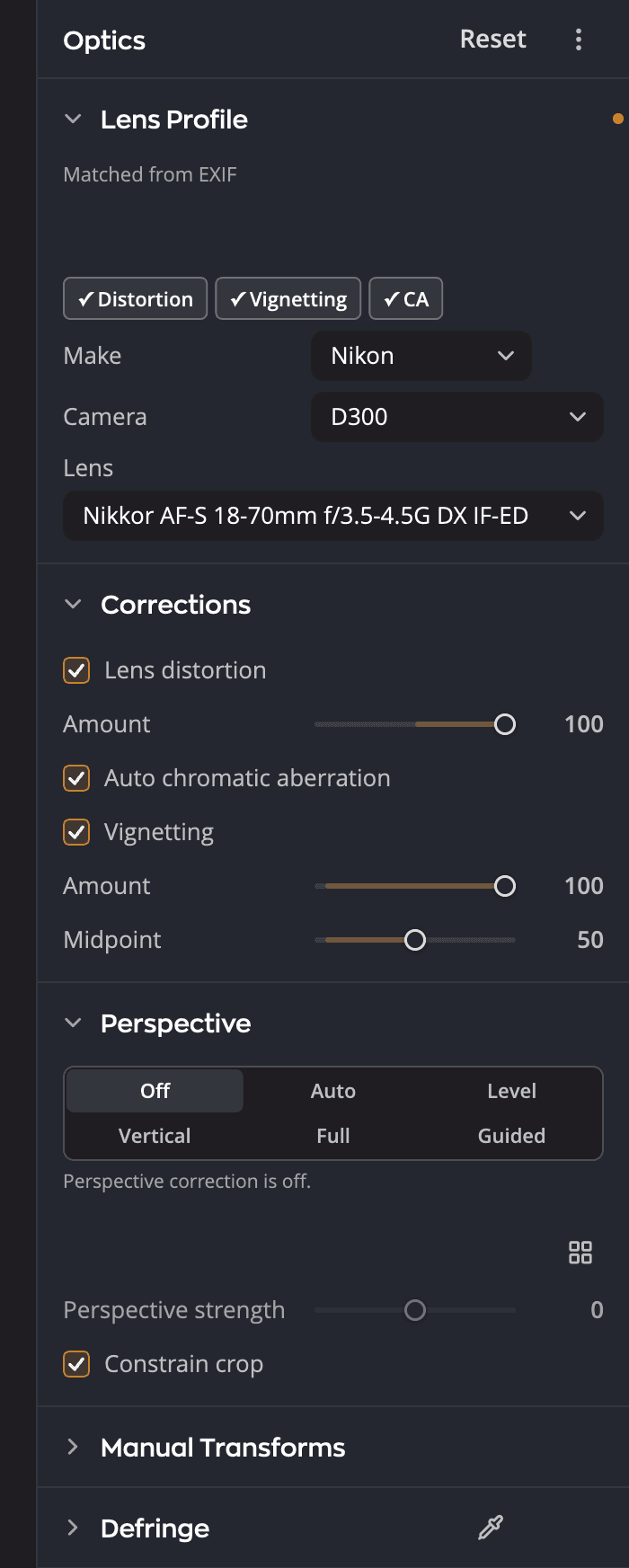
| # | Section | What it does |
|---|---|---|
| 1 | Lens Profile | The camera and lens profile Radiant Raw matched, with Make, Camera and Lens to pick your own |
| 2 | Corrections | Lens distortion, Auto chromatic aberration and Vignetting |
| 3 | Perspective | Straightens lines that lean because the camera was tilted |
| 4 | Manual Transforms | Sliders for full control of the correction |
| 5 | Defringe | Removes purple and green fringes |
Lens Profile
Radiant Raw reads the camera and lens from the photo and finds a matching profile. To pick one yourself, set the Make, Camera and Lens.
The first time you open a Raw file, Radiant Raw asks Download lens profiles? Click Download to download them and check for new ones about once a month, or Not Now to use only your camera's own corrections.
Corrections
| Correction | What it does |
|---|---|
| Lens distortion | Straightens lines that bow in or out. Use Amount to adjust. |
| Auto chromatic aberration | Removes the color edges along high-contrast lines |
| Vignetting | Brightens corners the lens darkened |
Perspective
Perspective straightens buildings and other lines that lean because the camera was tilted.
| Setting | What it does |
|---|---|
| Off | No perspective correction |
| Auto | Straightens vertical lines when that doesn't stretch the photo far; otherwise levels it |
| Level | Makes horizontal lines level |
| Vertical | Corrects keystone from vertical lines, so walls that lean in stand straight |
| Full | Makes vertical and horizontal lines fully straight |
| Guided | You draw lines along edges that should be straight |
Auto keeps the correction small. It straightens vertical lines only when that doesn't stretch the photo far. Otherwise it levels the photo if it can, and the row lights Level instead. If a mode can't correct the photo at all, the photo stays as it was. Either way, the line under the row says why, and names Full when that mode would straighten the vertical lines.
Turn on Constrain crop to trim the empty edges a correction leaves behind.
Manual Transforms
When you need full control, use Manual Transforms: Vertical, Horizontal, Rotate, Aspect, Scale, and Offset X and Offset Y.
Vertical and Horizontal also appear in the Transform section of the Crop & Straighten page. Both places change the same setting.
Defringe
Defringe removes purple and green fringes that Auto chromatic aberration leaves. Set the Purple and Green amounts, then use Refine to target the fringe more precisely.