
Installing Radiant Raw
Radiant Raw has its own installer, on a Mac and on Windows. It adds Radiant Flow too, as its own app. Install it once, and it opens straight to its Home screen, ready for your raw files.
What you need
Radiant Raw has the same requirements as Radiant Photo 2.5: a Mac with Apple silicon or Intel, running macOS 14 Sonoma or later, or a 64-bit Intel or AMD PC with Windows 10 version 22H2 or Windows 11. See System requirements.
Install on a Mac
- Download the installer from your purchase email or from the Downloads page in Support on our website. The file is named like RadiantRaw-1.0.0.pkg.
- Open the installer and follow the steps.
- Radiant Raw goes into the Radiant Imaging Labs folder inside Applications.
Full Disk Access
The installer's last page tells you to open Radiant Raw and Radiant Flow and to turn on Full Disk Access for each when it asks, so they can reach every folder. It also says you can skip this step: macOS then asks for access folder by folder. The installer can't turn it on for you, and no app can. Only you can, in System Settings.
The page ends with a line for Capture One: if you use it, Radiant Flow also asks to control it, for two-way sync, so click Allow when macOS asks. See Capture One catalogs and Sessions in the Radiant Flow manual.
Radiant Raw needs it to open raw files from any folder and export to the folders you choose. The first time Radiant Raw opens without it, after you start your trial or enter your keycode, one window asks you to turn it on: Turn on Full Disk Access for Radiant Raw.
- Click Open System Settings. macOS opens Privacy & Security at Full Disk Access.
- Turn on Radiant Raw in the list. If it isn't there, click the + button and choose it in the Radiant Imaging Labs folder inside Applications.
- Switch back to Radiant Raw. The window closes by itself once Radiant Raw finds the access on. macOS may ask you to quit and reopen Radiant Raw.
If you'd rather wait, click Not now. Whichever button you click, the window doesn't come back while access stays off, so you turn it on yourself later in System Settings > Privacy & Security > Full Disk Access. If you turn it on and later off again, the window shows once more. Radiant Flow shows its own window the first time it opens; see Opening your first folder.
Windows has no Full Disk Access, so there's no window there.
Install on Windows
- Download the Windows installer from your purchase email or from the Downloads page in Support on our website. The file is named RadiantRaw.msi.
- Open the installer and follow the steps.
- Radiant Raw goes into the Radiant Imaging Labs folder inside Program Files, unless you choose another folder during setup. Open it from the Radiant Imaging Labs folder in the Start menu, or from its desktop shortcut.
Your license
Radiant Raw has its own license, separate from Radiant Photo's. Buying or activating one app doesn't activate the other.
Radiant Flow and Radiant Photo send photos to Radiant Raw only while its license or trial is running. Until then, their Radiant Raw choices are locked and offer Activate Radiant Raw. It opens Radiant Raw so you can activate it.
If you bought Radiant Raw outright and that purchase is refunded, Radiant Raw shows This purchase was refunded. That license can't be used anymore.
The first time you open it
The very first time, Radiant Raw asks you to start a free 30-day trial or enter your keycode. See Quick start. On a Mac, it may then ask once for Full Disk Access; see Full Disk Access. On a new computer, Personalize Radiant Raw then opens: four short screens for the theme, how much shows on screen and the extras. See Personalize Radiant Raw.
After that, Radiant Raw opens to its Home screen. Drop raw files on it, or click Open Raw Files, and the develop window opens. Browse Photos, beside it, opens Radiant Flow.
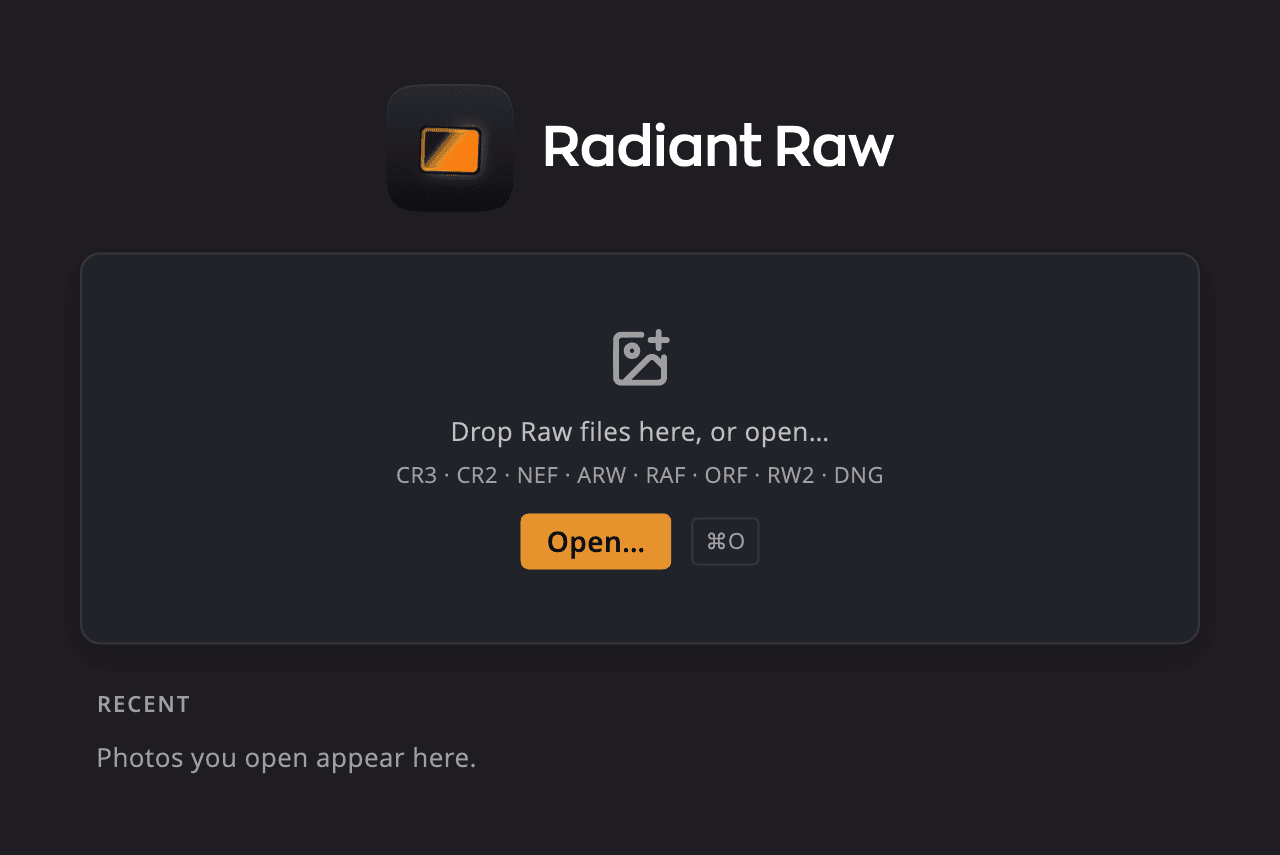
| # | Control | What it does |
|---|---|---|
| 1 | Drop area | Drop raw files on the Home screen to open them. The Open Raw Files tile is the drop target: while you drag, it reads Drop to open. |
| 2 | Open Raw Files | Choose raw files to open. Press ⌘O (Ctrl+O on Windows). |
| 3 | Recent | Photos you open appear here. The list is empty the first time. |
| 4 | Browse Photos | Opens Radiant Flow, to rate and pick your photos. If Flow isn't installed, Radiant Raw says how to get it. Press ⇧⌘O (Ctrl+Shift+O on Windows). |
The Store
While a license or trial is running, a Store button shows in the top corner of the Home screen. It opens the Store, and so does the Store menu, with Browse Store, Looks, Radiant Toolkit and My Library.
Radiant Raw's Store sells Looks. Click Buy now for a paid pack or Get for a free one. The pack installs right away, and its Looks appear in the Looks browser. See Color Grading and Looks.
My Library lists what you own, with Install for a pack that isn't installed yet. The Radiant Toolkit section shows what Radiant Toolkit includes. If you have Radiant Toolkit, it also shows when it renews or ends, and this month's credit.
Looks are shared between Radiant Raw and Radiant Photo. A Looks pack you buy in either app works in both, once both are activated on this computer. If a purchase is refunded, its Looks stop working in both apps.