
Where your settings are saved
Radiant Raw never changes the picture in your raw files. Your develop settings, ratings and metadata are saved in small files next to each photo; a DNG can also hold its metadata inside, as Save to sets. They travel with the photo, and other apps can read them.
The files next to your photo
| File | What it holds |
|---|---|
.radiant | Every Radiant Raw setting for the photo |
.xmp | The standard file other photo apps read: your develop settings, ratings, flags, labels and metadata |
Radiant Raw also keeps its own copy of every edit as you work. If you quit, nothing is lost.
Choose how settings are saved
Choose Settings > Sidecars.
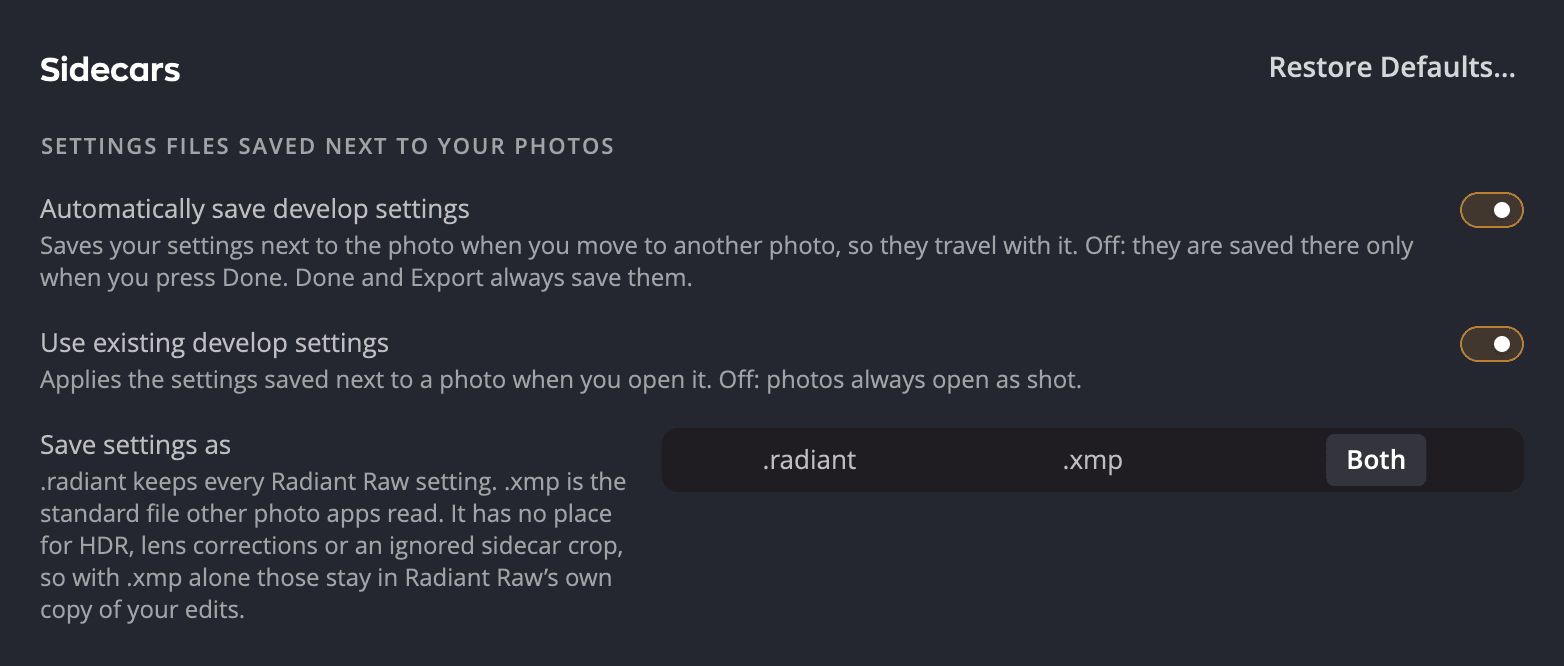
| Setting | Default | What it does |
|---|---|---|
| Automatically save develop settings | On | Saves your settings next to the photo when you move to another photo. Off: they are saved there only when you click Done. |
| Use existing develop settings | On | Applies the settings saved next to a photo when you open it. Off: photos always open as shot. |
| Save to | All three checked | Where a save next to the photo writes: Sidecar (.xmp), Sidecar (.radiant) and Inside the photo. At least one stays checked. Radiant Photo and Radiant Flow share this choice. |
Done and Export always save your settings next to each photo, whatever these switches say.
Tip
Keep all three Save to boxes checked unless you have a reason not to. The .radiant file keeps everything,
and the .xmp file lets other apps see your ratings and edits. A raw file can't hold metadata, so it always gets an .xmp.
Open a photo you edited before
With Use existing develop settings on, a photo opens with the settings you saved, so you pick up where you left off. Discard asks first, then returns every photo to how it was when the window opened. Each photo gets its own undo step.
When another app edited the photo
If the .xmp next to a photo holds edits from another app, Radiant Raw says so over the photo. The message reads
This photo has edits from another app., This photo was changed in another app. or This photo has other saved edits.
- Click Read them in to use those edits.
- Click Ignore them to keep Radiant Raw's settings.
If the other app changed the photo after you started, Done doesn't overwrite it. It reports Not saved · DSC_0412.NEF was changed in another app instead.
When a crop is found
If the sidecar holds a crop from another app, Radiant Raw shows Crop found in a sidecar. Click Keep crop or Ignore, and turn on Remember to use your answer for every photo. To change it later, choose Settings > Crop > Crop found in a sidecar: Ask each time, Always keep or Always ignore.
If you ignored a crop, Restore the saved crop in the crop tool brings it back. See Crop & Straighten.
Ratings, flags, labels and metadata
Radiant Raw writes your marks, and the caption, keywords and copyright you add under Info > Metadata, to the
.xmp next to the photo. It never writes them into a camera's own raw format; a DNG gets them inside while
Inside the photo is checked. Radiant Flow and most photo apps read the same
file. See The filmstrip, ratings and flags and
Histogram, scopes and Info.
Moving or sharing photos
Copy the .radiant and .xmp files with the raw file. Keep them in the same folder and don't rename them.
When you open the photo on another computer, Radiant Raw reads them and your edits come back.
Important
Radiant Raw's own copy of your edits stays on this computer. The files next to the photo are what travel.