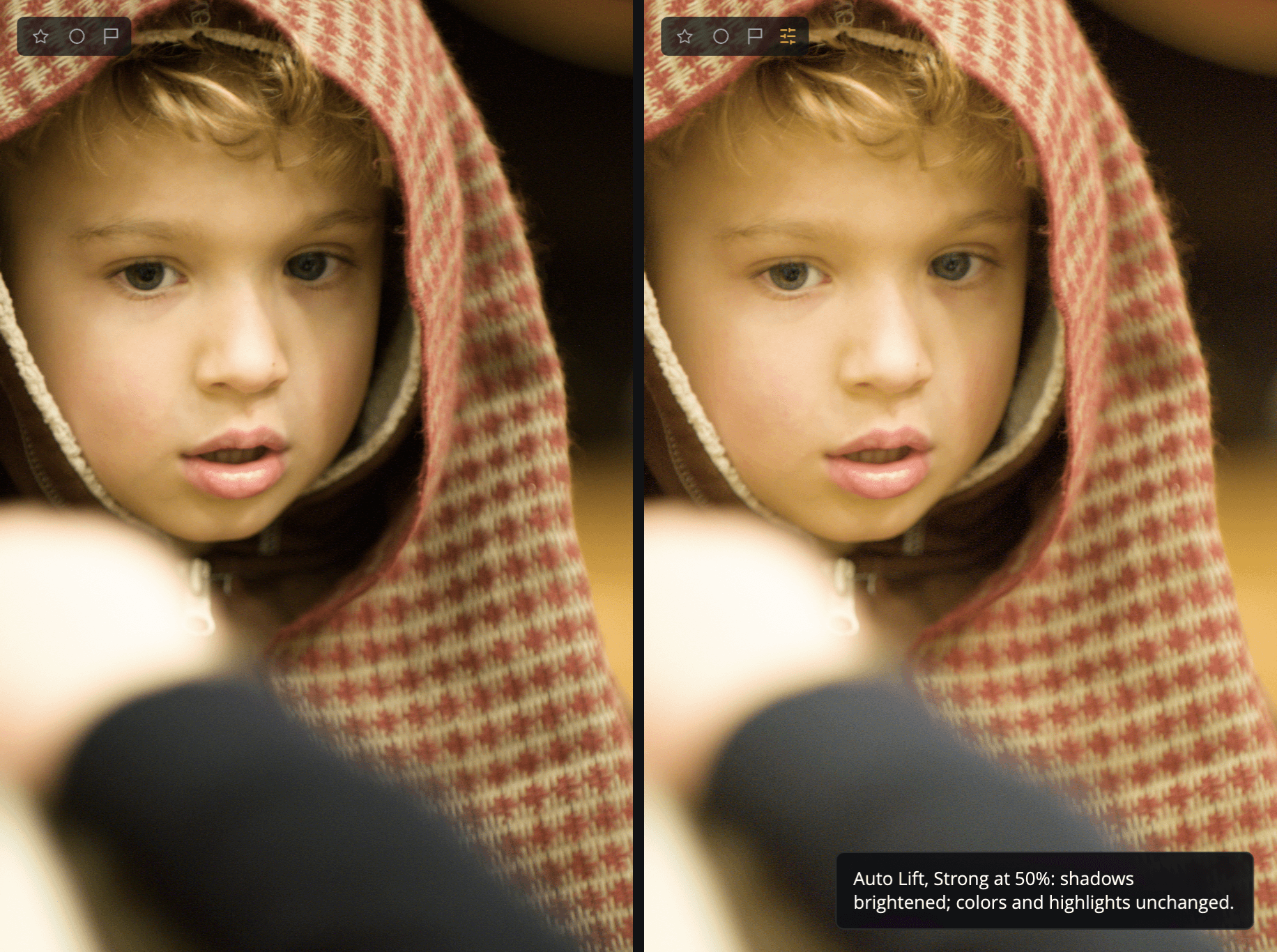
Auto Lift
Auto Lift brightens the darker tones of your photo in one move. It is the first panel on the Edit page, and it's a quick fix for dark or backlit photos.
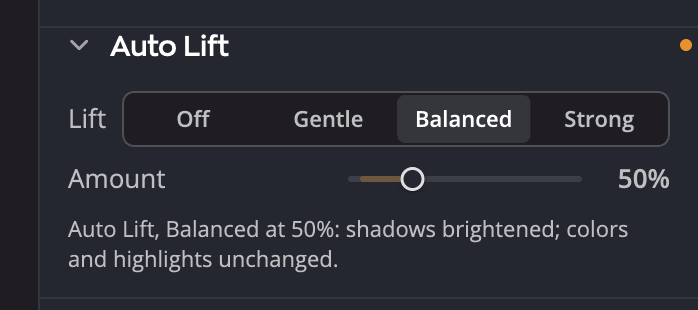
| # | Control | What it does |
|---|---|---|
| 1 | Lift | Off, Gentle, Balanced or Strong: how much brighter Auto Lift makes this photo |
| 2 | Amount | 0 to 200% (default 50%): how much of that lift you apply |
| 3 | Status line | What Auto Lift is doing to this photo right now |
What it does
Auto Lift brightens the shadows most, the midtones less and the highlights only a little. Colors stay as they are: Auto Lift raises brightness only, so hue and saturation don't change.
Auto Lift measures the photo as you've edited it so far, before the lift. So a photo that another Auto already brightened, such as Tone's Auto or Auto Exposure, isn't brightened twice. While Auto Lift is on, an Auto that changes the photo makes Auto Lift measure it again. One Undo takes back both.
Use it
- Under Lift, click Gentle, Balanced or Strong. Radiant Raw measures the photo and applies the lift.
- Drag Amount to apply more or less of it. 100% is the full measured lift for this photo, and the default 50% is half of it.
- Read the status line to check what happened, for example Auto Lift, Balanced at 50%: darker tones brightened. Each click also shows it in a message over the photo, with Undo when the photo changed.
Clicking the setting that's already on shows the status line again and changes nothing. After a crop, it measures the photo again and keeps your Amount.
To turn Auto Lift off, click Off. Amount stays where you left it, dimmed. When you turn Auto Lift on again, Amount starts at 50% again.
Tip
Double-click Amount to return it to 50%. To reset the whole panel, use the reset in its header: it turns Auto Lift off and sets Amount back to 50%.
What the status line tells you
| Status | Meaning |
|---|---|
| Auto Lift is off. | Nothing is applied |
| Auto Lift, Balanced at 50%: darker tones brightened. | The lift is working on this photo |
| Auto Lift, Balanced at 0%: no change at this Amount. | Amount is so low that the lift has no effect |
| Auto Lift, Balanced: no change. This photo is already bright enough. | There is nothing to lift at this setting |
If you click a setting while the photo is still loading, Radiant Raw says The photo is still loading. Try again in a moment. and changes nothing.
Auto Lift on many photos
When you sync settings or apply a recipe, Auto Lift travels as its setting and its Amount, not as a fixed brightness. Radiant Raw measures each photo it lands on, so Balanced at 50% means the same thing on a bright photo and a dark one. See Copying and syncing settings and Recipes.
Auto Lift or Tone?
Use Auto Lift when you want darker tones brighter without touching colors, in one click. Use Tone when you want to shape the photo yourself: Shadows and Blacks give you separate control, and Exposure brightens everything. You can use both: Auto Lift measures the photo with your Tone settings, and works on top of them.