
Copying and syncing settings
Photos from the same shoot usually need the same develop. Get one photo right, then copy its settings to the rest.
Sync from the title bar
- Click the photo whose settings you want to share, so it's the one on screen.
- Click Sync in the title bar.
- Choose where the settings go: all other photos, the photos after this one, or the photos you selected.
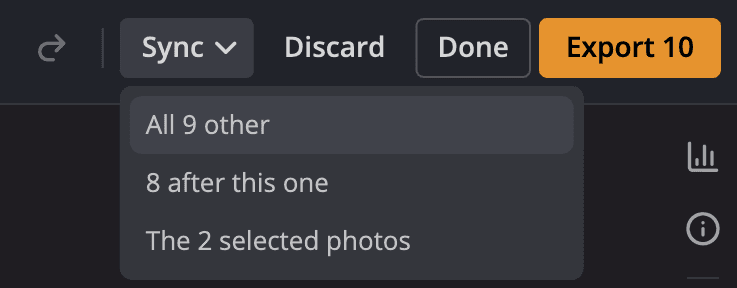
| # | Control | What it does |
|---|---|---|
| 1 | Sync | Opens the menu of photos to copy this photo's settings to. |
| 2 | All other photos | Copies the settings to every other photo the filmstrip shows, so a Selects filter limits it. The item shows how many. |
| 3 | Photos after this one | Copies the settings to the photos after this one, in the filmstrip's current order. |
| 4 | Selected photos | Copies the settings to the photos you selected. It appears only when you selected photos besides this one. |
The Develop menu has the same commands: Sync… and Sync Selected…
Copy and paste
-
Copy the settings of the photo on screen. The Edit menu has three ways:
- Copy Settings (⌘C, Ctrl+C on Windows) copies every setting at once, White Balance included, with no checklist. A click on Copy in the filmstrip does the same. Your ticks in the checklist stay as they were.
- Copy Selected Settings (⇧⌘C, Ctrl+Shift+C) copies at once the settings you last ticked in the Copy Settings checklist (until then, the checklist's defaults).
- Choose What to Copy… opens that checklist. Tick the settings to copy and click Copy. In the filmstrip, right-click Copy, or click the Copy Settings… gear beside Paste, for the same checklist.
A message names the photo, for example Copied settings from L-16.ARW.
-
Select the photos to change, then press ⌘V (Ctrl+V) or choose Edit > Paste Settings.
Every copy takes the crop as you last set Crop & Straighten, in the checklist or in the Sync sheet (see the note below). While you type in a text field, ⌘C and ⌘V copy and paste your text instead.
The filmstrip has buttons for the same jobs: Copy, Paste, the Copy Settings… gear, Sync all and Sync forward. While several photos are selected, one Sync selected button takes the place of the last two. To copy a photo's caption, creator or copyright instead, see Copy and paste metadata.
Note
Sync shows a sheet before it changes anything. Crop & Straighten starts ticked there, so the crop and its angle travel too. Untick it to keep each photo's own crop. Radiant Raw remembers your choice until you quit. White balance, red-eye points and spot removals always stay with their own photo. If a photo you sync to has edits of its own, Radiant Raw asks before it replaces them.
Auto on many photos
When the photo you copy from still holds what an Auto set, Sync doesn't copy that Auto's numbers. It measures the Auto again on each photo, so each one gets its own result. This works for Tone's Auto, Auto Exposure, Levels' Auto with any method, and the Automatic, Auto Color and Auto Contrast (Levels) recipes. The message after the Sync says that Auto was measured on each photo.
- While Radiant Raw measures, a line over the photo counts the photos, for example Measuring Auto on each synced photo · 2 of 12.
- If you click Done or Export before it's finished, Radiant Raw waits and says Waiting for Auto on each synced photo. Click Cancel to stop waiting. The measuring goes on.
- A photo Radiant Raw can't open keeps the copied numbers. The last line says how many did.
- If you change a photo before its Auto is measured, your change stays.
- The curves that Curves' Auto drew stay on their own photo. The message adds Curves Auto was not synced; press it on each photo.
Paste Settings works the same way when your copy includes every setting an Auto set. When it includes only some of them, Radiant Raw pastes the numbers as they are.
If you've changed a value an Auto set, the photo no longer holds that Auto, and Sync copies your numbers.
Start over
To undo every change on a photo, choose Edit > Reset This Photo. To undo every change since you opened the window, click Discard in the title bar, and confirm. Each photo gets its own undo step: ⌘Z brings back the photo on screen, and another photo's edits come back when you open it and press ⌘Z.