
Recipes
A recipe is a saved set of develop settings. Make one for your camera, your studio light or your style, and apply it to any photo with one click.
Apply a recipe
Open the Recipe menu at the top of the Edit page and choose a recipe. The menu starts with the 12 that come with Radiant Raw, from Neutral and Automatic to black-and-white and color styles. My recipes lists the ones you saved. After you apply a recipe, the menu shows its name. Before you change anything, it shows a dash. Once your settings no longer match a recipe, whether you applied one or edited by hand, it shows Custom.
Eight of the built-in recipes carry the Lab Tools label, because they are still being refined: Log, B&W, B&W Flat, B&W Noir and the four Color styles, Color - Vivid, Color - Warm, Color - Cool and Color - Faded. The label sits beside the name in the Recipe menu and on its face, on the Recipes page, in Manage Recipes and in the Develop Queue. Point at it to read Still being refined. Tell us what you think. Neutral, Automatic, Auto Color and Auto Contrast (Levels) carry no label, and neither do your own recipes.
The Auto recipes
Automatic, Auto Color and Auto Contrast (Levels) measure this photo and set it for you. Auto Contrast (Levels) adds contrast with the Levels pins and keeps the photo's brightness. It doesn't move the Tone sliders. Develop > Auto (⌘U, Ctrl+U on Windows) applies Automatic.
When one of them is done, a message over the photo says what it did, for example Automatic: applied. Point at the message to see the values, or click Undo in it to take them back. See When you click Auto.
The Recipes page
The Recipes page on the right rail lists every recipe. Click its icon on the rail to open it. Or choose Develop > Find a Recipe or press ⇧⌘P (Ctrl+Shift+Q on Windows), or Browse Recipes… in the Recipe menu, and the cursor lands in Filter recipes, ready for part of a name.
Click a recipe to apply it. Rest the pointer on one to preview it on your photo first; Preview on Hover in the page's ⋯ menu turns that off. With View as grid, each tile shows your photo as that recipe would leave it, for your own recipes too, whatever they change.
Save your own
- Develop a photo the way you like it.
- Click Save… in the Recipe row, or choose Develop > Save as Recipe…
- Name the recipe.
- Under What the recipe carries, tick the groups of settings to keep. White Balance starts unticked.
A recipe never carries a crop, a turn or flip, red-eye points or Spot Removal fixes, because those belong to one photo.
Manage recipes
Choose Develop > Manage Recipes…, or Manage… in the Recipe menu, to see all your recipes.
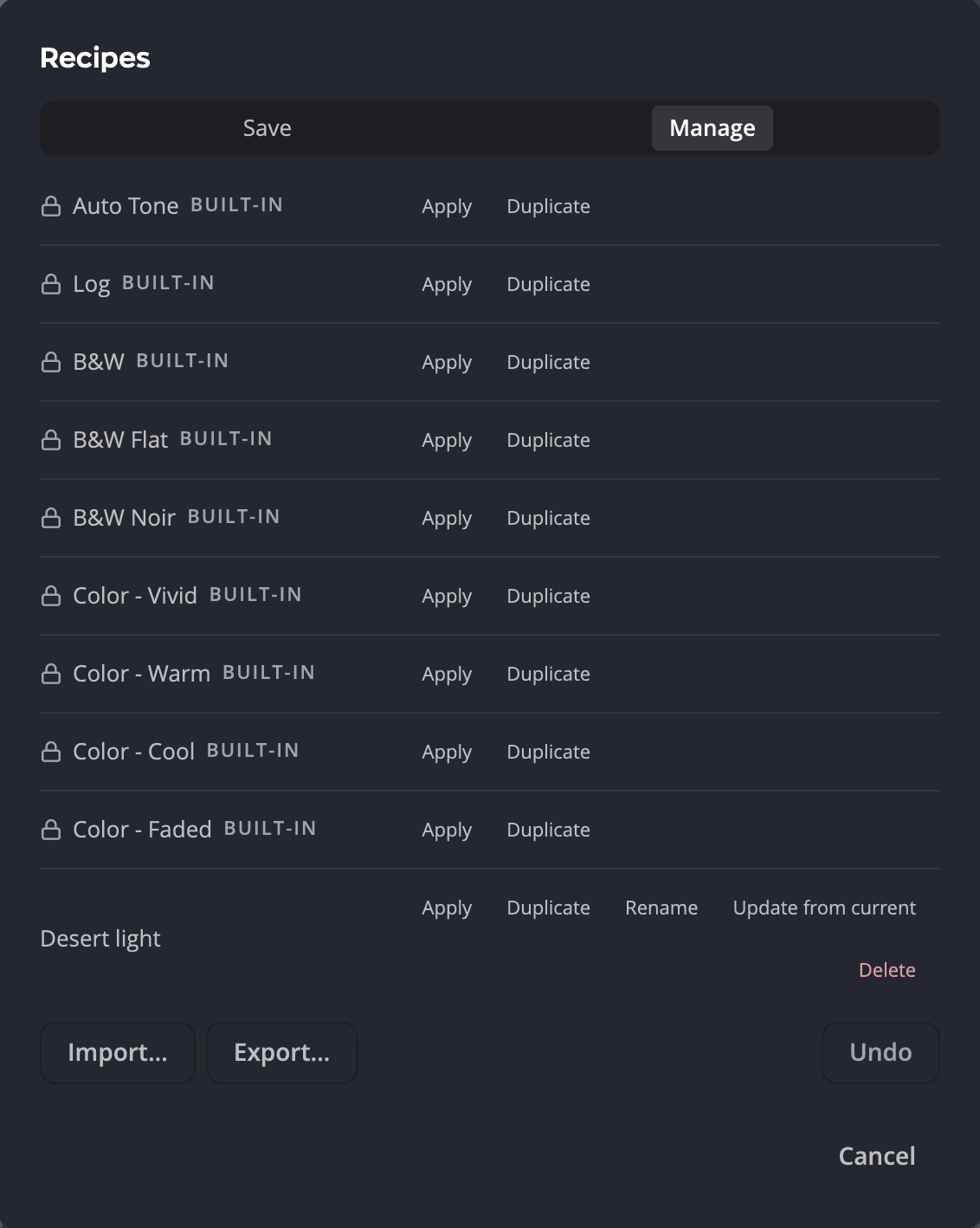
| # | Control | What it does |
|---|---|---|
| 1 | Recipe list | Your recipes and the built-in ones. A built-in recipe has a lock, and you can only apply or duplicate it. |
| 2 | Apply | Uses the recipe on the current photo. |
| 3 | Update from current | Replaces the recipe with the current photo's settings. Only your own recipes have it. |
| 4 | Import… | Adds a recipe from a file. |
| 5 | Export… | Saves all your own recipes to one file, so you can share them or back them up. Grayed out until you save one. |
| To | Click |
|---|---|
| Use it on the current photo | Apply |
| Change its name, or make a copy | Rename, Duplicate |
| Replace it with the current photo's settings | Update from current |
| Share your recipes, or back them up | Export… |
| Add one from a file | Import… |
| Remove it | Delete |
Your recipes in Radiant Photo
Radiant Photo lists your recipes too, after the built-in ones, and can open raw files with them. It applies them with Radiant Raw's develop engine, so Radiant Raw must be installed and activated on the same computer. Radiant Photo applies everything in a recipe except a Look, lens corrections and an Auto saved with it.
Radiant Photo can also rename, duplicate and delete your recipes. The two apps share one list, so Radiant Raw has the change the next time you start it. See Raw files and Radiant Raw in the Radiant Photo manual.
Looks
A Look adds a color grade on top of your develop. Click Look in the Color Grading panel to open the Look
browser. Your Looks are grouped under Collections, All, Recently used, My Looks and Favorites.
You can also load a lookup table of your own with Load Lookup Table…: a .cube, .3dl, .lut, .m3d, .mga,
.itx, .davlut or .dat file.