
Opening your first folder
Radiant Flow shows the photos in a folder, a drive or your Apple Photos library. It has no catalog and nothing to import: you point it at a folder, and the photos are there.
The first launch
While Flow starts, you see Opening your library…. Then the window opens on its start screen, because Flow doesn't know yet where your photos are.
Before the start screen, the very first time, Flow asks for your email address to get your free license. The screen may show Flow's regular price struck through, followed by Free. Enter your email address and click Continue. If Radiant Photo or Radiant Raw is already activated on this computer (a trial counts too), Flow usually skips this step.
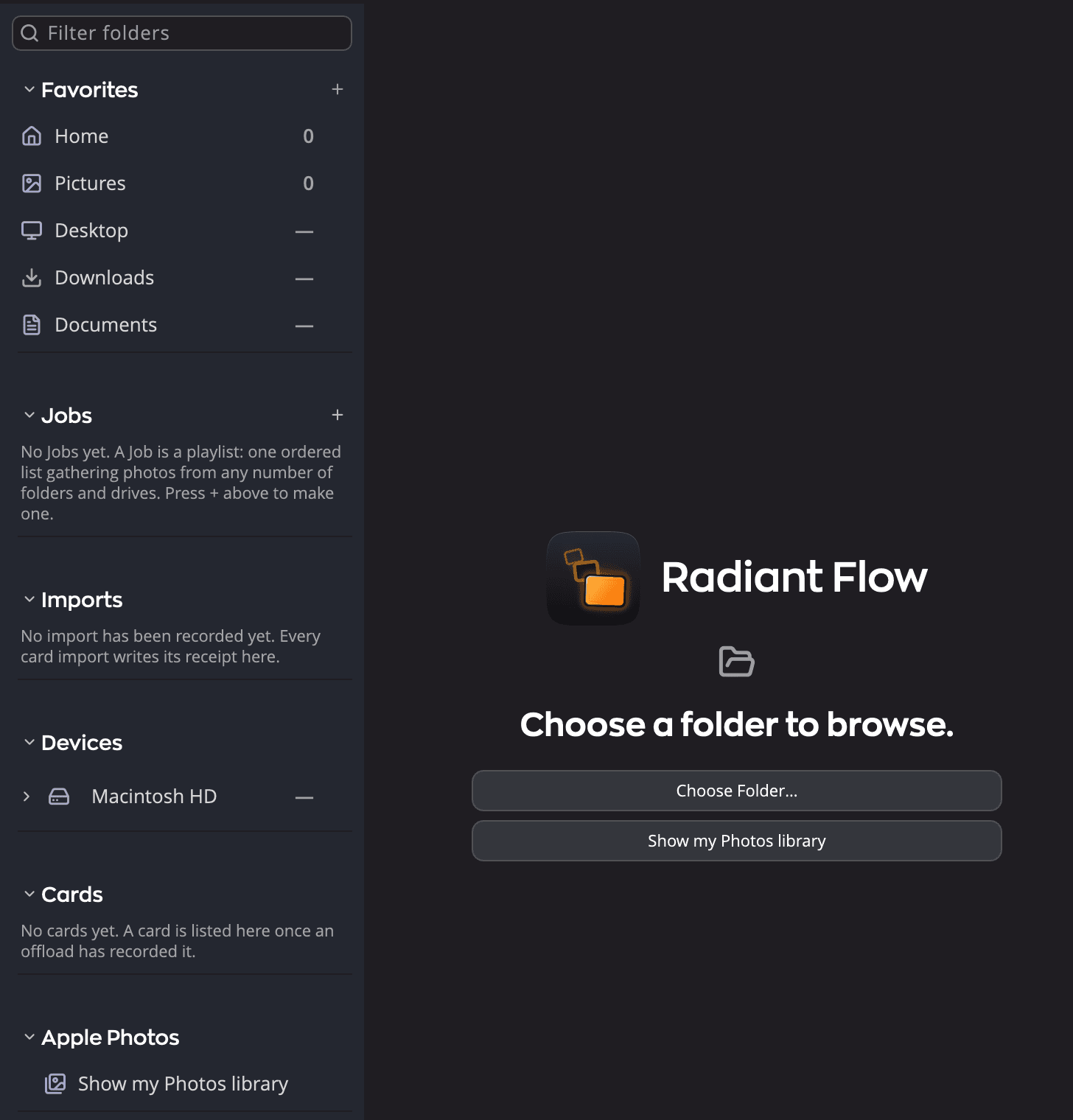
| # | Control | What it does |
|---|---|---|
| 1 | Sidebar | Your Favorites, your drives under Devices, and on a Mac, Apple Photos. Click a folder to show its photos. |
| 2 | Choose a folder to browse. | The start screen. It shows until you open something. |
| 3 | Choose Folder… | Opens a dialog where you pick a folder. |
| 4 | Show my Photos library | Shows your Apple Photos library. Mac only: on Windows the button is grayed out. |
Personalize Radiant Flow
The first time Flow runs on a computer, once the free-license step is done, Personalize Radiant Flow opens over the window. Its six screens set Flow up for the way you work. Each choice shows in the window behind it at once, and setup never changes your photos.
| Screen | What you choose |
|---|---|
| Shortcuts | The keys your hands know: New to this for Flow's own keys, or the keys of Lightroom Classic, Capture One, Aperture or Photo Mechanic. Eight color labels adds orange, pink and gray to Flow's five labels; choosing Capture One turns it on. |
| Look | A theme, or Match Radiant Photo, and the Interface size. |
| View | The grid style. The one marked Recommended follows your choice of keys. |
| Speed | How hard Flow works your computer: Go Easy, Balanced or Full Power. The screen says how much memory and how many processor cores the computer has. |
| This Mac (This PC on Windows) | On a Mac, Full Disk Access. Then the optional extras: the Scene recognition model for PRISM Photo Score, and ExifTool, a check box where Homebrew can install it, else Get ExifTool, which opens its download page. An extra that is already on the computer isn't listed. |
| Ready | A summary of your choices. Until you have taken the Welcome tour, it also has Show me around when my first photo opens (the Welcome tour, about 2 minutes), ticked the first time setup opens by itself. Leave it ticked and the tour starts by itself when your first photo opens. |
Move through the screens with Continue and Back. On the last screen, click Use This Setup to keep your choices. The extras you chose then download in the background. Skip Setup or Esc puts every setting back as it was and closes setup, and it doesn't open by itself again. If you quit Flow during setup, it reopens on the same screen the next time.
Setup opens by itself only on a plain start. It waits for a later start when Flow opens to show a photo or folder you chose, or while a memory card is in a reader. If Flow has run on this computer before, setup doesn't open by itself.
To run setup again, choose Radiant Flow > Personalize Radiant Flow… on a Mac. On Windows it's the last row of the Edit menu. You can also click Open… in Settings > General > Personalize Radiant Flow. In a setup you open yourself, Cancel takes the place of Skip Setup. The command stays gray until the free-license step is done.
Undo Changes, in the same row, puts back the settings the last Use This Setup changed. A setting you changed yourself since then keeps your value. Extras that already downloaded stay. The button is gray until you have used setup.
Open a folder
Any of these opens a folder in Flow:
- Click Choose Folder… on the start screen, or choose File > Open Folder… (⌘O, or Ctrl+O on Windows).
- Click a folder in the sidebar. Favorites starts with some of your own folders, and Devices lists every drive so you can work down its folders.
- On a Mac, Control-click a folder or photo in Finder and choose Open With > Radiant Flow. You can also drop it on Flow's icon in the Dock.
- On Windows, right-click a photo in File Explorer and choose Open with > Radiant Flow. You can also drop a folder on Radiant Flow's icon or shortcut, or pick an entry from the Jump List of its taskbar button.
When you open a photo this way, Flow opens its folder with that photo selected. If Flow is already running, the folder opens in the window you have.
While Flow reads a folder for the first time, the grid says Looking for photos…. A folder with nothing Flow can show says No photos in this folder. Click Rescan to look again.
Note
Dragging files or folders from Finder or File Explorer onto Flow's window doesn't open them. Use one of the ways above.
Flow reopens where you left off
The next time you start Flow, it opens the place you were last. That can be a folder, your Apple Photos library or a Job, with the same photo selected. If that place is gone, for example a folder you deleted, Flow shows the start screen instead.
To start fresh, hold ⇧ (Shift) while Flow opens. You get the start screen, and you choose where to go.
Allow access on a Mac
macOS protects some places, such as Desktop, Documents, Downloads and removable drives. The first time Flow opens one of them, macOS asks whether Radiant Flow may use it. Click Allow.
Other folders need Full Disk Access. No app or installer can turn it on for you. Only you can, in System Settings.
The first time Flow opens without Full Disk Access, after the free-license step, one window asks you to turn it on: Turn on Full Disk Access for Radiant Flow. Follow the steps below, or click Not now. Whichever button you click, the window doesn't come back while access stays off. If you turn Full Disk Access on and later off again, it shows once more. In between, the sidebar row and the grid's message described below remind you. While Personalize Radiant Flow is open, this window waits until it closes.
When Flow can't read a folder for this reason, the grid says No access to this folder.
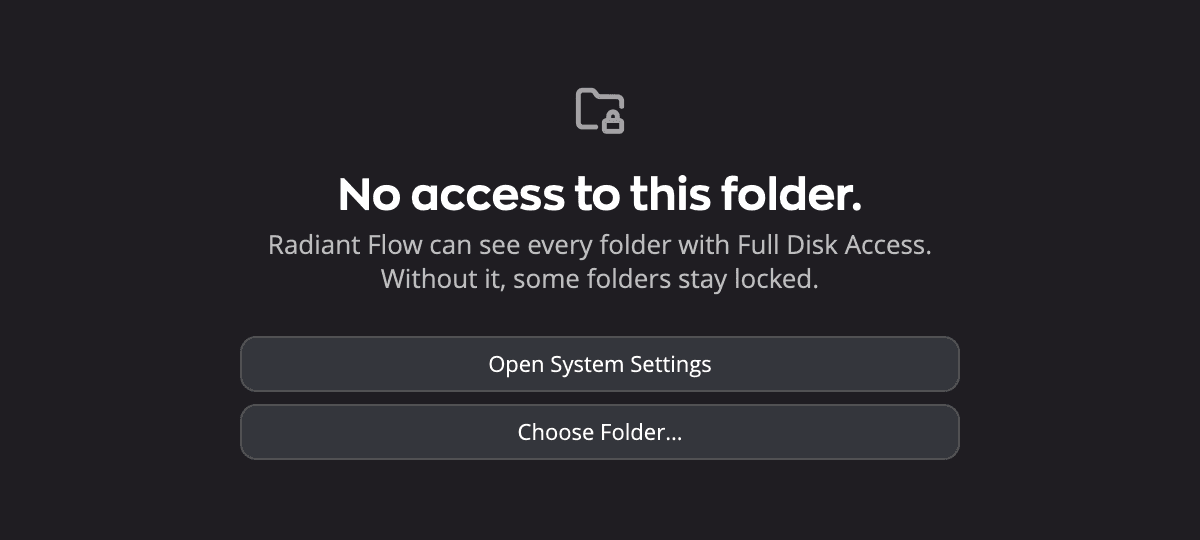
- Click Open System Settings, in the window, on the grid or in the sidebar row. macOS opens Privacy & Security at Full Disk Access.
- Turn on Radiant Flow in the list. If it isn't there, click the + button and choose Radiant Flow in the Radiant Imaging Labs folder inside Applications.
- Switch back to Flow. Flow checks again as soon as its window comes to the front. If the first-launch window is still open, it closes by itself once Flow finds the access on.
macOS may ask you to quit and reopen Radiant Flow before the change takes effect. If the folder still looks empty, choose File > Rescan (⌘R, or Ctrl+R on Windows).
When Flow finds that it doesn't have Full Disk Access, a Full Disk Access row appears at the top of the sidebar. It gives the same advice and has its own Open System Settings button. Click ✕ to dismiss the row. It comes back only if you later take the access away.
Note
Windows has no Full Disk Access. A folder you can't open there is locked by its own permissions. Flow shows No access to this folder. with Choose Folder… only.
When a folder can't be read
If a folder was moved or deleted, or its drive is unplugged, the grid says This folder could not be read. A second line says why when Flow can tell: It may have been moved, renamed, or deleted., or the drive's name, as in Archive is not connected. Plug the drive back in and click Rescan, or click Choose Folder… to go somewhere else.