
The sidebar
The sidebar lists the places you can browse: favorite folders, drives, cards and the photo libraries Flow can read. It runs down the left side of the window and is always on screen.
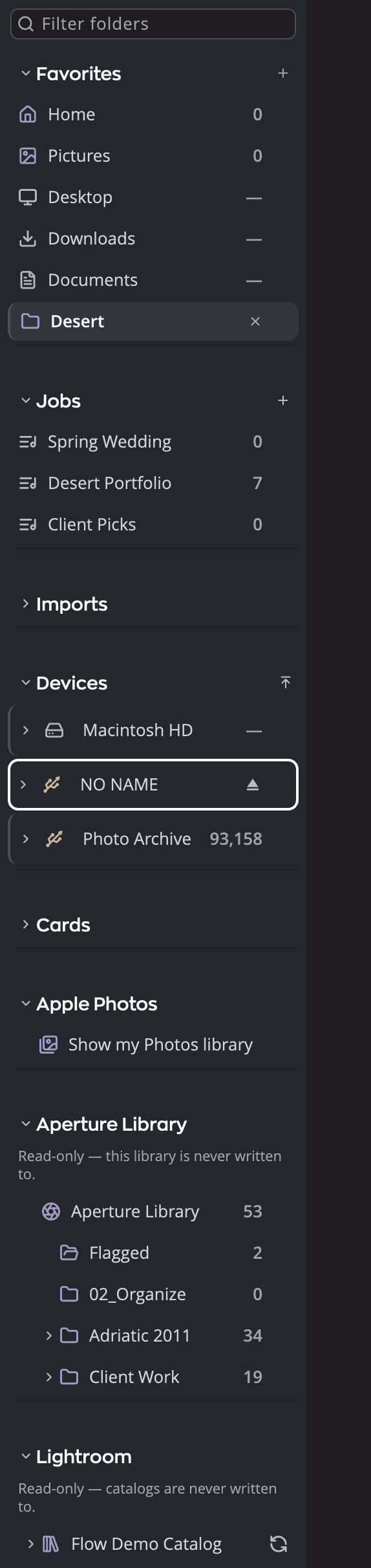
| # | Control | What it does |
|---|---|---|
| 1 | Filter folders | Type two letters or more to find a folder anywhere on your drives. |
| 2 | Section header | Click to fold or unfold the section. |
| 3 | Add to Favorites (+) | Adds the folder you're in to Favorites. |
| 4 | Remove (✕) | Appears when you point at a favorite. Removes it from Favorites, not from the disk. |
| 5 | New Job… (+) | Starts a new Job. |
| 6 | Go to the top of Devices | Goes to the top of the drive you're on. |
| 7 | Eject | Appears when you point at a removable drive. Ejects it. |
| 8 | Apple Photos | Your Photos library (Mac only). |
| 9 | Aperture and Lightroom Classic | Aperture libraries you've opened, read-only, and Lightroom Classic catalogs you've opened. Ratings, flags, labels, keywords and metadata you set on catalog photos go to Lightroom Classic. See Lightroom Classic catalogs. |
| 10 | Divider | Drag to make the sidebar wider or narrower. Double-click to reset it. |
The sections
The sidebar shows up to nine sections, top to bottom. Each one appears only when it has something to offer on your computer. You can hide any of them. See Hide a section.
| Section | When it appears | What it lists |
|---|---|---|
| Favorites | Always | Folders you go to often. Click + in the header to add the folder you're in. |
| Jobs | Always | Your saved lists of photos, and the Jobs an Aperture rescue made, under From Aperture. See Jobs. |
| Imports | Always | The last ten card imports, each with its report. |
| Devices | Always | Your startup disk and every connected drive, as a folder tree, then each phone, tablet or camera on a cable. See Import from a phone, tablet or camera. While a watched folder is on, its row comes last, with an eye. See Watched folder. |
| Cards | Always | Every memory card Flow has imported from. Click Show All Cards in the header for each card's history. See Importing from a memory card. |
| Apple Photos | On a Mac | Your Photos library. See Browsing your Apple Photos library. |
| Aperture | Always | Aperture libraries you've opened. Until you open one, it shows Open Aperture Library…: click it to open one. |
| Lightroom Classic | Always | Lightroom Classic catalogs you've opened. Until you open one, it shows Open Lightroom Classic Catalog…: click it to open one. |
| Capture One | Always | Capture One catalogs and Sessions you've opened. On a Mac, ratings, labels, keywords and captions you set on their photos go to Capture One; on Windows they're read-only. Until you open one, it shows Open Capture One Catalog or Session…: click it to open one. See Capture One catalogs and Sessions. |
Flow remembers which sections you've folded. Folding a section only hides its rows; the places inside it stay where they are.
A number beside a folder counts the photos inside it and in all its subfolders. A dash means Flow hasn't counted that folder yet. For more on the Devices tree, hidden and system folders, and drives, see Folders and drives.
Hide a section
To take a section you don't use off the sidebar, right-click its header and choose Hide Aperture. Nothing in it is deleted, and Flow remembers the choice. The same menu has Move Up and Move Down, grayed out at the ends, and Customize Sidebar….
Customize Sidebar… opens a card from any of four places: the ⋮ at the right of the Filter folders box, a section header's right-click, a right-click on the empty space under the last section, and View > Customize Sidebar…. On the card, under Customize sections:
- Tick or untick a section to show or hide it. The last section showing can't be hidden: Last section shown.
- Drag a section by its grip, or click it and press ⌥↑ or ⌥↓ (Alt+↑ or Alt+↓ on Windows), to move it. The sidebar follows when you drop it.
- Each row shows the key that jumps to the section.
- Reset puts back the default order with every section showing. A message says Sections reset to the default order; click Undo on it to get your own order back.
Turn on Solo Mode at the top of the card, and opening a section closes the others. It's off to begin with.
The keys ⌘1 to ⌘9 (Alt+1 to Alt+9 on Windows) number only the sections you can see. Hide one, and the sections under it move up by one.
Jump to a section from the keyboard
Each section has a key in the Go menu, numbered in the order the sidebar shows them right now.
| Key | Mac | Windows |
|---|---|---|
| First section | ⌘1 | Alt+1 |
| Second section | ⌘2 | Alt+2 |
| … and so on, up to the ninth | ⌘9 | Alt+9 |
With every section showing on a Mac, ⌘1 is Favorites, ⌘4 is Devices and ⌘6 is Apple Photos. On Windows there is no Apple Photos section, so the numbers after Cards move up by one. The Go menu always shows the current numbers.
A jump unfolds the section. For Devices it also goes to the top of the drive you're on, and for Apple Photos to the whole library.
Note
On a Mac, while one photo fills the view or Compare is open, ⌘1 and ⌘2 zoom to 100% and 200% instead. Choose the first two sections from the Go menu there.
Find a folder
Type in the Filter folders box at the top of the sidebar. The search starts at two letters, because one letter matches too much to be useful.
The results replace the tree, each with its path above the folder name. Click one to go there. If nothing matches, the sidebar says so, for example No folders match “kayak”. Click ✕ in the box, or press Esc, to get the tree back.
Change the sidebar's width
Drag the divider between the sidebar and the photos. The sidebar opens at 15% of the window. You can drag it out to about a third of the window, or in to a minimum width that keeps folder names readable.
Double-click the divider to put the sidebar back to 15% of the window. Flow remembers a width you drag to.
You can also click the divider and use the keyboard. ← and → nudge it. ⇧← and ⇧→ take it to the narrowest and widest it can go.
Can I hide the sidebar?
No. The sidebar always stays on screen, so you always have a way back to your folders. To make more room for the photos, drag it narrower. You can also choose View > Hide Panels (⌥⇥, Ctrl+Tab on Windows) to put the Metadata panel and the Filter Row away.
View > Sidebar (⌃⌘S, Ctrl+B on Windows) appears only while an import window is in front. There it hides the import window's folder tree, not this sidebar.