
Editing capture time
Edit Capture Time… corrects the date and time your photos were taken. Use it when the camera clock was wrong, when you forgot to change time zones on a trip, or to line up two cameras.
Choose Photo > Edit Capture Time…. The dialog works on every selected photo.
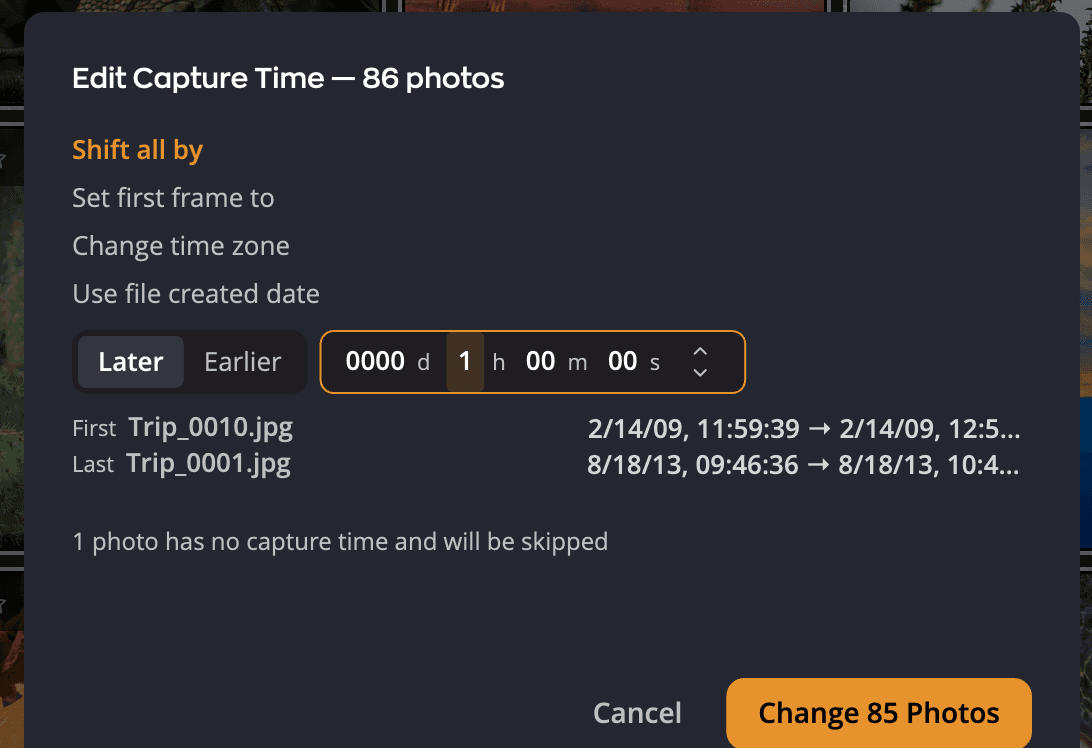
| # | Control | What it does |
|---|---|---|
| 1 | Mode list | Shift all by, Set first frame to, Change time zone or Use file created date. |
| 2 | Later / Earlier | The direction of the shift. |
| 3 | Duration | Days, hours, minutes and seconds to shift by. |
| 4 | First / Last | The earliest and latest photo by capture time, as before → after. |
| 5 | Example line | Explains the mode in one line. |
| 6 | Notes line | Photos that will be skipped, and other warnings. |
| 7 | Status line | Why Change N Photos is gray, when it is. |
| 8 | Cancel | Closes the dialog without a change. |
| 9 | Change N Photos | Writes the new times. Press Return to do the same. |
The title says how many photos you are changing, for example Edit Capture Time — 86 photos.
Shift all by
Moves every photo by the same amount. Use it when the camera clock was off by a known amount.
- Choose Shift all by.
- Click Later or Earlier.
- Type the days, hours, minutes and seconds.
- Check First and Last, then click Change N Photos.
Tip
To line up two cameras, find one moment both cameras caught and compare their times. Then select the second camera's photos and use Shift all by with the difference.
Set first frame to
Gives the earliest photo a new date and time, and moves the others by the same amount. The other frames keep their spacing.
- Choose Set first frame to.
- Type a date and a time, or open the calendar. The fields start at the earliest photo's current time.
- Click Change N Photos.
Change time zone
Moves the photos from the time zone the camera was set to into another one. Use it after a trip when the camera stayed on home time.
- Choose Change time zone.
- In Camera was set to, choose the zone the camera clock used. It starts at this computer's time zone.
- In Change to, choose the zone where you took the photos. It starts at the last zone you changed to.
- Read the example line, for example "9:00 AM in Chicago is 4:00 PM in Paris". Then click Change N Photos.
Flow works out daylight saving time for each photo's own date, so a July photo and a January photo each get the right offset. Flow writes the new time zone with each time.
If both zones are the same, the dialog says Choose two different time zones.
Use file created date
Gives each photo the date its file was created on disk. Use it for scans and other photos that carry no capture time.
While Flow reads the dates, the dialog says Reading creation dates…. A file with no creation date is skipped.
Important
A photo that had no capture time gets a date that cannot be undone. The dialog warns you first, for example 3 of 40 photos have no capture time — they will gain a date that cannot be undone.
Photos that are skipped
Shift all by, Set first frame to and Change time zone need a capture time to start from. Photos without one are skipped, and the notes line says how many, for example 2 photos have no capture time and will be skipped.
The button counts only the photos that will change.
Undo and revert
When the times are written, a message such as Capture time changed on 86 photos appears with Undo. Edit > Undo (⌘Z, Ctrl+Z on Windows) undoes it too, and restores the zone as well as the time.
The first time Flow changes a photo's capture time, it records the original. Photo > Revert Capture Time puts that original back, however many edits you made since.
- Revert works on the selected photos that have a recorded original. The menu item is gray when none do.
- After a revert, a message such as Capture time reverted on 12 photos appears with Undo.
- If none of the photos had anything to restore, Flow says so, for example 5 photos had nothing to restore.
What is written
Flow writes the new time into the photo's metadata, in the same place as its ratings. That is inside the file or in
its .xmp sidecar, as chosen in Settings > Metadata. Raw originals are never changed; their time goes to the sidecar. The
original time is recorded in the same place, so Revert can find it.
A raw file and its JPEG twin move together.
On a memory card, Flow doesn't write the new time to the card. It keeps the new time and writes it onto the imported copies after they are checked. See Where ratings and metadata are written.
If a write fails, for example because a drive was disconnected, Flow keeps the edit and tries again later.
When you can't edit
Edit Capture Time… is gray for photos in Apple Photos (Apple Photos owns these dates), and when nothing is selected.