
Folders and drives
Radiant Flow works with your photos where they already are: in folders on your disks. You find them in the sidebar under Favorites and Devices, and move between them with the breadcrumb trail and the Go menu.
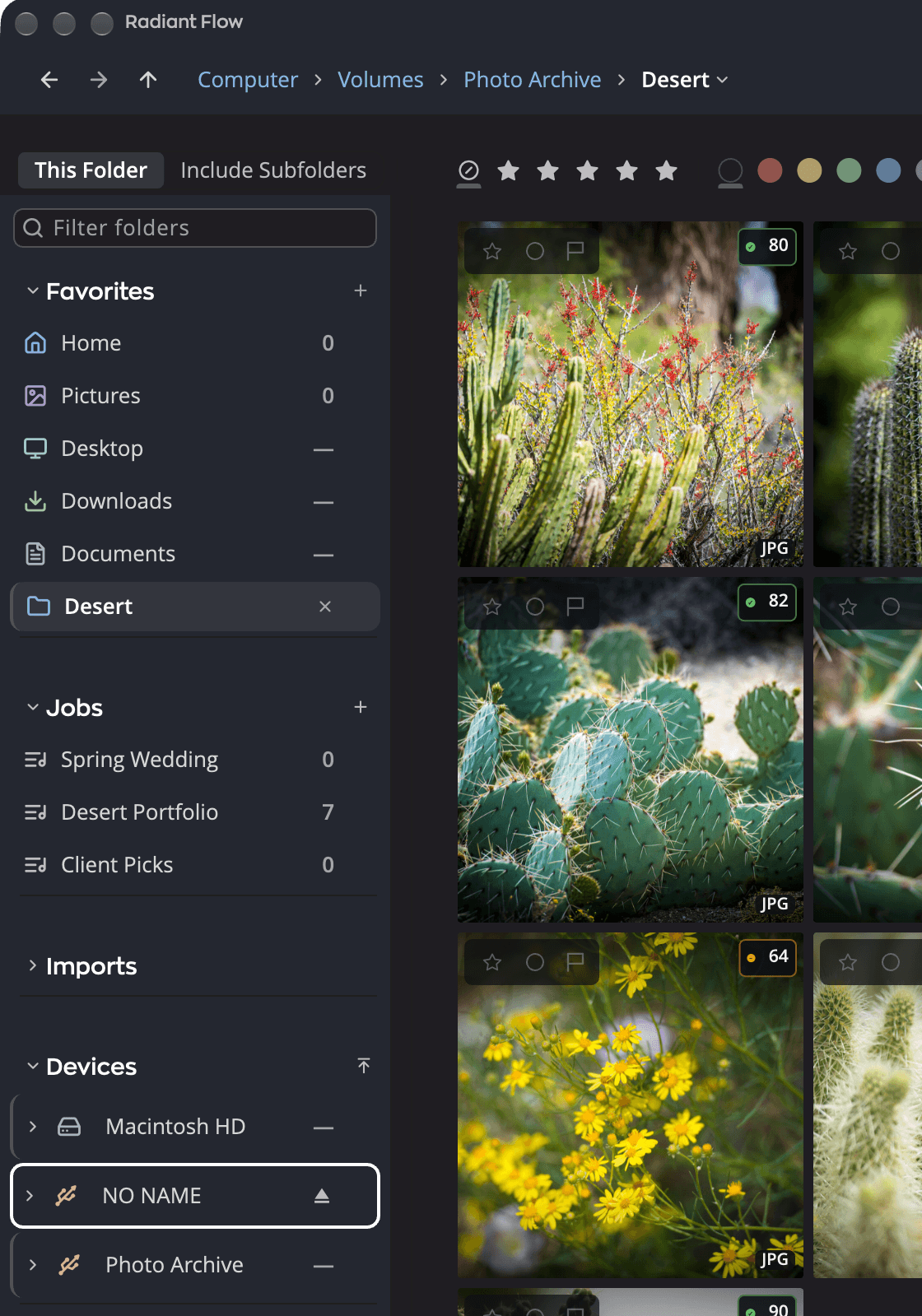
| # | Control | What it does |
|---|---|---|
| 1 | + beside Favorites | Adds the folder you are viewing to Favorites (Add to Favorites). |
| 2 | A favorite you added | Opens the folder. The ✕ removes it. |
| 3 | Startup disk row | Opens the top of the disk. The number is its photo count. |
| 4 | ⏏ on a removable drive | Ejects the drive. |
| 5 | A dimmed drive | A drive you ejected. |
| 6 | Filter folders box | Finds a folder by name once you type two letters. |
| 7 | A folder name in the breadcrumb | Opens that folder. |
| 8 | › between two names | Lists the folders at that level, so you can jump to a sibling. |
| 9 | Back, Forward, Enclosing Folder | Retrace your steps, or go up one level. |
Favorites
Favorites holds shortcuts to the folders you use most. Opening a favorite leaves the Devices tree as it was, so the sidebar doesn't jump around under the pointer.
The first time Radiant Flow runs, it fills Favorites with your own main folders: Home, Pictures, Desktop, Downloads and Documents. It adds Movies (Videos on Windows) and Music too. On a Mac it also adds iCloud Drive, and on Windows it adds OneDrive, when that folder exists. On Windows, Radiant Flow asks the system where each folder is, so a folder OneDrive moved is still found.
To add a folder:
- Open the folder.
- Click + beside the Favorites header.
The + is grayed out when no folder is open, when you are in Apple Photos, or when the folder is already a favorite.
To remove a folder you added, hold the pointer over it and click the ✕. You can also right-click it and choose Remove 2026-10-31 from Favorites, or select the row and press Delete. The folders Radiant Flow added on the first run stay in the list. The exceptions are Movies (Videos on Windows) and Music: you can remove those like a folder you added.
Each favorite shows its photo count, like a folder in the tree. Radiant Flow reads your favorites on the internal disk in the background, so they open quickly and their counts fill in.
Devices
Devices lists your startup disk and every attached drive, each as the top of a folder tree. Click the triangle beside a folder to show its subfolders, and click its name to open it.
The number on a row is how many photos the folder holds, including every folder inside it.
| You see | It means |
|---|---|
| … | Radiant Flow is counting. |
| — | Not counted yet. Open the folder and the number fills in. |
| 0 | Radiant Flow looked, and there are no photos. |
| No triangle | The folder has no subfolders. |
| This folder could not be read. | Radiant Flow can't open the folder, for example because of permissions. |
On a Mac, a folder you tagged in the Finder shows its tag color on its icon.
A photo library, such as an Apple Photos or Aperture library, appears as one row without a triangle. Radiant Flow opens it as a library, not as files.
A phone, tablet or camera connected by cable appears after the drives, as a row with its name. It has no folders. Click it to import from it. See Import from a phone, tablet or camera.
To jump to the top of the drive you are on, click the button beside the Devices header (Go to the top of Devices).
Eject a drive
- Hold the pointer over a removable drive in Devices.
- Click ⏏, or right-click the row and choose Eject EOS_DIGITAL.
You can't eject the startup disk. If the system refuses, the message reads {name} could not be ejected — followed by the system's own reason, which often names the program using the drive.
A drive you eject, or unplug, stays in the list but dims. You can't open it until you connect it again.
Note
Memory cards also appear in Devices. The Imports and Cards sections are about card imports; see Importing from a memory card.
Create a folder
- In Devices, right-click the folder that should hold the new one.
- Choose New Folder…. A name field opens under the folder, with untitled folder selected.
- Type a name and press Return.
Press Esc, click elsewhere or leave the name empty to cancel. If the name is taken, Radiant Flow adds a number and tells you: That name was taken, so the folder is called “2026-10-31 2”.
To create a folder inside the one you are viewing, choose File > New Folder… (⇧⌘N, Ctrl+Shift+N on Windows). See Working with files.
Prepare a folder's previews
Right-click a folder in Devices for three commands about its thumbnails and previews. Each one acts on the folder and every folder inside it.
| Command | What it does |
|---|---|
| Build Previews for This Folder and Subfolders | Makes the thumbnails and previews now, in the background, so the photos show at once later. |
| Purge Cache for This Folder | Removes the folder's thumbnails and previews from the cache. Flow makes them again when it needs them. |
| Save Cache with Folder | Saves the folder's thumbnails and previews beside the photos, so the folder opens fast on another computer. |
These commands work on folders on your disks, memory cards and network shares. A drive that isn't connected doesn't offer them. On a Mac, the startup disk's own row doesn't offer Build Previews, because it would read every disk. Choose a folder inside it instead.
Build previews
A message shows the progress, for example Building previews in 2026-10-31…. Its second line says Finding photos… first, then how many are done, for example 120 of 412.
- Click Stop in the message to stop.
- You can close the message. The build goes on.
- While a folder builds, its menu offers Stop Building Previews.
When the build ends, a message says so, for example Previews are ready for 2026-10-31.
Purge a folder's cache
Purge Cache for This Folder doesn't ask first. Your photos, sidecars and ratings are never touched. A message says what went, for example "Purged the cache of 412 photos (1.2 GB)." You can also purge the cache in Settings > Performance.
Save the cache with a folder
Use Save Cache with Folder before you take a card, a drive or a shared folder to another computer. Flow
writes the thumbnails and previews into a hidden .radiant-thumbs folder inside each folder. When Radiant Flow opens the
folder on the other computer, it uses them instead of making new ones.
- Flow writes this cache only when you choose the command. It never does it by itself.
- A progress strip shows the work, with a Stop button.
- When it's done, a message says how many photos it saved, for example "Saved the cache for 412 photos in “2026-10-31”."
- A folder on a read-only drive is refused, and the message says so.
A photo that changed since you saved the cache gets new thumbnails, as usual.
Find a folder by name
- Click the Filter folders box at the top of the sidebar.
- Type at least two letters of the folder's name.
The tree is replaced by a list of matching folders, each with its path above its name and your match highlighted. Click a result to open it. Click ✕ (Clear the folder filter) to go back to the tree.
If there are too many matches, the list says so, for example 200 of 1,450 folders — refine to narrow.
Move around with the breadcrumb trail
The breadcrumb trail at the top of the window shows where you are, from Computer down to the open folder.
- Click a › to list every folder at that level. The folder you came through has a check mark.
- Click the last name to list the folders inside the open folder (Folders in 2026-10-31). The same menu has a Score Photos in This Folder or Don't Score This Folder row; see PRISM Photo Score.
In these menus, press ↑ and ↓ to move, Return to open a folder and Esc to close. When the trail is too long for the window, the middle folders fold into …; click it to see them (Hidden Path).
Go back, forward and up
| Command | Mac | Windows | What it does |
|---|---|---|---|
| Go > Back | ⌘[ | Alt+← | Returns to the previous place. |
| Go > Forward | ⌘] | Alt+→ | Goes forward again. |
| Go > Enclosing Folder | ⌘↑ | Alt+↑ or Backspace | Opens the folder one level up. |
The same three commands are the arrows at the top left of the window. Hold the pointer over one to see where it goes, for example Back to 2026-10-31 or Up to 2026.
Include subfolders
The grid shows the photos in the open folder only. View > Include Subfolders (⌥⌘S, Ctrl+Shift+S on Windows) adds the photos in every folder inside it. The This Folder and Include Subfolders switch in the filter row does the same.
Include Subfolders works within one disk at a time, so it is grayed out at the Computer level. It is also grayed out in Apple Photos, which has no folders.
The top level of a drive or a network share always opens without its subfolders, even if Include Subfolders was on. With subfolders, Flow would read the whole drive, and that can be slow. You can still turn Include Subfolders on there. If you don't, the next folder you open goes back to the setting you had before.
Choose which folders you see
Three rows in the View menu decide which folders appear. Show Hidden Files and Show System Folders apply everywhere: the sidebar tree, the Columns view, the breadcrumb menus, the folders in the grid and the folder search.
| Row | Default | What it does |
|---|---|---|
| Show Hidden Files | Off | Shows folders whose names start with a dot, and folders the system marks as hidden. |
| Show System Folders | Off | Shows the system's own folders: Applications, Library and System on a Mac, or Windows and Program Files on Windows. |
| Show Folders | On | Shows the subfolders of the open folder at the start of the grid. Grayed out in Apple Photos. |
Show System Folders goes by a folder's location, not its name. Your own folder called "Library" or "System" always shows.