
Keeping Radiant Flow up to date
Radiant Flow checks for new versions once a day and tells you in Settings when one is ready. Nothing installs on its own: you choose when to download and install. The controls are in Settings > General, in the Updates section near the bottom.
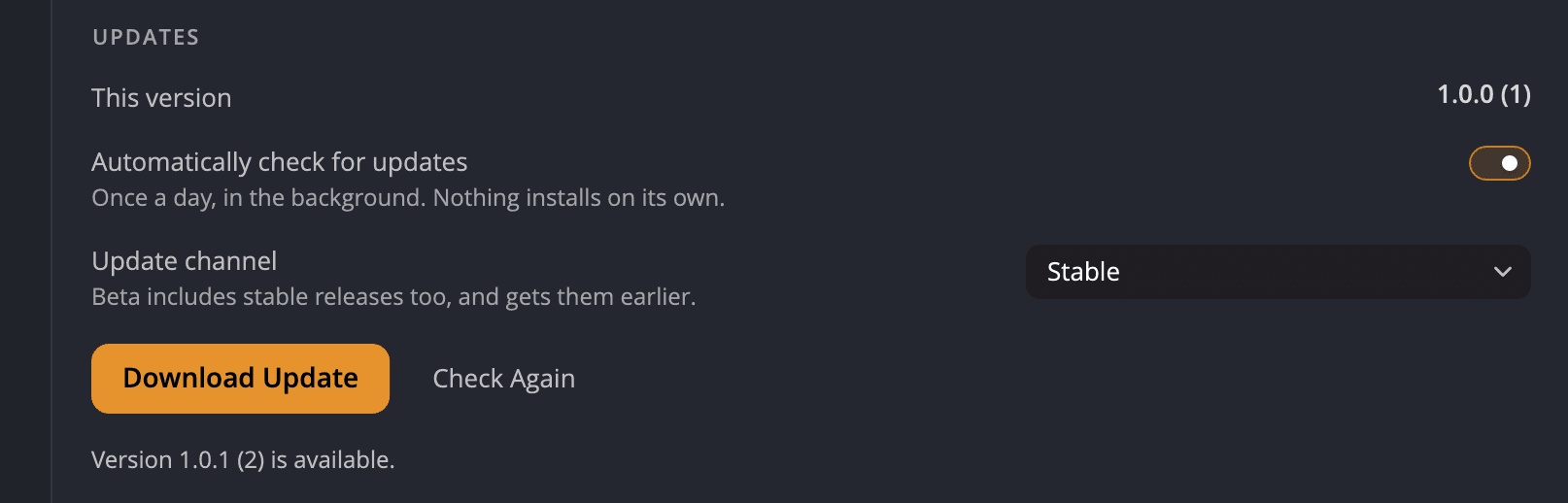
| # | Control | What it does |
|---|---|---|
| 1 | This version | The version of Radiant Flow you're running, with its build number, for example 1.0.0 (1). |
| 2 | Automatically check for updates | On by default. Flow checks once a day, in the background. |
| 3 | Update channel | Stable (default) or Beta. |
| 4 | Check Now | Checks right away. It becomes Download Update, then Install…, as an update moves along. |
| 5 | Status line | Says what the last check found, or why it failed. |
Check for an update
- Open Settings (⌘, on a Mac, or Edit > Settings… and Ctrl+, on Windows) and click General.
- Scroll down to Updates and click Check Now.
- Read the line under the button. It says Checking for updates…, then Radiant Flow is up to date. or Version 1.0.1 is available. (with the new version number).
The status line stays empty until Flow has checked at least once in this session.
Download and install an update
- When a new version is available, click Download Update. The line shows Downloading… and how far along it is.
- When it reads Version 1.0.1 is ready to install., click Install….
- The installer opens. Follow its steps.
While an update is waiting, Check Again sits beside the main button, in case you'd rather look for a newer one first.
Flow checks every download against the checksum published with the update. If they don't match, Flow discards the download. If an update has no published checksum, the status line says so, and Install… stays unavailable.
Automatic checks
With Automatically check for updates on, Flow checks a few seconds after it starts, at most once every 24 hours. The result waits in Settings > General > Updates. The first time a check finds a new version, a small note above the bottom bar also says so, for example Radiant Flow 1.0.1 is available. Click the note to open the Updates section. It goes away by itself after a few seconds, or when you click elsewhere or press a key. Flow shows it once for each new version. It does the same for Radiant Photo and Radiant Raw when they're installed.
A check that fails doesn't count, so Flow tries again the next time it starts.
On Windows, a Flow that came with Radiant Photo or Radiant Raw gets its updates with that app. Its own check doesn't offer a newer Flow.
Turn the switch off to check only when you click Check Now.
Choose an update channel
| Channel | What you get |
|---|---|
| Stable | Finished releases. The default. |
| Beta | Stable releases too, and test versions earlier. |
Restore Defaults… in the General pane resets every setting in that pane. It turns Automatically check for updates back on and sets the channel back to Stable.
When a check fails
| Message | What it means |
|---|---|
| Couldn't reach the update server — check your connection. | Flow couldn't connect. Check your internet connection and try again. |
| The update server had a problem. Try again later. | The server answered with an error. |
| The update information was unreadable. Try again later. | The server's answer was damaged or incomplete. |
| No updates are published yet. | There is nothing on the server for this version yet. |
| The download didn't match its checksum and was discarded. | The file was damaged on the way. Download it again. |
| Couldn't download the update. | The download stopped. Try again. |
| No place to save the update. | Flow couldn't find a folder to save the download in. |
| Couldn't check for updates. | Any other problem. Try again later. |