
Tuning PRISM Photo Score
Settings > PRISM Photo Score is where you decide what counts as a keeper. Move the lines between Keep, Review and Reject, and change how much each criterion counts toward the score.
To open it, choose Radiant Flow > Settings… (⌘,), or Edit > Settings… on Windows (Ctrl+,). Then click PRISM Photo Score. You can also click Open PRISM Photo Score settings at the foot of the bottom bar's quick panel.
The pane is listed only while PRISM Photo Score is turned on. The settings are shared with Radiant Photo and Radiant Raw, so a change here shows in all three apps.
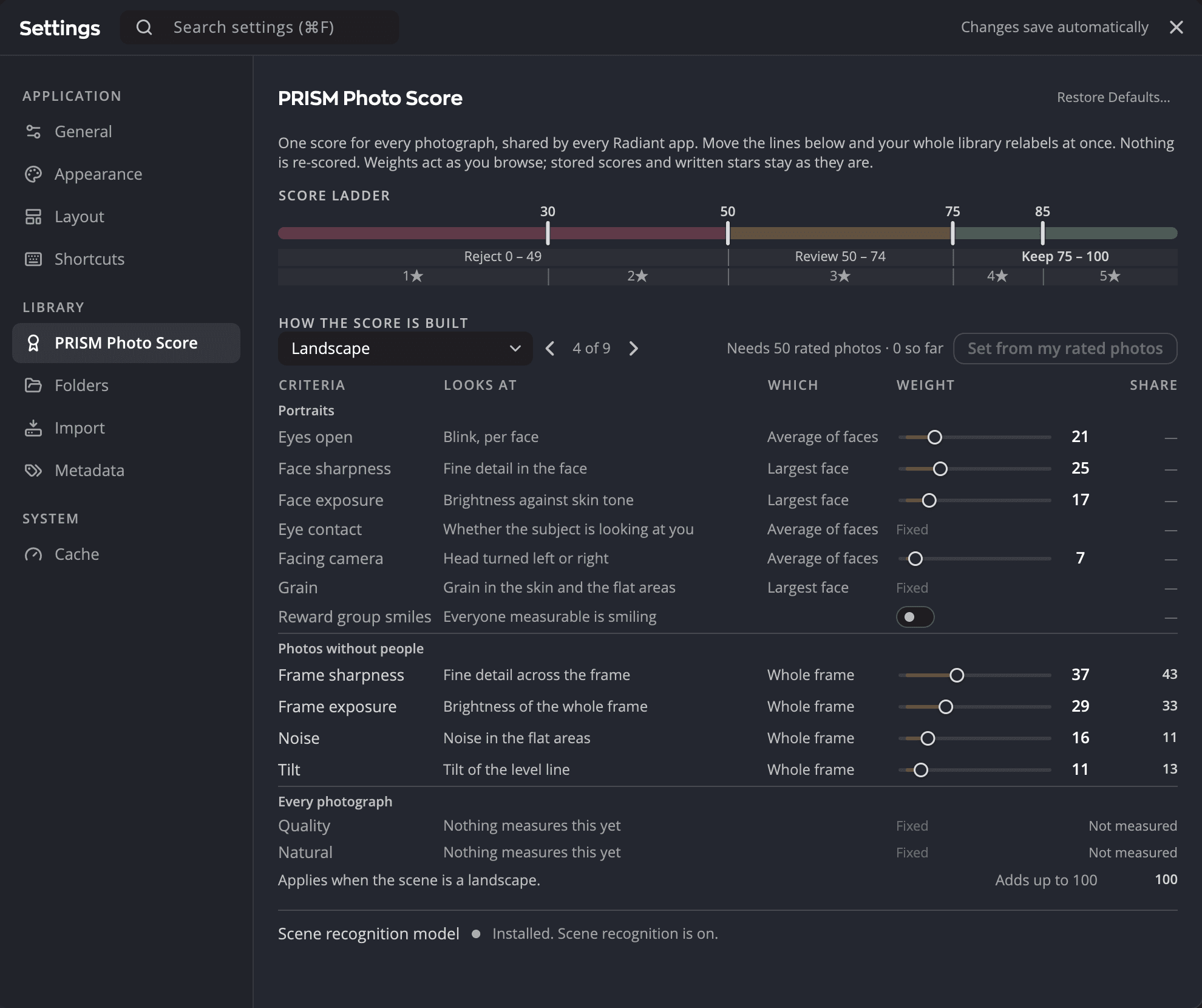
| # | Control | What it does |
|---|---|---|
| 1 | Hint | Says what the score is, and that moving a line scores nothing again. |
| 2 | Ladder number | Click it and type a new value for that line. |
| 3 | Ladder handle | Drag it to move one line. |
| 4 | Band row | The score range of Reject, Review and Keep. |
| 5 | Star row | The score range for each star rating. |
| 6 | Profile menu | Chooses which profile the grid below describes. |
| 7 | Previous profile / Next profile | Step through the nine profiles. The count between them reads, for example, 4 of 9. |
| 8 | Set from my rated photos | Proposes weights from the photos you rated yourself. |
| 9 | Weight slider | How much a criterion counts, 0 to 100. |
| 10 | Share | That criterion's share of the shown profile's score, in percent. |
| 11 | Reward group smiles | Adds a bonus when everyone in the photo is smiling. |
| 12 | Grid footer | When the shown profile applies, and Adds up to 100. |
| 13 | Scene recognition model | Whether scene recognition is ready, with Retry after a failed download. |
| 14 | Restore Defaults… | Puts every setting in this pane back to its default. |
Move the lines: Score ladder
The Score ladder cuts the 0–100 scale with four lines. Two of them set the bands, and all four set the star rating.
| Line | Default | What it sets |
|---|---|---|
| Two-star line | 30 | Below it: 1 star. From here: 2 stars. |
| Review line | 41 | Below it: Reject. From here: Review and 3 stars. |
| Keep line | 80 | From here: Keep and 4 stars. |
| Five-star line | 85 | From here: 5 stars. |
With the defaults, the band row reads Reject 0 – 40, Review 41 – 79 and Keep 80 – 100. Point to a star segment to see its range, for example 4 stars 80 – 84.
To move a line, do one of these:
- Drag its handle on the track.
- Click its number above the track, type a value, then press Return or Tab. Press Esc to cancel.
- Press Tab to reach a handle, then press ← or → to move it 1 point. Hold Shift to move it 5 points.
The lines can't cross. Each line stops 1 point short of its neighbors, and the neighbors don't move.
Moving a line relabels every photo at once. Flow doesn't score anything again.
Tip
If too many good frames land in Review, lower the Keep line a few points. If too many weak frames show as Keep, raise it.
See how the score is built
Under How the score is built, a grid lists what the score looks at.
Profiles
Flow picks a profile for each photo from what is in it. Each profile reads the criteria that matter for that kind of photo.
| Profile | Applies when |
|---|---|
| Portrait | A face is found, unless PRISM is sure it is an animal and the only face found is a faint one. Then it scores as Animals. |
| Newborn | The scene is a newborn or baby and a face is found. |
| No face | The scene has people in it but no face is large enough to read. |
| Landscape | The scene is a landscape. |
| Night | The scene is shot at night or in low light. |
| Animals | The scene is an animal or a pet. |
| Flowers | The scene is flowers or a close-up plant. |
| Black & White | The photograph is black and white and PRISM recognized no scene. A named scene, such as a landscape, keeps its own profile. |
| General | No other profile fits, or the scene is unclear. |
The criteria grid
| Column | What it shows |
|---|---|
| Criteria | The criterion's name. |
| Looks at | What it measures, for example Blink, per face for Eyes open. |
| Which | Which part of the photo it reads: Worst face, Average of faces, Largest face or Whole frame. |
| Weight | A slider and a number, 0 to 100. A small tick marks the default. |
| Share | The column always adds up to 100. |
The criteria come in two groups, with these default weights:
| Group | Criterion | Looks at | Default weight |
|---|---|---|---|
| Portraits | Eyes open | Blink, per face | 21 |
| Face sharpness | Fine detail in the face | 25 | |
| Face exposure | Brightness against skin tone | 17 | |
| Facing camera | Head turned left or right | 7 | |
| Photos without people | Frame sharpness | Fine detail across the frame | 37 |
| Frame exposure | Brightness of the whole frame | 29 | |
| Noise | Noise in the flat areas | 16 | |
| Tilt | Tilt of the level line | 11 |
The score is a weighted average, so the ratio between weights is what matters. Doubling every weight changes no score.
Change a weight
There is one set of weights for every profile. Choosing a profile only changes what the grid describes.
- Drag a criterion's slider, or click its number and type a value.
- Watch the Share column update for the profile you are looking at.
Double-click a slider to put it back to its default.
Flow uses the new weights the next time it shows a score. Your stored scores and any stars already written stay as they are.
A row the shown profile doesn't use is dimmed. Its slider still works, because other profiles read it. A row can also read Not measured, with the reason:
| Reason | Where |
|---|---|
| No face to measure | The face criteria on No face. |
| A sleeping baby is the photograph | Eyes open on Newborn. |
| No level line is measured here | Tilt on Animals, Flowers, Black & White and General. Flow measures a level line only on Landscape (winter scenes included) and Night, and only when it finds a clear horizon. A photo with no horizon isn't scored as level, and a faint line counts for less. |
The same eight weights are in the bottom bar's quick panel. Click the sliders half of the PRISM Photo Score pill to open it.
Reward group smiles
Reward group smiles adds 10 points on top of the score when everyone Flow can measure is smiling. It is off by default. On profiles that read no faces, its Share shows a dash.
Set the weights from your own ratings
Set from my rated photos looks at how you rated photos and proposes weights that match your taste.
- Open a folder where you have rated at least 50 photos yourself.
- In Settings > PRISM Photo Score, click Set from my rated photos.
- Read the proposal: Proposed from 120 rated photos. Nothing is applied yet. Each slider shows the proposed value beside the current one, for example 31 → 24.
- Click Apply to use the new weights, or Cancel to keep yours.
After you apply, the pane reads Weights set from 120 rated photos. Click Undo to go back.
Flow looks at every rated photo in the folders the window is showing, even ones the filters hide. Only star ratings and rejects you set yourself count. Stars that Radiant Photo set automatically don't.
With fewer than 50 rated photos, the button is gray. The pane says how many you have, for example Needs 50 rated photos · 12 so far.
Scene recognition
Flow recognizes scenes with a model it downloads by itself while PRISM Photo Score is on. Until the download finishes, Flow still scores photos, but can't tell one kind of scene from another.
The row at the foot of the pane says where the download stands:
| The row says | What it means |
|---|---|
| Not downloaded yet. Scene recognition turns on once it downloads. | The download hasn't started yet. |
| Downloading… 42% | The download is under way. |
| Checking the download… | Flow is verifying the file. |
| Installed. Scene recognition is on. | Ready. |
| Installed. A newer version could not be downloaded, so this one stays in use. | An update failed. Scenes still work. |
| Could not download the model. Check your internet connection. | The download failed. Other messages name other causes, such as free disk space. |
After a failure, Flow tries again by itself a few times, and the row reads Trying again soon. When it stops trying, click Retry.
The model downloads once, in the background, and it's about 370 MB. Flow doesn't check online for a newer one: a new version comes with an app update, and if its download fails, the version you have stays in use.
Restore the defaults
- Click Restore Defaults… at the top of the pane.
- Confirm. Every setting in this pane goes back to its original value: the four ladder lines, the eight weights and Reward group smiles.
The pane then reads Defaults restored. with an Undo button. Undo works until you make another change or leave the pane.
Note
The quick panel's Reset button resets only the weights and Reward group smiles. It leaves the ladder as it is.