
Opening photos in another app
When you've picked your keepers, Open hands them to the app you edit in. That's Radiant Photo unless you choose another app. You'll find Open at the right end of the bottom bar, and in the File menu.
Open the selected photos
Select the photos you want, then do one of these:
- Click Open at the bottom right. Its label says where the photos go, for example Open 12 in Radiant Photo.
- Press ⌘↓ (Ctrl+Down Arrow on Windows), or choose File > Open.
- Press ⏎ (Enter on Windows) in the grid, in the Stage or in Quick Look.
- Double-click a photo in the List or Columns style. In any style, Option-double-click (Alt-double-click on Windows) a photo. See Choose where double-clicks and Open go.
Each of these opens the whole selection, in the order you see it in the grid. Radiant Photo adds the photos to the ones it already has open.
If the photos go to more than one app, the label names each one, for example Open 12 in Radiant Photo and Radiant Raw. With nothing selected, the button reads Open and is dimmed, but its menu still works.
In the List style, if the highlighted row is a folder, Open goes into that folder instead, as in Finder and File Explorer.
A closed stack opens with all its photos, the cover first.
Choose the app
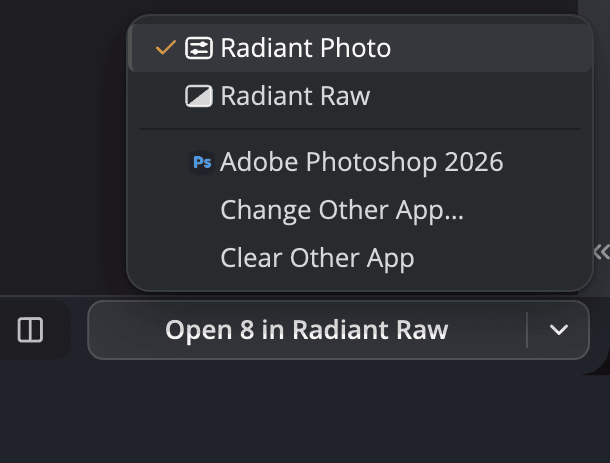
| # | Control | What it does |
|---|---|---|
| 1 | Open | Opens the selection in the app its label names. |
| 2 | Menu arrow | Opens the Open In menu, the same menu as File > Open In. |
| 3 | Radiant Photo | Opens the selection in Radiant Photo, and makes it Open's app. |
| 4 | Radiant Raw | Opens the selection in Radiant Raw, and makes it Open's app. Listed only when Radiant Raw is installed and activated. |
| 5 | The other app | The one non-Radiant app you chose, with its own name and icon. |
| 6 | Choose Other App… / Change Other App… | Picks the other app, makes it Open's app and opens the selection there. |
| 7 | Clear Other App | Forgets the other app. Open goes back to Radiant Photo if the other app was Open's app. |
A check mark shows Open's app. When you pick an app in the menu, Flow opens the selection there and remembers that app for Open, ⏎ and double-click. With nothing selected, picking an app only sets Open's app.
Radiant Raw opens camera raw files only. When the selection holds other kinds of photos, its row is grayed out and says Radiant Raw opens camera Raw files only. Once Radiant Raw is Open's app, Open sends raw files to Radiant Raw and any other photos to Radiant Photo. Radiant Raw starts on the photo you are on, when that photo is one of the raw files. See Developing raw files in Radiant Raw.
Radiant Photo can't open Pentax PEF files or older Canon CRW files, so Flow sends them to Radiant Raw wherever they would have gone to Radiant Photo: Open, ⌘↓ (Ctrl+Down Arrow on Windows), ⏎ (Enter on Windows), a double-click, or Radiant Photo in the Open In menu. For those files the label reads, for example, Open 3 in Radiant Raw. If you send them to another app, they still go there. If Radiant Raw isn't installed or isn't activated, Flow doesn't open them and tells you why; the rest of the selection still opens. See If photos don't open.
The Radiant Photo row appears only when Radiant Photo is installed.
Use one other app
You can keep one app that isn't from Radiant Imaging Labs, such as Photoshop, for Open to send photos to.
- Click the menu arrow beside Open, or choose File > Open In.
- Choose Choose Other App….
- Pick the app. On a Mac, a dialog shows your Applications folder. On Windows, a Choose Other App window may list Microsoft Store apps that open photos; for any other app, click Browse….
The other app receives your original files, as if you had dropped them on its icon. To use a different app later, choose Change Other App….
You can't choose Radiant Photo, Radiant Raw or Radiant Flow here. If you try, Flow says, for example, Radiant Raw is a Radiant Imaging Labs app. Choose an app made by another company.
If the other app has been moved or removed, its row is grayed out. It says, for example, Photoshop could not be found. Choose it again.
To use the app your computer opens that kind of file with, choose File > Open with Default App.
Open more than 1,000 photos
When the selection holds more than 1,000 photos, Flow asks first: Open a lot of photos? The message says how many photos will open, and in which app.
- Click Open to open all of them.
- Click Cancel, or press ⏎ or Esc, to open nothing.
Cancel is the default, so a stray ⏎ never sends a thousand photos.
Open photos from Apple Photos
Items in your Apple Photos library aren't ordinary files, so Flow exports a full-size copy of each one first. While Flow exports, the Open button reads Preparing… or, for example, Preparing 12 of 40…, then Opening…. To stop, click ✕ beside the button. Nothing opens after you stop.
Flow keeps these copies for 7 days, then removes them the next time it starts.
Choose where double-clicks and Open go
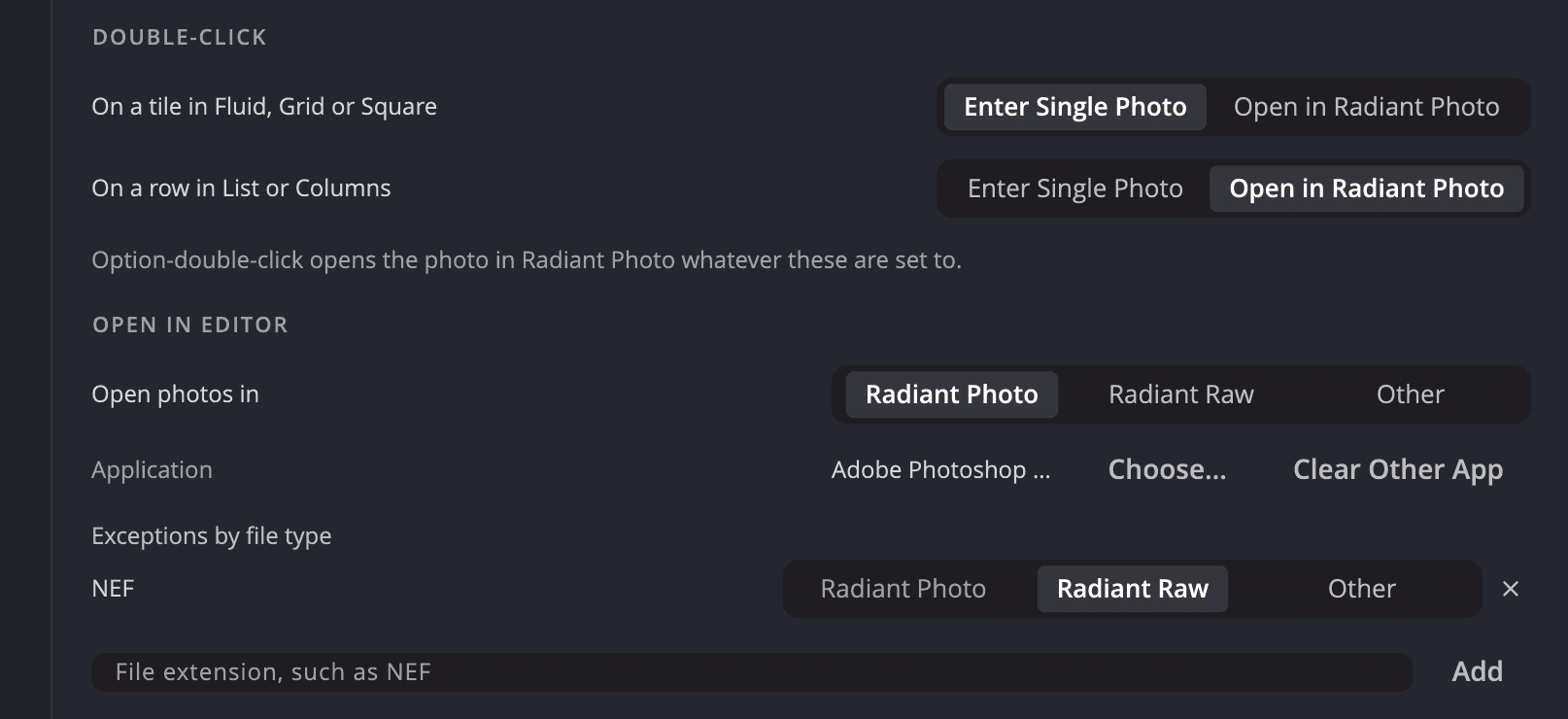
Go to Settings > General. The Double-click and Open in Editor sections control where photos go.
| # | Control | Choices (default) | What it does |
|---|---|---|---|
| 1 | On a tile in Fluid, Grid or Square | Enter Single Photo (default) or Open in Radiant Photo | What a double-click on a photo tile does. |
| 2 | On a row in List or Columns | Enter Single Photo or Open in Radiant Photo (default) | What a double-click on a photo row does. |
| 3 | Open photos in | Radiant Photo (default), Radiant Raw or Other | Open's app, the same choice as the check mark in the Open In menu. |
| 4 | Application | None chosen until you pick one | The other app. Choose… picks it; Clear Other App forgets it. |
| 5 | Exceptions by file type | None | Sends one file type to a different app. |
| 6 | File extension, such as NEF | Type an extension and click Add to make an exception. |
Option-double-click (Alt-double-click on Windows) always opens the photo, whatever the Double-click settings say. The buttons and the note name Open's app, so they change if you choose another one.
Send one file type to another app
Exceptions let a file type go somewhere other than Open's app. For example, your NEF files can go to Radiant Raw while everything else goes to Radiant Photo.
- In Settings > General > Open in Editor, type an extension in File extension, such as NEF.
- Click Add. A row for that type appears.
- Choose Radiant Photo, Radiant Raw or Other for that row.
To remove an exception, click the remove button at the end of its row. The type then follows Open photos in again.
If Radiant Raw isn't installed or isn't activated, photos set to it open in Radiant Photo, and the section says so. PEF and CRW files don't, because Radiant Photo can't open them. Flow shows Radiant Raw's message instead; see If photos don't open.
Restore Defaults… in the General pane puts both sections back. Tiles enter Single Photo, rows open, and everything opens in Radiant Photo. The other app and all exceptions are cleared.
If photos don't open
| Message | What to do |
|---|---|
| Radiant Photo could not be found. Install it, or open it once so this Mac knows where it is. | Install Radiant Photo, or open it once from where it is now. |
| Radiant Photo could not be found. Install or reinstall it, then try again. | On Windows, run the Radiant Photo installer again. |
| Those photos could not be opened in Radiant Photo. | Try again. Check that the photos are still where Flow found them. |
| Those photos could not be opened in Photoshop. | The other app refused the photos. Try opening one photo from the app itself. |
| Radiant Raw could not be found. Install or reinstall it, then try again. | You opened PEF or CRW files, which only Radiant Raw opens, and Radiant Raw isn't installed. Install it, then open them again. |
| Radiant Raw isn't activated on this Mac. (Radiant Raw isn't activated on this PC. on Windows) | Click Activate Radiant Raw in the message, activate Radiant Raw, then open the files again. |