
Where ratings and metadata are written
Flow writes your ratings, flags, labels, rotation and metadata into the photos themselves, or into .xmp sidecar
files beside them. Lightroom Classic, Bridge and other apps then read them too.
Written as you go
A rating, flag, label or rotation is written the moment you press the key. There is no Save button and nothing to export. Metadata you type in the Metadata panel is written when you click Save.
Choose where it's saved
Choose Settings > Sidecars and find Save to. Radiant Photo and Radiant Raw share this choice.
| # | Control | Choices (default) | What it does |
|---|---|---|---|
| 1 | Sidecar (.xmp) | On or off (on) | Writes metadata into an .xmp sidecar beside the photo. |
| 2 | Inside the photo | On or off (on) | Writes metadata inside DNG, JPEG, TIFF and other files that can hold it. |
| 3 | Raw sentence | — | Raw files can't hold metadata, so they always get an .xmp sidecar. |
Sidecar (.radiant) is for Radiant Photo's and Radiant Raw's edits. At least one box stays checked. With only
Inside the photo checked, their edits still go to an .xmp and a .radiant sidecar, because edits never go inside a photo.
With only .radiant checked, stars, labels, keywords and IPTC go to an .xmp sidecar.
For photos signed with Content Credentials, metadata always goes to a sidecar file, so the signature stays valid.
A change applies to the next thing you write. Flow does not move metadata that is already written.
Raw files
A raw file such as CR3, NEF, ARW or RAF is your original negative. Flow never opens it to write. Its metadata always
goes to a sidecar named after it: IMG_0001.CR3 gets IMG_0001.xmp. That is the name Lightroom Classic and Bridge
look for.
When a photo has an older sidecar named IMG_0001.CR3.xmp, Flow reads it, but writes the standard name.
DNG files
DNG is designed to carry its own metadata. With the default, all three boxes checked, Flow writes inside the DNG
and into its .xmp sidecar. Uncheck Inside the photo if you never want your DNG files changed.
JPEG, HEIC, TIFF and other photos
Inside the photo writes ratings, flags, labels, rotation and capture times inside JPEG, TIFF and PSD files,
and captions, copyright and other IPTC fields inside JPEG, TIFF and PNG files. Flow cannot write inside HEIC, AVIF and JPEG XL files. What a
photo can't hold goes to its .xmp sidecar, even with Inside the photo checked. The one exception is text you save
while Sidecar (.xmp) is unchecked; see the next section.
Uncheck Inside the photo to leave every JPEG and TIFF untouched.
When Sidecar (.xmp) is unchecked
With Inside the photo checked and Sidecar (.xmp) unchecked, Flow doesn't make a new .xmp sidecar
just because a photo can't hold your text. When a photo can't hold the captions, keywords, copyright and other text
you save in the Metadata panel, Flow keeps your edit where Radiant Photo reads it and leaves the file as it is.
That happens with:
- HEIC, AVIF, JPEG XL and PSD files, and any other photo that isn't a JPEG, PNG, TIFF, DNG or camera raw file.
- A JPEG, PNG, TIFF or DNG that won't take the write, for example because the metadata already inside it can't be read.
The line under Save says so, for example 1 photo can’t hold the metadata inside and Sidecar (.xmp) is unchecked in Save to, so Radiant Flow keeps the change and leaves its file as it is. Flow and Radiant Photo still show the edit. Other apps don't see it. Check Sidecar (.xmp) if they need to.
A photo that already has its own .xmp sidecar still gets the edit there, and a raw file always does. Ratings, flags
and labels aren't affected: a photo that can't hold them inside still gets them in its .xmp sidecar.
How a reject is written
Flow writes a reject as a rating of −1, which Bridge and Mylio read as a reject. It also sets the pick flag to "rejected", so apps that read either one see the photo as rejected. A reject clears the photo's stars.
If Mylio already keeps a sidecar beside a JPEG, TIFF or DNG, Flow updates that sidecar too, so Mylio sees your marks.
Copyright, captions and AI training
IPTC fields, copyright cards and AI training are written to two places:
- Where Radiant Photo reads them. The panel says Saved where Radiant Photo reads it.
- Into the photo or its sidecar, as Save to sets, so other apps read them too. With Inside the photo checked and Sidecar (.xmp) unchecked, a photo that can't hold them inside gets this second copy only if it already has an
.xmpsidecar. See When Sidecar (.xmp) is unchecked.
An Apple Photos photo has no file Flow can write to. Its AI training declaration is saved where Radiant Photo reads it, and nowhere else.
On a memory card
Flow writes nothing to a memory card while you browse it. Ratings, flags, labels, rotation and capture-time edits you make while browsing a card are kept in Flow. When you import the card, Flow writes the ratings, flags, labels and capture times onto the imported copies after it checks them.
The photos on the card show your marks in Flow as usual. Only the files on the card stay untouched.
The one exception is PRISM Photo Score. If you choose File > Score Photos in This Folder on a card, Flow writes an
.xmp sidecar beside each photo it scores. Flow keeps scoring that folder each time you open it, until you choose
File > Don't Score This Folder. See PRISM Photo Score.
See Importing from a memory card.
In a Lightroom Classic catalog
Ratings, flags, labels, keywords and metadata you set while you browse a catalog in the sidebar's Lightroom Classic section
go to Lightroom Classic through the Radiant plug-in. Flow never writes the catalog file itself. It also writes the
photo's file or its existing .xmp sidecar, unless Update the files of Lightroom Classic photos is off, Lightroom Classic
has the catalog open or Flow can't tell, or the photo would need a new sidecar. See
Lightroom Classic catalogs.
In a Capture One catalog or Session
On a Mac, ratings, labels, keywords and metadata you set while you browse a Capture One catalog or Session go to Capture One. Flow doesn't write the photo's file or a sidecar: Capture One makes the change in its own catalog. On Windows, Flow only reads Capture One, so you can't change them there. See Capture One catalogs and Sessions.
When a write fails
If a drive is disconnected, or Flow is not allowed to write to a folder, the write fails. Flow keeps the edit and shows a strip above the photos, for example 3 photos waiting to be written. The strip says why, such as Archive is not connected.
Flow tries again by itself when it starts, when the drive comes back and when a folder finishes scanning. You can also click Retry. When all the writes are done, Flow says so, for example Wrote 3 waiting photos.
Flow stops trying by itself after five failed tries, or after the first when it isn't allowed to write to the folder. The strip then says 3 photos could not be written. Click Retry when you have fixed the problem.
To give up on one edit, click Show…, then Forget beside the photo. A message with Undo lets you take it back.
Note
The strip covers ratings, flags, labels, rotation and capture time. If Save or a copyright card cannot write to some photos, Flow tells you at once. After a failed Save, your edits stay unsaved so you can try again.
Rename the color labels
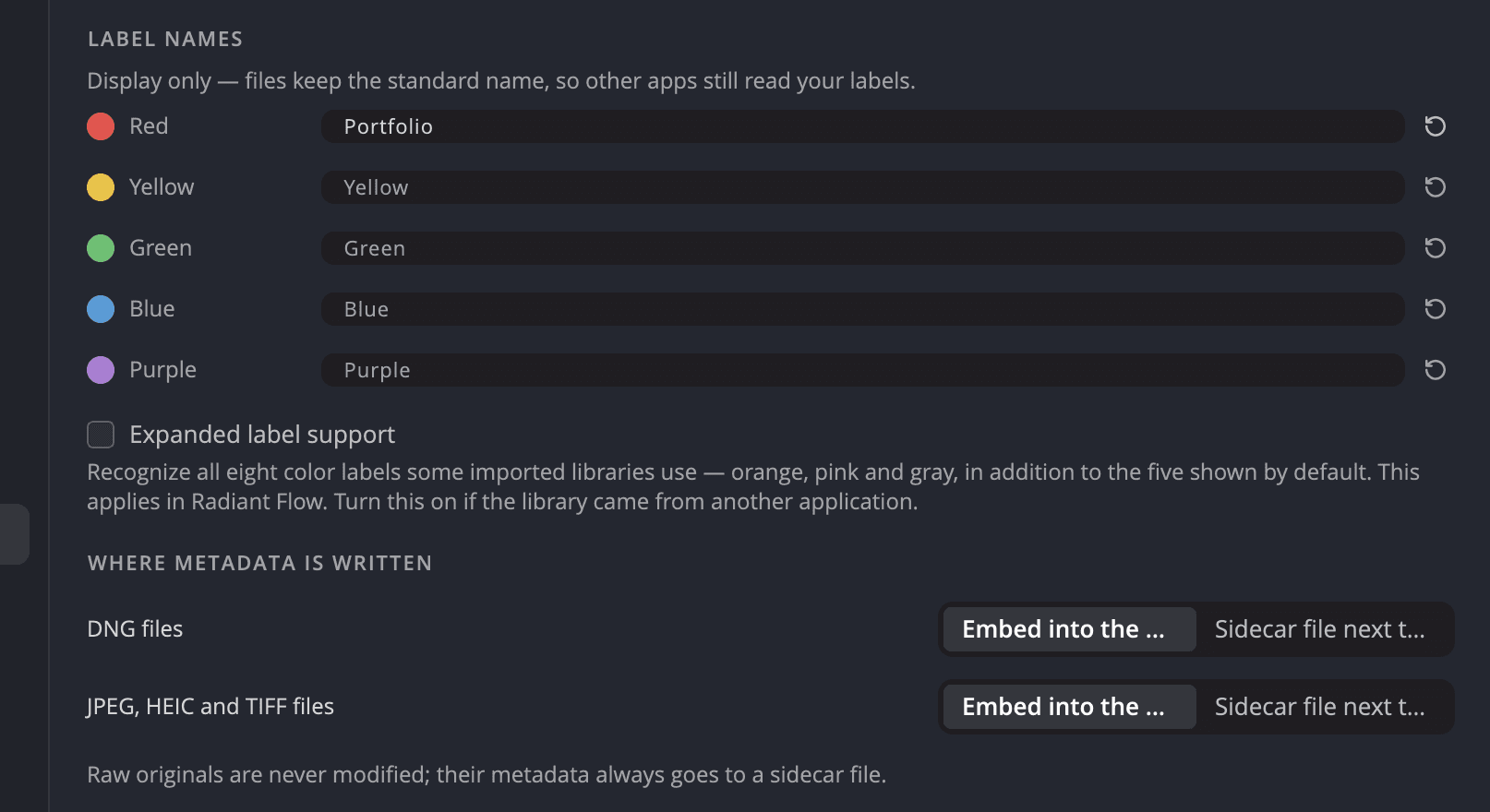
Under Label names in Settings > Metadata, type a new name for any of the five labels. Flow shows your name in menus, the bottom bar and the List columns.
Display only — files keep the standard name, so other apps still read your labels. Flow always writes Red, Yellow, Green, Blue or Purple, and the keys 6, 7, 8, 9 and − set the same five colors. To go back, clear the field or click Standard name (the arrow beside it).
Labels written by other apps
Flow understands the label words other apps write:
| The file says | Flow shows |
|---|---|
| Red, Yellow, Green, Blue, Purple | The same five colors |
| Select, Second, Approved, Review, To Do (Adobe Bridge's names) | Red, Yellow, Green, Blue, Purple |
| Rot, Gelb, Grün, Blau, Lila (German) | Red, Yellow, Green, Blue, Purple |
| Violet, Violett | Purple |
Any other word is shown as written, with a neutral mark. Flow never guesses a color for it.
Expanded label support
Aperture also uses orange and gray labels, and Capture One uses pink. Turn on Expanded label support to show those three colors. It is off by default.
Flow only reads these colors. You cannot give a photo an orange, pink or gray label, and Flow never writes one.
Folder index files
Settings > Folders > Write folder index files leaves a hidden .radiant-index.jsonl file in each folder Flow
has read. A folder you move or copy then opens fast. It is off by default.
Flow writes these files only on this computer's built-in disks, never on memory cards, external drives or network shares. Remove folder index files (click Remove…) deletes the ones Flow wrote. Your photos are not touched.
See what is written
To see the metadata exactly as the file carries it, open the Raw XMP section of the Metadata panel. It is read-only, and you can copy from it.