
Settings
Settings is where you choose how Radiant Flow looks, behaves and uses your disk. Every change applies at once, and each pane has its own Restore Defaults….
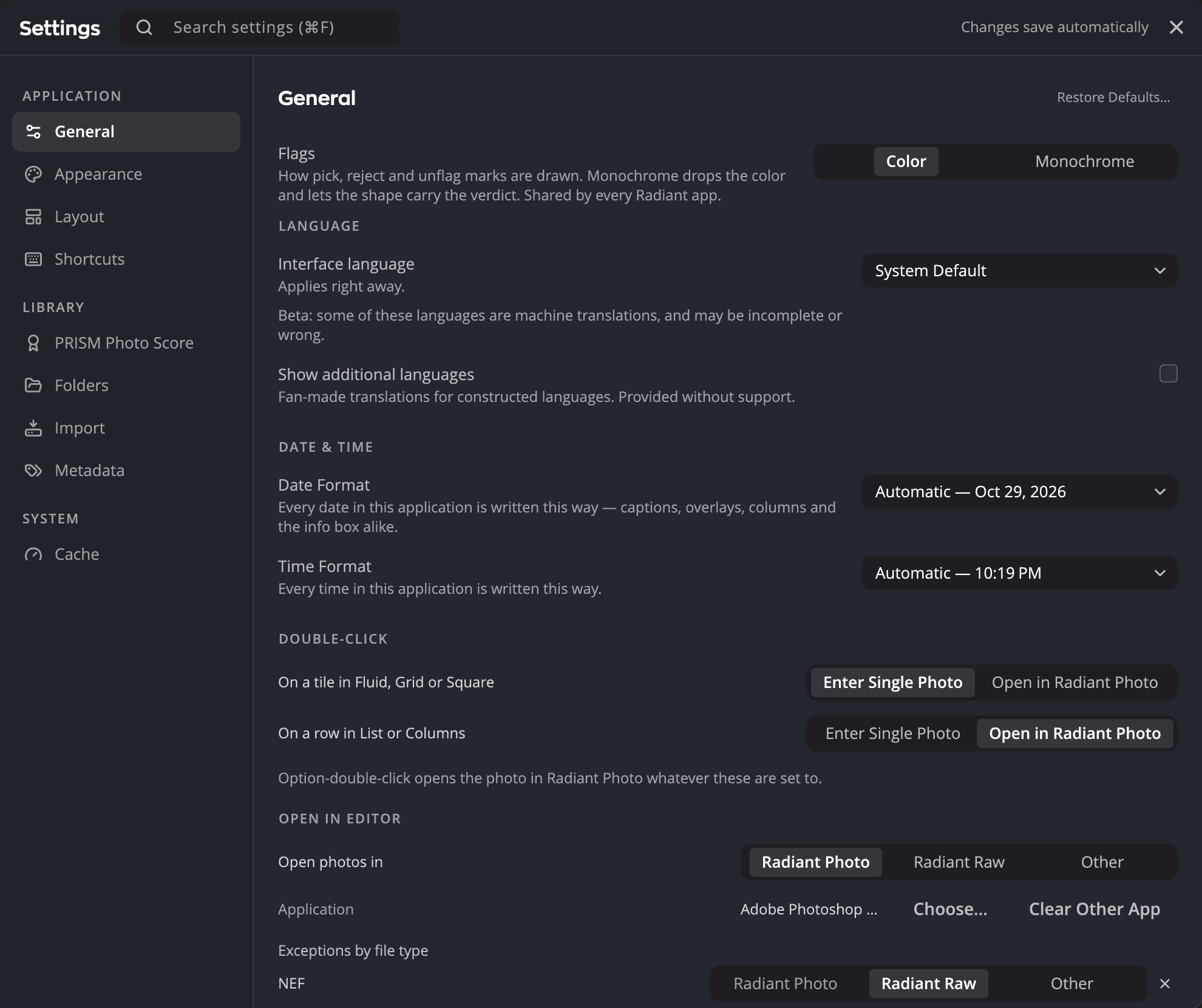
| # | Control | What it does |
|---|---|---|
| 1 | Sidebar | Lists the panes in three groups: Application, Library and System. |
| 2 | Search settings | Finds a setting by name in every pane. |
| 3 | Restore Defaults… | Puts every setting in this pane back to its original value. |
| 4 | Flags | Draws pick and reject flags in color or in monochrome. |
| 5 | Interface language | Sets the language of Radiant Flow's menus and windows. |
| 6 | Double-click | Chooses what a double-click on a photo does. |
| 7 | Changes save automatically | Reminds you there is no Save button. |
| 8 | Close (Esc) | Closes Settings. |
Open Settings
- On a Mac, choose Radiant Flow > Settings… or press ⌘,.
- On Windows, choose Edit > Settings… or press Ctrl+,.
Settings opens on the pane you used last. A few controls elsewhere open it on the right pane. Configure Zones…, in the popover that chooses which annotations show, opens Layout. A button in the bottom bar's PRISM Photo Score panel opens PRISM Photo Score. A shortcut set you open from Finder or File Explorer opens Keyboard Shortcuts.
To close Settings, press Esc, click Close (Esc), or click outside the window.
Find a setting
Type in Search settings. While Settings is open, ⌘F (Ctrl+F on Windows) puts the cursor there.
The list shows every match, for example 3 settings match “cache”. Click a match to go to its pane. The setting flashes so you can spot it.
Restore a pane's defaults
- Open the pane.
- Click Restore Defaults… at the top of the pane.
- Read the confirmation, then click Restore Defaults.
Most panes warn that This cannot be undone. A few panes keep some of your choices, and their confirmation says which:
| Pane | What Restore Defaults keeps |
|---|---|
| Layout | Your double-click choices, the Info Box lines and the date and time formats. |
| Keyboard Shortcuts | Your shortcut set. Its shortcuts go back to Radiant Default. |
| PRISM Photo Score | Nothing, but you can click Undo right after. |
| Metadata | Your saved copyright cards, your label names and where metadata is written. |
| Sidecars | Where metadata is written. |
Note
Flags is shared by every Radiant app. Restoring the General pane also resets it in Radiant Photo and Radiant Raw.
General
| Control | Options (default) | What it does |
|---|---|---|
| Flags | Color · Monochrome (Color) | Monochrome drops the color and lets the shape show the verdict. |
| PRISM Photo Score | On · Off (On) | Scores the photos in every folder you visit, except folders you opted out. |
| Interface language | System Default or a language (System Default) | Applies right away. Radiant Raw and Radiant Photo use the same choice. |
| Show additional languages | On · Off (Off) | Adds fan-made translations for constructed languages, provided without support. A fan-made language lasts until you restart Flow. |
| Date Format | Automatic, M/D/YY, D/M/YY, YY/M/D, YYYY-MM-DD, MMM D, YYYY, D MMM YYYY (Automatic) | Writes every date in Flow this way. Each choice shows today's date as an example. |
| Time Format | Automatic, h:mm, h:mm:ss, h:mm:ss.sss, HH:mm, HH:mm:ss, HH:mm:ss.sss (Automatic) | Writes every time in Flow this way. |
| Double-click > On a tile in Fluid, Grid or Square | Enter Single Photo · Open in Radiant Photo (Enter Single Photo) | On a grid tile. |
| Double-click > On a row in List or Columns | Enter Single Photo · Open in Radiant Photo (Open in Radiant Photo) | On a list row. |
| Open in Editor > Open photos in | Radiant Photo · Radiant Raw · Other (Radiant Photo) | Where Open sends your photos. |
| Open in Editor > Application | Choose… · Clear Other App (None chosen) | The one app from another company that Other means. |
| Open in Editor > Exceptions by file type | A file extension and Add (none) | Sends one file type elsewhere, for example NEF files to Radiant Raw. |
| Photo Codecs | Windows only | Shows whether each Microsoft Store photo codec is installed. |
| Offer codec setup when needed | On · Off (On) | Windows only. Offers to install missing codecs at launch and when a photo needs one. |
| Set Up Codecs… | Button | Windows only. Opens the codec setup. |
| Fade marks until you point at them | On · Off (On) | Dims ratings, labels and flags on tiles until you hover over, focus or select the photo. |
| How visible faded marks are | 20% to 80% (50%) | Higher is more visible. Double-click the slider to reset it. |
| How fast marks return | Standard · Quick (Standard) | How fast faded marks come back. With Reduce motion on, they return at once. |
| Hide marks while scrolling | On · Off (On) | Hides marks while the grid scrolls. The filmstrip is not affected. |
| Warnings > Reset All Warnings | Button | Brings back the prompts you turned off: the Full Disk Access banner on a Mac, and the codec setup's offer on Windows. It asks nothing first. |
| Personalize Radiant Flow | Open… · Undo Changes | Open… runs setup again. Undo Changes puts back what the last Use This Setup changed. See Personalize Radiant Flow. |
| Updates | See Keeping Radiant Flow up to date | This version, Automatically check for updates (On), Update channel (Stable or Beta, default Stable) and Check Now. |
| Third-Party Licenses… | Show | Shows the open-source notices for everything Radiant Flow includes. |
The double-click buttons name the app that Open uses, so they may read Open in Radiant Raw or another app's name. Option-double-click (Alt-double-click on Windows) always opens the photo, whatever these are set to. See Opening photos in another app.
The PRISM Photo Score switch is shared by every Radiant app. When Radiant Photo is installed, the switch is in Radiant Photo's Settings instead.
Appearance
| Control | Options (default) | What it does |
|---|---|---|
| Theme | Graphite · Darkest, Slate · Dark, Ash · Medium, Paper · Light, Monochrome · No color distraction (Slate · Dark) | The color scheme of the whole window. |
| Interface size | Smaller, Default, Larger, XL (Default) | Makes the whole interface larger or smaller. |
| Accessible font | On · Off (Off) | Uses a single, highly legible typeface throughout. |
| Simplify typography | On · Off (Off) | Larger text and flatter weights for easier reading. |
| Reduce motion | On · Off (Off) | Turns off interface animations. Your system's reduce motion setting turns it on by itself. |
| Label tint | Off, Subtle, Normal, Strong (Normal) | How strongly a color label tints its cell in the Square view. |
| Focus Points > Box color | Red, Yellow, White, Blue (Red) | The color of the autofocus boxes. |
| Focus Peaking > Sensitivity | 0 to 1000 (550) | How much of the photo counts as sharp. |
| Focus Peaking > Focus mask color | Red, Yellow, Green, Cyan, Magenta, White (White) | The color that marks sharp edges. |
| Focus Peaking > Focus mask opacity | 0 to 100 (40) | How strongly the mask covers the photo. |
The first time Flow starts, it copies the theme, interface size, type and motion settings from Radiant Photo, if Radiant Photo is installed. After that, the two apps keep their own settings. A change you make in Radiant Photo's appearance also reaches Flow while both are open.
With Label tint at Off, only the label mark carries the color. If the label mark is hidden too, a labeled photo shows no label at all. See Checking focus for Focus Points and Focus Peaking.
Layout
Layout decides where each annotation sits on grid tiles and in the single photo. Which annotations show is chosen in the annotations popover. See Grid styles and thumbnails.
| Control | Options (default) | What it does |
|---|---|---|
| Layout | Standard, Triage, Clean, Client, Technical, Travel day (Standard) | A ready-made layout for every view. |
| Save as preset… · Save this view… | Buttons | Saves your own layout for every view or for one view. |
| View | Grid tile · Single Image | The view you are arranging. |
| Show annotations | On · Off | Shows or hides annotations in this view. |
| Show in every view, Show in this view | On · Off | Under PRISM Photo Score: shows or hides the score. It is still measured, sorted and filtered. |
| Corner and BOTTOM lists | Tick a row to show it | What each corner and the bottom band show. The first ticked row sits nearest the corner. |
| Reset this view | Button | Puts this view back to the layout chosen in Layout. |
To change the order in a corner, drag a row by its handle, or click it and press ⌥↑ or ⌥↓ (Alt+↑ or Alt+↓ on Windows). To move a row to another corner, choose the corner from the row's menu.
On the Single Image tab, the BOTTOM list holds the lines Single Photo shows along the bottom of the photo: Camera HUD (the camera pill), Info Box and Keywords. Single Photo follows this list: tick a row to show that line, and clear it to hide the line. In the Standard layout, the first two rows are ticked.
Keywords shows the photo's keywords on one line, or No keywords. Of the Info Box and the keywords, the one higher in the list sits higher on the photo: drag Keywords above Info Box to show the keywords on top. The camera pill keeps its own place at the foot of the photo, wherever its row is.
Under the list, the Info Box row chooses which set of lines the box shows: Travel, Set 1 or Set 2.
Keyboard Shortcuts
Keyboard Shortcuts lets you change any keyboard shortcut and keep several shortcut sets. See Keyboard shortcuts.
Account
Account shows Radiant Flow's license. Flow is free, so there's nothing to buy, renew or restore here.
| Row | What it shows |
|---|---|
| License | The license's status, in the words Radiant Photo and Radiant Raw use for theirs. When Flow can't check it, the row says Couldn't check. |
| The email address you claimed the free license with, when it has one. |
PRISM Photo Score
This pane tunes how PRISM Photo Score rates your photos. It appears only while PRISM Photo Score is on. See Tuning PRISM Photo Score.
| Control | What it does |
|---|---|
| Score ladder | Sets the scores where the Review and Keep bands, and the two-star and five-star lines, begin. |
| Profile | Chooses the kind of photo whose criteria you are tuning. |
| Criteria sliders | Make each criterion count more or less. |
| Set from my rated photos | Sets the criteria from the photos you have already rated. |
| Reward group smiles | Gives group photos credit for smiles. |
| Scene recognition model | Shows the model download. It downloads by itself; click Retry if it fails. |
After Restore Defaults… on this pane, the header says Defaults restored. with an Undo button.
Folders
Folders controls the small index files that help a moved or copied folder open fast.
| Control | Options (default) | What it does |
|---|---|---|
| Write folder index files | On · Off (Off) | Writes a hidden .radiant-index.jsonl file in each folder Flow reads on a built-in disk. |
| Remove folder index files | Remove… | Counts the index files Flow wrote, asks you to confirm, then removes them. |
Flow never writes index files on memory cards, external drives or network shares. Removing them never touches your photos.
See Folders and drives.
Import
Import sets what happens when you insert a memory card, and which folder Flow watches for new photos. See Importing from a memory card.
| Control | Options (default) | What it does |
|---|---|---|
| When a card is inserted | Show a banner, Open the Compact Importer, Do nothing (Show a banner) | What Flow does when it sees a new card. Nothing is copied until you press Import. |
| Open Radiant Flow when a card is inserted or a phone, tablet or camera is plugged in, even if it is closed | On · Off (Off) | Starts Flow when you insert a card or plug in a phone, tablet or camera. |
| Watched folder > Bring in photos that land in a folder | On · Off (Off), with Folder and Setup | While Flow is open, copies each photo that lands in one folder into your library with a Saved setup, checks it, and removes it from the folder. See Watched folder. |
| What counts as media | File extensions | Which files are imported, with their sidecars. Anything else stays on the card and is listed on the receipt. |
| Forget import history | Forget… | Clears Flow's record of what it has imported, so those photos are no longer set aside next time. |
On a Mac, macOS asks once for permission to see removable disks.
Metadata
Metadata sets how color labels are named, whether the Metadata panel shows its Camera section, and which copyright card is applied automatically.
| Control | Options (default) | What it does |
|---|---|---|
| Label names | A name for each of the five labels (the standard name) | Changes the name Flow shows. Files keep the standard name, so other apps still read your labels. Standard name puts one back. |
| Expanded label support | On · Off (Off) | Also recognizes orange, pink and gray labels that some imported libraries use. |
| Camera MakerNotes > Show the Camera section in the Metadata panel | On · Off (On) | Shows or hides the Metadata panel's Camera section. The panel's Customize sections card has the same switch. See The Metadata panel. |
| Copyright | Your cards, Edit, New | Lists your copyright cards. Select a card to make it the default; click New to make one. |
See Copyright cards and AI training.
Restore Defaults… on this pane sets the default card back to none, so no card is applied automatically. It also brings the Camera section back to the Metadata panel. The rest of the panel stays as you arranged it.
Sidecars
Sidecars sets where Flow writes ratings, labels and other metadata, and which change is kept when a photo changes in two apps. It also shows how Lightroom Classic, Capture One and ExifTool are doing.
| Control | Options (default) | What it does |
|---|---|---|
| Save to | Sidecar (.xmp) · Sidecar (.radiant) · Inside the photo (all three) | Where Flow writes ratings, labels and other metadata: inside the photo, in an .xmp sidecar, or both. Raw files always get an .xmp. Radiant Photo and Radiant Raw share this choice. See Where ratings and metadata are written. |
| Update the files of Lightroom Classic photos | On · Off (On) | Lets Flow also write the file or .xmp sidecar of a photo in a Lightroom Classic catalog. Your changes still go to Lightroom Classic when it's off. On a Mac, it also lets Flow send your changes to Capture One: while it's off, they wait. See Lightroom Classic catalogs and Capture One catalogs and Sessions. |
| When a photo changes in two apps > Lightroom Classic | Lightroom Classic wins · Radiant wins · Newer change wins (Lightroom Classic wins) | Which change is kept when a catalog photo changed both in Flow and in Lightroom Classic. See Lightroom Classic catalogs. |
| When a photo changes in two apps > Capture One, Mylio | Capture One wins · Radiant wins · Newer change wins (Capture One wins) | The same choice for these apps. Flow uses the Mylio row when it reads Mylio's changes in a folder. On a Mac, Flow uses the Capture One row when it sends your changes to a Capture One catalog or Session; on Windows, where Flow only reads Capture One, the row has no effect in Flow. See Capture One catalogs and Sessions. |
| Lightroom Classic status | Reinstall | Shows whether Lightroom Classic and the plug-in are installed, whether Lightroom Classic is running, whether the plug-in is taking changes, and how many changes wait. See Lightroom Classic catalogs. |
| Capture One status | — | Shows whether Capture One and the Radiant Photo plug-in for it are installed, and whether Capture One is running. |
| Camera MakerNotes > ExifTool | Install… · Locate… · Check Again | Shows whether Flow found ExifTool, a free tool that reads more of the notes cameras write into photos. See ExifTool. |
Raw originals are never modified. Their metadata always goes to an .xmp sidecar file. See Where ratings and metadata are written.
Restore Defaults… on this pane turns Update the files of Lightroom Classic photos back on and sets every row under When a photo changes in two apps back to the other app winning. It also forgets an ExifTool program you picked with Locate…, and Flow looks for ExifTool in the usual places again. Save to stays as you set it.
ExifTool
ExifTool is a free tool that reads the notes each camera writes into its photos. Flow doesn't come with it. When ExifTool is installed on your computer, the Metadata panel's Camera section shows more fields. See More fields with ExifTool. Flow only reads photos with ExifTool. It never writes to them with it.
Under Camera MakerNotes, the ExifTool row shows whether Flow found it, with a line under it:
| The row says | What it means |
|---|---|
| Installed · 13.55 | Flow found a working ExifTool. The line under it says where, for example Found at /opt/homebrew/bin/exiftool |
| Not installed | Radiant Flow looked in the usual places and on your PATH. |
| Not found at the chosen path | The program you picked with Locate… doesn't run, for example Nothing runs at /usr/local/bin/exiftool. Locate the exiftool program, or install it. |
| Version too old | Flow needs ExifTool 12.00 or newer, for example Version 11.88 at /usr/local/bin/exiftool. Version 12.00 or newer is needed. |
Each time Flow runs, it looks for ExifTool once, the first time it's needed. On a Mac it looks in /opt/homebrew/bin, /usr/local/bin,
/opt/local/bin and /usr/bin, then in each folder on your PATH. On Windows it looks for ExifTool\exiftool.exe in
Program Files and in AppData\Local\Programs, then on your PATH.
| Button | What it does |
|---|---|
| Install… | On a Mac with Homebrew, installs ExifTool with Homebrew. The line under the row says Installing ExifTool with Homebrew… Otherwise, and on Windows, it opens Install ExifTool, with the command to run on a Mac or the ExifTool installer for Windows, and Open Download Page. |
| Locate… | Lets you pick the exiftool program yourself. A file that isn't a working ExifTool is refused: That file doesn't look like a working ExifTool, so nothing was changed. Pick the exiftool program itself. |
| Check Again | Looks for ExifTool again, for example after you install it yourself. |
Flow never installs ExifTool unless you click Install….
Performance
Performance sets how much disk space Flow keeps for thumbnails and previews, and how hard it works to make them.
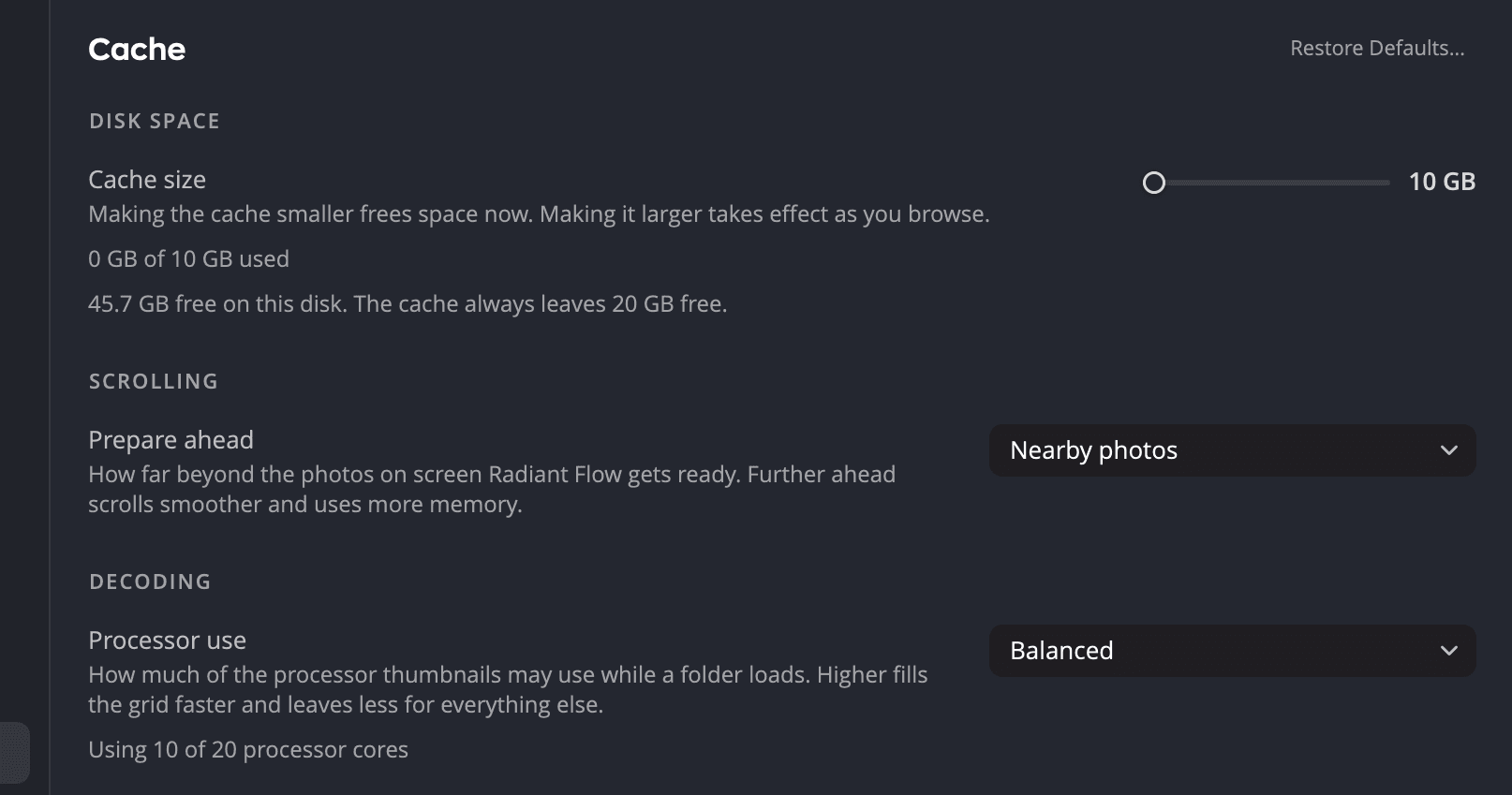
| # | Control | What it does |
|---|---|---|
| 1 | Cache size | Sets the most disk space the cache may use. |
| 2 | Space used | Shows how much of the cache is in use, for example 3.2 GB of 10 GB used. Under 1 GB, the amount used shows in MB. |
| 3 | Free space | Shows the free space on the disk, and how much the cache always leaves free. |
| 4 | Processor use | Sets how much of the processor thumbnails may use while a folder loads. |
| 5 | Processor cores | Shows the result, for example Using 4 of 8 processor cores. |
| 6 | Restore Defaults… | Puts the pane's settings back to their defaults. Processor use stays as it is. |
| Control | Range or options (default) | What it does |
|---|---|---|
| Cache size | 10 GB to 250 GB, in steps of 1 GB (10 GB) | The most space thumbnails and previews may take together. |
| Standard preview size | Match the screen, or 1024 to 4096 px (Match the screen) | The size of the preview the Stage and Quick Look show before you zoom in. A larger size is sharper on a big screen. It also takes longer to make. |
| Keep full-size previews | On · Off (On) | Keeps full-size previews on disk. A photo you saw at full size then shows again at once. |
| Remove cache older than | 7 to 365 days (30 days) | Removes the full-size previews you haven't used for that many days. Grayed out while Keep full-size previews is off. |
| Quality | Prefer embedded previews (faster), High-quality previews on demand, Always high-quality previews (High-quality previews on demand) | Which picture the grid and the filmstrip show. See Preview quality. |
| Processor use | Background, Balanced, Full speed (Balanced) | About a quarter of the processor cores, about half, or all but two. |
Making the cache smaller frees space at once. Making it larger takes effect as you browse. A higher Processor use fills the grid faster and leaves less for your other apps. Processor use also sets how many raw files Flow converts at the same time.
Full-size previews count toward the Cache size. With Keep full-size previews off, Flow keeps only the four newest.
While you browse your Apple Photos library, an Aperture library or a Lightroom Classic catalog, some controls are grayed out: Cache size, Keep full-size previews, Remove cache older than and Processor use. The purge rows are hidden. Those sources keep their own thumbnails.
Restore Defaults… on this pane sets the cache back to 10 GB. It turns Keep full-size previews back on, at 30 days. It also sets Quality and Standard preview size back to their defaults.
Purge the cache
Under Disk space, three rows remove thumbnails and previews from the cache. Your photos, sidecars and ratings are never touched. Flow makes the thumbnails and previews again the next time it needs them.
| Row | Button | What it removes |
|---|---|---|
| Purge cache for this folder | Purge | The cache of the folder the window shows, and of its subfolders. The line under the row says how much is cached, for example "“2026-10-31”: 412 photos cached, 1.2 GB". |
| Purge cache for selected | Purge | The cache of the selected photos. Grayed out when nothing is selected. |
| Purge all cache | Purge… | Everything in the cache. Flow asks first, in Purge all cache?, and says how much space it frees. |
The first two act at once. When a purge is done, a line under the rows says what went, for example "Purged the cache of 412 photos (1.2 GB)." To purge a folder from the sidebar, see Folders and drives.
Preview quality
Under Previews, Quality chooses which picture the grid and the filmstrip show for each photo.
| Choice | What you see |
|---|---|
| Prefer embedded previews (faster) | The preview the camera saved in the file. Flow develops nothing for the grid. |
| High-quality previews on demand (default) | A photo with saved edits, for example from Radiant Raw, shows as developed. Flow develops it the first time it shows. Other photos show the camera's preview. |
| Always high-quality previews | Every raw file shows as developed, edited or not. Flow develops the photos of the folder you're viewing ahead of time. |
A developed preview takes longer to make than the camera's own.
Prepare ahead
Prepare ahead is under Scrolling, between the cache size and Processor use. It sets how far beyond the photos on screen Flow gets ready while you browse. That way, the photos you move to next are ready sooner.
| Choice | What Flow gets ready |
|---|---|
| Visible photos only | As little as possible beyond the photos on screen. The next photo you step to can take a moment to appear. |
| Nearby photos (default) | The thumbnails of a few hundred photos past each edge of the screen, and the photos you're likely to step to next in the Stage, Quick Look and Compare. |
| Further ahead | About three times as many thumbnails, most of them in the direction you scroll. In a Survey, Flow also prepares the frames on either side of the lit one at full size, so they're ready for the Survey's magnifier when you move to them. |
Further ahead scrolls more smoothly and uses more memory. Visible photos only uses the least. The thumbnails and previews it prepares count toward the Cache size you set.
Prepare ahead stays available while you browse Apple Photos. Restore Defaults… on this pane also sets it back to Nearby photos.
Lab
Radiant's roadmap, where you vote for features, follow them, comment and suggest ideas. Help > Roadmap and Betas… opens Settings on this pane. The Lab pane has no Restore Defaults…, because every choice on it is your own. See The Lab.