
PRISM Photo Score
PRISM Photo Score rates every photo from 0 to 100 on how well it is made: sharp, well exposed, eyes open, level. Radiant Flow works the score out on this computer, in the background, for every folder you open.
The score is on by default, and it is the same number in Radiant Photo and Radiant Raw. Use it to find the keepers in a big shoot faster, then make the final call yourself.
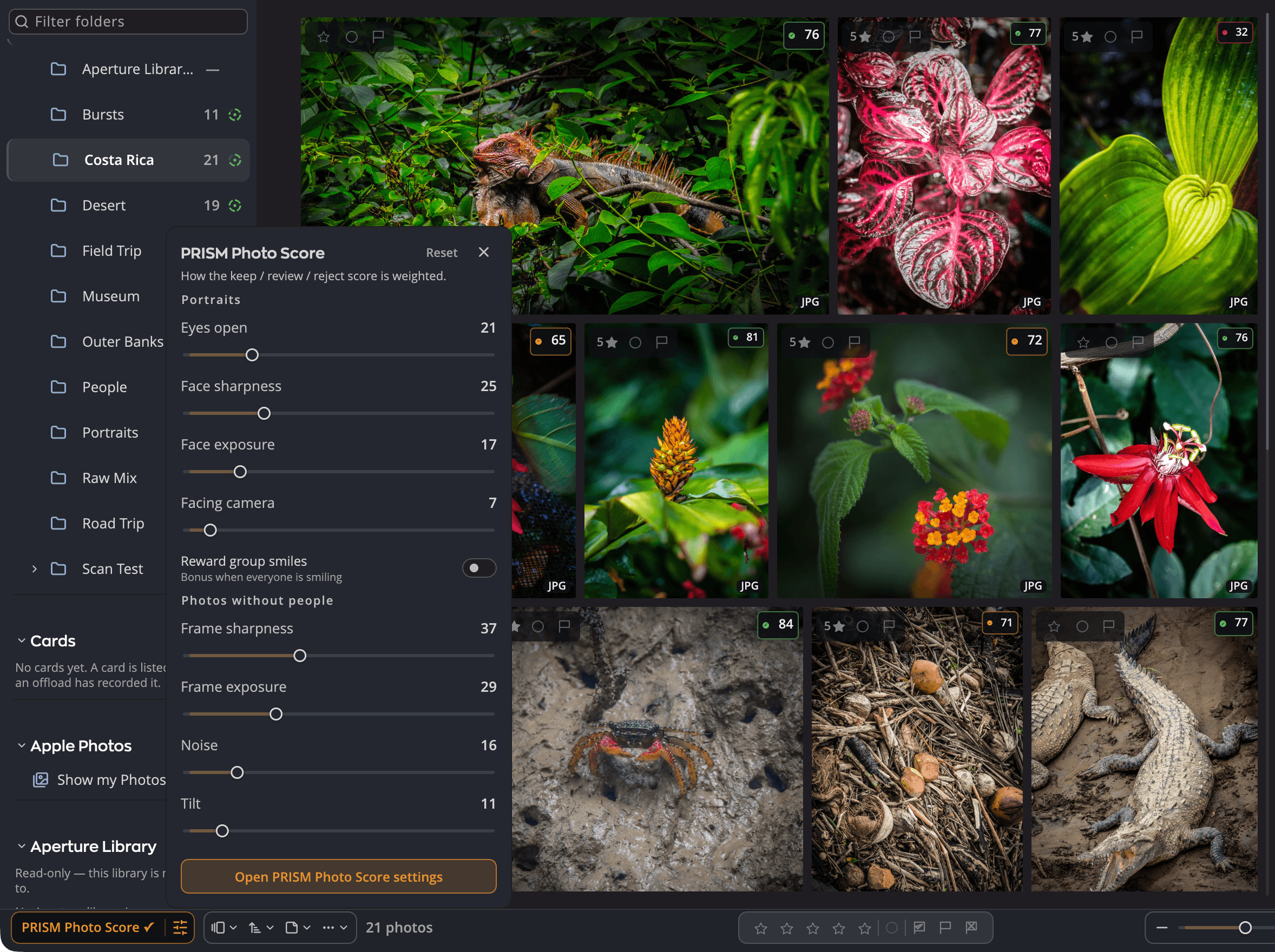
| # | Control | What it does |
|---|---|---|
| 1 | PRISM Photo Score (name half of the pill) | Shows or hides the score badges in the current view. |
| 2 | Sliders half of the pill | Opens the quick panel with the score's weights. |
| 3 | Reset | Puts the eight weights and Reward group smiles back to their defaults. |
| 4 | Open PRISM Photo Score settings | Opens Settings > PRISM Photo Score. |
| 5 | Score badge | The photo's score, with a dot in its band's color. |
| 6 | Folder ring | How much of the folder is scored, and what share of it is Keep. |
| 7 | Catching-up mark | Shows while Flow updates scores in the background. |
What the score means
Every score falls into one of three bands.
| Band | Score (default) | Color | What it suggests |
|---|---|---|---|
| Keep | 80 to 100 | Green | A strong frame. |
| Review | 41 to 79 | Orange | Worth a second look. |
| Reject | 0 to 40 | Red | A likely miss: blur, a blink, poor exposure. |
To move the lines between the bands, see Tuning PRISM Photo Score.
The score is a suggestion. It never changes your ratings, flags or labels.
What it looks at
Flow judges each photo on what matters for its kind.
| For | Criteria |
|---|---|
| Portraits | Eyes open, Face sharpness, Face exposure, Facing camera, and an optional bonus, Reward group smiles |
| Photos without people | Frame sharpness, Frame exposure, Noise, Tilt |
Eyes open catches a blink. It checks every face Flow finds, so one closed pair of eyes in a group lowers the score.
Flow also recognizes the scene, such as a landscape, a night shot, an animal or flowers, and picks a profile to suit it. For the profiles and how much each criterion counts, see Tuning PRISM Photo Score.
How Flow scores your folders
You don't have to start anything. Scores appear on the thumbnails as they are ready.
- Your photos are never uploaded to be scored.
- When Flow scores a folder, it writes the score into an
.xmpsidecar next to each photo. That score travels with the photo when you move it. - When you open a folder that has new or changed photos, Flow catches up on its own. While it works, the bottom bar shows a small spinning mark: PRISM Photo Score is catching up.
Flow scores only folders on your disks, not your Apple Photos library or an Aperture library. There, the File menu's score rows are gray: There are no photographs on disk here.
Note
Flow never scores a camera card on its own, because scoring writes a sidecar beside each photo. To score a card anyway, open it and choose File > Score Photos in This Folder.
Stop scoring a folder
- Open the folder, or right-click it in the sidebar or on its folder tile.
- Choose File > Don't Score This Folder (or the same row in the right-click menu).
The row then reads Score Photos in This Folder. Choose it to score the folder again. Flow starts at once.
Turning a folder off keeps it out of every later pass. A pass that is already running finishes. Flow remembers your choice for each folder, even when its drive is unplugged.
Rescore Changed Photos, in the same group, asks Flow to go over the folder again. It rescores the photos that changed since they were scored and skips the rest.
See the scores
| Where | How |
|---|---|
| On the thumbnails | Badges show by default, and the pill reads PRISM Photo Score ✓ while they do. To hide or show them, click PRISM Photo Score in the bottom bar, or choose View > Annotations > PRISM Photo Score. |
| In List | Choose View > Show Details > PRISM Photo Score to add the score column. Click its header to sort. |
| In Single Photo | A score card sits beside the photo, or a small score chip when there's no room. Hold the pointer over it for the full card: the score, its band, the profile it was Scored as, and a Suggested rating. |
| On folders | A ring beside each scored folder, in the sidebar and on folder tiles. |
On the thumbnails, the badge shows a dot, the score and the band word. On small thumbnails it drops the word, and on the smallest it hides. A photo Flow hasn't scored yet shows no badge.
When PRISM is sure what the photo shows, the full card also names the scene under Scored as, with up to three read-only genre chips. Food, underwater shots and things that aren't photographs, such as screenshots and documents, get no scene name.
On a photo with no faces and a Sharpness of 50 or less, the card can add Low sharpness: missed focus or Low sharpness: motion blur. It says why the photo is soft: motion blur covers both camera shake and a moving subject. The line doesn't change the score.
The pill's name half is gray in List, where badges don't show: Scores show in Grid and Single view.
The folder ring
The ring's green arc is the share of the folder that is Keep. It never shows a number. Point to it for the details, for example PRISM Photo Score: completed, 42 of 180 are Keepers. While Flow works it says analyzing, and partly scored when some photos could not be judged.
If the ring shows a warning sign, the folder changed since it was scored and its count needs a rescore. If photos need a codec that isn't installed, the sentence says how many.
Sort by score
Choose View > Sort by > Score. The first time, Flow sorts Descending, so the best photos come first. Photos without a score stay at the end in both directions.
Hide the score everywhere
Settings > Layout has a PRISM Photo Score section with two switches:
| Switch | What it does |
|---|---|
| Show in every view | Off hides the score everywhere. It is still measured, and you can still sort by it. |
| Show in this view | Shows or hides the score in the current view only. |
The score in Survey, Compare and bursts
The score does more than sort and badge your photos. None of these rates, flags or rejects a photo.
- Scored first. Open a Survey or Compare on photos that aren't scored yet, and Flow asks for them to be scored ahead of everything else, in any folder. In a folder Flow doesn't score, such as one set to Don't Score This Folder or a camera card, those scores stay inside Radiant, with no sidecar beside the photos. Move such a photo and it reads as not scored until it is scored again. See Scoring these first.
- Bursts. The PRISM Photo Score helper (the part of Radiant Flow that scores your photos in the background) also names each burst's best frame, its runner-up and how far apart they are. Rank, Survey This Burst, Compare's suggested pair, ★ BEST and the best-frame cover of burst stacks all use those facts. See Rank a burst by score, Survey a burst and Compare by numbers and the suggested pair.
- Eyes closed. The helper records whether the main face has its eyes closed. Flow marks those photos and can show or hide them. See Eyes closed.
Stars set by Radiant Photo
Radiant Photo can rate a shoot for you from the score. Flow doesn't rate photos on its own. Flow draws stars set this way as outlines.
The stars become yours as soon as you change the rating or the flag in Flow. They are then drawn filled, and Radiant Photo leaves them alone. Changing only the color label keeps them as outlines.
The After Score
The After Score is the score measured again on the developed photo, so you can see what editing did to it. It is off by default.
- Open a photo in Single Photo (press G).
- Click the Annotations button in the bottom bar, then select After Score in the Single Photo Annotations panel.
The score card then adds a line under the score. Once a developed version exists, it shows the score before and after, for example 62 → 81 +19 measured. Until then it may show an estimate: Editing could lift this to about 81.
To hide that line without turning After Score off, click the eye beside the row: Show the After Score line. Turning After Score on doesn't measure photos that are already scored again.
Turn PRISM Photo Score off
One switch turns the score off in every Radiant app on this computer.
- With Radiant Photo installed: Radiant Photo's Settings > General.
- Without Radiant Photo: Flow's Settings > General, labeled PRISM Photo Score.
Turning it off stops every scoring pass and grays out the pill. Flow keeps your choices for each folder. While it is off, Settings > PRISM Photo Score isn't listed.