
Printing a contact sheet
A contact sheet prints your photos as a grid of small pictures with their file names. Use it to proof a shoot on paper, or save it as a PDF or a web page. Choose File > Contact Sheet….
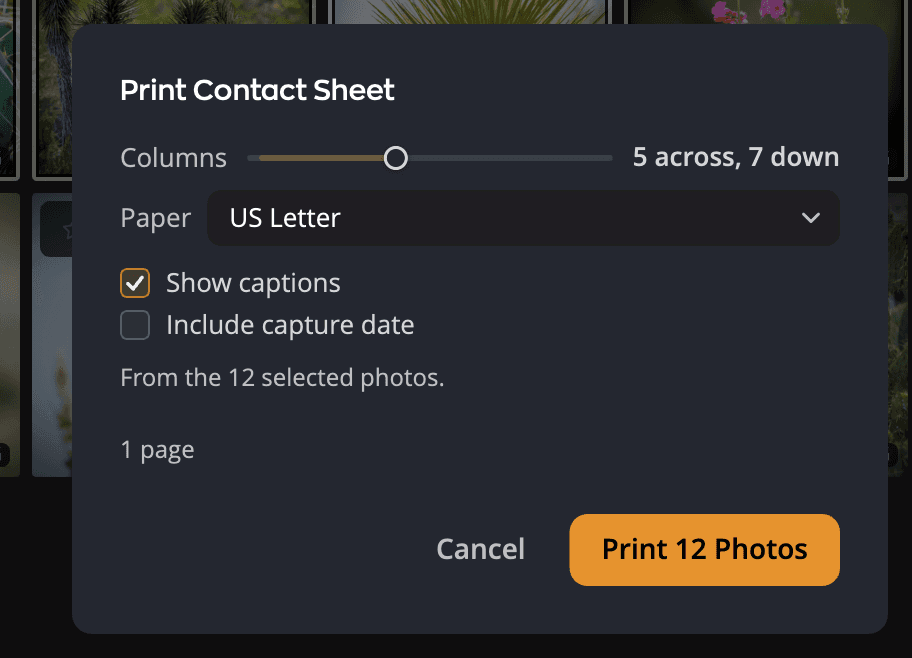
Print a contact sheet
- Select the photos you want. To print every photo in view, select nothing.
- Choose File > Contact Sheet….
- Set the columns, the paper and the captions. The dialog shows how many pages that makes.
- Click Print 12 Photos.
- In the system's print dialog, choose a printer and print.
Flow remembers your choices for the next sheet, even when you cancel.
| # | Control | Range (default) | What it does |
|---|---|---|---|
| 1 | Columns | 3 to 8 (5) | How many photos across each page. The readout shows the grid, such as "5 across, 7 down". |
| 2 | Paper | US Letter, A4, US Legal (your region's size) | The paper the sheet is laid out for. |
| 3 | Show captions | On or off (on) | Prints each photo's file name under it. |
| 4 | Include capture date | On or off (off) | Adds the capture date as a second line. Needs Show captions. |
| 5 | Source line | Says which photos print. | |
| 6 | Page count | How many pages the sheet takes. With HTML, what the folder holds. | |
| 7 | Cancel | Closes the dialog, or stops a sheet that's being prepared. | |
| 8 | Print 12 Photos | Prepares the sheet and opens the print dialog. With PDF or HTML it saves the sheet instead. |
The paper starts as US Letter in the United States, Canada and the other countries that use it, and A4 everywhere else. Choose the paper here rather than in the print dialog, because Flow lays out the grid for this size.
Save a PDF or a web page
To save the sheet as a file instead of printing it, choose PDF or HTML in the Output row at the top of the dialog. The button then reads Save 12 Photos as PDF… or Save 12 Photos as HTML…. Flow asks where to save first, then prepares the sheet. When it's done, a message names the file or folder, with a button that shows it in the Finder or File Explorer.
- PDF saves the pages as one PDF file, laid out on the paper you chose.
- HTML saves a folder with an
index.htmlpage and a folder of thumbnails, to open in a web browser. A web page has no paper, so Paper is dimmed, and the page count reads Saves a folder: index.html and a thumbnails folder. Paper applies to Print and PDF.
Both files say that their pictures are in sRGB. A web browser, a PDF reader or a printer then shows the colors as Flow meant them, instead of guessing. The pictures themselves are not changed.
Output starts on Print. After that, the dialog opens on the output you used last.
What prints
- With photos selected, the sheet prints the selection, in grid order. The source line reads "From the 12 selected photos."
- With nothing selected, it prints every photo the grid is showing, in the current sort order, with your filters applied. The source line reads "From every photo in this view. Nothing is selected."
There's no limit on the number of photos. The pictures are the thumbnails Flow already shows, so a photo without a thumbnail prints as an empty frame with its caption. Contact sheets work in your Apple Photos library too.
The Watermark row under the dialog's controls chooses the mark the sheet prints: a watermark or None. On each photo (the first time) burns the mark into each photo. Across the page places it on the page as a whole: the part over each photo is burned into that photo, and the part over the paper is a separate image that a PDF editor can remove. Edit… opens the Watermarks window, which File > Watermarks… opens too. Your watermarks are shared with Radiant Photo and Radiant Raw. If a mark leaves something out, the row says so, and the message after printing or saving a PDF counts the photos or pages. See Watermarks.
With HTML, the Watermark row is dimmed: the web page uses the thumbnails without a mark.
Tip
To make a PDF instead of paper, choose PDF under Output.
While the sheet is prepared
After you click Print 12 Photos, Flow draws the pages before the print dialog opens. A PDF or HTML sheet is prepared the same way after you choose where to save it. The button counts the progress, for example "Preparing 200 of 1,200…". Click Cancel to stop.
While the sheet is being prepared, Esc doesn't close the dialog; use Cancel. Once the print dialog is open, cancel there instead. Flow closes the dialog without a message, because you know you cancelled.
Contact Sheet… is grayed out while another sheet is being prepared.
If the sheet doesn't print
| Message | What it means |
|---|---|
| "Open a folder or select photos first." | The command is grayed out: there's nothing to print yet. |
| "The selected photos could not all be read, so nothing was printed." | Flow couldn't read the whole selection. It never prints the folder instead. Try again. |
| "New thumbnails are paused: this disk is short of free space. Photos without a thumbnail print as empty frames." | Free up disk space so Flow can make the missing thumbnails. |
| "The contact sheet could not be printed." | Something went wrong while preparing or printing. Try again. |
| "The contact sheet could not be saved." | A PDF or HTML sheet couldn't be saved, for example because the disk is full. Try again or choose another place. |
| "This computer can't print contact sheets." | Flow couldn't reach the system's printing. |