
Copyright cards and AI training
A copyright card is a saved set of creator, rights and keyword fields that you apply to photos in one go. Flow also lets you declare whether a photo may be used to train AI. Both live in Edit > Rights and in the Copyright section of the Metadata panel.
Your cards are shared with Radiant Photo, so a card you save in one app is ready in the other.
The Rights menu
Choose Edit > Rights, or right-click a photo and choose Rights. On Windows, the Edit menu is in the window.
| Item | What it does |
|---|---|
| Apply Card | Lists your saved cards. The default card has a check mark. |
| A card | Opens the preview sheet to apply that card to the selection. |
| Manage Cards… | Opens Settings > Metadata, where you keep your cards. |
| Apply Default Card… | Applies your default card. ⌥⌘K (Ctrl+Shift+H on Windows). Reads Apply Default Card… (none set) when you have no default. |
| AI Training | Declares whether the selected photos may be used to train AI. |
| The five AI Training choices | See Declare AI training. |
| Show Rights in Quick Look | Shows each photo's copyright notice and AI training in Quick Look. |
The card rows are gray when nothing is selected, or when the photos cannot take metadata, such as in Apple Photos. Manage Cards… always works.
Apply a card
- Select the photos.
- Choose Edit > Rights > Apply Card, then the card. To use your default card, press ⌥⌘K (Ctrl+Shift+H on Windows).
- Check the preview sheet, then click Apply to N photos.
Nothing is written until you click the button. Press Esc or click Cancel to close the sheet without a change.
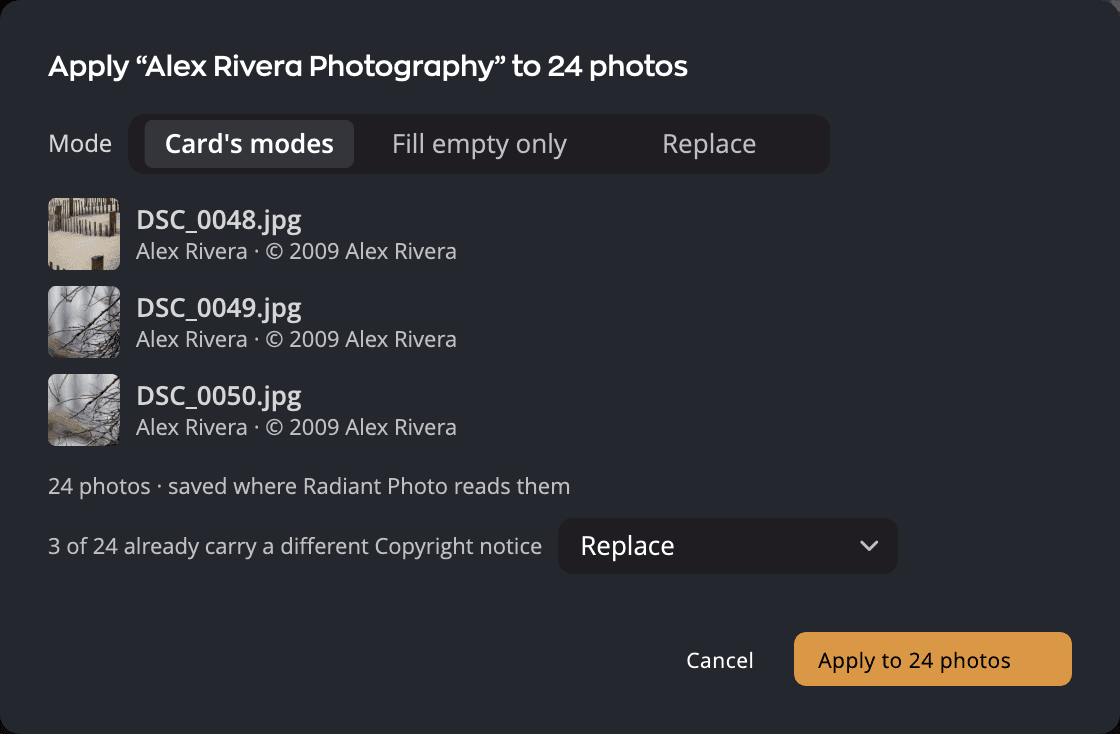
The sheet shows:
- Mode. Card's modes uses the modes saved in the card. Fill empty only writes only where a field is empty. Replace overwrites.
- A preview. Three of the photos, with the values they will carry.
- A count line. How many photos, and how many get a sidecar or an embedded write. For photos that take no file write, it says saved where Radiant Photo reads them.
- Conflicts. One row per question, each with a choice:
| Row | Choices | Default |
|---|---|---|
| N of M already carry a different field | Replace · Keep | Replace |
| Clears field on N photos | Clear · Keep | Clear |
| N of M are opted out of AI training; this card marks them "value" | Replace · Keep their opt-out | Keep their opt-out |
| N photos have no capture date — the date variable uses the file date | Use file date · Skip those N | Use file date |
With nothing to ask, the sheet says No conflicts — every included field is empty on every photo.
While the card is applied, the button counts the photos and Cancel becomes Stop. When it is done, a message such as Applied “Studio” to 24 photos appears with Undo. Edit > Undo (⌘Z, Ctrl+Z on Windows) undoes it too.
Tip
In the IPTC Core section of the panel, Apply card with one photo selected fills the form instead. Click Save to write it, or Revert to drop it. With several photos selected it opens the same preview sheet.
A closed stack counts as all of its photos.
Declare AI training
Edit > Rights > AI Training writes one declaration to every selected photo. It opens the same preview sheet as a card, with one field in it.
| Menu choice | What the photo says |
|---|---|
| Opt out — generative AI training | Prohibited — generative AI training |
| Opt out — all AI/ML training | Prohibited — all AI/ML training |
| Opt out — all data mining | Prohibited — all data mining |
| Allowed | Allowed |
| Not specified | Not specified |
A check mark shows the value that every selected photo already shares. With a mixed selection, nothing is checked.
Moving photos out of an opt-out needs a second look. The sheet's opt-out row defaults to Keep their opt-out, so only the other photos change unless you choose Replace.
This is the one rights field you can set on Apple Photos photos. Flow saves it where Radiant Photo reads it.
Note
AI training is a declaration for other people and services. It changes nothing in Radiant: PRISM Photo Score and every other feature work the same on a photo that opts out.
The AI & Data Mining section
The AI & Data Mining section of the Metadata panel edits the same declaration for the photo you are looking at, with two more values:
- Prohibited — except search indexing
- Prohibited — see Other constraints. Type your terms in Other constraints below it. Until you do, the panel says Say what the constraint is, or choose another AI training value.
Click Save, or Apply to N photos with several photos selected. See Editing metadata.
Show rights in Quick Look
Choose Edit > Rights > Show Rights in Quick Look. When Quick Look shows one photo, two chips appear under it:
- the photo's copyright notice, or No copyright notice
- AI training: Prohibited, AI training: Allowed or AI training: Unspecified
The chips show while Quick Look shows the photo's details. Press D to cycle the information. Choose the menu item again to hide them. The choice lasts until you quit Flow.
Your cards in the Copyright section
The Copyright section of the Metadata panel lists your cards. Its header ends with Cards.
- Click the flag beside a card to make it your default. Click it again to clear it.
- Click ⋯ beside a card for Edit, Duplicate, Rename…, Export, Use as default and Delete.
- Click New to make a card, or Import to add one from a file.
The stamp at the top of the section is described in Editing metadata.
Export saves a card in one of two formats:
- Radiant card (.iptc-card.json) keeps everything in the card.
- XMP template (.xmp) — readable by Adobe Bridge and Lightroom Classic; carries no include, mode or variables
Import reads either kind. If a card with the same name exists, choose Replace, Keep both or Cancel.
Delete asks first, and a deleted card cannot be brought back.
You can also make a card from the photo you are editing: click Save as card… in IPTC Core. Flow never saves a GPS location into a card.
Make or edit a card
Click New, or Edit in a card's ⋯ menu. The card editor opens.
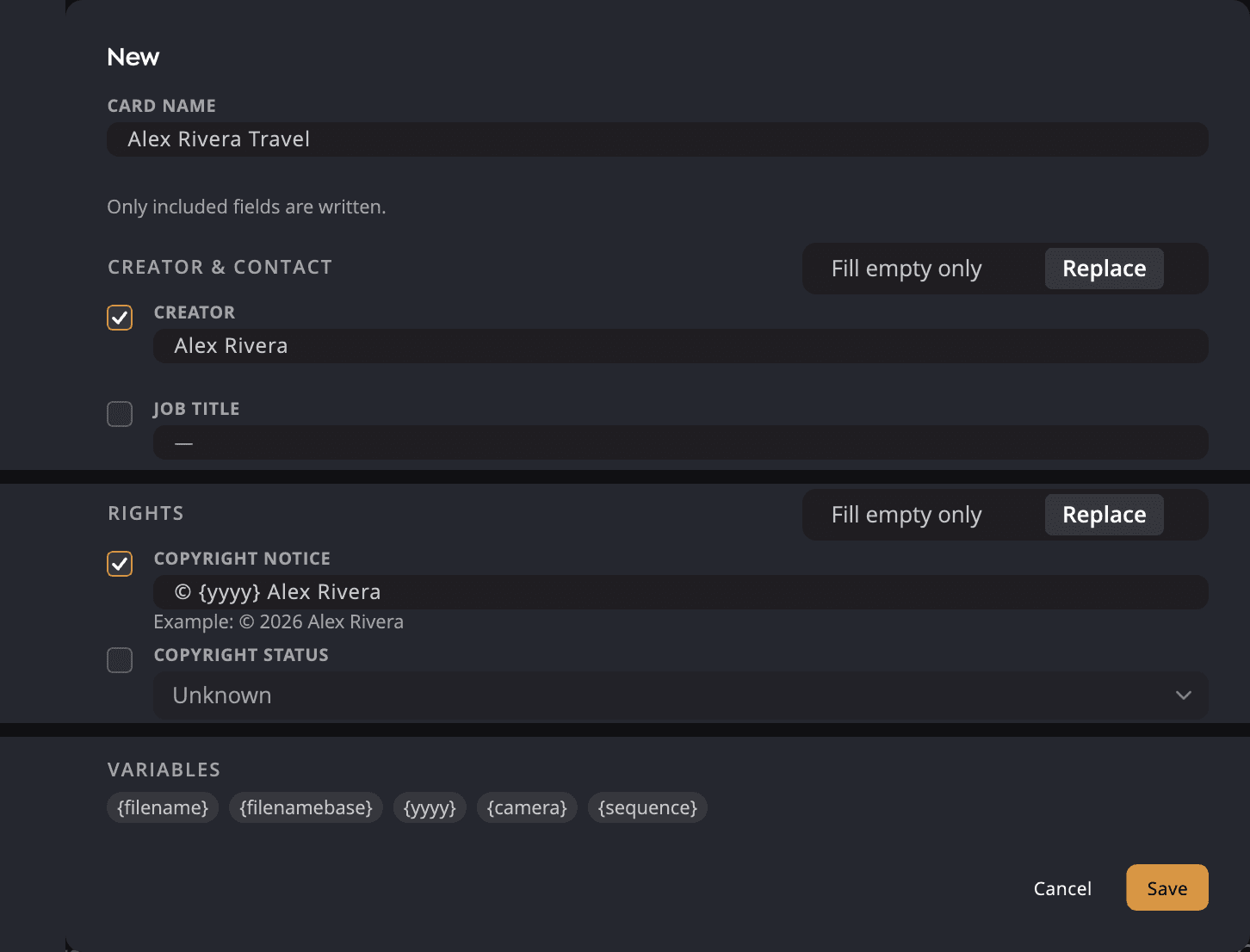
| # | Control | What it does |
|---|---|---|
| 1 | Card name | Each card needs its own name. |
| 2 | Include checkbox | Writes this field when you apply the card. Only included fields are written. |
| 3 | Mode buttons | Fill empty only or Replace for the whole group. Keywords adds Append. |
| 4 | Example line | Shows what the field will say, with variables filled in. |
| 5 | Variables | Inserts a variable into the field you last typed in. |
| 6 | Cancel | Closes the editor without saving. |
| 7 | Save | Saves the card. Gray while a field is not valid. |
The card holds five groups:
| Group | Fields |
|---|---|
| Creator & contact | Creator, Job title, Address, City, State / province, Postal code, Country, Email, Phone, Website |
| Rights | Copyright notice, Copyright status, Usage terms, Web statement of rights, Credit line, Source |
| Ownership & licensing | Copyright owner, Copyright owner ID, Image creator, Image creator ID, Licensor, Licensor URL, Licensor email, Licensor phone |
| AI & Data Mining | AI training, Other constraints |
| Keywords | The card's keywords |
Each group has a mode. Replace is the default, except Keywords, which defaults to Append.
A field you fill in is included automatically. A blank field that is included says what it will do:
- Included and blank: clears this field on every photo. This is what a blank field does in Replace mode.
- Blank — writes nothing. This is what it does in the other modes.
Web addresses must start with https://, and email addresses must be complete. A card cannot share a name with another card.
Variables
Variables fill in a different value for each photo. Click a chip to insert one.
| Variable | Becomes |
|---|---|
{filename} | The file name, for example IMG_4471.CR3 |
{filenamebase} | The file name without its extension |
{yyyy} | The capture year. {mm}, {month}, {dd} and {yy} work too |
{camera} | The camera model |
{sequence} | The photo's position in this apply: 1, 2, 3… |
For example, © {yyyy} Jane Doe becomes "© 2026 Jane Doe" on a photo taken in 2026. A variable Flow doesn't know is
written as typed, and the example line warns you.
When a variable has no value for a photo, Flow leaves that field alone on that photo and says so after the apply.
Cards from other apps
A card imported from an .xmp template can carry photo fields such as a title or a caption. The card's row then
says Also carries: Title, GPS, with the field names. A GPS position, an altitude or a direction each shows as GPS.
Applying a card never writes those fields.
Your card library in Settings
Settings > Metadata lists the same cards under Copyright. Select the round button beside a card's name to make it the default. Click Edit to change a card, or New to make one. The editor opens below the list, with Cancel and Save above it.
To clear the default here, click Restore Defaults…. It keeps your cards, label names and where metadata is written. It also turns Update the files of Lightroom Classic photos back on. Every row under When a photo changes in two apps goes back to the other app winning. Radiant Photo shares these two settings, so they change there too.
Apply a card when you import
The card import sheet has an Apply card menu and an Opt out of AI training box. Apply card starts at your last choice there, or at your default card. Flow writes both to each imported photo after it checks the copy. See Importing from a memory card.