
Lightroom Classic catalogs
Radiant Flow can open a Lightroom Classic catalog and show its folders and collections in the sidebar. You can look through the photos, check them in Quick Look and open them in Radiant Photo. Ratings, flags, labels, keywords and metadata you set while you browse a catalog go to Lightroom Classic through the Radiant plug-in. Radiant Flow never writes the catalog file itself.
Open a catalog
- Choose File > Open Lightroom Classic Catalog….
- Pick the catalog's
.lrcatfile.
The catalog appears in the sidebar under Lightroom Classic, and its All Photographs opens in the grid. Every catalog you open stays in the section, so you can come back to it. You can open a catalog on a Mac or on Windows.
A card import can also add the photos it copies to a catalog listed here. See Importing from a memory card.
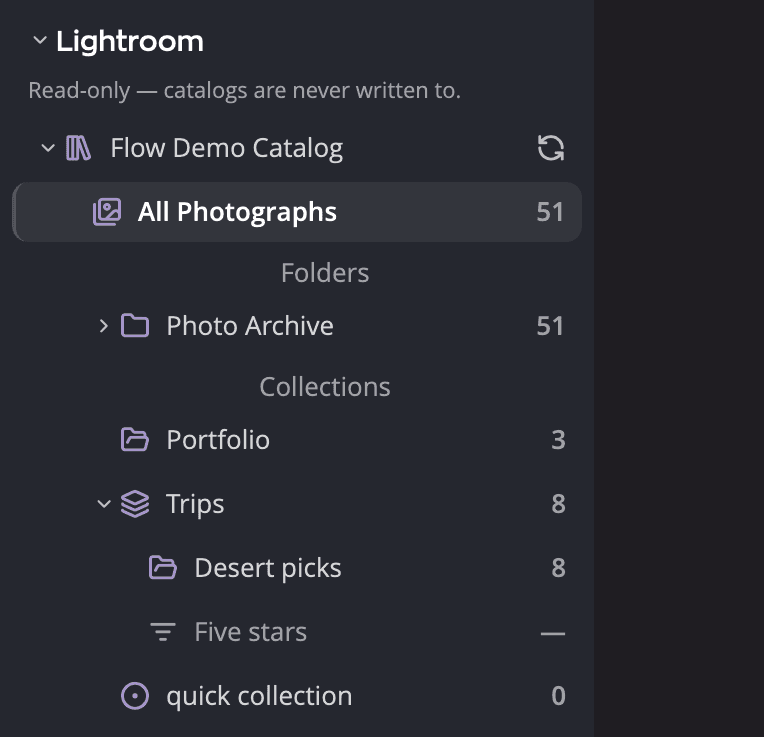
| # | Control | What it does |
|---|---|---|
| 1 | Lightroom Classic header | Shows or hides the section. |
| 2 | Ratings, flags, labels, keywords and metadata you set here go to Lightroom Classic through the Radiant plug-in. Radiant never writes the catalog itself. | Says how your changes reach the catalog. See Changes go to Lightroom Classic. |
| 3 | Catalog row | Opens the catalog's All Photographs. A note beside the name can say Open in Lightroom Classic. |
| 4 | Refresh button | Reads the catalog again (Refresh Lightroom Catalog). |
| 5 | All Photographs | Every photo in the catalog. |
| 6 | Folders | The catalog's folders. A folder also shows the photos in the folders inside it. |
| 7 | Collections | Collection sets, collections and the Quick Collection. |
| 8 | A grayed smart collection | Listed, but it can't be opened. See below. |
Browse folders and collections
Click a catalog's triangle to show its Folders and Collections. Until you open a catalog, its row shows only its name. Click any folder or collection to show its photos in the grid.
A smart collection is listed but grayed out, with a dash instead of a count: Smart collection — not stored in the catalog. Lightroom Classic stores a smart collection's rule, not its photos, so there is nothing to show.
Notes beside a catalog's name:
| Note | What it means |
|---|---|
| Open in Lightroom Classic | Lightroom Classic has this catalog open right now. |
| Unverified version | The catalog comes from a newer Lightroom Classic than Radiant Flow was checked against. Radiant Flow still reads it. |
If a catalog can't be read, the section says This catalog could not be opened: followed by the reason. If you moved
the catalog, or its drive isn't connected, right-click it and choose Locate…. Pick the catalog's .lrcat file where it
is now, and it takes the old row's place. Flow writes nothing to the catalog.
To take a catalog off the list, right-click it and choose Remove from Sidebar. You can also click its row and press Delete. Flow then asks Remove “Lightroom Catalog” from the sidebar? Click Remove from Sidebar to confirm. The catalog file is not touched.
Refresh a catalog
Radiant Flow doesn't watch the catalog for changes. After you work in Lightroom Classic, refresh the catalog to see the changes:
- Click the refresh button on the catalog's row, or
- Choose File > Refresh Lightroom Classic Catalog, or
- Click the folder or collection you are in again.
File > Refresh Lightroom Classic Catalog is grayed out when you are not in a catalog.
The refresh button and the menu command also check that each original is still on disk. A photo you moved, renamed or deleted in the Finder or File Explorer then shows under the catalog's Missing Originals row. A photo you put back leaves it.
Flow also reads the catalog you are in again by itself after Lightroom Classic takes changes you made in Flow.
Thumbnails and offline photos
Radiant Flow makes its thumbnails from the original files, not from Lightroom's previews. Sometimes an original isn't on disk, for example because its drive isn't connected. Radiant Flow then uses the catalog's Smart Preview instead.
If there is no Smart Preview either, the tile is marked Original offline. Quick Look and the Stage can't show that photo, and Open sends only originals to another app.
What you can do in a catalog
- Filter by rating, flag, label and keyword. In Customize Filter Row… you can also add Collections and People, two filters only a catalog has. Other filters are suspended while you are in a catalog, and the filter row says Other filters are not available for Lightroom Classic catalogs. They come back in a folder.
- Group by Year, Month or Day with View > Sort by > Group By. Sorting by another field is not available.
- Look with Quick Look and Single Photo, and open photos in Radiant Photo.
- Rate, flag and label photos, and edit their keywords and metadata. See Changes go to Lightroom Classic.
- Copy photos to a folder with Copy To, or by dragging them onto a folder. Each copy gets the rating, flag,
label and keywords Flow shows, in an
.xmpsidecar. A folder that a catalog in the sidebar manages is refused: The Lightroom Classic catalog {catalog} manages this folder and would import the copies. Choose a folder outside it. - Show one photo in Lightroom Classic with File > Show in Lightroom Classic. If Lightroom Classic doesn't have the catalog open, Flow offers to open it.
- Edit the selected photos with File > Edit in Radiant Photo… or Radiant Photo: Apply Perfect Look, as Lightroom Classic's own menu items do: Lightroom Classic renders each photo with its edits, Radiant Photo edits it, and the result comes back stacked above the original in the catalog.
- Collect photos: New Collection from Selection… makes a collection of the selected photos, and Remove from Collection, in a regular collection, takes them out of it.
- Make photos available offline: Make Available Offline asks the Radiant plug-in to build Smart Previews of the selected photos that have none, the next time Lightroom Classic has the catalog open.
A photo you edited in Lightroom Classic carries a small mark: Edited in Lightroom Classic. Flow shows the original without these edits.
From a plain folder, select photos and choose File > Add to Lightroom Classic, then the catalog. The Radiant plug-in adds each photo where it is, with its rating, flag, label and keywords, to the catalog's Radiant Flow collection once Lightroom Classic has the catalog open.
Move To is grayed out with Lightroom Classic catalogs these photos. Moving one would leave it with a missing file. Other file commands such as Reveal, Copy Path, Rename and Move to Trash are grayed out with This source is read-only. Rotating, Edit Capture Time…, the Columns grid style and Include Subfolders are not available either.
Changes go to Lightroom Classic
When you rate, flag or label a photo while you browse a catalog, or change its keywords and metadata, Flow shows the change at once and keeps it for Lightroom Classic. The Radiant plug-in applies it inside Lightroom Classic while Lightroom Classic has the catalog open. This covers the Metadata panel's Save, Stamp creator & copyright, copyright cards, metadata templates and Undo. Rating the same photo in its folder sends nothing to Lightroom Classic.
Ratings, flags, labels, keywords and metadata you change in Radiant Photo or Radiant Raw, on a photo you opened from a catalog in Flow, go to Lightroom Classic too. Flow sends them on with its own changes. When a change there sets or clears a photo's location, its altitude and direction go with it.
Flow shows the catalog's own ratings, flags, labels and keywords, and its caption, copyright and creator. Other metadata fields show what the photo's file holds.
While changes wait, a line under the catalog's name says what is happening:
| The line says | What it means |
|---|---|
| 3 changes will go to Lightroom Classic when it opens | Lightroom Classic is closed, or doesn't have this catalog open. |
| Sending 3 changes to Lightroom Classic | Lightroom Classic has the catalog open, and the plug-in is taking the changes. |
| Lightroom Classic is open, but the Radiant plug-in isn't taking changes | Lightroom Classic has the catalog open, but the plug-in isn't checking in. |
| Lightroom Classic has another catalog open | The changes wait until Lightroom Classic opens this catalog. |
| 3 changes are waiting, and Radiant can't tell whether Lightroom Classic has this catalog open | Flow can't see whether Lightroom Classic is using the catalog. |
If Lightroom Classic fails a change five times, a line names the photo and Lightroom Classic's error, for example Lightroom Classic didn't take a change to IMG_0412.CR3: followed by the error. Click Discard This Change to drop it.
Waiting changes are kept when you quit Flow, and when you remove the catalog from the sidebar.
Settings > Sidecars has a Lightroom Classic card. It shows whether Lightroom Classic and the Radiant plug-in are installed (the card calls it the Radiant Photo plug-in). It also shows whether Lightroom Classic is running and with which catalog, whether the plug-in is taking changes, and how many changes wait for each catalog.
The plug-in comes with Radiant Photo: its installer adds it to Lightroom Classic, on a Mac and on Windows. If the plug-in is missing, or older than the copy Flow carries, the card offers Reinstall. Click it to put Flow's copy where the installer puts the plug-in. On a Mac, Flow may ask for an administrator password. If Lightroom Classic is running, quit and reopen it so it loads the new plug-in.
On Windows, Radiant Flow carries a copy only when it was installed with Radiant Photo. A Radiant Flow installed without Radiant Photo can't reinstall the plug-in, and the card says so.
Sync History
To see what became of your changes to a photo, select it and open Sync History in the Metadata panel. The section appears only for a photo in a Lightroom Classic catalog, or on a Mac a Capture One catalog or Session, and it stays folded until you open it. For Capture One, the lines name Capture One where this page says Lightroom Classic. See Capture One catalogs and Sessions.
It lists each change Flow sent to Lightroom Classic for that photo, newest first. Each line says what changed, what became of it, and when you made the change in Flow:
| The line says | What it means |
|---|---|
| Applied in Lightroom Classic | Lightroom Classic took the change. |
| Both apps changed it | The photo changed in Flow and in Lightroom Classic. The line goes on to name the app whose change was kept, for example Lightroom Classic wins, and the value that stayed. |
| Lightroom Classic already had this value | There was nothing to change. |
| Lightroom Classic did not apply it | Lightroom Classic didn't take the change, for example because the photo is gone. |
| Discarded | You discarded the change before it reached Lightroom Classic. |
A change to the altitude or direction is listed under GPS, with its new value, for example GPS: Altitude 82.3 m. A cleared one shows a dash.
A photo with nothing to show says No changes have been synced yet. Flow keeps each line for up to 90 days, so older changes drop off the list.
Keywords
A keyword you add goes to the catalog's keyword of that name. If there is none, the plug-in makes a new keyword at the top level of Lightroom Classic's keyword list. If several share the name, for example Paris under France and under Texas, Flow asks Which “Paris”? and you pick one. A name with “|” in it isn't saved, and Flow says “{keyword}” can't go to Lightroom Classic: a keyword name there can't contain “|”.
Fields Lightroom Classic can't take
On a catalog photo, the Metadata panel grays out the fields that Lightroom Classic has no single place for. They are Copyright owner, Image creator and Licensor with their details, the Model Release and Property Release rows, and AI training with Other constraints.
A catalog photo's GPS location goes to Lightroom Classic one photo at a time. With one catalog photo selected, you can set, paste or clear its location, and it is saved at once. With several selected, the row shows no location, and you can't change it there. A location inside a Saved Location that is private in Lightroom Classic isn't sent, and Flow says so.
The location's altitude and direction travel the same way. With one catalog photo that has a location, click Altitude and direction… on the GPS row to set or clear them, and they are saved at once. Only a value you changed is sent, and clearing the location clears both in Lightroom Classic too. A photo whose location is private in Lightroom Classic, or inside a private Saved Location, keeps its altitude and direction, and Flow says so. See Altitude and direction.
The catalog doesn't share a photo's altitude and direction with Flow, so the row shows the ones in the photo's file. After you change them, the row shows your values while the change waits for Lightroom Classic, and until Flow reads the catalog again after Lightroom Classic takes it.
The photo's own file
Flow can also write the change into the photo's file or its .xmp sidecar, so other apps see it. It does this only
when all of these are true:
- Settings > Sidecars > Update the files of Lightroom Classic photos is on. It is on by default.
- Flow can see that Lightroom Classic doesn't have the catalog open. If Flow can't tell, it leaves the file alone.
- The photo already has a place for metadata: its own file, or an existing
.xmpsidecar. Flow never makes a new sidecar for a catalog photo.
Otherwise the file stays as it is, and the change still goes to Lightroom Classic. The switch's hint says the same: When off, Radiant never changes the file or .xmp sidecar of a photo in a Lightroom Classic catalog. Your changes still reach the catalog through the Radiant plug-in.
When both apps change a photo
Sometimes a photo's rating, flag, label, location or a text field changes both in Flow and in Lightroom Classic. Then When a photo changes in two apps > Lightroom Classic in Settings > Sidecars decides which change is kept: Lightroom Classic wins (the default), Radiant wins or Newer change wins. A change made in only one app always goes through. Keywords from both apps are always kept. When Lightroom Classic's change wins, Flow also puts it back into a file it had written its own value to.