
Working with files
Radiant Flow can reveal, share, copy, rename, duplicate and move your photos without sending you to the Finder or File Explorer. The commands are on the File menu and on the right-click menu of every photo.
Every file command acts on the whole selection. When you right-click a photo that isn't selected, Flow selects it first, the way the Finder does.
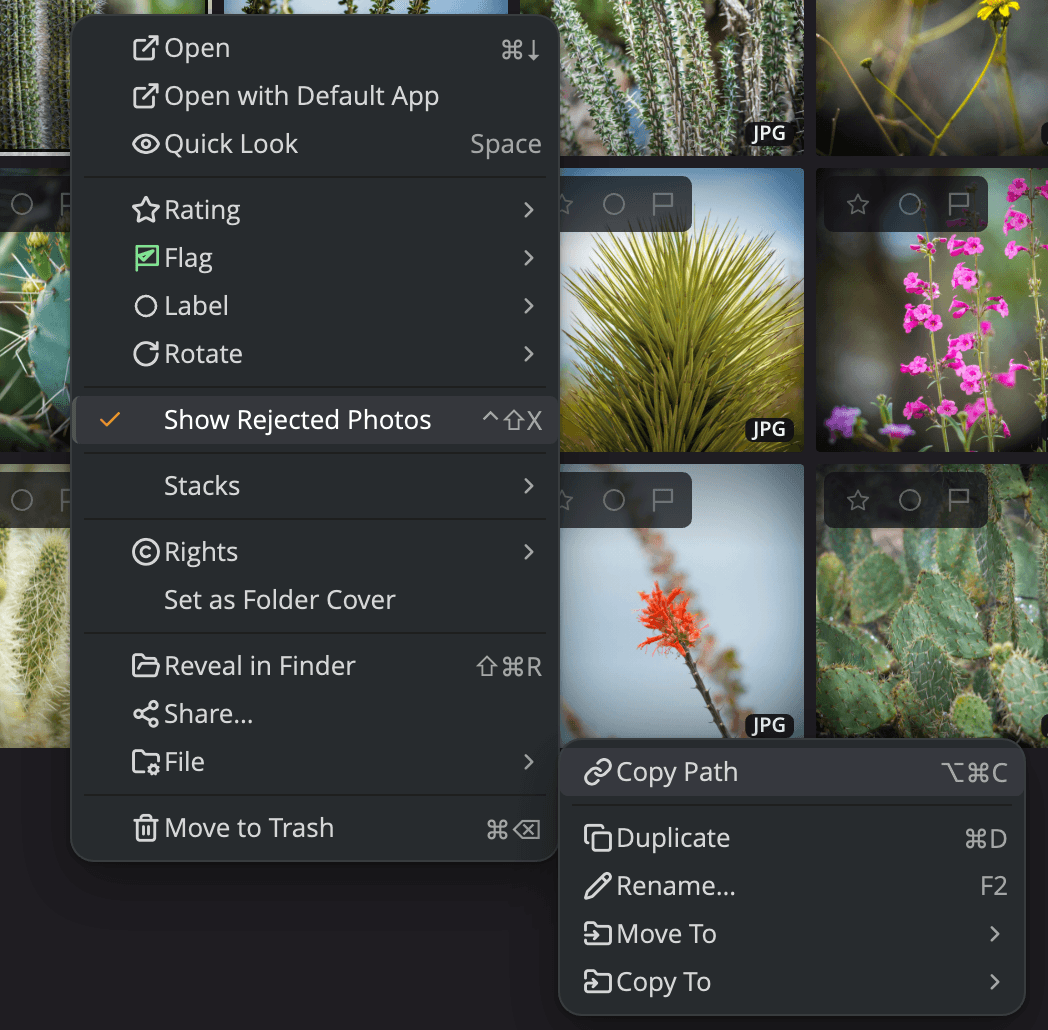
| # | Control | What it does |
|---|---|---|
| 1 | Open, Open with Default App, Quick Look | Hand the photos to an editor or the system's app, or preview them. |
| 2 | Rating, Flag, Label, Rotate | Mark the photos while you cull. |
| 3 | Show Rejected Photos | Shows or hides rejected photos in the grid. |
| 4 | Rights and Set as Folder Cover | Apply a copyright card, or use this photo as its folder's cover. |
| 5 | Reveal in Finder and Share… | Show the files on disk, or send them through the system share sheet. |
| 6 | File | Opens Copy Path, Duplicate, Rename…, Move To and Copy To. |
| 7 | Move to Trash | Moves the photos to the Trash, after asking. It sits at least four rows below the marks on purpose. |
The file commands
| Command | Shortcut | What it does |
|---|---|---|
| Reveal in Finder (Show in Explorer on Windows) | ⇧⌘R (Ctrl+Shift+R on Windows) | Opens the photos' folder with the photos selected. |
| Share… | none | Opens the system share sheet with the original files. |
| Export as HDR JPEG… | none | Saves each HDR photo as an HDR JPEG in a folder you choose. See Export HDR photos as HDR JPEGs. |
| Copy Path | ⌥⌘C (Ctrl+Shift+C on Windows) | Puts the full path of each photo on the clipboard, one per line. |
| Duplicate | ⌘D (Ctrl+D on Windows) | Makes a copy of each photo next to the original. |
| Rename… | F2 | Renames one photo in place. With two or more photos, F2 opens Batch Rename. |
| Move To > | none | Moves the photos to a Favorite, a recent folder or a folder you choose. |
| Copy To > | none | Copies the photos to a Favorite, a recent folder or a folder you choose. |
| New Folder… | ⇧⌘N (Ctrl+Shift+N on Windows) | Makes a folder inside the folder you're browsing. |
| Rescan | ⌘R (Ctrl+R on Windows) | Reads the folder from disk again. |
| Open with Default App | none | Opens the photos in the app your system uses for their file type. |
Move to Trash and Delete Rejected Photos… are on the same menu. See Moving photos to the Trash.
Reveal, share and copy the path
Reveal in Finder opens the photos' folder in the Finder with all of them selected. On Windows the command is Show in Explorer and opens File Explorer.
Share… opens the system share sheet with the original files, as they are on disk. On Windows it opens the Windows share window. Flow says nothing when sharing works, because the sheet is the feedback.
Copy Path puts the full path of every selected photo on the clipboard, one per line, in grid order. A message confirms the count, for example "Copied 12 paths".
Export HDR photos as HDR JPEGs
An HDR JPEG shows the photo's extra brightness on an HDR screen, for example on an iPhone, a Mac or an Android phone. Other screens show it as a normal JPEG. This makes it a good file to send.
- Select the photos.
- Choose File > Export as HDR JPEG…. The command is also on the right-click menu, under Share….
- Choose the folder for the copies.
While it works, a message says, for example, "Exporting 12 photos as HDR JPEG…" A raw file can take a few seconds. When it's done, the message counts the results, for example "10 HDR JPEGs exported."
- Your originals don't change. Each copy takes the photo's name, for example
IMG_0001.jpg. If that name is taken, Flow adds a number, so nothing is overwritten. - A raw file is developed with its default settings, and Flow makes the HDR from its highlights.
- An HDR photo that isn't a raw file keeps its own HDR, for example an iPhone HEIC. A PQ or HLG photo needs macOS 15 or later.
- A photo with nothing brighter than normal white has no HDR. Flow skips it, and the message says how many it skipped.
- The JPEG's colors are in Display P3. A photo that is already in Display P3 or a wider color space keeps its own.
On Windows, raw files export this way. A JPEG that already carries a gain map is copied as it is, if its colors are in Display P3 or a wider color space. Flow can't convert the colors on Windows, so a gain-map JPEG in sRGB or Adobe RGB, or with no color profile, isn't exported. The message counts it, for example "1 photo could not be exported."
A JPEG without a gain map has no HDR, so Flow skips it on Windows. It also skips a JPEG whose gain map brightens nothing past normal white. Other HDR photos, such as an iPhone HEIC or a PQ or HLG photo, can't be exported on Windows, and the message counts them.
Open with Default App
File > Open with Default App opens each photo in the app your system uses for its file type. Each photo opens on its own, so more than 15 photos ask first: "Open 40 photos with their default app?" Click Open to go ahead.
To open photos in Radiant Photo or another editor instead, see Opening photos in another app.
Duplicate a photo
- Select the photos.
- Choose File > Duplicate or press ⌘D (Ctrl+D on Windows).
Each copy lands next to its original with a number after the name, the way the Finder does it: IMG_0001.CR3
becomes IMG_0001 2.CR3. If that name is taken, Flow uses the next free number. The .xmp and .radiant sidecars
are copied too, so the copy keeps the original's ratings and edits.
Rename one photo
- Select one photo.
- Choose File > Rename… or press F2. The name turns into a text field, with the name selected and the extension left alone.
- Type the new name and press Return.
Press Esc, or click somewhere else, to cancel. Nothing is renamed until you press Return.
A name that's already used in the folder is refused, never numbered. The field stays open and says, for example, "“IMG_0002.CR3” is already used in this folder." Type another name. A name can't be empty, can't contain a slash, and can't be "." or "..".
The photo's sidecar is renamed with it. The one exception is a Raw+JPEG pair that shares one .xmp sidecar. That
sidecar stays with the other photo of the pair, and a message says so.
Note
Edit > Undo doesn't reach a single rename. To change it back, rename the photo again.
To rename two or more photos with a pattern, see Batch Rename and Organize.
Move or copy photos to another folder
Move To and Copy To list the same places:
- Your Favorites from the sidebar.
- The five folders you browsed most recently.
- Choose Folder…, which opens the system folder picker for anywhere else.
Move To always moves and Copy To always copies, whichever drive the folder is on.
- Select the photos.
- Choose File > Move To or File > Copy To, then a folder.
A message names the folder the photos landed in, for example "Moved 24 photos to Selects". Their .xmp and
.radiant sidecars travel with them. Nothing is ever overwritten: a name already used in the folder gets a number,
and the message says how many photos were renamed. A long move shows a progress strip with a Stop button.
Copy To on the folder the photos are already in makes numbered copies, the way Duplicate does. Move To on that folder does nothing and says so.
Drag photos onto a folder
You can also move photos by dragging them onto a folder. Any folder in the sidebar works, and so does a folder in the grid, the List or Columns.
- Drag the photos onto the folder. Dragging a selected photo drags the whole selection.
- Check the label on the folder: Move here or Copy here.
- Release the mouse button.
Flow follows the system's rule. On the same drive the photos move. On another drive they're copied, and your originals stay where they were. Sidecars travel with the photos, and nothing is ever overwritten.
A red ring means the folder won't take the photos. That happens on the folder they're already in, on a drive that is offline, and whenever you're browsing your Apple Photos library.
To add photos to a Job instead, drag them onto the Job in the sidebar. See Jobs.
Undo a move
You can undo a move, whether you dragged the photos or used Move To. Click Undo in the message, or choose Edit > Undo (⌘Z, Ctrl+Z on Windows). Each photo goes back to the folder it came from, with the name it had there. The message then says how many went back, for example "Put 24 photos back". Edit > Redo moves them again.
Flow never overwrites a file to put a photo back. It leaves a photo where it is when the photo was moved, renamed or deleted since, or when another file now has its old name. The message says how many it left. A photo you only rated, rotated or tagged in Flow since still goes back.
Important
Flow can't undo a copy or a duplicate. A drag to another drive copies, so there is nothing to undo there either. Your originals stay where they were.
Make a new folder
- Choose File > New Folder… or press ⇧⌘N (Ctrl+Shift+N on Windows). The new folder goes inside the folder you're browsing. To make it inside another folder, right-click that folder in the sidebar and choose New Folder….
- A row appears in the sidebar with "untitled folder" selected. Type a name.
- Press Return.
Press Esc, or click somewhere else, and nothing is created. If the name is already taken, Flow adds a number and tells you: "That name was taken, so the folder is called “Trip 2019 2”."
Drag photos to other apps
Drag photos out of the window to drop them in the Finder or File Explorer, in another app, or on the Radiant Photo window.
- Dragging a selected photo drags the whole selection.
- Dragging a photo that isn't selected drags only that photo, and your selection stays as it was.
- Dragging out always copies. Your originals stay where they are.
- One drag carries up to 1,000 photos. With more selected, Flow says so: "Dragging the first 1,000 of 4,200 selected photos."
Photos in your Apple Photos library can't be dragged out, because they aren't files until they're exported. Use Open instead.
Rescan a folder
File > Rescan (⌘R, or Ctrl+R on Windows) reads the folder you're browsing from disk again. You rarely need it: Flow watches that folder and updates itself within a few seconds when another app adds, removes or renames files there. Use Rescan when the grid looks out of date, or on a network drive, where changes made from another computer may not show on their own.
Photos a Lightroom Classic catalog uses
In a folder, when you rename, move or trash photos that a catalog in the sidebar's Lightroom Classic section uses, Flow asks first: A Lightroom Classic catalog uses this photo. The message names the catalog, because Lightroom Classic shows a renamed, moved or removed photo as missing. Cancel is the default button. Click Rename, Move or Move to Trash to go ahead anyway. Copy To and Duplicate don't ask, because the original stays where it is.
Flow asks the same way when a catalog or Session in the sidebar's Capture One section uses the photos. The message then names it and says that Capture One will show the photo as missing.
When the file commands are grayed out
- Apple Photos library. The photos aren't files, so the file commands are grayed out. New Folder… is too, because an album isn't a folder.
- Memory cards. Flow's file commands never write to a card. Copy Path, Duplicate, Rename…, Move To, Copy To and Move to Trash are off. Reveal in Finder and Share… still work. See Importing from a memory card.
- Aperture libraries. Flow opens them read-only, so the file commands are grayed out.
- Lightroom Classic catalogs. The file commands are grayed out, except Copy To. Move To says Lightroom Classic catalogs these photos. Moving one would leave it with a missing file. See Lightroom Classic catalogs.