
Aperture libraries
Aperture doesn't run on current versions of macOS, so many photographers have libraries they can't open. Radiant Flow can open an Aperture library so you can look through it. It can also copy the photos out into ordinary folders you own.
Two commands in the File menu do this:
- Open Aperture Library… shows a library in the sidebar, read-only. Nothing is copied or changed.
- Rescue Aperture Library… opens the Aperture Importer, which copies the photos out of the library.
Both work with Aperture libraries and iPhoto libraries, including the copies Apple's Photos migration leaves behind. On a Mac, you pick the library itself. On Windows, a library is an ordinary folder, so you pick that folder. For an iPhoto library, the importer's title, its Trash rows and its messages say iPhoto instead of Aperture.
Look through a library
- Choose File > Open Aperture Library….
- Pick the library.
The library appears in the sidebar under Aperture, and its photos open in the grid. The section says Read-only — this library is never written to.
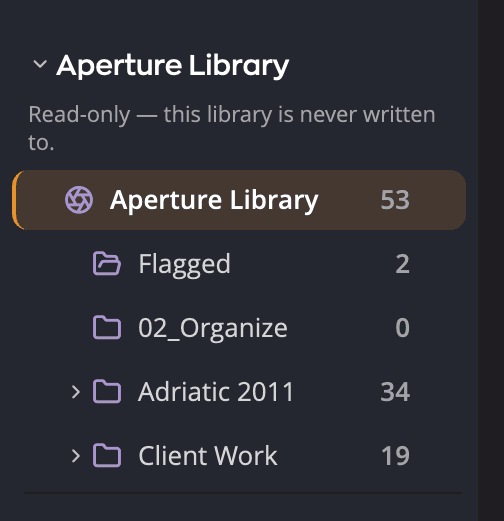
Under the library you see its places: all its photos, the flagged ones, and its folders, projects and albums. Click a place to show it in the grid. A smart album shows a dash instead of a count, because Radiant Flow does not run its rule.
The thumbnails are the previews Aperture made, with your Aperture adjustments. So you can look through a library even when its originals are on a drive that isn't connected. Quick Look also shows Aperture's preview, which can look softer at 100% than the original would.
Every library you open stays in the section, so you can come back to it. To take one off the list, right-click it and choose Remove from Sidebar. This doesn't touch the library.
What you can't do in a library
Radiant Flow never writes to an Aperture library. While you look through one:
- Ratings, flags, labels, rotation and capture time can't be changed.
- Metadata in the Metadata panel is read-only.
- File commands such as Rename, Move To, Move to Trash and New Folder are grayed out with This source is read-only.
- Only four filters work: Rating, Flag, Label and Keywords. The filter row says Other filters are not available for Aperture libraries.
- Sorting by field is not available. The photos stay in capture order, and View > Sort by > Group By can still group them by Year, Month or Day.
To work with the photos, rescue them into folders first.
Rescue a library
- Choose File > Rescue Aperture Library….
- Pick the library. The Aperture Importer opens and reads it.
- Check the photos you want, or leave them all checked.
- Check the settings on the right, especially Destination.
- Click Import All, or Import Checked if you unchecked some.
- Read the summary, then confirm.
On a Mac, you can also open a library from the Finder with Radiant Flow, and it opens in the Aperture Importer.
| Control | What it does |
|---|---|
| Import Aperture Library | The title, followed by what the library holds: photos, originals, albums, keywords and more. |
| Filter | Shows only the photos whose file name contains what you type. The checked photos don't change. |
| Reset to Defaults | Puts every setting back the way the importer opened. The photos you checked stay checked. |
| Tree | The library's Projects, Folders, Albums and Smart Albums, plus Aperture's Trash, Originals nothing refers to and the Disks its originals are on. Click one to show its photos. |
| Grid bar | Sorts by Capture Date or File Name, counts the checked photos, and has Check All and Uncheck All. |
| Warning row | Smart Albums will not import. Convert them to Albums in Aperture first; their definitions are kept in the manifest. |
| A tile | One photo and its check box. R and J marks show the two halves of a raw and JPEG pair. |
| Settings | Eight sections that decide what is copied and where. See the table below. |
| Bottom bar | The checked count, how many originals and how much space, with Cancel, Import Checked and Import All. |
Settings
Each section header shows its current setting while it is closed. Store Files and Destination are open when the importer opens.
| Section | Choices (default) | What it does |
|---|---|---|
| Store Files | Copy files (default), In their current location | What happens to originals stored outside the library. Copy files copies them in beside the others, so the folder you end up with is whole. Originals inside the library are always copied out. |
| Versions | every version: on | Copies every version you made in Aperture. Turn it off for the current version only. |
| Raw + JPEG Pairs | Both (Raw as Original) (default), Both (JPEG as Original), Both (Separate Originals), Raw only, JPEG only | What to copy when the camera shot a raw file and a JPEG together. The first two copy both and stack each pair, with the named file on top. Both (Separate Originals) copies both as two separate photos, not stacked. |
| Albums & Projects | Rebuild the album and project tree: on; Album names as keywords: off | Arranges the copies in folders that follow your Aperture projects and albums, and makes a Job for each project and album (see below). Album names as keywords also adds each photo's album names as keywords to what Flow writes for it. |
| Include | Include Aperture's Trash: off; Include originals nothing refers to: off | Also copies the photos in Aperture's Trash, or originals no photo in the library uses. |
| File Types | photos, videos, audio: all on | Which kinds of files to copy. |
| Destination | A From Aperture folder in your Pictures folder, or From iPhoto for an iPhoto library | Where the copies go. Click Choose… to change it. Sample Path shows where a photo lands, and Space Left says whether it fits. |
| Backup Location | Off | Click Choose… to copy everything to a second folder as well. |
With In their current location, Radiant Flow writes sidecar files beside the originals where they are. A folder that another program syncs will then see files it did not expect.
Originals on a disk that isn't connected
If some originals are on a disk that isn't connected, the tree lists that disk as not mounted. Missing originals never stop a rescue. Where Aperture made a preview, the preview is copied in place of the original: a rendered JPEG, not the original. The manifest records which photos those are.
To bring the real originals, connect the disk before you start. Or select the disk in the tree, then click Locate… and point Radiant Flow to where those originals are now. Click Show the 12 to see only the photos that can't be reached.
While it copies, and after
A strip across the window shows the progress (Import in progress). Click Stop to end the rescue early: Stop keeps everything already copied. The manifest records what did not land.
When it finishes, the destination folder opens with a strip across the top, Imported 240 from Aperture Family Photos:
| Button | What it does |
|---|---|
| Review the 12 | Shows the photos that did not land as their original, such as previews standing in for missing originals. |
| Add to Job… | Adds the rescued photos to a Job. |
| Show Manifest | Shows the rescue manifest. |
| Dismiss | Closes the strip. |
A photo copied from Aperture's preview, because its original couldn't be reached, is marked PREVIEW in the grid. The mark stays, because Radiant Flow reads it from the manifest saved with the rescued photos.
With Rebuild the album and project tree on, Radiant Flow also makes a Job for each Aperture project and each album, holding the copies of its photos. You find them in the sidebar's Jobs section, under From Aperture, in two groups: Projects and Albums. Smart albums get no Job. If you rescue the same library again, Flow adds the new copies to the same Jobs instead of making new ones. A rescued iPhoto library gets no Jobs. See Jobs.
Radiant Flow writes what Aperture recorded about each photo into an .xmp sidecar beside the copy. The rescue can't
write inside files, so it writes the sidecar even when Settings > Sidecars > Save to has Inside the photo checked, and its note
says how many photos that was. The exception is a JPEG, TIFF or PSD that shares its name with another rescued photo, such
as the raw it was shot with: its metadata goes inside the copy, because the .xmp of that name belongs to the other file.
Aperture's adjustments carry over as approximate Radiant develop settings in a .radiant sidecar, and the crop also
goes into the .xmp. See
Where ratings and metadata are written.
The Aperture library itself is never changed.