
Stacks
A stack is a group of photos that stands on the grid as one tile, with one photo, the cover, in front. Use stacks to fold bursts, brackets and near-duplicates out of the way while you cull. The commands are in View > Stacks, and in the Stacks submenu when you right-click a photo.
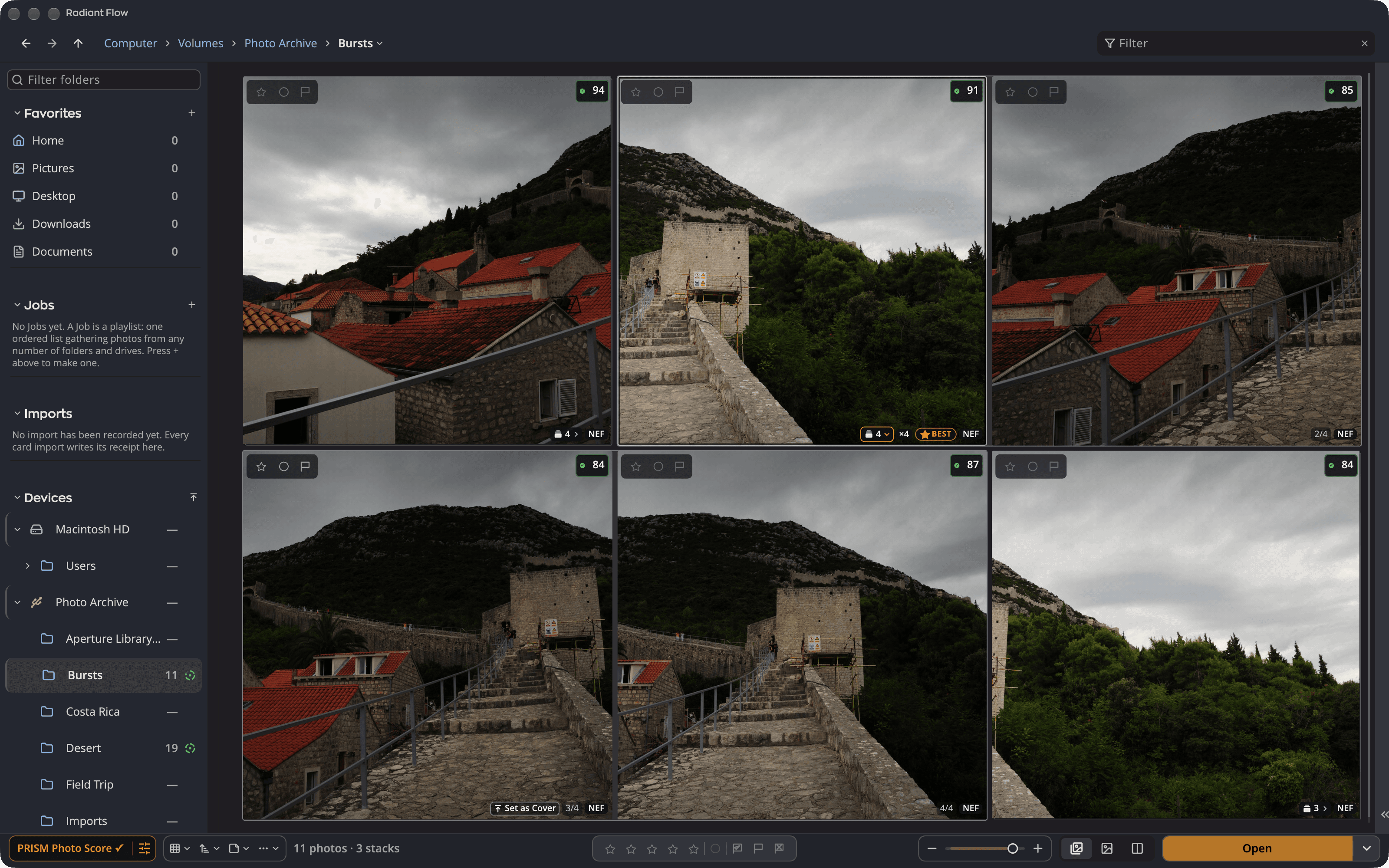
| # | Control | What it does |
|---|---|---|
| 1 | Stack chip | Sits on a closed stack's cover and shows how many photos it holds. Click it to open the stack. |
| 2 | Open stack | The stack's photos stand in a row right after the cover. |
| 3 | Position chip | Shows each photo's place in the open stack, for example 2 of 5. |
| 4 | Set as Stack Cover | Appears on the photo under the pointer. Click it to put that photo in front. |
| 5 | Photo count | Counts photos and stacks, for example "120 photos · 4 stacks". |
Make a stack
- Select two or more photos.
- Choose View > Stacks > Group as Stack, or press ⌘G (Ctrl+G on Windows).
The first selected photo in grid order becomes the cover. If the selection already touches a stack, Flow merges everything into one stack.
You can also drag: drag photos onto a photo that isn't in a stack and keep holding. When the bar fills, Hold to stack changes and you can let go.
Tip
Shot a burst? Flow stacks each burst for you, so it stands on the grid as one tile. See Stack your bursts.
Open and close stacks
| Command | Key | What it does |
|---|---|---|
| Open Stack / Close Stack | S | Opens or closes the stack of the selected photo. The menu row reads whichever applies. |
| Open All Stacks | ⌥S (Alt+S on Windows) | Opens every closed stack in view. Pressed again, the key closes them all. |
| Close All Stacks | Closes every open stack in view. |
You can also click the stack chip on a cover. ⌥-click (Alt-click on Windows) the chip to open or close every stack at once.
An open stack keeps its photos together after the cover, in the stack's own order, whatever the sort.
Change a stack
Open the stack first, then select one photo in it.
| Command | Key | What it does |
|---|---|---|
| Set as Stack Cover | ⇧S | Puts the selected photo in front. |
| Move Earlier in Stack | ⇧[ | Moves the photo one place toward the front. |
| Move Later in Stack | ⇧] | Moves the photo one place toward the back. |
| Add to Stack | Adds the loose photos in the selection to the one stack the selection also touches. | |
| Remove from Stack | Takes the selected photos out of their open stack. A stack left with one photo stops being a stack. | |
| Ungroup | ⇧⌘G (Ctrl+Shift+G on Windows) | Takes the whole stack apart. Select any photo in it, open or closed. |
With the mouse:
- Drag photos onto a stack to add them.
- Drag a photo along its open stack to change its place.
- Drag photos out of an open stack onto an empty part of the grid to remove them.
Edit > Undo (⌘Z, Ctrl+Z on Windows) takes back any stack change.
How commands treat a closed stack
Marks go to the cover only. A rating, flag, color label or rotation changes the photo you can see, not the photos behind it. To mark the others, open the stack, or press Space to survey it.
File commands take the whole stack. These act on every photo in a closed stack:
- Open, Move to Trash, Move To and Copy To
- Share…, Contact Sheet… and Batch Rename…
- Edit > Rights > Apply Card
The menu rows say so, for example Open 6 Photos or Move 6 Photos to Trash.
- Moving a closed stack to the Trash asks first. Choose Cover Only to move just the cover.
- Copies of a stack arrive as a stack.
- If a filter hides some photos of a stack, commands reach only the photos the filter shows. The chip then reads, for example, "Stack of 6 photos · the filters show 4".
Survey a stack
Select a closed stack and press Space. Quick Look shows Survey Stack: every photo of the stack side by side.
In the Survey, rating, flag and label keys write to the lit frame, and ⇧S makes it the cover. See Quick Look and Survey.
Stack your bursts
A burst is a run of photos shot back to back. Flow stacks each burst for you. Once it has read a folder's capture times, every burst folds into one closed stack on the grid. The grid keeps your place while this happens.
- To find bursts, Flow uses Shot back to back (adaptive, recommended), as in Stack Bursts… below. The cover is the best-scored frame, or else the first frame.
- Raw+JPEG pairs stay together. Photos already in a stack stay where they are.
- As in any closed stack, a rating, flag or label goes to the cover only. Press S to open the stack, or Space to survey it.
Flow doesn't save these stacks. Nothing is written to your sidecar files for them. When you change one, for example set a new cover, move or remove a photo, or drag photos in, it becomes your own stack and Flow saves it. Ungroup takes one apart, and Flow leaves that burst unstacked until you quit Flow.
To turn this off, choose View > Stacks > Stack Bursts Automatically. It's on by default, and Flow remembers your choice. Turning it off takes apart only the stacks Flow made. Stacks you made or changed stay.
Flow stacks bursts by itself only for photos on your disks, not in Apple Photos or a catalog. It also leaves a view of more than 20,000 frames as it is, such as a big folder tree with Include Subfolders on. Stack Bursts… still works there.
When the grid is sorted by Capture Date or Modified Date, Flow also marks each burst. The first photo of a burst wears a chip with the number of frames, such as ×6.
- Point at the chip to outline the burst's photos.
- Click the chip to stack that burst and save the stack.
To set your own rules, or to save every burst as a stack at once:
- Choose View > Stacks > Stack Bursts….
- Choose when frames belong to one burst, and which frame goes in front. The grid behind the sheet outlines each burst as you change the choices.
- Click Stack N Bursts.
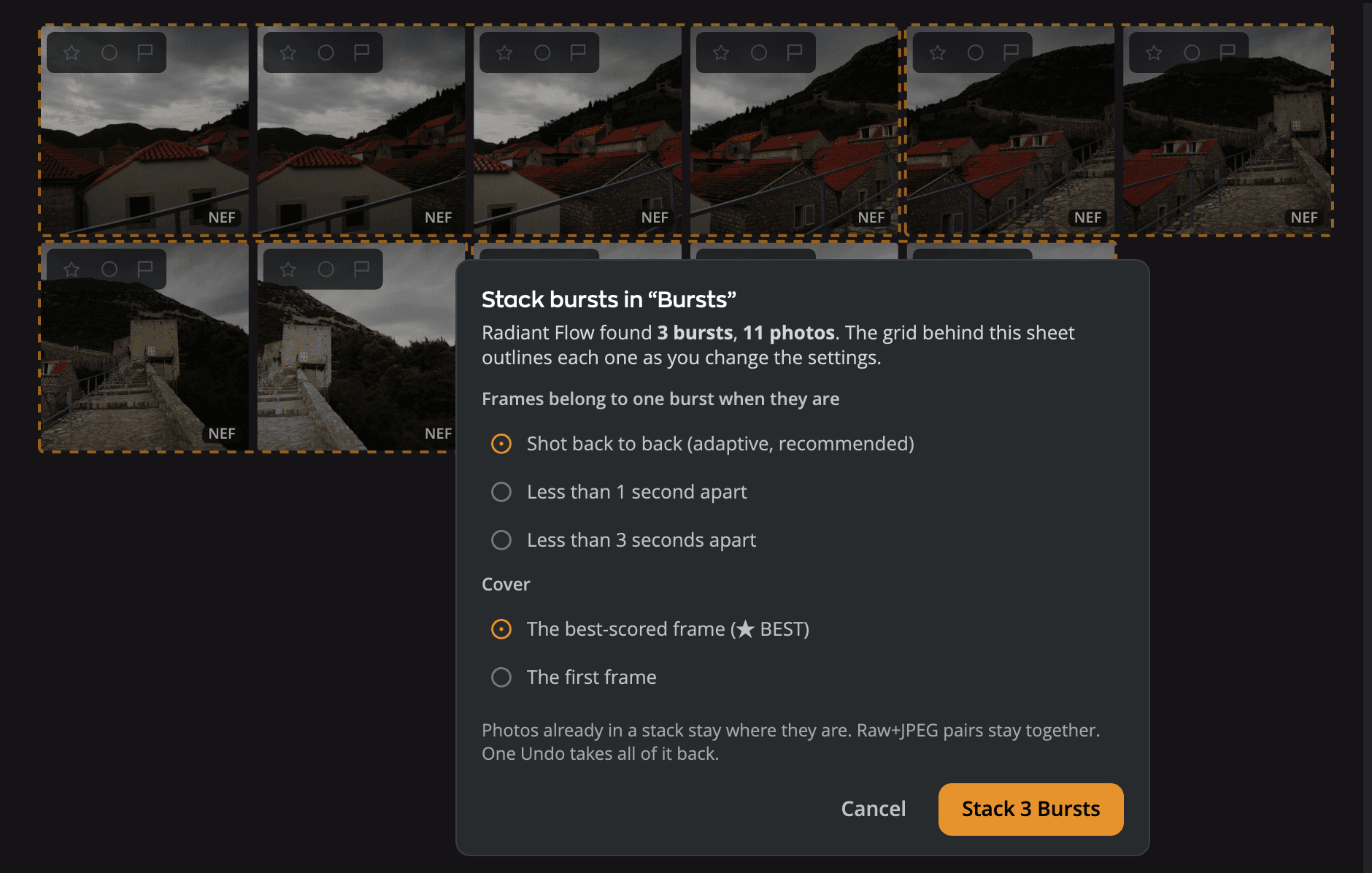
| # | Control | What it does |
|---|---|---|
| 1 | Sentence | Says how many bursts and photos Flow found with the current choices. |
| 2 | Frames belong to one burst when they are | Shot back to back (adaptive, recommended) follows each burst's own pace. Or choose Less than 1 second apart or Less than 3 seconds apart. |
| 3 | Cover | The best-scored frame (★ BEST) or The first frame. |
| 4 | Note | Photos already in a stack stay where they are. Raw+JPEG pairs stay together. |
| 5 | Stack N Bursts | Stacks them all. One Undo takes all of them back. |
The best-scored frame is the one the PRISM Photo Score helper (the part of Radiant Flow that scores your photos in the background) named best in that burst. The helper names one only when every frame is scored and one scored highest, and Flow uses it only when the stack holds exactly the helper's burst. Otherwise the first frame leads. Clicking a burst's chip picks its cover the same way. See PRISM Photo Score.
Stack Bursts… treats the stacks Flow made by itself as loose photos. The stacks it makes are saved, like any stack you make. Stack Bursts reads the whole folder, whatever your filters show. It skips photos with no capture time. While Flow is still reading capture times, it says Capture times are still being read. Try again when the folder is done.
Cull a burst
Like the chips, the burst keys need the grid sorted by date. Under any other sort, a hint says Sort by Capture Date to use bursts. A single photo counts as a burst of one.
| Key | What it does |
|---|---|
| ⌥⌘→ / ⌥⌘← (Ctrl+Shift+→ / Ctrl+Shift+← on Windows) | Next Burst / Previous Burst: goes to its first frame. |
| ⌥⌘↓ / ⌥⌘↑ (Ctrl+Shift+↓ / Ctrl+Shift+↑) | The same, skipping bursts that hold a Pick. |
| . / , (period / comma) | The next or previous frame, up to the ends of the burst. |
| ⌥K (Alt+K) | Pick This, Reject Rest of Burst: picks the photo you are on and rejects the rest of the burst, except frames you already picked. |
Add ⇧ (Alt+Shift+K on Windows) to also go on to the next burst, on the grid, the Stage and Quick Look with one photo. One Undo takes back the Pick and the Rejects, but it doesn't move you back.
The jumps work on the grid, the Stage and Quick Look with one photo; period and comma on the Stage, that Quick Look and Compare. The rows are in the Go and Photo menus.
Survey and rank a burst
The PRISM Photo Score helper also works out each burst's best frame, its runner-up and how far apart they are. Flow uses those facts to help you through a burst, and never rates, flags or rejects anything for you:
- ★ BEST: while the score badges show, the helper's best frame wears ★ BEST on the grid. Point at it to see by how much it leads. The star is hollow when the top two are too close to call.
- Survey This Burst: press ⇧Space (Shift+Space on Windows), or right-click a burst's ×N chip and choose Survey This Burst, to lay the whole burst on the Survey table, best first when its scores allow it. See Survey a burst.
- Rank: on the Stage, press R to put the burst in score order inside the filmstrip. While a burst is ranked, period and comma follow that order. See Rank a burst by score.
Raw+JPEG pairs
If your camera saves a raw file and a JPEG of every shot, you can show each pair as one tile. Click the More actions pop-up (⋯) in the bottom bar and choose Pair Raw+JPEG.
- The raw file is the tile you see, with a Raw+JPEG chip. The JPEG rides behind it.
- A pair is two files in the same folder, with the same name and the same capture time.
- Opening a pair sends the raw file to your editor. Rotating a pair turns both files.
Pair Raw+JPEG is off until you turn it on, and then it applies to every folder. It is gray in Apple Photos, which already pairs raw and JPEG files.
Where stacks are kept
Flow saves each stack in the .xmp sidecar files beside its photos. A stack goes wherever its folder goes, even
to another computer. Burst stacks that Flow made by itself are saved only once you change them. See
Stack your bursts.
Stacks work in folders and Jobs. Apple Photos libraries don't offer them. A Lightroom Classic catalog or an Aperture library shows the stacks you made in that app, and a Capture One catalog shows each photo's variants as a stack. Flow can't change them: every row of View > Stacks is grayed out there. In a Lightroom Classic catalog the rows say Lightroom Classic stacks are read-only in Radiant Flow. In an Aperture library or a Capture One catalog they say This source is read-only.