
Culling a shoot
Culling is going through a shoot and deciding what to keep. In Radiant Flow you give each photo a star rating, a Pick or Reject flag and a color label. Then you filter down to the keepers.
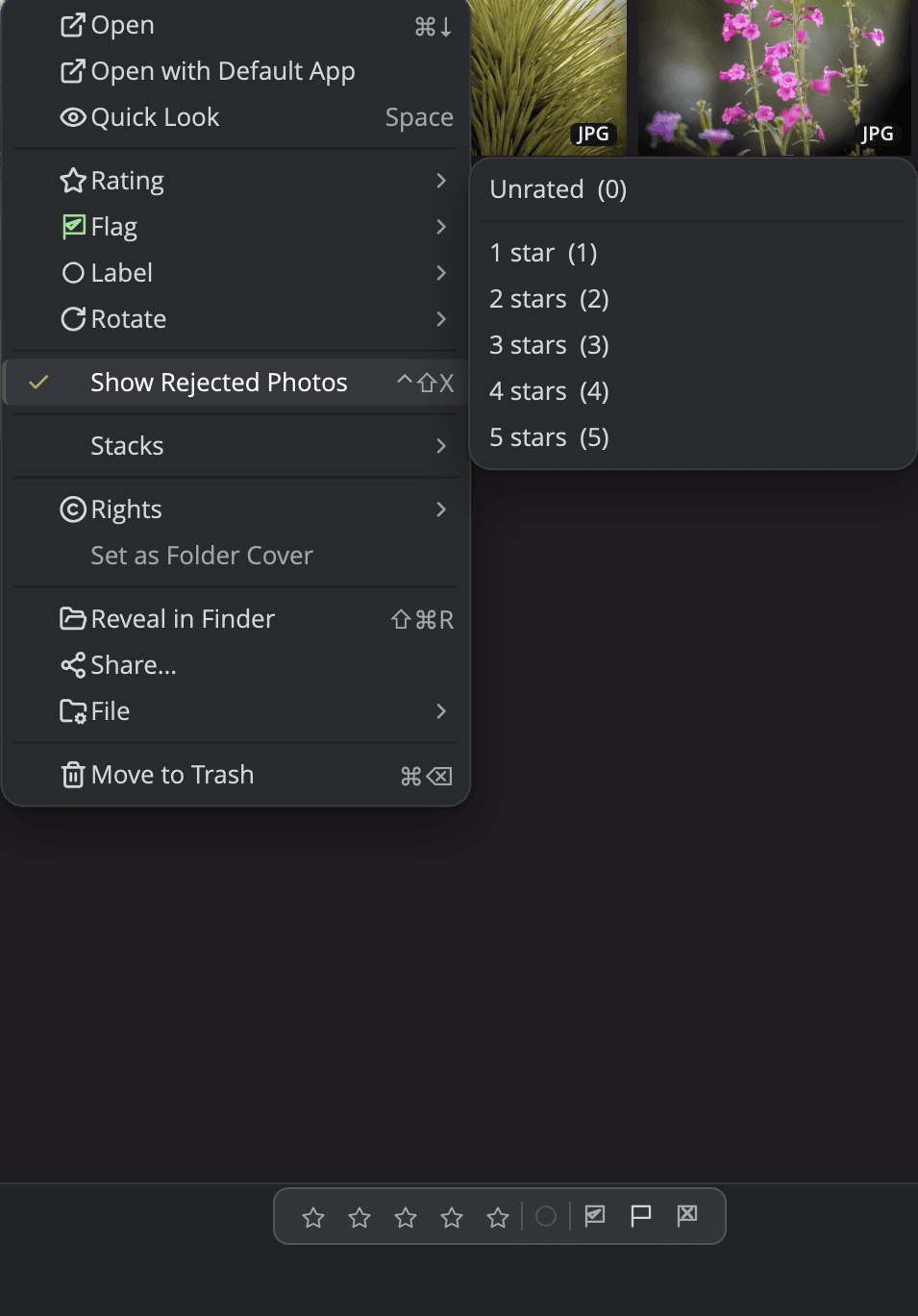
| # | Control | What it does |
|---|---|---|
| 1 | Stars | Click a star to give every selected photo that many stars. |
| 2 | Label swatch | Opens a menu with No label and the five colors. |
| 3 | Pick | Flags the selected photos as keepers. |
| 4 | Clear flag | Removes the Pick or Reject flag. |
| 5 | Reject | Flags the selected photos as rejects. |
| 6 | Photo > Rating | Unrated and 1 to 5 stars, each row with its key. |
| 7 | Photo > Flag | Pick, Clear flag and Reject. |
| 8 | Photo > Label | No Label and the five colors. |
| 9 | Photo > Rotate | Rotate Left and Rotate Right. |
Cull a shoot, step by step
- Open the folder that holds the shoot.
- Click the first photo, then walk the grid with the arrow keys.
- Press 1 to 5 to rate, P to pick or X to reject. With one photo selected, hold ⇧ to move to the next photo as you mark.
- Press Space to see a photo large. See Quick Look and Survey.
- When the pass is done, filter down to what you kept. For example, press ⌃3 (Ctrl+3 on Windows) to see 3 stars and up.
- Select the keepers and press ⏎ to open them in Radiant Photo.
That's it for most shoots. Every mark you set lands on the photo files, so the next app sees it too.
By default, Flow shows each burst as one stack. A mark on a closed stack goes to its cover only. To mark each frame, press S to open the stack first. See Stack your bursts.
Tip
To choose between two frames that look alike, press K to open Compare. Its Blink, Wipe and Ghost views, the \ flip,
the Stage's \ peek at the photo before and Lights Out are in Single Photo, Stage and Compare.
To cull a burst, press ⌥K (Alt+K on Windows) on the best frame. It gets a Pick, and the other frames of the burst
get Reject, except any that already have a Pick. See Cull a burst.
To check the eyes in a portrait, press F on the Stage for a row of every face, or E to go straight to an eye. See
The face row and Go eye to eye.
Cull a burst with its scores
When a folder is scored, PRISM Photo Score can walk you through each burst. It only suggests: nothing is rated, flagged or rejected until you mark it yourself, as in step 4.
- Select a photo in the burst and press ⇧Space (Shift+Space on Windows). The whole burst opens on the Survey table, best first, with each frame's weakest point under it. See Survey a burst.
- Press ⇧⌫ (Shift+Backspace on Windows) to take the frames with closed eyes off the table.
- To choose between the top two, close the Survey, select one photo of the burst and press K. Compare opens on the best frame and the runner-up. See Compare by numbers and the suggested pair.
- Close Compare (Esc), select the frame you keep, and press ⌥K (Alt+K on Windows) to pick it and reject the rest of the burst. In Compare, ⌥K picks the Primary frame on the right, not the photo to beat.
On the Stage, R puts a burst in score order inside the filmstrip. See Rank a burst by score.
The marks
Each key applies to every selected photo. The Photo menu has the same commands, and each row shows its key in parentheses, for example Pick (P). The same submenus are in a photo's right-click menu.
Ratings
| Key | Mark |
|---|---|
| 1 to 5 | 1 to 5 stars |
| 0 | Unrated (removes the rating) |
Flags
| Key | Mark |
|---|---|
| P | Pick |
| U | Clear flag |
| X | Reject |
Color labels
| Key | Mark |
|---|---|
| 6 | Red |
| 7 | Yellow |
| 8 | Green |
| 9 | Blue |
| − (minus) | Purple |
| ⌘⌥0 (Alt+0 on Windows) | No Label (removes the label) |
Rotation
| Key | Command |
|---|---|
| [ | Rotate Left |
| ] | Rotate Right |
The keys set a mark rather than toggle it. Pressing P on a picked photo leaves it picked, and pressing 6 on a red photo leaves it red. To take a mark off, press 0, U or ⌘⌥0. This way one key always gives the same result, even when the selected photos disagree.
Ratings and flags work together. A rating of 1 to 5 removes a Reject flag, and Reject removes the stars. Pressing 0 does not lift a Reject.
Rotation changes only the orientation tag. Flow never re-saves the pixels, so nothing is lost.
Tip
You can rename the five colors, for example Red to "Portfolio", in Settings > Metadata > Label names. The new names are for display only: the files keep the standard names, so other apps still read your labels.
Mark with the mouse
- The bottom bar. The pill in the middle of the bar sets stars, a label and a flag on the whole selection. When the selected photos disagree, the pill shows them as mixed.
- The thumbnails. When the grid shows a photo's marks, click a star, flag or label on the thumbnail to open its menu. Your choice goes to the whole selection when that photo is selected, and to that photo alone when it is not. See Grid styles and thumbnails.
- The Photo menu, and the same rows in the right-click menu.
Mark and move on
Hold ⇧ with any rating, flag or label key to write the mark and move to the next photo. This works when one photo is selected. The ⇧ works for that one press only and never changes a setting.
To move on after every mark, choose View > Auto Advance. It is off by default, and off again each time you open Flow. Auto Advance works only when one photo is selected, and it does not move on when the write fails.
Note
⇧[ and ⇧] move a photo earlier or later in its stack. They never rotate and move on, in any folder. See Stacks.
Go back to the last photo you marked
Press B, or choose Go > Last Marked Photo, to go back to the last photo you rated, flagged or labeled in this folder. It works on the grid, on the Stage and in Quick Look with one photo. On the Stage, a faint tick on the filmstrip shows which photo that is.
If a filter hides the photo, a message names it and offers Clear all filters. Each window remembers one photo per folder, until you quit.
Check and undo
After each mark you make with a key or a menu, a short message says what changed. For example: "Rated 12 photos 3★" or "Picked 1 photo". Click Undo in the message to take that change back. A new message replaces the last one, so a fast pass never stacks them up.
If some files cannot be written, the message says so with the numbers, for example "Saved 10 of 12 photos. The rest could not be written." It also names the files. When Flow may not write to the folder, it says how to fix that.
Edit > Undo (⌘Z, Ctrl+Z on Windows) steps back through your last 8 changes, newest first. It still works after you move to another folder. Edit > Redo (⇧⌘Z, Ctrl+Shift+Z or Ctrl+Y on Windows) puts a change back.
If you press ⌘Z (Ctrl+Z on Windows) while Flow is still writing a change, for example stars on a large burst of big files, the undo waits until the write is done. In the Fluid and Grid styles, the photos it waits for dim and show a spinning activity mark until the undo starts. Press once and wait: a second press takes back the change before it too.
| Edit > Undo takes back | Edit > Undo does not take back |
|---|---|
| Ratings, flags and labels | Copying files |
| Rotation | Moving photos to the Trash or Recycle Bin |
| Capture time edits | Duplicating, renaming one file, new folders |
| Batch Rename and Organize | |
| Metadata applied from the Metadata panel | |
| Stack changes | |
| Moving photos to another folder, by dragging or with Move To. See Undo a move. |
Undo puts back only the values Flow had loaded when you made the change. After a very large pass it may say "Put 380 of 412 photos back — the rest were not loaded when the change was made."
If a rating, flag, label or rotation made a new .xmp sidecar beside a photo, Undo removes that sidecar again. It
does this only if nothing has written into the sidecar since.
A mark you click on a single photo's thumbnail lands without a message, because you can see it change. Edit > Undo still takes it back.
A mark you set with the pill on the bottom bar also lands without a message. Edit > Undo takes back the whole change in one step.
Select photos
| Gesture | What it does |
|---|---|
| Click | Selects one photo. |
| ⌘-click (Ctrl-click on Windows) | Adds a photo to the selection, or takes it out. |
| ⇧-click | Selects every photo between the last one you clicked and this one. |
| ⇧⌘-click (Ctrl+Shift-click on Windows) | Adds a second run of photos to what you already selected. |
| ⇧ with an arrow key | Extends the selection one photo at a time. |
| Edit > Select All (⌘A, Ctrl+A on Windows) | Selects every photo in the current view. |
| Edit > Deselect All (⇧⌘A, Ctrl+Shift+A on Windows), or Esc | Clears the selection. |
The count at the left of the bottom bar always shows how many photos are selected. Esc first closes Quick Look, closes the face row, puts the Magnifier away or leaves Single Photo, and clears the selection only after that.
Where the marks are written
Flow writes ratings, flags, labels and rotation into the photo or into an .xmp sidecar next to it.
Radiant Photo, Lightroom and Bridge then read them. See
Where ratings and metadata are written.
Note
Photos in your Apple Photos library cannot be marked. The rows gray out and say "Apple Photos assets have no file to write a rating beside."
Stars set by PRISM Photo Score
Radiant Photo's auto-rate can give photos stars from their PRISM Photo Score. Flow draws those stars as outlines, so you can tell them from your own. A star becomes yours as soon as you change the rating or the flag in Flow. Setting a label does not change it. See PRISM Photo Score.