
Keyboard shortcuts
Most commands in Radiant Flow have a keyboard shortcut, and one key rates, flags or labels every selected photo. This topic shows how to see the shortcuts and change them, then lists the shortcuts Flow ships with.
See every shortcut
Choose Help > Keyboard Shortcuts or press ⌘/ (Ctrl+/ on Windows). The Keyboard Shortcuts window lists every shortcut in force, under the menu where its command lives. Quick Look, Survey, the Stage, Compare and the Face row have sections of their own, each ending with the Fixed keys you can't change. The Stage, Quick Look and Compare sections also list the two-finger swipe.
The list is built from the menus as they are now, so the shortcuts you change in Settings show here too. Press ⌘/ again, or Esc, to close it.
Change a shortcut
You change shortcuts in Settings > Keyboard Shortcuts.
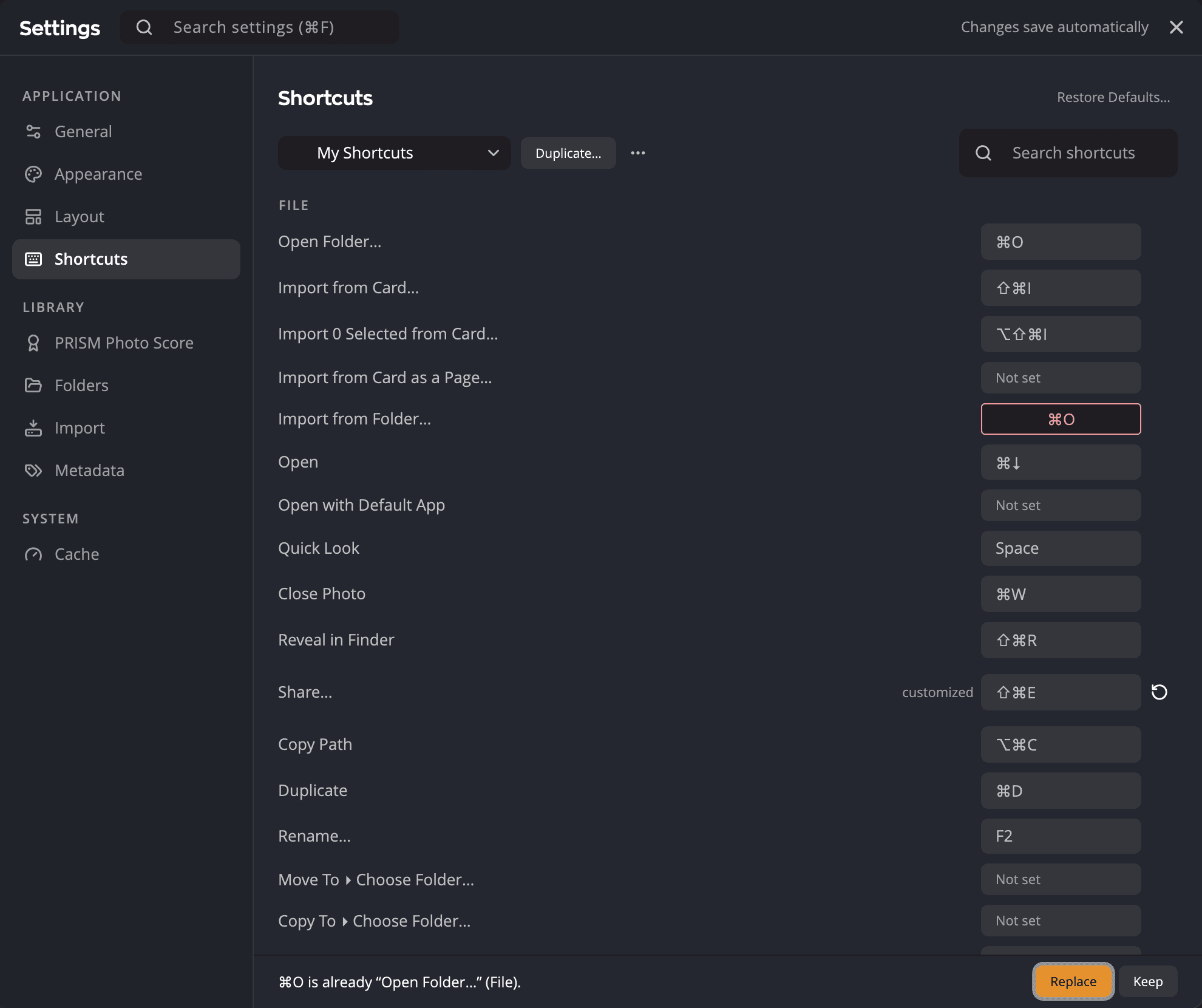
| # | Control | What it does |
|---|---|---|
| 1 | Set menu | Shows the active shortcut set and switches to another one. |
| 2 | Duplicate… | Copies the active set under a new name. |
| 3 | More set actions (⋯) | Rename…, Delete…, Import… and Export… for the active set. |
| 4 | Search shortcuts | Finds commands by name or by key. |
| 5 | Group heading | The menu or the place where the commands below work, such as File, Quick Look or Survey. |
| 6 | Shortcut cell | The command's keys, or Not set. Click it to record new keys. |
| 7 | customized | Marks a shortcut that differs from the default. |
| 8 | Reset | Puts that one shortcut back to its default. Its tooltip names the key, for example Reset to ⌘D. |
| 9 | Status strip | Shows a clash, a refused key, or how many shortcuts you have changed. |
| 10 | Restore Defaults… | Puts every shortcut in the active set back to Radiant Default. |
- Open Settings > Keyboard Shortcuts (⌘, on a Mac, Ctrl+, on Windows).
- Find the command. Type part of its name, or a key, in Search shortcuts.
- Click its shortcut cell. The cell reads Type shortcut….
- Press the new keys. To remove the shortcut, press Delete or Backspace on its own; the cell reads Not set.
If another command already uses the keys, the status strip says so, for example ⌘D is already “Duplicate” (File). Click Replace to move the keys to this command, or Keep to leave things as they were.
Flow refuses some keys and says why in the status strip:
- Keys that belong to macOS or Windows, which would never reach Radiant Flow.
- ⌘1–⌘9 (Alt+1–Alt+9 on Windows), which go to the sidebar sections.
- Keys a view needs for itself, such as the arrow keys in the grid, Esc and Tab.
A few commands show a padlock and Reserved by the system, for example Settings…. Their keys can't be changed.
Shortcut sets
A shortcut set is a named list of your changes. Flow ships with five locked sets. The last four follow the keys of another app, where Flow has the same command.
| Set | What it is |
|---|---|
| Radiant Default | The shortcuts listed in this topic. |
| Based on Aperture | Aperture's keys. 9 rejects, I shows the Metadata panel, F switches to the Stage, V steps to the next grid style and Z zooms to 100%. Blue and Purple have no label key in this set, and neither has Show Faces. |
| Based on Lightroom Classic | Lightroom Classic's Library keys. G switches to Grid, E to Single Photo, F to the Stage, and C opens Compare A ↔ B. O is Show Faces, Z is Toggle Zoom (Fit / 100%), and = and − make the thumbnails larger and smaller. Rotate Left and Rotate Right move to ⌘[ and ⌘] (Ctrl+[ and Ctrl+]). ⌘R (Ctrl+R) is Reveal in Finder, and Rescan moves to ⇧⌘R (Ctrl+Shift+R). On a Mac, Back and Forward move to ⌥⌘← and ⌥⌘→. Purple, Go to Eye and Fit have no key in this set. |
| Based on Photo Mechanic | Photo Mechanic's keys. T is Pick, − is Clear flag, and I shows the Metadata panel. E is Open with Default App, M is Rename…, and Y is Copy To > Choose Folder…. O switches to Single Photo, F to the Stage, and V opens Compare A ↔ B. Z is Toggle Zoom (Fit / 100%), and ⌘D (Ctrl+D) is Deselect All. Purple, Go to Eye, Show Faces, Fit and Duplicate have no key in this set. |
| Based on Capture One | Capture One's keys. F switches to the Stage, G stays Single Photo, . (period) is 100% and , (comma) is Fit. On a Mac, − is Red, and Rotate Left and Rotate Right move to ⌥⌘L and ⌥⌘R. ⌘B shows or hides the Stage Filmstrip, ⌘T is Hide Panels and ⇧F is Show Faces. On Windows, the set changes only F, period and comma. Next Frame in Burst and Previous Frame in Burst have no key in this set, and neither has Purple on a Mac or Show Faces on Windows. |
A locked set shows as Radiant Default (locked). You don't have to copy it first: your first change makes a new set called My Shortcuts. To start another set, choose Duplicate….
| Action | What it does |
|---|---|
| Duplicate… | Copies the active set, for example as My Shortcuts copy. |
| Rename… | Renames the active set. Not available for a locked set. |
| Delete… | Deletes the active set, after you confirm. Its shortcuts go back to Radiant Default. This cannot be undone. Not available for a locked set. |
| Export… | Saves the active set as a Radiant shortcut set file (.radiantkeys). |
| Import… | Reads a .radiantkeys file. Choose Import as New Set, or Replace “My Shortcuts” to replace the active set. |
When an imported set has keys Flow can't use, Flow lists them. Not in this app lists commands from another Radiant app that Flow doesn't have. Key not available here lists keys that are reserved or already taken.
Tip
Double-click a .radiantkeys file in Finder or File Explorer. Radiant Flow opens Settings > Keyboard Shortcuts and imports it.
Restore Defaults… sets every shortcut in your active set back to Radiant Default, and keeps the set. With one of the sets Flow ships active, such as Based on Aperture, it switches back to Radiant Default. While Radiant Default is active, there is nothing to restore.
Keys that change with the view
A few keys mean different things depending on what fills the window.
| Keys | While one photo fills the view | Everywhere else |
|---|---|---|
| ⌘1, ⌘2 (Ctrl+1, Ctrl+2) | 100% and 200% zoom | Mac: the first two sidebar sections. Windows: 1 Star and Up and 2 Stars and Up. |
| ⌘0 (Ctrl+0) | Toggle Zoom (Fit / 100%) | Mac: nothing. Windows: Clear all filters. |
| ⌘= and ⌘− (Ctrl+= and Ctrl+−) | Zoom In and Zoom Out | Larger Thumbnails and Smaller Thumbnails |
One photo fills the view in Single Photo and in Quick Look with one photo. In Compare, ⌘1, ⌘2, ⌘0, ⌘= and ⌘− (Ctrl+1, Ctrl+2, Ctrl+0, Ctrl+= and Ctrl+−) zoom too. In a Survey with four frames or fewer, they and Z zoom every frame at once.
\ and ⇧\ flip and alternate the two photos in Compare, and peek at another photo on the Stage and in Quick Look. On Windows, Alt+1 to Alt+4 pick Compare's view while Compare is open, and jump to the sidebar sections everywhere else.
On a Mac, ⌘1–⌘9 jump to the sidebar sections in their current order, and the rating filters use ⌃ (Control). On Windows, Alt+1–Alt+9 jump to the sidebar sections, and the rating filters share Ctrl+1 and Ctrl+2 with the zoom keys.
Default shortcuts
These are the shortcuts in Radiant Default. Mac keys come first; the Windows keys are in parentheses where they differ.
File
| Command | Keys |
|---|---|
| Open Folder… | ⌘O (Ctrl+O) |
| Import from Card… | ⇧⌘I (Ctrl+Shift+I) |
| Import 3 Selected from Card… (the number is how many photos you selected) | ⌥⇧⌘I (Ctrl+Shift+M) |
| Open | ⌘↓ (Ctrl+Down Arrow) |
| Quick Look | Space |
| Close Photo | ⌘W (Ctrl+W) |
| Reveal in Finder (Show in Explorer) | ⇧⌘R (Ctrl+Shift+R) |
| Copy Path | ⌥⌘C (Ctrl+Shift+C) |
| Duplicate | ⌘D (Ctrl+D) |
| Rename… | F2 |
| Move to Trash (Move to Recycle Bin) | ⌘⌫ (Ctrl+Backspace; also Delete and Ctrl+Delete) |
| New Folder… | ⇧⌘N (Ctrl+Shift+N) |
| New Job… | ⇧⌘J (Ctrl+Shift+J) |
| Rescan | ⌘R (Ctrl+R) |
Edit, Settings and Help
| Command | Keys |
|---|---|
| Undo | ⌘Z (Ctrl+Z) |
| Redo | ⇧⌘Z (Ctrl+Y, or Ctrl+Shift+Z) |
| Select All | ⌘A (Ctrl+A) |
| Deselect All | ⇧⌘A (Ctrl+Shift+A) |
| Filter (puts the cursor in the Filter box) | ⌘F (Ctrl+F) |
| Jump to the Keywords box in the Metadata panel | ⌘K (Ctrl+K) |
| Apply Default Card… | ⌥⌘K (Ctrl+Shift+H) |
| Settings… | ⌘, (Ctrl+,) |
| Personalize Radiant Flow… | Not set |
| Keyboard Shortcuts | ⌘/ (Ctrl+/) |
| Radiant Flow Help | ⇧⌘/ (F1) |
Settings… and Personalize Radiant Flow… are in the Radiant Flow menu on a Mac and at the end of the Edit menu on Windows. Personalize Radiant Flow… has no key until you give it one.
⌘K opens the Metadata panel and IPTC Core if they're closed. It's a fixed key, not listed in Keyboard Shortcuts, and it does nothing while Quick Look or Compare is open. If you give ⌘K to a command yourself, that command gets it.
Photo
These keys act on every selected photo. With one photo selected, hold ⇧ (Shift) with a rating, flag or label key to write it and move to the next photo.
| Command | Keys |
|---|---|
| Unrated, 1 star … 5 stars | 0, 1–5 |
| Pick | P |
| Clear flag | U |
| Reject | X |
| Red, Yellow, Green, Blue, Purple | 6, 7, 8, 9, − (minus) |
| No Label | ⌥⌘0 (Alt+0) |
| Rotate Left, Rotate Right | [ and ] |
| Pick This, Reject Rest of Burst (the photo you are on) | ⌥K (Alt+K) |
| Batch Rename… (two or more photos selected) | F2 |
| Organize… | ⇧F2 (Shift+F2) |
| Keyword Set Slot 1 to Keyword Set Slot 9 (in the grid) | ⌥1 to ⌥9 (Alt+Shift+1 to Alt+Shift+9) |
| Next Keyword Set, Previous Keyword Set (in the grid) | ⌥0, ⇧⌥0 (Alt+Shift+0, Alt+Shift+Minus) |
⇧[ and ⇧] move a photo earlier or later in its stack. They do not rotate and move on. See Stacks.
⌥⇧K (Alt+Shift+K) does what ⌥K does, then goes on to the next burst, except in Compare and a Survey. See Cull a burst.
The Keyword Set keys add or remove the keyword in that slot of the Keyword Set panel. On a Mac, ⌥1 to ⌥4 pick the Compare look while Compare is open.
View
| Command | Keys |
|---|---|
| Fluid, Grid, Square, List, Columns, Stage | ⌥⌘1 to ⌥⌘6 (Ctrl+Shift+F1 to Ctrl+Shift+F6) |
| Single Photo | G |
| Cycle Layout (the next grid style) | ⌥⇧⌘P (Ctrl+Shift+T) |
| 1 Star and Up … 5 Stars and Up | ⌃1 to ⌃5 (Ctrl+1 to Ctrl+5) |
| Exactly 1 Star … Exactly 5 Stars | ⌃⇧1 to ⌃⇧5 (Ctrl+Shift+1 to Ctrl+Shift+5) |
| Show Rejected Photos | ⌃⇧X (Ctrl+Shift+X) |
| Clear all filters | ⌃0 (Ctrl+0) |
| Include Subfolders | ⌥⌘S (Ctrl+Shift+S) |
| Sidebar (only while an import window is in front; it hides that window's folder tree) | ⌃⌘S (Ctrl+B) |
| Metadata | ⌘I (Ctrl+I) |
| Switch to Caption Layout, Switch to Cull Layout (the Info panel's two saved layouts; Switch Info Panel Layout in Settings > Keyboard Shortcuts) | ⌥⌘I (Ctrl+Shift+L) |
| Filter Row | ⇧⌘F (Ctrl+Shift+F) |
| Focus Points | ⌥J (Alt+J) |
| Focus Peaking | ⇧J (Shift+J) |
| Clipping Warnings (on the Stage, in Quick Look and Survey, and in Compare) | J |
| Cycle Focus Mask Channels | ⌥⌘J (Ctrl+Shift+Q) |
| Go to Eye (on the Stage, in Quick Look and Survey, and in Compare) | E |
| Show Faces (on the Stage) | F |
| Rank Burst by Score (on the Stage, in Compare and on a burst's Survey table) | R |
| Survey This Burst (on the grid, on the Stage and in Quick Look with one photo) | ⇧Space (Shift+Space) |
| Hide Panels | ⌥⇥ (Ctrl+Tab) |
| Hide Panels and Filmstrip | ⌥⇧⇥ (Ctrl+Shift+Tab) |
| Picks Strip | ⌃⌘D (Ctrl+Shift+D) |
| Compare A ↔ B | K |
| Compare Look > Blink, Side by Side, Wipe, Ghost (in Compare) | ⌥1 to ⌥4 (Alt+1 to Alt+4) |
| Compare Look > Difference (in Compare) | Not set |
| Flip Frames (in Compare) | \ (backslash) |
| Alternate Frames (in Compare) | ⇧\ (Shift+\) |
| Peek at Previous Photo (on the Stage and in Quick Look) | \ (backslash) |
| Peek at Compare Frame (on the Stage and in Quick Look) | ⇧\ (Shift+\) |
| Set as Compare Frame | ⇧K (Shift+K) |
| Lights Out (on the Stage, in Quick Look and Survey, and in Compare) | ⌥L (Alt+L) |
| Magnifier | ` (the key left of 1) |
| Move Magnifier to Other Frame (in Compare) | ⇧` (Shift+`) |
| Set Match Point at Magnifier (in Compare) | M |
| Clear Match Points (in Compare) | Not set |
| Scopes > Show Scopes on Photo | ⌃⌘G (Not set on Windows) |
| Scopes > Show Scopes Window | ⌃⌘W (Ctrl+Shift+U) |
| Scopes > Link with Photo, Pin as Reference, Clear Reference | Not set |
| Jobs | ⌘J (Ctrl+J) |
| Larger Thumbnails, Smaller Thumbnails | ⌘= and ⌘− (Ctrl+= and Ctrl+−) |
| Zoom In, Zoom Out | ⌘= and ⌘− (Ctrl+= and Ctrl+−) |
| Toggle Zoom (Fit / 100%) | ⌘0 (Ctrl+0) |
| Fit | Z |
| Fill | ⇧Z (Shift+Z) |
| 100% | ⌘1 (Ctrl+1) |
| 200% | ⌘2 (Ctrl+2) |
| Enter Full Screen (Full Screen) | ⌃⌘F (F11) |
The zoom rows work while one photo fills the view, in Compare all but Fit and Fill, and in a Survey of four frames or fewer all but Fill. See Keys that change with the view.
` is the key left of 1 on any keyboard. On a Mac, the menus and Keyboard Shortcuts show it as your keyboard
types it, for example ^ on a German keyboard or § on a British one. On Windows they show `.
On the grid, Go to Eye, Clipping Warnings, Show Faces and Rank Burst by Score are grayed. Cycle Focus Mask Channels is Ctrl+Shift+Q on Windows, not Ctrl+Shift+J, which is New Job…; in a text field it does nothing. See Focus peaking and clipping warnings, The face row and Go eye to eye.
The Scopes keys are Radiant Photo's and Radiant Raw's. On Windows, Show Scopes on Photo has no key in Flow, because Ctrl+Shift+G is Ungroup here. See Scopes on Photo and the Scopes window.
Go
| Command | Keys |
|---|---|
| Back | ⌘[ (Alt+Left Arrow) |
| Forward | ⌘] (Alt+Right Arrow) |
| Enclosing Folder | ⌘↑ (Alt+Up Arrow, or Backspace) |
| Next Burst, Previous Burst | ⌥⌘→ and ⌥⌘← (Ctrl+Shift+Right Arrow and Ctrl+Shift+Left Arrow) |
| Next Burst Without a Pick, Previous Burst Without a Pick | ⌥⌘↓ and ⌥⌘↑ (Ctrl+Shift+Down Arrow and Ctrl+Shift+Up Arrow) |
| Next Frame in Burst, Previous Frame in Burst | . (period) and , (comma) |
| Next Photo, Keep Zoom, Previous Photo, Keep Zoom | ⌘→ and ⌘← (Ctrl+Right Arrow and Ctrl+Left Arrow) |
| Last Marked Photo | B |
| Sidebar sections, in their current order | ⌘1 to ⌘9 (Alt+1 to Alt+9) |
The burst jumps and Last Marked Photo work on the grid, on the Stage and in Quick Look with one photo. Period and comma work on the Stage, in Quick Look with one photo and in Compare. The keep-zoom rows work on the Stage and in Quick Look with one photo. See Cull a burst.
Quick Look and Survey
Press Space to open Quick Look. With one photo selected it fills the window; with several it opens a Survey.
| Command | Where | Keys |
|---|---|---|
| Open in Radiant Photo | Quick Look | ↩ (Enter) |
| Next Photo | Quick Look | → (Right Arrow) |
| Previous Photo | Quick Look | ← (Left Arrow) |
| Cycle Info | Quick Look | D |
| Magnifier | Survey | L, again to fill the frames, a third time to turn the lenses off |
| Focus Peaking | Survey | ⇧L (Shift+L) |
| Drop from Survey | Survey | ⌫ (Backspace) |
| Drop Eyes Closed | Survey | ⇧⌫ (Shift+Backspace) |
Fixed keys: Esc or Space closes Quick Look. In a Survey, the arrow keys move between photos, and Esc brings zoomed frames back to fit, then turns the lenses off, then closes it. Open in Radiant Photo names the app that Open uses. See Quick Look and Survey.
Stage
| Command | Keys |
|---|---|
| Stage Filmstrip | ⇧⌘Space (Ctrl+Shift+Space) |
| Magnifier: Snap Aim to Eye (with the Magnifier up, on the Stage, in Quick Look and in Compare) | ⇧E (Shift+E) |
Fixed keys on the Stage: the arrow keys, Home and End move between photos. ↩ (Enter) opens the photo. Space and Esc are fixed too. At Fit, a two-finger swipe steps to the next or previous photo. See Single Photo, Stage and Compare.
Face row
While the face row holds the keyboard on the Stage, these keys are fixed:
| Command | Keys |
|---|---|
| Previous or Next Face | ← → |
| Zoom to This Face | Space |
| Previous or Next Photo | ↑ ↓ |
| First or last face | Home, End |
| Close the row | Esc |
See The face row.
Stacks
These are in View > Stacks.
| Command | Keys |
|---|---|
| Group as Stack | ⌘G (Ctrl+G) |
| Ungroup | ⇧⌘G (Ctrl+Shift+G) |
| Open Stack / Close Stack | S |
| Open All Stacks | ⌥S (Alt+S) |
| Set as Stack Cover | ⇧S (Shift+S) |
| Move Earlier in Stack | ⇧[ (Shift+[) |
| Move Later in Stack | ⇧] (Shift+]) |
See Stacks.
Esc
Esc does one thing at a time, closest first. It cancels a drag, then brings a Survey's zoomed frames back to fit and turns its lenses off, then closes Quick Look or a Survey, then removes the Magnifier from a tile, then leaves the Stage. With nothing else open, it clears the selection.
In Compare, Esc first stops Alternate Frames, then puts the Magnifier away, then returns from a flip to the frame you flipped from. On the Stage, it first ends a peek at another photo, then closes the face row. With Lights Out on, each press brings the lights back one step before Esc leaves the Stage.
The Magnifier and the column dividers have a few more keys of their own. See Checking focus and Grid styles and thumbnails.