
Sorting and grouping
Sorting sets the order of the photos in the grid. Grouping splits them into runs by year, month, day or folder, each under its own header. Both are in View > Sort by, and in the Sort pop-up in the bottom bar.
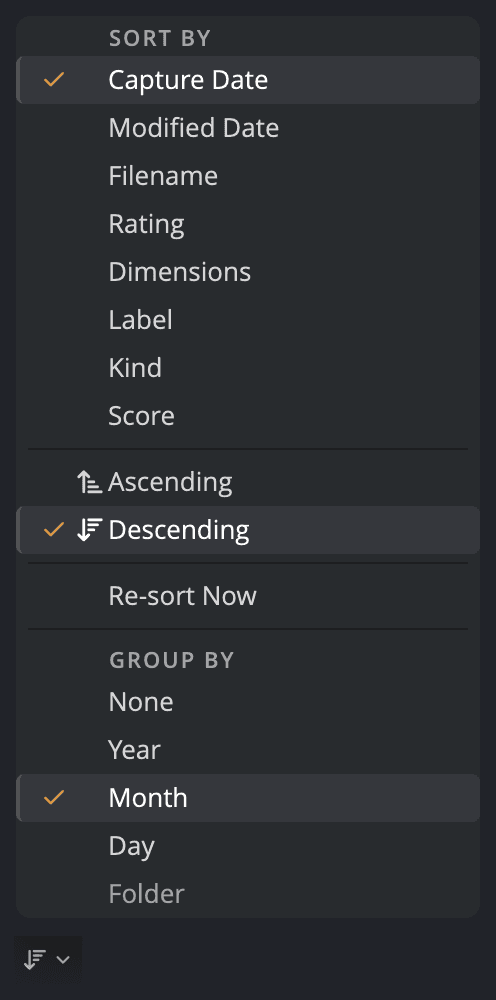
| # | Control | What it does |
|---|---|---|
| 1 | Sort fields | Choose what the grid is ordered by. The checked row is the current sort. |
| 2 | Ascending / Descending | Choose the direction. |
| 3 | Re-sort Now | Moves photos you rated or labeled since the last sort to their new place. |
| 4 | Group By | Splits the grid into groups, each with a header you can fold. |
Choose a sort order
- Choose View > Sort by, or click the Sort pop-up in the bottom bar.
- Choose a field.
- Choose Ascending or Descending if you want the other direction.
The pop-up in the bottom bar has the same rows as the menu. Its arrow shows the current direction, and its tooltip names the sort, for example "Sort by Capture Date, descending".
| Field | Sorts by |
|---|---|
| Capture Date | When the photo was taken. |
| Modified Date | When the file last changed on disk. |
| Filename | The file name. |
| Rating | The star rating. |
| Dimensions | The pixel count. A 6000 × 4000 frame and a 4000 × 6000 frame sort together. |
| Label | The color label: red, yellow, green, blue and purple, then any other label name. |
| Kind | The file type: raw files, JPEG, HEIC, AVIF, JPEG XL, PSD and TIFF, then any other type, such as PNG. |
| Score | The PRISM Photo Score. See PRISM Photo Score. |
A new window sorts by Capture Date, Ascending: oldest first.
Which way a field starts
The first time you choose a field, Filename starts Ascending, so A comes first. Every other field starts Descending: newest, highest rated or largest first.
After that, Flow remembers the direction you last used for each field. Choose the field that is already checked to reverse it.
Note
Photos with no value for the field stay at the end in both directions. That means photos with no capture date, rating, label, measured size or score. While Flow is still reading a new folder, many photos can wait there for a moment. When Flow has read them, it moves them into place and keeps the photos you were looking at on screen.
Re-sort after rating
When you sort by Rating or Label, a photo you rate or label stays where it is. The grid doesn't jump while you cull.
To put the photos in their new order, choose View > Sort by > Re-sort Now. Choosing the direction row that is already checked does the same. Flow also re-sorts when you open another folder or change the sort.
Tip
Re-sort Now has no key of its own. You can give it one in Settings > Keyboard Shortcuts.
Group photos
Choose View > Sort by > Group By, then a grouping.
| Group By | What you get |
|---|---|
| None | No groups. This is the default. |
| Year | One group per year the photos were taken. |
| Month | One group per month. |
| Day | One group per day. The header shows the weekday and the date. |
| Folder | One group per folder, in the order the sidebar lists them. |
Year, Month and Day always group by capture date, whatever the sort field. The sort field orders the photos inside each group. Photos with no capture date go in a last group called No date.
Descending turns the groups over too, so the newest year or the last folder comes first.
Fold a group
Each group starts with a header that names the year, month, day or folder.
- Click a header to fold its group to a single line. Click it again to unfold it.
- ⌥-click (Alt-click on Windows) a header to fold or unfold every group at once.
Flow remembers which groups you folded, even after you quit.
When Folder is gray
Folder needs photos from more than one folder. The row is gray, and says why, when it can't be used:
- In a single folder, it reads Turn on Include Subfolders to group by folder.
- In Apple Photos, it reads Apple Photos has no folder tree, so there are no folders to group by.
A Job holds photos from many folders, so Folder works there without Include Subfolders. If you turn Include Subfolders off, Flow keeps your choice and groups by folder again when you turn it back on.
Sort in List view
In List view, click a column header to sort by that column. Click it again to reverse the order. The column the grid is sorted by shows an arrow.
These columns sort: Filename, Capture Date, Time, Modified Date, Rating, Label, Kind, Size, Dimensions, Megapixels and PRISM Photo Score. Size sorts by file size, and only the List header offers it.
A header click and the Sort menu are the same sort, so the menu's check mark follows your click.
Where sorting works differently
- Columns always lists everything by name, the way the Finder or File Explorer does. The Sort rows are gray there, and say To sort another way, leave Columns.
- Apple Photos, Aperture libraries and Lightroom Classic catalogs hand photos over in one fixed order, so the sort fields are gray. In Apple Photos the rows say Apple Photos returns one fixed order, so the sort field cannot change.
- Jobs add one more field, Job order: the order you added the photos in. In a Job it takes the place of Capture Date, so a Job opens in Job order unless you sorted by another field. It starts Ascending. See Jobs.
Flow remembers your sort and grouping between sessions. Every folder shares one setting. Apple Photos, Aperture libraries and Lightroom catalogs each keep their own.