
Color Grading and Looks
The Color Grading section gives your photo a creative style with a Look: a film stock, a black-and-white treatment or a color grade. It's on the Adjustments page of the right panel. Press L to open it.
Color correction fixes problems such as tint and weak color. Color grading is creative: it changes color and tone to set a mood. Correct the photo first, with a recipe or your own edits, then add a Look as a finishing step.
Choose a Look
- Click the Look row. The Look Browser opens beside the panel.
- Choose a collection on the left, or type in Search Looks to search every collection.
- Point at a tile. The photo on the canvas previews that Look.
- Click the tile to apply it. Double-click to apply it and close the browser.
Each tile shows your own photo through that Look, so you can judge it before you apply it. Press Esc to close the browser. To remove the Look, choose the None tile.

| # | In the list | What it shows |
|---|---|---|
| 1 | All | Every Look. |
| 2 | Recently used | The Looks you applied last. |
| 3 | Favorites | The Looks you marked Favorite. |
| 4 | A collection | The Looks in one collection. |
| 5 | My Looks | The Looks you loaded yourself. |
| 6 | More Looks | Looks from the Store you don't own yet. Click one to open it in the Store. |
A Suggested by PRISM row above the tiles offers Looks that suit this photo. It works when Radiant Flow is installed and PRISM Photo Score is on. Otherwise the row says why.
Adjust the Look
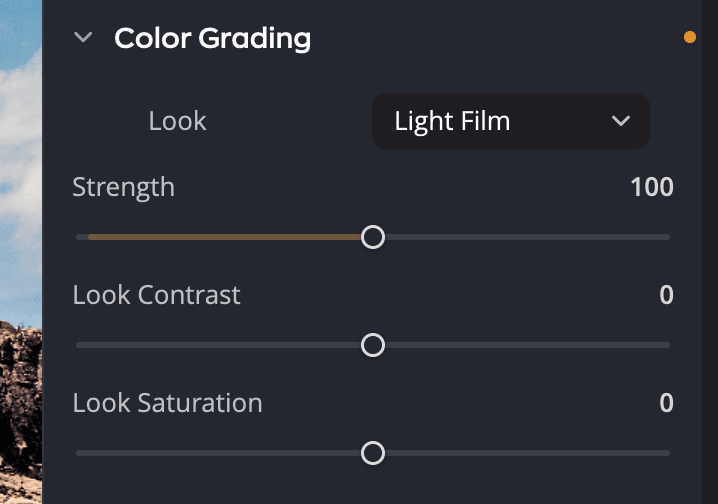
| # | Control | Range | What it does |
|---|---|---|---|
| 1 | Look | Names the applied Look. Click it to open the Look Browser. | |
| 2 | Strength | 0 to 200 | How strongly the Look applies. A Look starts at 75; a black-and-white Look starts at 100. |
| 3 | Look Contrast | −100 to +100 (default 0) | Adds or removes the contrast the Look brings. |
| 4 | Look Saturation | −100 to +100 (default 0) | Adds or removes the Look's color. At −100 even a color Look turns black and white. |
The sliders stay grayed out until you choose a Look. Double-click Strength to return it to the Look's own starting value.
When you switch from one Look to another, all three sliders keep their values. That makes it easy to try many Looks at the strength you like.
To start over, point at the Color Grading header and click Reset Color Grading. This removes the Look and returns the sliders to their defaults.
Tip
The Color Grade slider in the top toolbar appears while a Look is applied, when the window is wide enough. It's the same setting as Strength, so you can adjust the Look without opening the panel.
A Look is saved with the rest of your adjustments. Save a recipe, and its Look comes with it.
Browse in the Looks Showcase
For a bigger view, click Looks showcase in the right panel's rail. The Looks Showcase replaces the panel with a large preview of your photo and every Look in big tiles below it.
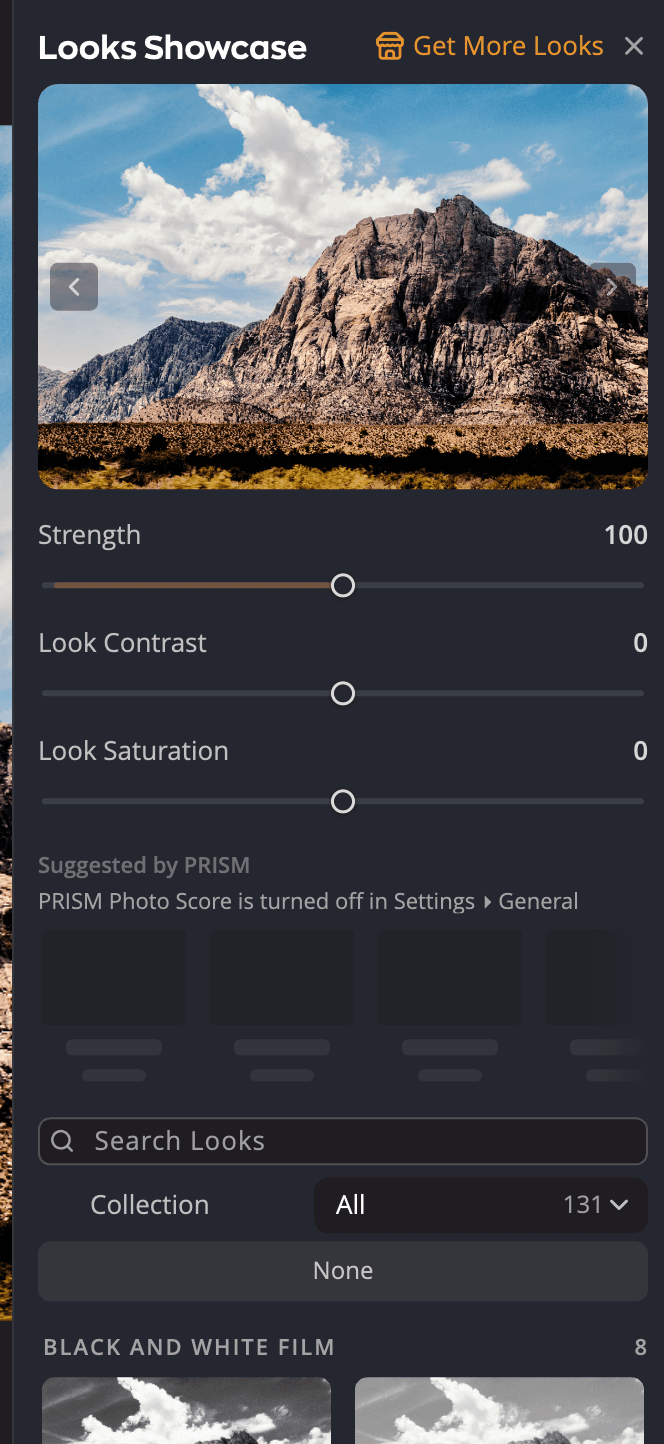
- Point at a tile to preview it in the large image. Click to apply it.
- Use Previous Look and Next Look to step through Looks one by one.
- Strength, Look Contrast and Look Saturation sit under the preview, as in the panel.
- Search Looks and the collection menu work as in the Look Browser.
Click Close showcase to return to the panel.
Add your own Looks
You can turn a lookup table into a Look.
- Open the Look Browser.
- Click Load Lookup Table… at the end of the My Looks group.
- Choose one or more files. Radiant Photo reads
.cube,.3dl,.lut,.m3d,.mga,.itx,.davlutand.datfiles.
The new Looks appear in My Looks. While the browser is open, you can also drag .cube files onto the window
to add them.
Right-click a Look in My Looks to rename it or file it in a collection of your own. The same menu shows its file with Reveal in Finder (Show in Explorer on Windows) and removes it with Move to Trash (Move to Recycle Bin on Windows).
Get more Looks
Click Get More Looks at the top of the Look Browser or in the Looks Showcase. The Store opens at its Looks section.
If a Look came from an All-Access subscription that has ended, its tile is locked and Radiant Photo won't apply it. The message Part of a lapsed rental explains why. Click Renew to open your library in the Store.