
The Develop and Color Grade sliders
The Develop and Color Grade sliders scale your whole edit with one move. They're made for a final pass: a little more or a little less of what Radiant Photo already did. You'll find them at the right of the top toolbar.

| # | Control | Range | What it does |
|---|---|---|---|
| 1 | Develop | 0 to 200 (default 100) | Strengthens or softens the automatic corrections together |
| 2 | Develop value | The current position. 100 means no change. | |
| 3 | Color Grade | 0 to 200 | The strength of the applied Look |
| 4 | Color Grade value | The same number as Strength in the Color Grading panel |
Develop
Drag Develop left to soften the edit, or right to strengthen it. At 0, the corrections it controls fade away completely. At 200, some reach their full strength, such as Enhance. Others go only part of the way, each by its own amount. Double-click the slider to put it back at 100.
Develop moves these corrections together:
- Enhance in Smart Editing
- The automatic Tone tools
- The Color tools, including Sky Toning and Foliage Toning
- Skin Tone correction
- Sharpening and Noise Reduction in Details
It doesn't move Effects, the portrait tools, Color in Smart Editing, the Look, or the sliders in Finishing Tools.
Above 100, tools that can shift colors stay where they are. Only the fade side moves them. That keeps skin and skies from turning an odd color when you push hard.
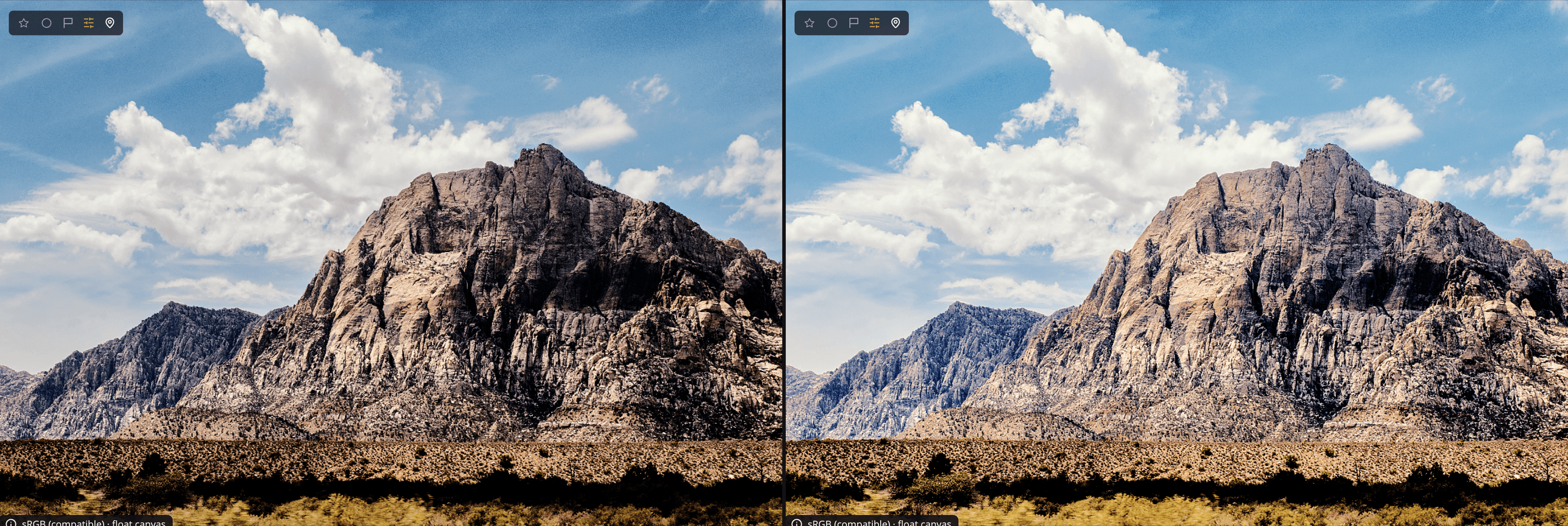
When you edit a tool by hand
If you change a tool after moving Develop, the slider stays where it is. That position becomes the new starting point, so moving Develop from there scales your new edit. The ends don't change: 0 always fades fully, and 200 is always the strongest setting.
Make the slider gentler
In Settings > General, Develop slider has a Gentleness setting from 1.0 to 3.0 (default 1.8). Higher values ease the middle of the slider for finer control. The ends stay the same.
Color Grade
Color Grade appears only while a Look is applied to the photo. It sets the Look's strength, the same value as Strength in the Color Grading panel.
- A Look starts at 75. A black-and-white Look starts at 100.
- Drag left to weaken the Look, or right to strengthen it, up to 200.
- Double-click the slider to go back to the Look's starting strength.
When the window gets narrow, Color Grade folds away first. Develop always stays.
Tip
Set the photo up the way you like it, then use Develop last. Press Space and hold to compare with the original as you go.