
Makeup
The Makeup tools even out and warm the skin with foundation toning, and add color to the cheeks with blush. You'll find Makeup in the right panel, below Skin (press M).
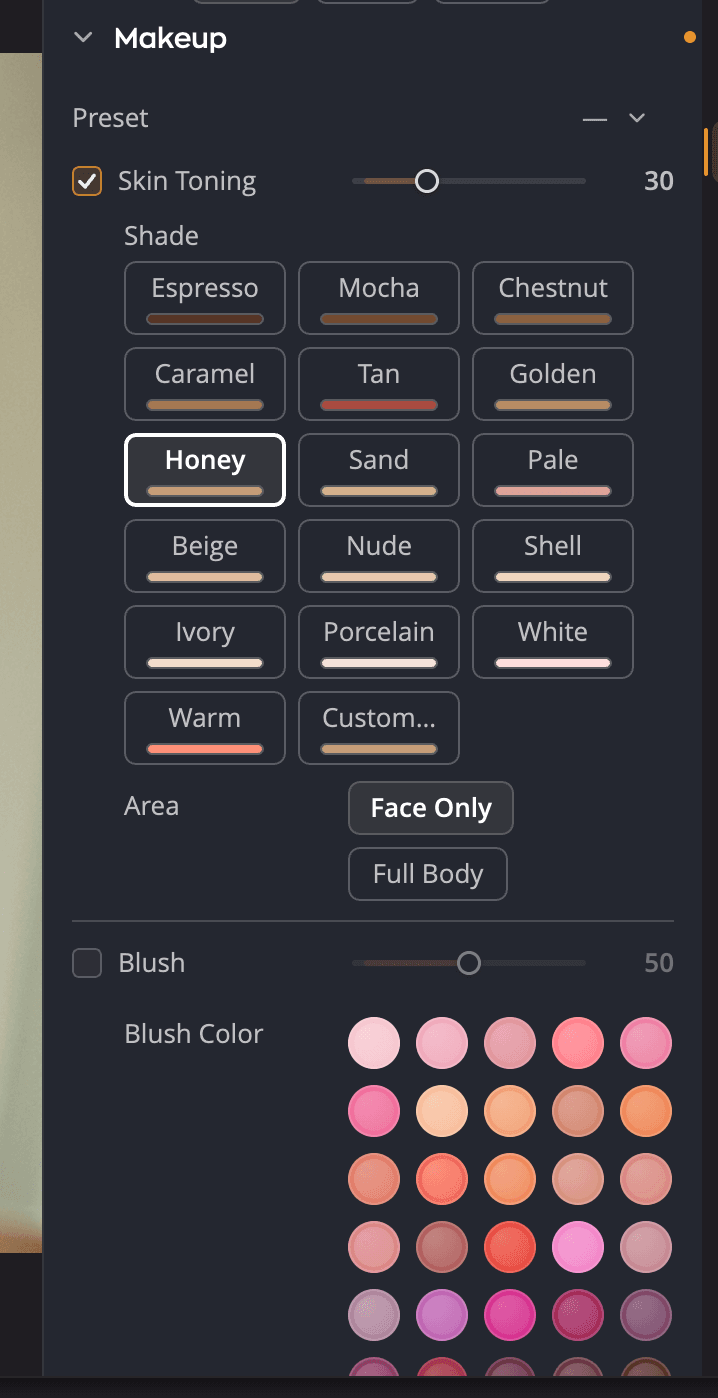
| # | Control | Range (default) | What it does |
|---|---|---|---|
| 1 | Preset | Your saved Makeup presets | Applies a saved combination of all Makeup settings. |
| 2 | Skin Toning | 0 to 100 (25) | How strongly foundation toning is applied to skin. |
| 3 | Shade | 16 shades and Custom… | The foundation color. |
| 4 | Area | Face Only, Full Body | Which skin the toning covers. |
| 5 | Blush | 0 to 100 (50) | How strongly blush color is applied to cheeks. |
| 6 | Blush Color | 36 colors and Custom… | The blush color. |
Dragging a slider turns its tool on. Picking a shade or a blush color also turns its tool on, so you see the result right away.
Tone the skin
Skin Toning works like a light foundation. It evens out skin color and can make skin paler, warmer or more tanned.
- Pick a Shade. Hold the pointer over a shade to see a short description, such as Fairest, cool.
- Choose Face Only to tone just the faces, or Full Body to tone all visible skin.
- Adjust Skin Toning until the skin looks even and natural.
The shades run from darkest to lightest. Four of them, White, Pale, Warm and Tan, adapt their toning to each photo. The other twelve, from Espresso to Porcelain, apply a fixed color.
To use your own color, click Custom… and pick a color.
Add blush
Blush warms the cheeks.
- Pick a Blush Color. The colors are grouped in families: pinks, peaches and corals, roses and reds, orchids and mauves, berries and wines, earths and bronzes. Each family runs from light to deep.
- Adjust Blush for the strength.
Hold the pointer over a color to see its name, such as Peach or Blush 3. For a color of your own, click Custom… at the end of the list.
Save your own colors
Custom… opens a color picker. When you find a color you like, save it to the picker's shelf and give it a name in the Save color dialog. Saved colors are kept for next time. Foundation shades and blush colors each have their own shelf.
Save a Makeup preset
A Makeup preset keeps every setting in this section: the shade, the area, the blush color and both amounts.
- Set up Makeup the way you like it.
- Open the Preset menu and choose Save preset…. Name the preset.
The Preset menu also has Rename…, Delete…, Export… and Import…. Makeup presets are .makeup
files, so you can bring over the ones you made in Radiant Photo 2. No Makeup presets come with the app.
Turn Makeup off, or reset it
Click the eye icon in the Makeup header to turn the section off and compare. The header's reset button (Reset Makeup) turns both tools off and puts the shade back to Warm with Full Body.