
Saving your edits
When your photos look right, save them as new files with your edits applied. Radiant Photo never changes your original photo. It writes a new JPEG, TIFF or PNG next to the original or in a folder you choose.
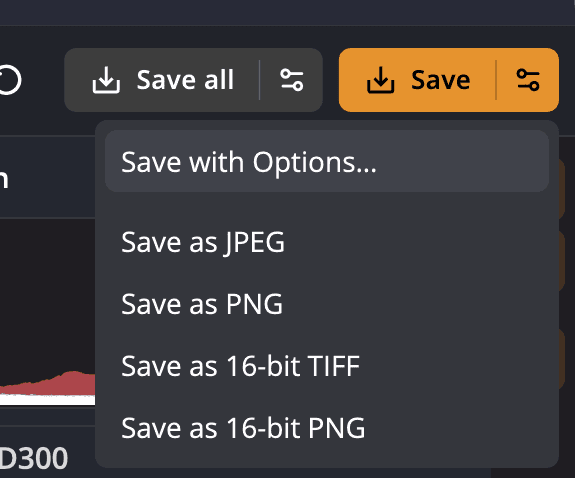
| # | Control | What it does |
|---|---|---|
| 1 | Save all | Saves every open photo. Opens the Save dialog first. |
| 2 | Options arrow on Save all | Save all with Options…, Save all as JPEG, Save all as PNG |
| 3 | Save | Saves the photo you're looking at, with your last Save settings. |
| 4 | Options arrow on Save | Save with Options…, Save as JPEG, Save as PNG, Save as 16-bit TIFF, Save as 16-bit PNG |
Save the photo you're looking at
- Click Save in the top toolbar, or press ⌘S (Ctrl+S on Windows).
- The first time you save, the Save dialog opens. Choose your settings and click Save.
From then on, Save repeats your last Save dialog settings without asking. Hold the pointer over the button to see them, for example "Save — JPEG q91 · same folder". File > Export (⌘E, Ctrl+E on Windows) does exactly the same thing as File > Save.
Change the settings
To choose new settings, open the Save dialog with any of these:
- Click the options arrow on Save and choose Save with Options…
- Choose File > Save with Options…
- Press ⇧⌘S (Ctrl+Shift+S on Windows)
The settings you choose become the new settings for Save. See The Save dialog for every option.
The same menu has four one-time formats: Save as JPEG, Save as PNG, Save as 16-bit TIFF and Save as 16-bit PNG. Each one changes only the file type for this save and keeps the rest of your last settings. A JPEG is always 8-bit.
Save every open photo
Save all is available when more than one photo is open.
- Click Save all, choose File > Save All…, or press ⌥⌘S (Ctrl+Shift+A on Windows).
- The Save dialog opens for all the photos. Choose your settings and click Save.
Radiant Photo saves the photos one by one and shows the progress. Each photo is saved with its own edits.
When Selects is on, the button reads Save Selects and saves only the photos in Selects. If that leaves some open photos out, Radiant Photo asks Save the photos in Selects? before it starts.
Save all as JPEG and Save all as PNG skip the dialog. They use the export defaults in Settings > Files, plus the subfolder choice from your last Save.
In a narrow window, the Save all button moves into the options arrow on Save. Save all, Save all as JPEG and Save all as PNG then sit at the bottom of that menu. File > Save All… and ⌥⌘S still work.
A photo from Apple Photos
A photo you opened from Apple Photos, with Image > Edit With > Radiant Photo or the extension's Edit in Radiant Photo…, goes back with Done, so the save commands are off for it. While it's on screen, the toolbar leaves out Save and Save all, and File > Save and the other save rows are grayed. Save All… stays grayed as long as that photo is open. See Using Radiant Photo with Apple Photos.
Your original stays safe
- Radiant Photo won't save over the original photo. If your settings would do that, it stops and says That would overwrite the original photo. Change the name, the folder, or how existing files are handled.
- Every save also stores the photo's develop settings next to it, so you can come back and change the edit later. See Saving develop settings beside your photos.
- The pixel dimensions stay the same unless you choose Reduce size in the Save dialog.
- The new file keeps the original's resolution (pixels per inch). When the original has none, the new file gets 300 ppi.
Tip
To send a photo somewhere without saving a file first, use the Share panel: Copy to Clipboard, Share via… or Print…. See Sharing and printing.