
SafeShare: removing private metadata
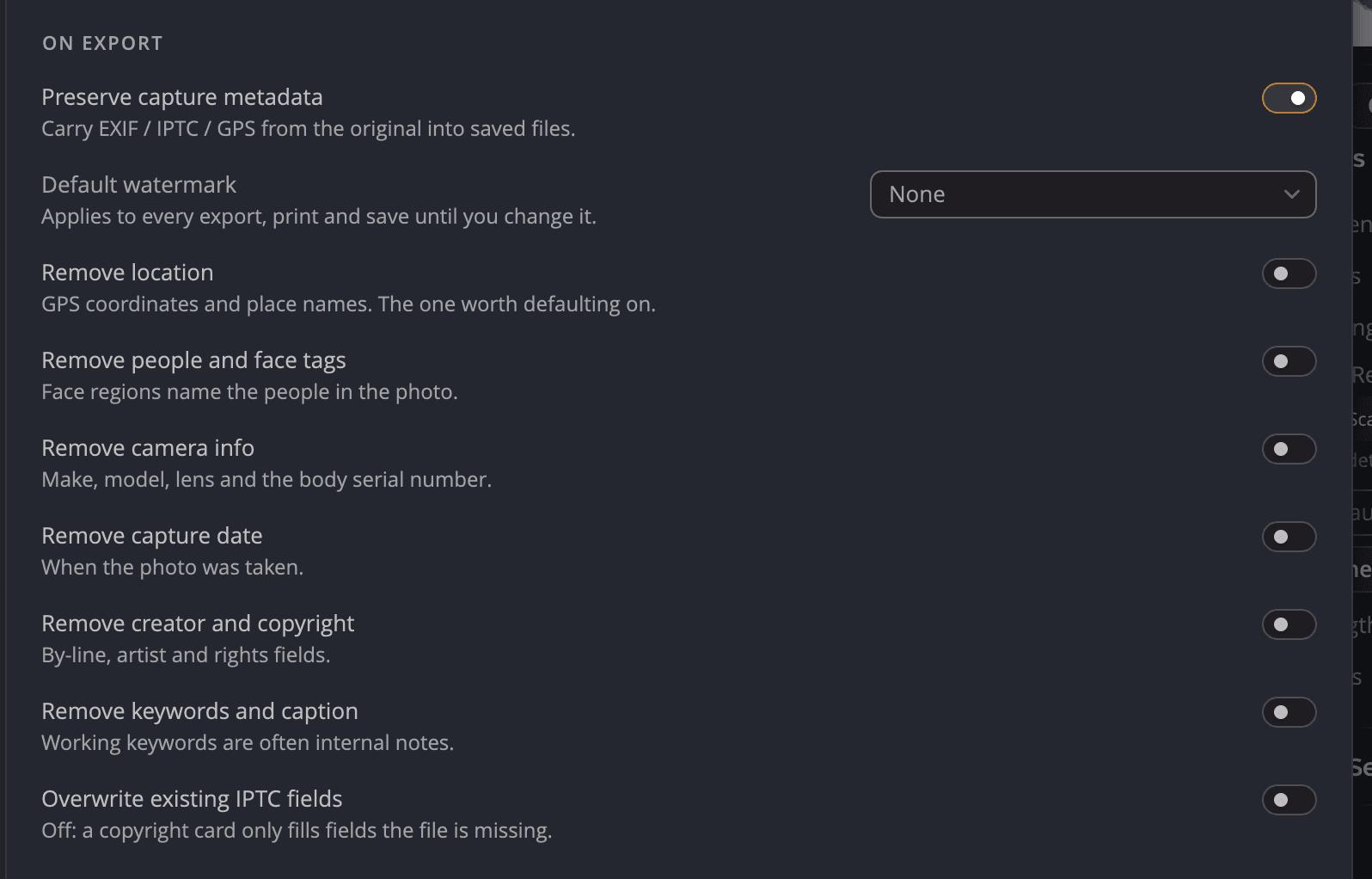
SafeShare removes private details from the photos you save and share, such as where you were and which camera you own. Your original files are never changed. You'll find it in Settings > Metadata, under On export.
Why it matters
A photo carries more than pixels. Its metadata can hold the GPS position of your home and the serial number of your camera. It can also name the people in it, or carry keywords you meant only for yourself. SafeShare lets you keep the useful parts, like your copyright, and drop the rest.
Choose what to remove
- Open Settings (⌘, on Mac, Ctrl+, on Windows) and click Metadata.
- Make sure Preserve capture metadata is on. The removal switches appear under it.
- Turn on each kind of detail you want removed.
| # | Control | Default | What it does |
|---|---|---|---|
| 1 | Preserve capture metadata | On | Carries EXIF, IPTC and GPS from the original into saved files. Off: nothing carries over. On Windows this needs ExifTool; see Camera maker notes and ExifTool. |
| 2 | Remove location | Off | A removal switch: it removes one kind of detail and keeps everything else. See the next table. |
| 3 | Remove people and face tags | Off | Another removal switch. |
| 4 | The other removal switches | Off | Camera info, capture date, creator and copyright, keywords and caption. |
| 5 | Overwrite existing IPTC fields | Off | Lets your copyright card replace values a photo already has. |
| Switch | What it removes |
|---|---|
| Remove location | GPS coordinates with their altitude and direction, and place names. |
| Remove people and face tags | Face regions that name the people in the photo. |
| Remove camera info | Make, model, lens and the body serial number. |
| Remove capture date | When the photo was taken. |
| Remove creator and copyright | By-line, artist and rights fields. |
| Remove keywords and caption | Keywords, caption and title. Working keywords are often internal notes. |
Each detail is removed from every place a file can hold it: EXIF, IPTC, TIFF and XMP. A photo that looks clean in one app is clean in the others too. The color profile always stays, so colors stay correct.
Tip
If you share photos online, turn on Remove location. It's the detail that can do the most harm and costs you nothing to leave out.
Where SafeShare applies
Your choices apply to every copy Radiant Photo writes: Save, Save All…, Save with Options…, Batch Export…, Share via…, Copy to Clipboard, Print…, Save to Apple Photos and Add to Photos. Your originals and their settings files are never changed.
Your copyright card and SafeShare
A default copyright card is a deliberate statement, so its creator and rights fields are always written, even with Remove creator and copyright on. Its place names are left out while Remove location is on. A card never writes GPS coordinates.
Turn off all capture metadata
Turn off Preserve capture metadata to save photos with no capture metadata at all. The removal switches hide, because everything is removed.
Note
Restore Defaults… on the Metadata pane keeps Preserve capture metadata, your SafeShare removal choices and your default watermark. Resetting them could put more of your data into your files.