
Eyes
The Eyes tools brighten and sharpen eyes, enlarge them a little, soften dark circles and add a catchlight. They're some of the most effective tools for photos of people. You'll find Eyes in the right panel, below Face Selection (press E).
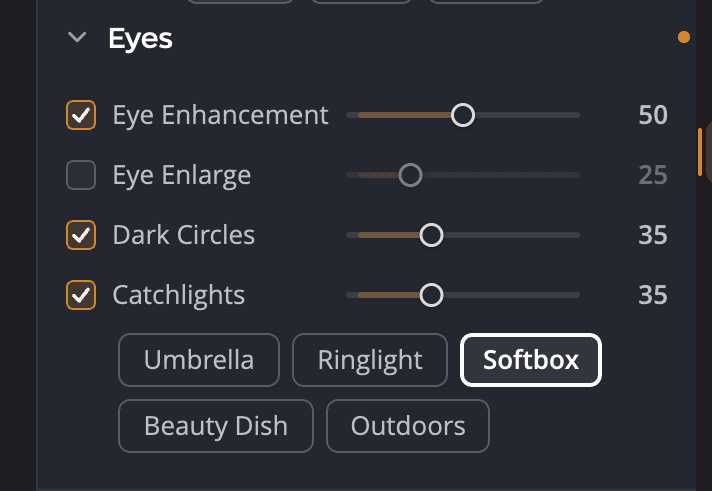
| # | Control | Range (default) | What it does |
|---|---|---|---|
| 1 | Eye Enhancement | 0 to 100 (50) | Brightens and sharpens the eyes without changing the rest of the face. |
| 2 | Eye Enlarge | 0 to 100 (5) | Enlarges the eyes realistically. |
| 3 | Dark Circles | 0 to 100 (35) | Reduces dark circles under the eyes and keeps the fine detail around them. |
| 4 | Catchlights | 0 to 100 (35) | Adds a reflected light to each pupil. |
| 5 | Catchlight style | Umbrella, Ringlight, Softbox, Beauty Dish, Outdoors | The shape of the reflected light. |
Each tool has its own checkbox. Dragging a slider turns its tool on. Double-click a slider to put it back at its default.
How the values work
The eye tools adapt to each face. A value of 50 is the amount Radiant Photo recommends for that face. The same setting can be a little stronger for one person and a little gentler for another. Move a slider up for more, or down for less.
Brighten the eyes
Eye Enhancement brightens and sharpens eyes without distorting anything else in the photo. Start at the default and adjust while you look at the eyes at 100%.
Enlarge the eyes
Eye Enlarge finds the eyes and makes them slightly larger. Small values look natural. Large values are easy to notice, so use them with care.
Reduce dark circles
Dark Circles freshens tired eyes. It separates the circles from the natural detail around the eyes, so lashes and lids stay sharp.
Add catchlights
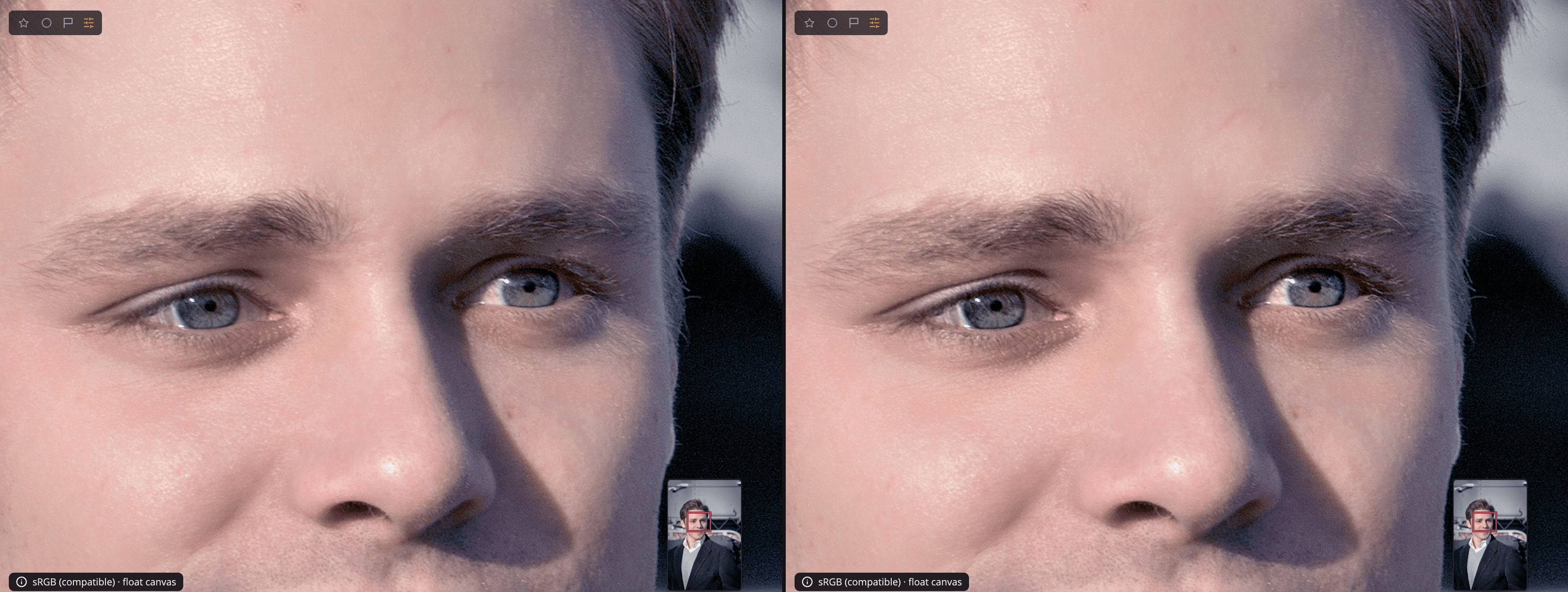
Catchlights adds a sparkle to each pupil, as if a light were reflected in it. Choose the style that matches the light you shot with:
| Style | Looks like |
|---|---|
| Umbrella | A round reflection from a photo umbrella |
| Ringlight | A ring around the pupil |
| Softbox | A soft rectangular window |
| Beauty Dish | A round dish with a dark center |
| Outdoors | The sky reflected in the eye |
If a catchlight lands in the wrong place, move the face's eye points in Face Selection. See Face Selection.
Turn Eyes off, or reset it
Click the eye icon in the Eyes header to turn the whole section off and compare. To put every tool back to its default, click the header's reset button (Reset Eyes). You can also hold ⌥ (Alt on Windows) over the title until it reads Reset Eyes, then click.
Tip
Eye Enhancement and Dark Circles also follow the Portrait slider at the top of Face. Use it to make the whole retouch stronger or gentler. See Portrait tools.