
Settings
Settings controls how Radiant Photo looks and behaves, and the defaults it starts from. Every change saves and applies right away.
To open Settings, press ⌘, (Ctrl+, on Windows), or choose Radiant Photo > Settings… on macOS and Edit > Settings… on Windows.
| # | Control | What it does |
|---|---|---|
| 1 | Search settings | Finds a setting by name and jumps to it. Press ⌘F (Ctrl+F on Windows) to type in it. |
| 2 | Sidebar | The panes, in four groups: Application, Editing, Library and System |
| 3 | Selected pane | The pane you chose, highlighted in the sidebar. Its settings fill the rest of the window. |
| 4 | Restore Defaults… | Puts every setting in this pane back to its original value |
| 5 | Changes save automatically | A reminder that there is no Save or OK button |
Settings opens on the pane you used last. Restore Defaults… asks first and can't be undone. The Account pane has none.
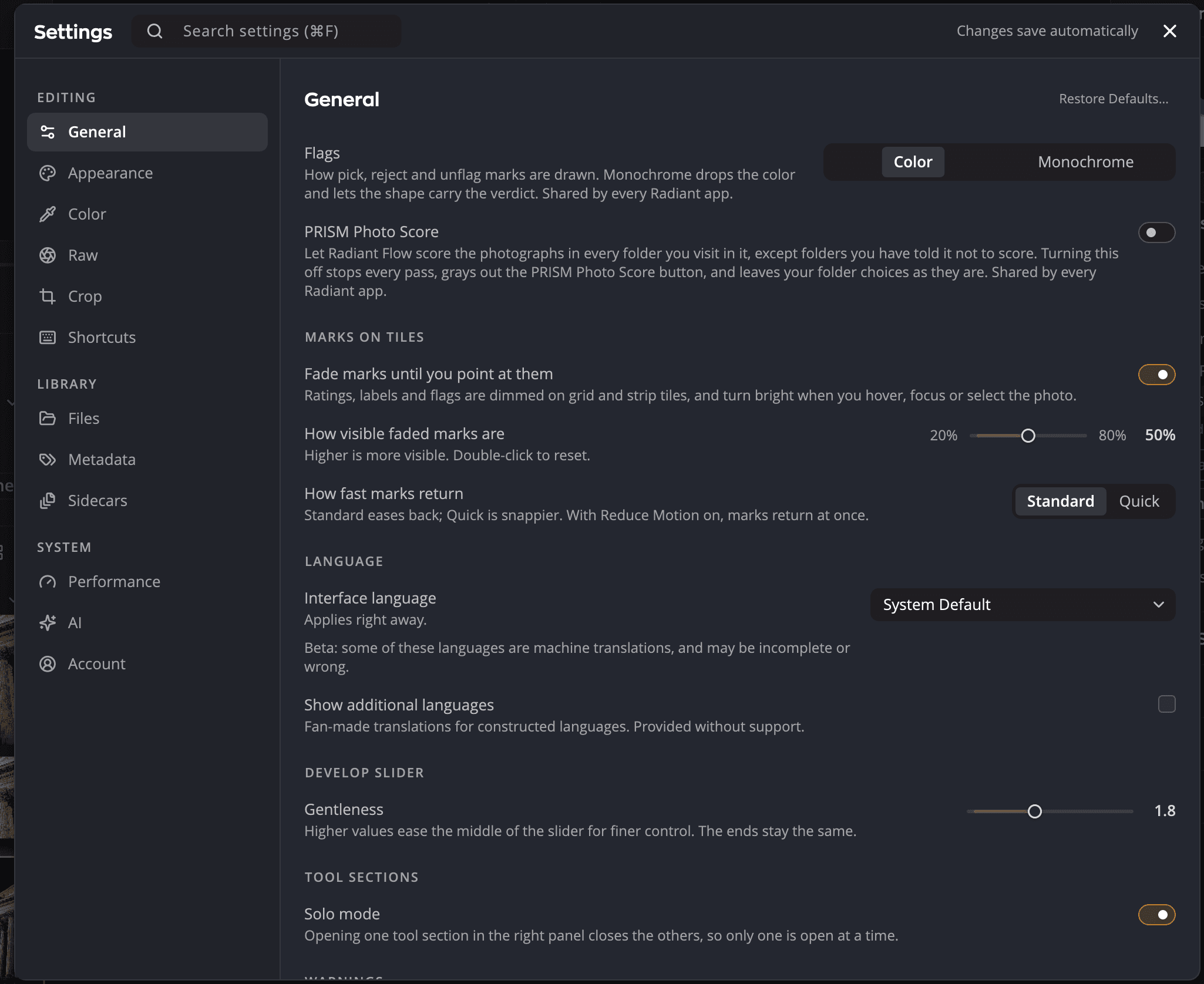
General
| Setting | Choices (default) | What it does |
|---|---|---|
| Flags | Color, Monochrome (Color) | How pick, reject and unflag marks are drawn. Shared by every Radiant app. |
| PRISM Photo Score | On, off (on) | Lets Radiant Flow score the photos in the folders you visit. Shared by every Radiant app. |
Marks on tiles
| Setting | Choices (default) | What it does |
|---|---|---|
| Fade marks until you point at them | On, off (on) | Dims ratings, labels and flags on grid and filmstrip tiles until you point at, focus or select a photo |
| How visible faded marks are | 20% to 80% (50%) | Higher is more visible. Double-click to reset. |
| How fast marks return | Standard, Quick (Standard) | How quickly faded marks come back |
Language
| Setting | Choices (default) | What it does |
|---|---|---|
| Interface language | System Default or a language (System Default) | The language of the app. It applies right away, and Radiant Flow and Radiant Raw use the same choice. In Arabic, Hebrew and Urdu, text reads right to left and the whole window is mirrored. |
| Show additional languages | On, off (off) | Adds fan-made translations for constructed languages to the list. Provided without support. |
Develop slider
| Setting | Range (default) | What it does |
|---|---|---|
| Gentleness | 1.0 to 3.0 (1.8) | Higher values ease the middle of the Develop slider for finer control. The ends stay the same. |
Tool sections
| Setting | Choices (default) | What it does |
|---|---|---|
| Solo mode | On, off (on) | Opening one tool section in the right panel closes the others |
Warnings: Reset All Warnings brings back the "don't ask again" prompts you dismissed.
Personalize Radiant Photo: Open… runs the first-launch setup again, and Undo Changes puts back what it changed. See Personalize Radiant Photo.
Coming from Radiant Photo 2: Import… brings over your develop collections, presets (as recipes), loaded LUTs, tool presets and settings. You see everything before anything is copied. See Coming from Radiant Photo 2.
Updates
| Setting | Choices (default) | What it does |
|---|---|---|
| This version | The version you're running | |
| Automatically check for updates | On, off (on) | Checks once a day in the background. Nothing installs on its own. |
| Update channel | Stable, Beta (Stable) | Beta includes stable releases too, and gets them earlier. |
| Check Now | Checks for an update right away |
See Keeping Radiant Photo up to date.
About: Show, beside Third-Party Licenses…, opens the open-source notices for everything Radiant Photo includes.
Personalize Radiant Photo
The first time Radiant Photo runs on a computer, once you've started a trial or activated, Personalize Radiant Photo opens over the window. Its five screens set Radiant Photo up for the way you work. Each choice shows in the window behind it at once, and setup never changes your photos.
| Screen | What you choose |
|---|---|
| Look | A theme (Graphite, Slate, Ash, Paper or Monochrome) and the Interface size. Radiant Raw and Radiant Flow follow the theme unless you tell them not to. |
| Workspace | The Workspace Radiant Photo opens on: Professional, Quick Edit, Portrait or Landscape. See Using Workspaces. |
| Speed | How hard Radiant Photo works your computer: Go Easy, Balanced (the standard settings) or Full Power. The screen says how much memory and how many processor cores the computer has. |
| This Mac (This PC on Windows) | On a Mac, Full Disk Access. Then the optional extras: ExifTool, a check box where Homebrew can install it, else a button that opens its download page, and on Windows Free photo formats for HEIF, AVIF and JPEG XL. An extra that is already on the computer isn't listed. |
| Ready | A summary of your choices. |
Move through the screens with Continue and Back. On the last screen, click Use This Setup to keep your choices. The extras you chose then install in the background. Skip Setup or Esc puts every setting back as it was and closes setup, and it doesn't open by itself again. If you quit Radiant Photo during setup, it reopens on the same screen the next time.
The last screen also has Show me around when my first photo opens (the Welcome tour, about 2 minutes). When setup opened by itself, the box starts ticked. Leave it ticked, and the Welcome tour starts by itself once your first photo is open. The box isn't there if you've already started or finished the tour.
Setup opens by itself only on a plain start. It waits for a later start when Radiant Photo opens with a photo or a job from another app. If Radiant Photo has run on this computer before, setup doesn't open by itself. The Full Disk Access window and the other first-day messages wait until setup closes.
To run setup again, choose Radiant Photo > Personalize Radiant Photo… on a Mac, directly under Settings…. On Windows it's the last row of the Edit menu. You can also click Open… in this row of General. In a setup you open yourself, Cancel takes the place of Skip Setup, and the tour box starts unticked.
Undo Changes puts back the settings the last Use This Setup changed. A setting you changed yourself since then keeps your value. Extras that already installed stay. The button is gray until you have used setup, and both buttons stay gray until you've started a trial or activated.
Lightroom Classic
These settings appear in General when Radiant Photo works with the Lightroom Classic plug-in. On screen they sit above Warnings.
| Setting | Choices (default) | What it does |
|---|---|---|
| During Lightroom Classic batches | Compact panel, Full editor, Dock only (Taskbar only on Windows) (Compact panel) | Compact panel keeps Lightroom in front and shows the batch in a small panel. Full editor brings the editor to the front. Dock only (Taskbar only) shows the count on the app icon. Every mode ends with one notification. |
See Using Radiant Photo with Lightroom Classic.
Radiant Photo Host
Lightroom Classic jobs run in Radiant Photo Host, a separate app. The rows under Lightroom Classic act on the Host. The first one shows in Radiant Photo's Settings and in the Host's.
| Setting | Choices (default) | What it does |
|---|---|---|
| Quit Radiant Photo Host after each Lightroom Classic job | On, off (off) | When off, Radiant Photo Host stays open after Done or Cancel, so the next photos you send from Lightroom Classic open at once. It still quits after 10 minutes with nothing to do. |
See Radiant Photo Host.
Appearance
| Setting | Choices (default) | What it does |
|---|---|---|
| Theme | Graphite (Darkest), Slate (Dark), Ash (Medium), Paper (Light), Monochrome (No color distraction). Default Slate. | The colors of the whole interface |
| Interface size | Smaller, Default, Larger, XL (Default) | Makes the whole interface larger or smaller. The larger sizes take room from the photo. |
| Accessible font | On, off (off) | One highly legible typeface throughout |
| Simplify typography | On, off (off) | Larger text and flatter weights for easier reading |
| Reduce motion | On, off (off) | Turns off interface animations. Your system's reduce motion setting turns it on for you. |
Keyboard Shortcuts
Every keyboard shortcut, and the place to change them. Click a shortcut, then press new keys. Use Search shortcuts to find a command, Duplicate… and More set actions (with Import… and Export…) to manage sets, and Restore Defaults… to clear your changes. Help > Keyboard Shortcuts opens this pane too. See Keyboard shortcuts.
Account
License shows the Status of your license and your Keycode. Manage License… opens the About window with your license details. Deactivate This Mac… (Deactivate This PC… on Windows) frees your keycode for another computer. See Moving to a new computer.
Purchases shows your Radiant Toolkit subscription. My Library… opens your purchases in the Store. Restore Purchases… finds purchases you made on the web or on another computer.
Privacy
| Setting | Choices (default) | What it does |
|---|---|---|
| Keep an Auto Crop record | On, off (off) | Keeps a private list on this computer of the crops Auto Crop suggested and the ones you kept. It is never sent anywhere. Turning it off deletes it. |
Color
Editing color space
| Setting | Choices (default) | What it does |
|---|---|---|
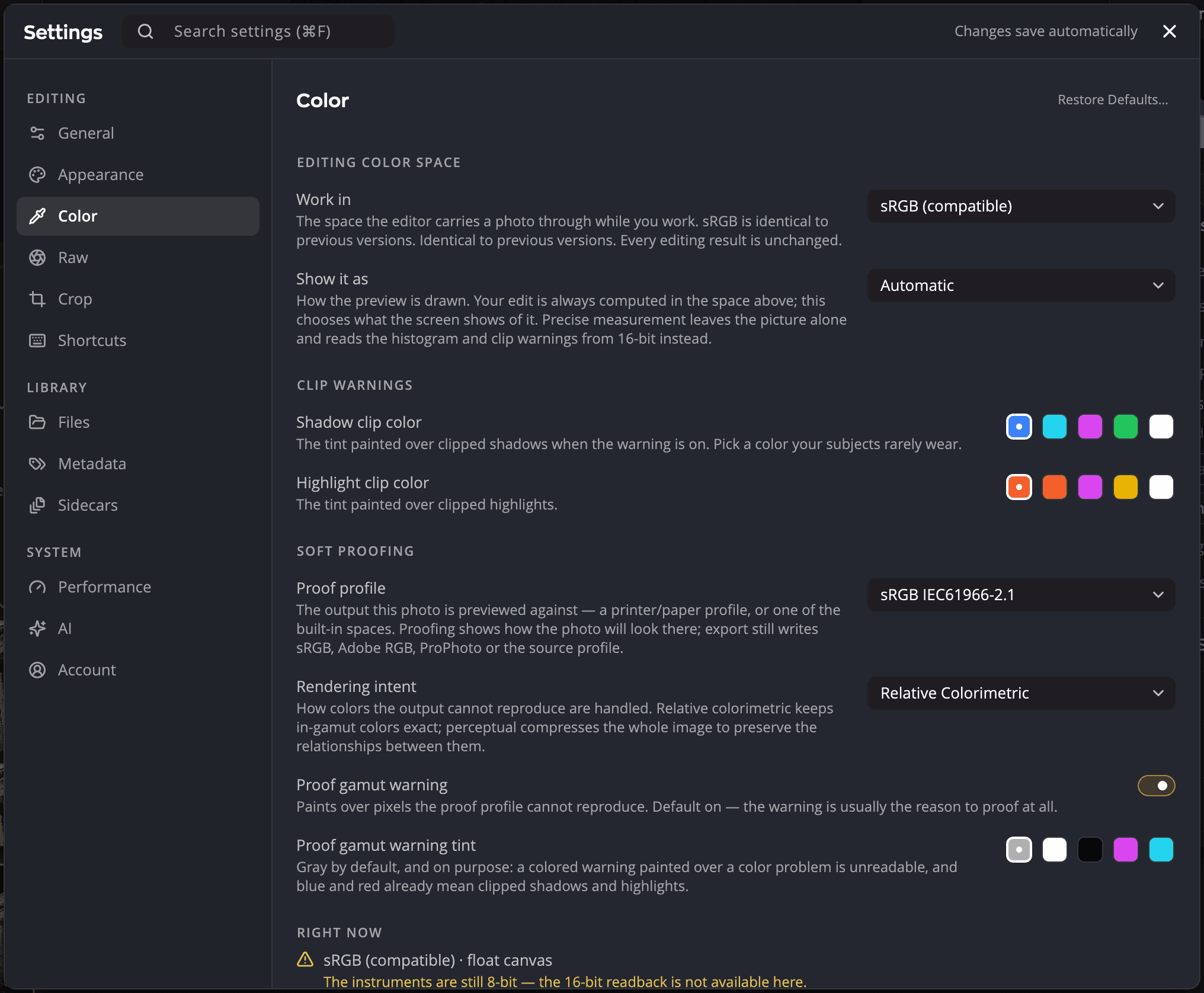
| Work in | sRGB (compatible), Display P3, Adobe RGB (1998), ProPhoto RGB (sRGB (compatible)) | The color space Radiant Photo edits in. sRGB matches previous versions. |
| Show it as | Automatic, Performance, Precise measurement, High fidelity (Automatic) | How the preview is drawn. Your edit is always computed in the Work in space. |
When you change Work in with photos open, Radiant Photo asks whether to update them. Keep as they are leaves them in their space. Update them reloads them in the new one.
Precise measurement leaves the picture as it is and reads the histogram and clip warnings from 16-bit values.
Clip warnings
| Setting | Default | What it does |
|---|---|---|
| Shadow clip color | Blue | The tint over clipped shadows when the clipping warning is on |
| Highlight clip color | Red | The tint over clipped highlights |
Click a swatch to choose another color. Pick one your subjects rarely wear.
Soft proofing
| Setting | Choices (default) | What it does |
|---|---|---|
| Proof profile | sRGB IEC61966-2.1, Adobe RGB (1998), Display P3, ProPhoto RGB, your installed profiles, or Choose ICC profile… (sRGB IEC61966-2.1) | The output, such as a printer and paper, that Soft Proofing previews |
| Rendering intent | Perceptual, Relative Colorimetric, Saturation, Absolute Colorimetric (Relative Colorimetric) | How colors the output can't reproduce are handled |
| Proof gamut warning | On, off (on) | Paints over the pixels the proof profile can't reproduce |
| Proof gamut warning tint | Gray by default | The color of that warning |
Soft proofing changes only the preview. Saving still writes the color space you choose in the Save dialog.
Right now sums up how the current photo is being edited and shown.
Raw
When opening a Raw has these choices:
| Choice | What happens |
|---|---|
| Automatic (no Develop) | Develops the raw file as shot and opens it. |
| Apply recipe | Develops the raw file with a recipe you choose under Recipe: a built-in one, or one of your own from Radiant Raw. Manage Recipes… renames, duplicates and deletes them. See Raw files and Radiant Raw. |
| Develop in Radiant Raw | Opens the raw file in Radiant Raw first. Shown when Radiant Raw is installed. |
| Ask each time | Asks which of these to use. |
The default is Ask each time when Radiant Raw is installed and activated, and Automatic (no Develop) otherwise. If Radiant Raw isn't activated, its choice shows Not activated and an Activate Radiant Raw button. If it isn't installed, Learn about Radiant Raw opens its web page. See Raw files and Radiant Raw.
Rendition sets the file Radiant Photo writes when it develops a raw file on its own:
| Setting | Choices (default) |
|---|---|
| File type | TIFF, PNG, JPEG, JPEG XL (TIFF) |
| Bit depth | 8-bit, 16-bit (16-bit; JPEG is always 8-bit) |
| Compression | None, LZW, ZIP (ZIP; TIFF only) |
| JPEG quality | 1 to 100 (91; JPEG and JPEG XL only) |
| HDR photos as HDR JPEG | On, off (on; shown for JPEG) |
With a recipe, these files are in Adobe RGB (1998), as in Radiant Raw. With Automatic (no Develop), they're in the color space you work in. You set it under Color. Photos developed in Radiant Raw always come back as 16-bit TIFF files.
Crop
Crop & Straighten
| Setting | Choices (default) | What it does |
|---|---|---|
| Keep Crop open when switching photos | On, off (off) | Stays in the Crop tool as you move through the filmstrip |
| When you press Auto Crop | Apply the best framing, Show the list first, Open Compare Crops (Apply the best framing) | What the Auto Crop button, its menu item and its shortcut do |
Crop found in a sidecar: what to do when a photo arrives with a crop from another app, such as a catalog app. Choose Ask each time (the default), Always keep or Always ignore.
Portrait presets lists the framing presets that Portrait uses. See Crop & Straighten.
Tools
Spot Removal: The Brush drag, up and down changes row sets what a vertical drag of the brush adjusts: Softness (the default) or Opacity.
The Pen pressure row sets how hard a pen must press to paint a fix at the brush's full Opacity, while Pressure for Opacity is on in Spot Removal. Choose Soft for a lighter press, Normal (the default) or Firm for a harder one. Your next fix uses the new setting. See Spot Removal.
Workflows
The Workflows you own, in the order PRISM favors them. Core is always on and isn't listed.
| Control | What it does |
|---|---|
| Drag handle | Drag a Workflow up or down. When two Workflows fit a photo about equally, PRISM suggests the one higher in the list. |
| On/off switch | A Workflow that's off isn't suggested. |
| Solo | PRISM suggests only this Workflow, with Core. A notice at the top of the pane says so, with Leave Solo. |
| Solo lasts | This session or Until I change it |
Until you own a Workflow, the pane says so and lists none. See The role of a Workflow.
PRISM Photo Score
How PRISM Photo Score rates your photos: which qualities count and how much, and where the lines between the star ratings fall. The pane appears only while PRISM Photo Score is on in General. See Reviewing photos.
Files
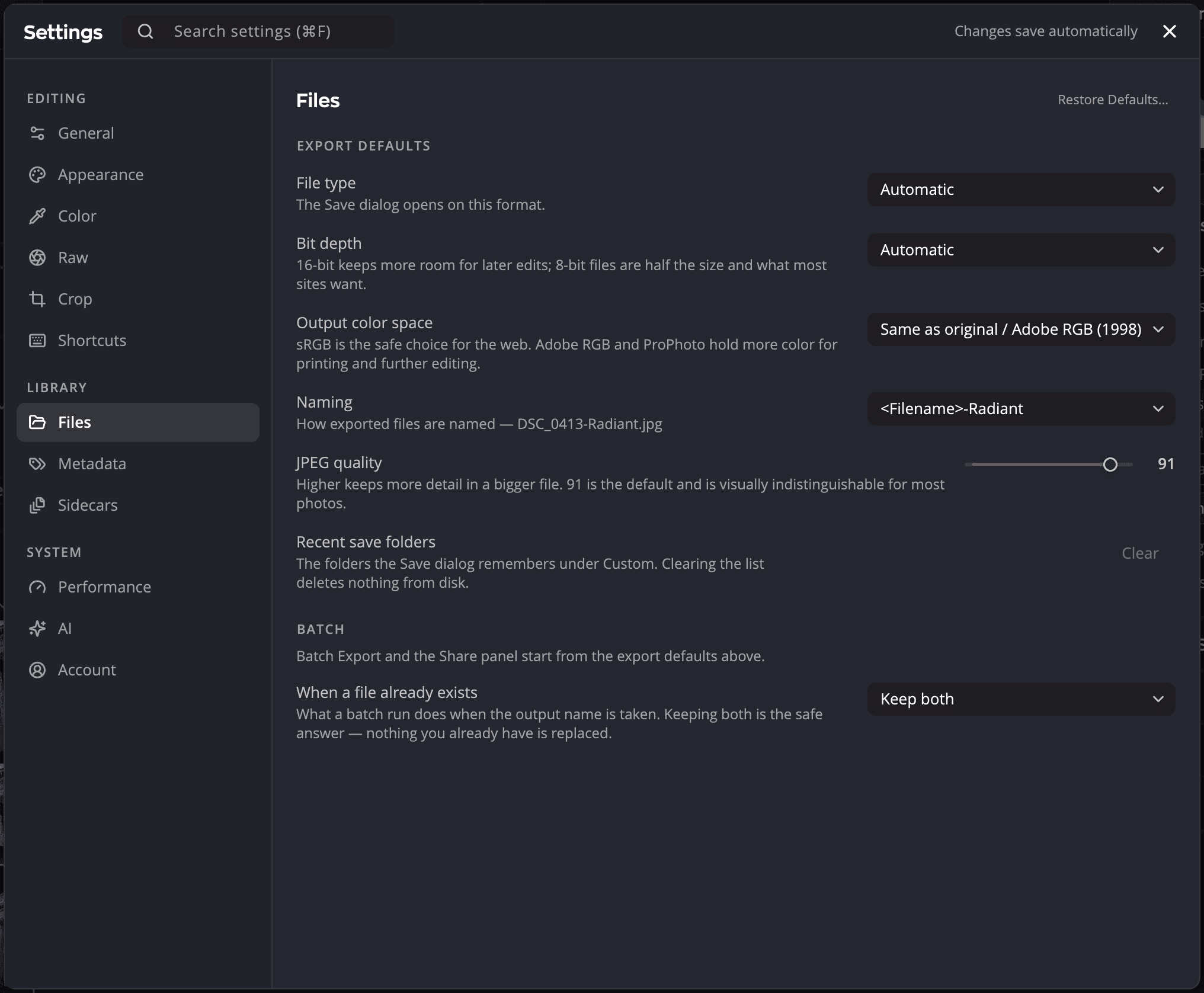
Export defaults are the values the Save dialog opens with, and the starting point for Save all as JPEG, Save all as PNG and Batch Export.
| Setting | Choices (default) | What it does |
|---|---|---|
| File type | Automatic, JPEG, PNG, TIFF (Automatic) | Automatic picks TIFF for a raw file and JPEG otherwise. |
| Bit depth | Automatic, 8 Bits/Channel, 16 Bits/Channel (Automatic) | 16-bit keeps more room for later edits. 8-bit files are half the size. |
| Output color space | sRGB, ProPhoto RGB, Adobe RGB (1998), and the three Same as original choices (Same as original / Adobe RGB (1998)) | sRGB is safest for the web. Adobe RGB and ProPhoto hold more color for printing and editing. |
| Naming | <Filename>-Radiant, <Filename>_<Preset>, <Filename>_display (<Filename>-Radiant) | How saved files are named |
| JPEG quality | 10 to 100 (91) | Higher keeps more detail in a bigger file |
| Recent save folders | Clear | Empties the list of folders the Save dialog remembers. Nothing is deleted from disk. |
Batch
| Setting | Choices (default) | What it does |
|---|---|---|
| When a file already exists | Replace existing, Keep both, Stop (Keep both) | What a batch does when the file name is taken. Keep both never replaces anything. |
| Start jobs from Radiant Flow on arrival | On, off (on) | On, a job Radiant Flow sends with Process with… starts as soon as it arrives, after any job already running. Off, it waits in Jobs until you click Start. See Jobs from Radiant Flow. |
Photo formats (Windows only) shows whether this PC can read HEIC and the other formats that need extensions from the Microsoft Store. Click Set up codecs… to install what's missing.
Metadata
On export
| Setting | Choices (default) | What it does |
|---|---|---|
| Preserve capture metadata | On, off (on) | Carries EXIF, IPTC and GPS from the original into saved files. Off removes all of it. On Windows this needs ExifTool. |
| Default watermark | None or one of your watermarks | Used by every output set to Default. Saves back into a library are never marked |
While Preserve capture metadata is on, you can still leave out parts of it. Each one is off by default:
| Setting | What it removes |
|---|---|
| Remove location | GPS coordinates and place names |
| Remove people and face tags | The names of the people in the photo |
| Remove camera info | Make, model, lens and the body serial number |
| Remove capture date | When the photo was taken |
| Remove creator and copyright | By-line, artist and rights fields |
| Remove keywords and caption | Keywords and caption, which often hold private notes |
Overwrite existing IPTC fields (off): when off, a copyright card only fills the fields the file is missing. You write your copyright and contact cards in the Metadata panel on the right. They go into your saved files following the settings above.
Restore Defaults… on this pane keeps Preserve capture metadata, your removal choices and your default watermark. That way, a reset never puts more of your data into your files.
Sidecars
Settings files saved next to your photos
| Setting | Choices (default) | What it does |
|---|---|---|
| Automatically save develop settings | On, off (on) | Saves your settings next to the photo when you move to another photo. When off, they're saved only when you save or export. |
| Use existing develop settings | On, off (on) | Applies the settings saved next to a photo when you open it. When off, photos always open with default settings. |
| Save to | Sidecar (.xmp), Sidecar (.radiant), Inside the photo (all three) | Where a save beside the photo writes. .radiant keeps every Radiant Photo setting; .xmp is the standard file other photo apps read; inside the photo holds the metadata of a DNG, JPEG or TIFF. At least one stays checked. Radiant Raw and Radiant Flow share this choice. |
See Saving develop settings beside your photos.
When a photo changes in two apps picks which change is kept when a photo's rating, flag, color label, location or text, such as its caption or title, changed both in Radiant and in another app. A change made in one app alone always comes across. Keywords from both apps are always kept. Radiant Flow, Radiant Raw and Radiant Photo share these rows: a row you change in one app reads the same in the other two.
| Row | Choices (default) | What it does |
|---|---|---|
| Update the files of Lightroom Classic photos | On, off (on) | When off, Radiant never changes the file or .xmp sidecar of a photo in a Lightroom Classic catalog. Your changes still reach the catalog through the Radiant plug-in. |
| Lightroom Classic | Lightroom Classic wins, Radiant wins, Newer change wins (the other app wins) | Radiant Flow uses it when it syncs a Lightroom Classic catalog. |
| Capture One | The same three (the other app wins) | Radiant Flow uses it when it syncs a Capture One catalog or Session on a Mac. |
| Mylio | The same three (the other app wins) | Used when a Radiant app reads back Mylio's changes to a photo's rating, flag or color label. |
Below the rows, two cards show how the other apps are doing. The Lightroom Classic card shows whether Lightroom Classic and the Radiant Photo plug-in are installed, whether Lightroom Classic is running, whether the plug-in is taking changes, and what waits for each catalog Radiant Flow syncs. If the plug-in is missing or older, click Reinstall. The Capture One card shows whether Capture One and its Radiant Photo plug-in are installed, and whether Capture One is running. See Using Radiant Photo with Lightroom Classic.
Because the three apps share these rows, Restore Defaults… on this pane also sets them back in Radiant Flow and Radiant Raw.
Camera MakerNotes: a camera's own block of metadata is lost when a photo is saved again, unless ExifTool is installed. Click Install ExifTool (on macOS this uses Homebrew; on Windows it takes you to the installer). Then Preserve maker notes on export (on by default) keeps the MakerNotes in your saved files.
Adobe DNG Converter: Radiant Photo doesn't include it. Click Install DNG Converter to install Adobe's free tool, which turns on File > Convert Raw to Linear DNG…. See DNG files.
Performance
| Setting | Choices (default) | What it does |
|---|---|---|
| Optimized previews | Small, Medium (Small) | The working resolution the editor renders at |
| System performance | 0.30 to 0.85 (0.85) | Low keeps the app light. High uses more of your computer. |
| Dynamic proxies | On, off (off) | Shows a fast preview first while you drag, then refines it |
| Faster slider drags | On, off (on) | Reuses the image analysis while you drag. The exact result appears when you let go. |
AI
| Setting | Choices (default) | What it does |
|---|---|---|
| Choose develop settings automatically from the scene | On, off (on) | When you open a photo with no saved edits, applies the recipe that matches its scene |
See How we use AI.
Plug-ins
Lists the photo editors on this computer and where Radiant Photo's plug-in is installed for each, with Check again. Repair puts the plug-in back for Photoshop and Photoshop Elements, after your computer asks for an administrator's permission. Radiant Photo never changes another program's settings.
Lab
Radiant's roadmap, where you vote for features, follow them, comment and suggest ideas. Help > Roadmap and Betas… opens Settings on this pane. The Lab pane has no Restore Defaults…, because every choice on it is your own. See The Lab.