
Selective Color
Selective Color changes one range of colors without touching the rest. Make a sky bluer, calm a green cast in foliage, or deepen the orange of autumn leaves. The panel also has Split Color Warmth for warming or cooling the warm and cool parts of a photo. You'll find Selective Color in the right panel; press H to open it.
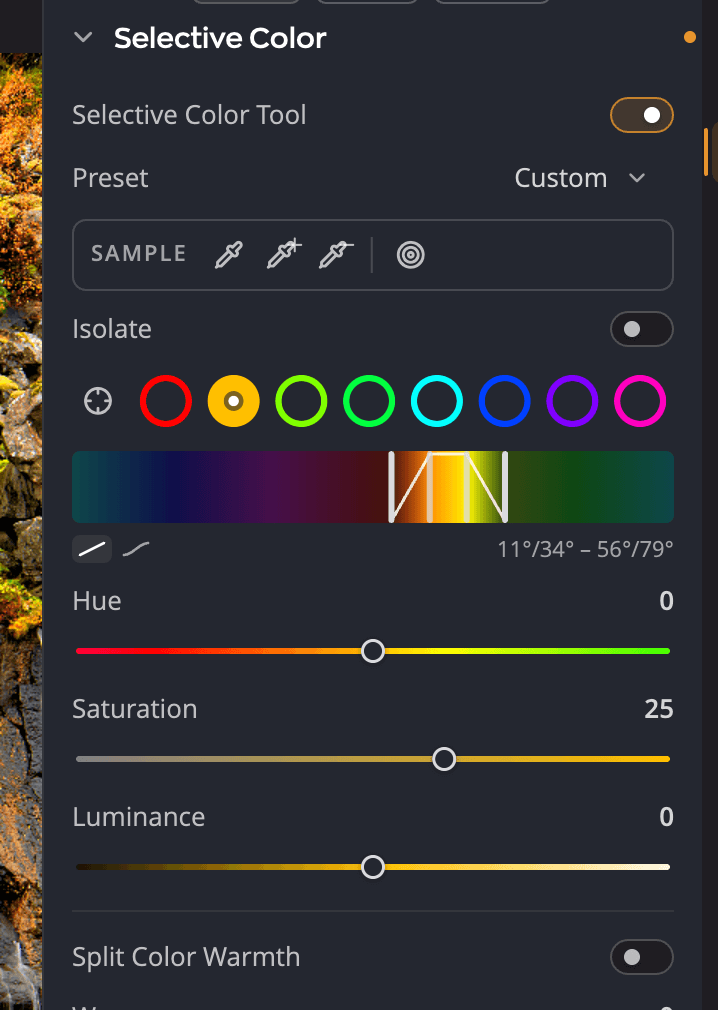
| # | Control | What it does |
|---|---|---|
| 1 | Selective Color Tool | Turns the color bands on or off. |
| 2 | Preset | Built-in and saved Selective Color presets. |
| 3 | Sample tools | Retarget a band, extend or narrow its range, or drag on the photo. |
| 4 | Isolate | Shows only where the selected band acts. |
| 5 | Band-target eyedropper | Click a color in the photo to select its band. |
| 6 | Band circles | Reds, Oranges, Limes, Greens, Cyans, Blues, Purples, Magentas. |
| 7 | Hue ramp | The range of hues the band affects, and how softly it fades out. |
| 8 | Hue, Saturation, Luminance | What happens to that band's colors. |
Change a color
- Press H, or open Selective Color in the right panel.
- Click the band circle closest to the color you want to change. Or click the band-target eyedropper, then click that color in the photo.
- Adjust the sliders:
| Slider | Range (default) | What it does |
|---|---|---|
| Hue | −60 to +60 (0) | Shifts the band's colors toward its neighbors on the color wheel. |
| Saturation | −100 to +100 (0) | Makes the band's colors more or less intense. |
| Luminance | −100 to +100 (0) | Darkens or lightens the band's colors. |
Each of the eight bands keeps its own settings, so you can change several colors in one photo.
Drag on the photo
Click the targeted adjustment button in the Sample tools, then press on a color in the photo and drag up or down. The band that holds that color gets more or less saturated.
Fit the band to your photo
If no band sits exactly on your color, move one there.
- Retarget eyedropper: click it, then click a color in the photo. The band moves to that color.
- Extend range eyedropper: widens the band to include a color you click.
- Narrow range eyedropper: narrows the band to leave out a color you click.
- Double-click a band circle to type or drag its Band hue center.
The hue ramp under the circles shows the band's range. The two inner handles set where the band works at full strength; the two outer handles set where it fades out. Wider fades give smoother, halo-free transitions. A switch beside the ramp chooses a linear or curved fade.
Check your selection with Isolate
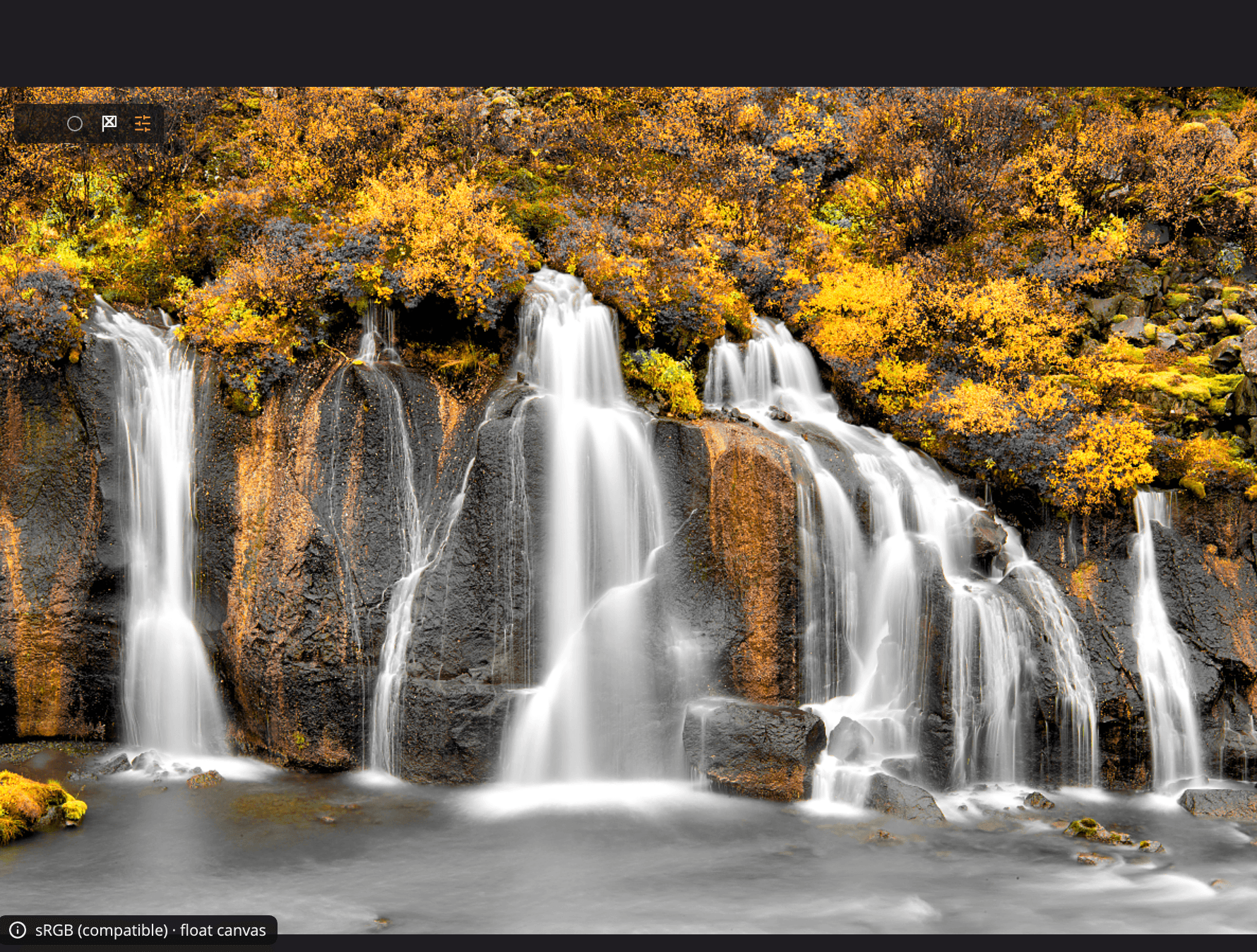
Turn on Isolate to see exactly what the band affects. The photo keeps its color only where the band acts and turns gray everywhere else. Isolate is a view only: it changes nothing in your photo and isn't saved.
Split Color Warmth
Split Color Warmth divides the photo into warm and cool zones and lets you shift each one.
| Slider | Range (default) | What it does |
|---|---|---|
| Warm | −100 to +100 (0) | Warms or cools the warm areas. |
| Cool | −100 to +100 (0) | Warms or cools the cool areas. |
Push them apart to make warm and cool areas stand out from each other, like a split tone for color. Or warm up cold areas for a better balance. Moving either slider turns Split Color Warmth on.
Presets
The Preset menu lists the built-in presets and your own. Under Manage, choose Save preset… to keep the current bands, or Rename…, Delete…, Export… and Import… to look after your presets.
When Selective Color pauses
While the photo is in B&W or Invert mode, Selective Color pauses. Its controls fade and its values are kept for when you return to Color. The panel says Selective Color pauses in B&W and Invert; its values are kept.
To reset the whole panel, hold the pointer over the Selective Color header and click its reset button.